- To activate your OnePay card, whether it's a debit, credit, replacement, or retail card from Walmart, you need to visit the www.onepay.com Activate Card page or use the OnePay mobile app. Each card type might have a specific activation process, so make sure you use the correct one.
- Activation involves logging into your OnePay account, verifying card details, and setting a four-digit PIN. This confirms that the card is with the right person and connects it to your OnePay account for purchases and transactions.
After receiving a new OnePay card, you must activate it before using it for purchases, ATM withdrawals, or other supported transactions. The activation process normally takes only a few minutes and can be completed through the official OnePay website or the OnePay mobile app.
However, OnePay offers several types of physical cards, including the OnePay Debit Card, OnePay Credit Card, replacement cards, and OnePay Retail Cards purchased at Walmart. The correct activation method depends on which card you received.
This guide explains how to use the www.onepay.com Activate Card page, activate a OnePay U.S. card through the mobile app, create your card PIN, and fix common activation problems.
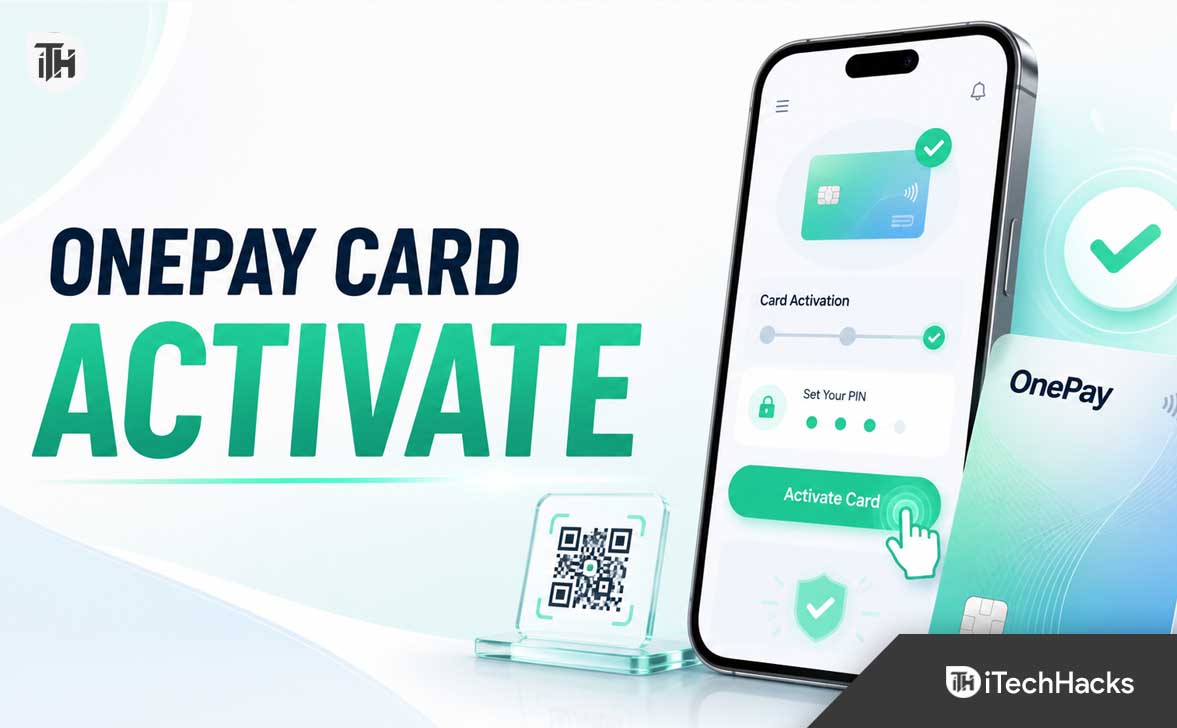
What Is OnePay Card Activation?
Card activation is a security process that confirms your physical OnePay card has reached the correct account holder. Until activation is completed, the card may be declined even when your OnePay account has an available balance.
During activation, OnePay may ask you to sign in, verify information from the card, and create a four-digit PIN. Once the information is accepted, the physical card becomes connected to your active OnePay account and is ready for supported transactions.
OnePay currently allows eligible physical cards to be activated through its mobile app or online. The company’s official instructions state that physical card activation includes verifying the card and setting a four-digit PIN.
Which OnePay Card Do You Have?
Before starting the OnePay card activation process, identify the type of card in your possession. Using the wrong activation page is one of the most common reasons customers cannot complete activation.
OnePay Debit Card
The OnePay Debit Card is connected to the available balance in your OnePay Checking account. It may be used for purchases and withdrawals after activation, subject to account availability, card limits, and merchant acceptance.
Customers who received a standard physical debit card in the mail can usually activate it through the OnePay app or the official online activation page.
OnePay Credit Card
A OnePay Credit Card uses a credit account rather than money held in a OnePay Checking balance. It has a separate activation route inside the OnePay app and through OnePay’s official web portal.
Make sure you select the credit-card activation option if the card packaging or account screen identifies your card as a credit card.
OnePay Retail Card Purchased at Walmart
A OnePay Retail Card is a temporary card purchased and loaded at a participating Walmart store. It is not the same as a standard gift card. Activating the retail card also begins the process of applying to bank through OnePay.
OnePay says a retail card will not work until it is activated. Activation can be started by scanning the QR code on the packaging, using the designated retail-card activation page, or selecting the retail-card option from an existing OnePay account.
Replacement OnePay Card
A replacement card must usually be activated even if the previous card was already active. This helps OnePay confirm that the replacement reached you before it can be used.
After activation, check recurring payments and digital wallets. A replacement issued for a stolen or missing card may have a new card number, expiration date, and security code.
What You Need Before Activating Your OnePay Card
Having the correct information ready can prevent the activation session from timing out or failing during identity verification.
- Your new physical OnePay card
- The mobile phone number or email address linked to your OnePay account
- Access to receive a one-time verification code
- Your OnePay account passcode
- The OnePay mobile app or a supported web browser
- A stable internet connection
- The requested card information
- A four-digit PIN that you can remember
Do not use an easily guessed PIN such as 0000, 1111, your birth year, or the last four digits of your phone number. Also, never share your verification code, account passcode, full card number, PIN, or card security code with someone claiming they need it to activate your card.
How to Activate Your Card at www.onepay.com
The online method is useful when you do not have the OnePay app installed or prefer to complete activation through a browser. Use only a page hosted on OnePay’s official domain.
Step 1: Open the Official OnePay Activation Page
Open your browser and search for the official www.onepay.com Activate Card page. Confirm that the domain belongs to OnePay before entering any personal or card information.
Avoid activation links received through unexpected text messages, social-media posts, online advertisements, or emails. Fraudulent websites sometimes imitate card activation pages to collect account credentials.
Step 2: Select the Activation Option
Choose the option to activate your card. Depending on the card type and whether you are already signed in, the website may direct you to the secure OnePay account portal.
Do not select a retail-card option for a standard debit or credit card. Likewise, a OnePay Retail Card purchased from Walmart may require its dedicated activation route.
Step 3: Sign In to Your OnePay Account
Enter the phone number associated with your OnePay account. You may also be able to sign in using the email address registered on the account.
OnePay uses a one-time six-digit verification code during sign-in, followed by the account passcode. If you cannot access the phone number on file, the email sign-in option may be available.
Step 4: Enter the Requested Card Information
Carefully enter the information shown on your physical card. Depending on the activation screen, you may be asked for details such as the card number, expiration date, security code, or another identifying value.
Enter every digit exactly as printed. A single incorrect number can produce an invalid-card or unable-to-verify message.
Step 5: Create a Four-Digit PIN
Choose a four-digit PIN for transactions that require one, such as certain in-store purchases or ATM withdrawals. Re-enter the PIN when asked to confirm it.
Your card PIN is separate from the passcode used to sign in to your OnePay account. Store both securely and do not share them with anyone.
Step 6: Confirm Activation
Wait for the activation confirmation screen before closing the browser. Once OnePay confirms that activation is complete, the physical card should be ready for use.
If the page freezes after submission, do not repeatedly submit the card information. First check the OnePay app to see whether the card now appears as active.
How to Activate a OnePay Card in the Mobile App
The OnePay mobile app is often the easiest activation method because it connects directly to your account and may recognize a recently shipped card.
Step 1: Install or Update the OnePay App
Download the official OnePay mobile banking app from the Apple App Store or Google Play Store. If the app is already installed, update it before beginning activation.
An outdated app may display missing buttons, fail during verification, or continue loading without completing activation.
Step 2: Sign In
Open the app and sign in using your registered phone number or email address. Enter the one-time verification code and your OnePay account passcode when requested.
Use the same account under which the card was ordered. Signing into a different account can prevent the new card from appearing.
Step 3: Find the New Card
From the Home screen, look for a notification such as Track Card, Activate Your Card, or a card-related banner. You may also scan the QR code included with the new card using your phone’s camera.
For cards connected to Checking or Savings, open the relevant account and select the card icon or Card Details section.
Step 4: Select Activate Your Card
Tap Activate Your Card and enter the requested verification details. Check the information carefully before continuing.
If the app shows more than one card, verify the final digits so you do not select an old, frozen, or replaced card.
Step 5: Set the Card PIN
Create a four-digit PIN and confirm it. Avoid using numbers that are easy for another person to guess.
After the app displays a successful activation message, the card should be available for purchases. OnePay’s official activation instructions confirm that customers can activate from the Home tab, scan the included QR code, verify the card, and create a four-digit PIN.
How to Activate a OnePay Retail Card Purchased at Walmart
The process for a OnePay Retail Card is different from activating a physical debit card delivered by mail. Keep the card packaging because it may contain the QR code needed to begin.
For a New OnePay Customer
Scan the QR code printed on the card packaging using your phone’s camera. Follow the official OnePay instructions to create or verify your profile and submit the required information.
OnePay may request your full legal name, U.S. physical address, date of birth, Social Security number, phone number, email address, and additional identity documents. You must generally be at least 18 years old to apply for a OnePay deposit account.
For an Existing OnePay Customer
Open the OnePay app and select Checking or Savings from the Home screen. Tap the card icon to open Card Details, and then select Activate debit card bought in store.
Follow the prompts to connect the retail card and its loaded balance to your existing account.
What Limited-Use Activation Means
If OnePay cannot verify all the information submitted during the retail-card application, the card may be activated for limited use. This generally allows you to spend the initial amount loaded onto the card, but additional restrictions may apply.
A limited-use retail card should not be treated as a fully approved standard OnePay deposit account. Review the status shown inside the OnePay app before attempting transfers, reloads, or other account functions.
How to Know Whether Your OnePay Card Is Activated
After completing the process, open the OnePay app and view the appropriate card details. The activation prompt should disappear, and the card should no longer display an inactive status.
You can also confirm the following:
- The app allows you to view or manage the physical card.
- The card appears under the correct Checking, Savings, or credit account.
- You can freeze or unfreeze the card from Card Details.
- The app does not continue asking you to activate the same card.
- A small supported purchase is approved.
A declined transaction does not always mean activation failed. Insufficient balance, a frozen card, incorrect billing information, merchant restrictions, or spending limits can also cause a decline.
Fix OnePay Card Activation Not Working
1. Confirm You Are Using the Correct Activation Route
Standard debit cards, credit cards, and Walmart retail cards may use different activation options. Read the card packaging and check the product name inside your OnePay account.
If the page does not recognize the card, return to the OnePay app and select the activation prompt associated with that specific card.
2. Check the Card Information
Re-enter the card number, expiration date, security code, and any other requested details. Make sure you have not confused zero with the letter O or entered information from an older card.
If you received a replacement, activate the replacement card rather than attempting to reactivate the previous card.
3. Update the OnePay App
Open the App Store or Google Play Store and check for a OnePay update. Restart your phone after installing the latest version, and then try activation again.
Updating can resolve compatibility problems, missing activation buttons, login loops, and errors caused by an outdated app session.
4. Disable VPN or Private DNS Temporarily
A VPN, proxy, ad blocker, private DNS service, or restrictive network may interfere with account verification. Temporarily disable these services and reconnect using a trusted home network or mobile data.
Do not activate a financial card over an unsecured public Wi-Fi network.
5. Request a New Verification Code
If the one-time code does not arrive, check that your phone has network coverage and that messages from unknown senders are not blocked. Wait briefly before requesting another code.
OnePay advises customers to use the resend option when the six-digit verification code does not arrive. If repeated codes fail, contact support rather than continuously requesting new codes.
6. Try Signing In With Your Email
If you no longer have access to the phone number registered with OnePay, select the email sign-in option. Enter the email address connected to your account and check the inbox and spam folder for the verification message.
After signing in, update outdated contact information through the account profile when the option is available.
7. Clear Browser Data or Use Another Browser
Corrupted cookies or stored website files can prevent the activation page from loading correctly. Clear the browser cache and cookies for OnePay, close the browser, and reopen the official activation page.
You can also try a current version of Chrome, Safari, Firefox, or Microsoft Edge. Avoid browsers embedded inside messaging or social-media apps.
8. Check Whether the Card Is Frozen
A card may be activated but still decline transactions because it is frozen. Open Card Details in the OnePay app and verify that the physical card is not frozen.
OnePay also provides an option that can freeze all cards and payments. When enabled, it may block physical-card transactions, digital-wallet payments, and ATM withdrawals.
9. Check Your Available Balance
A OnePay Debit Card uses the money available in the connected Checking balance. Verify that the account contains enough available funds to cover the purchase and any temporary authorization hold.
Hotels, gas stations, rental services, and some online merchants may request an authorization amount higher than the final purchase price.
10. Wait Before Trying Again
Repeated failed verification attempts may temporarily prevent additional requests. Close the app or browser and try again later using accurate information.
Avoid submitting different personal details in an attempt to bypass verification. Mismatched information may create further account-review problems.
OnePay Card Activated but Still Declined
If activation succeeded but the card does not work, check your balance, card status, billing address, and transaction amount. For online purchases, the billing address should match the home address associated with your OnePay account.
OnePay recommends confirming that the physical card is activated, not frozen, has sufficient funds, uses the correct billing address, and does not exceed the applicable daily spending limit.
You should also consider whether the merchant accepts the card network shown on your OnePay card. Certain merchants, payment types, recurring transactions, cash-equivalent purchases, and international transactions may be restricted or handled differently.
OnePay Card Activation Safety Tips
- Use only the official OnePay website or mobile app.
- Check the website spelling before entering information.
- Do not activate the card through a link from an unknown sender.
- Never share your one-time verification code or account passcode.
- Do not send photos of the front or back of your card.
- Avoid using public Wi-Fi during activation.
- Create a PIN that cannot be easily guessed.
- Freeze the card immediately if it is missing or stolen.
OnePay support should not need you to publicly post your card number or send your PIN through social media. Contact support through the OnePay app or the official customer-service channel.
How to Contact OnePay Customer Service
If the www.onepay.com Activate Card process continues to fail, contact OnePay support. In-app chat is available through the Help section of the OnePay app.
OnePay lists customer support at 1-855-830-6200, available 24 hours a day, seven days a week. The company also provides 24-hour in-app chat support.
Before contacting support, keep your physical card nearby and be prepared to verify your identity. Never provide your PIN or complete one-time verification code to an unsolicited caller.
Frequently Asked Questions
Can I activate my OnePay card online?
Yes. Eligible physical OnePay cards can be activated through OnePay’s official online portal. You may need to sign in, verify the card information, and create a four-digit PIN.
Can I activate my OnePay card without the app?
Yes. The online activation option can be used without installing the mobile app. However, the app is useful for managing the card, checking transactions, freezing the card, and updating the PIN.
Why does www.onepay.com not recognize my card?
You may be using the wrong activation option, entering incorrect card information, signing into a different OnePay account, or attempting to activate a OnePay Retail Card through the standard card page.
How do I activate a OnePay card bought at Walmart?
Scan the QR code on the retail-card packaging and follow the official activation instructions. Existing OnePay customers can open Checking or Savings, select Card Details, and choose the option to activate a debit card bought in a store.
Is the OnePay Retail Card a gift card?
No. OnePay states that its retail card is not a gift card. Activating it involves applying to bank through OnePay, although some cards may receive a limited-use status when identity verification cannot be completed.
Do I need to activate a replacement OnePay card?
Yes. A newly issued replacement card generally needs to be activated before use. The previous card may stop working immediately if it was reported missing or stolen.
What PIN should I use for my OnePay card?
Create a private four-digit PIN that you can remember but others cannot easily guess. Do not use repeated digits, your date of birth, phone-number digits, or another obvious sequence.
Why am I not receiving the OnePay verification code?
Check your cellular connection, blocked-message settings, email spam folder, and whether the correct phone number or email is linked to the account. Use the resend option once, then contact OnePay if the code still does not arrive.
Can I use my OnePay card immediately after activation?
The card should normally be ready after OnePay confirms successful activation. If it is declined, verify the available balance, card-freeze status, billing address, merchant acceptance, and transaction limits.
How can I tell if my OnePay card is frozen?
Open the OnePay app, select the appropriate account, and go to Card Details. Review the freeze controls for the physical card and the option that freezes all cards and payments.
What should I do if my new OnePay card is missing?
Do not activate a card you do not physically possess. Report it as missing through the OnePay app or contact customer support so the card can be disabled and replaced.
Final Thoughts
The fastest way to complete the www.onepay.com Activate Card process is to use the official activation page or the activation prompt inside the OnePay app. Keep the physical card nearby, sign in with the registered phone number or email, verify the requested details, and create a secure four-digit PIN.
Pay special attention to the type of card you received. A standard OnePay Debit Card, OnePay Credit Card, replacement card, and OnePay Retail Card purchased at Walmart may not use the same activation route.
If activation fails, update the app, verify your card information, request a fresh sign-in code, check your network, and confirm that you are signed into the correct account. For unresolved issues, use OnePay’s official in-app chat or customer-service number rather than relying on third-party activation websites.
ALSO READ:
- watch.beinsports-apps.com/activate/roku Code Not Working? Fix It
- TV.Univision.com Activate Not Working? How to Fix and Stream
- How to Activate YouTube TV via tv.youtube tv/start
- Activate Chase.com/VerifyCard Login: How to Verify and Activate Your Chase Card
- How to Activate BET+ Plus on Apple TV, Roku, Amazon Fire TV