
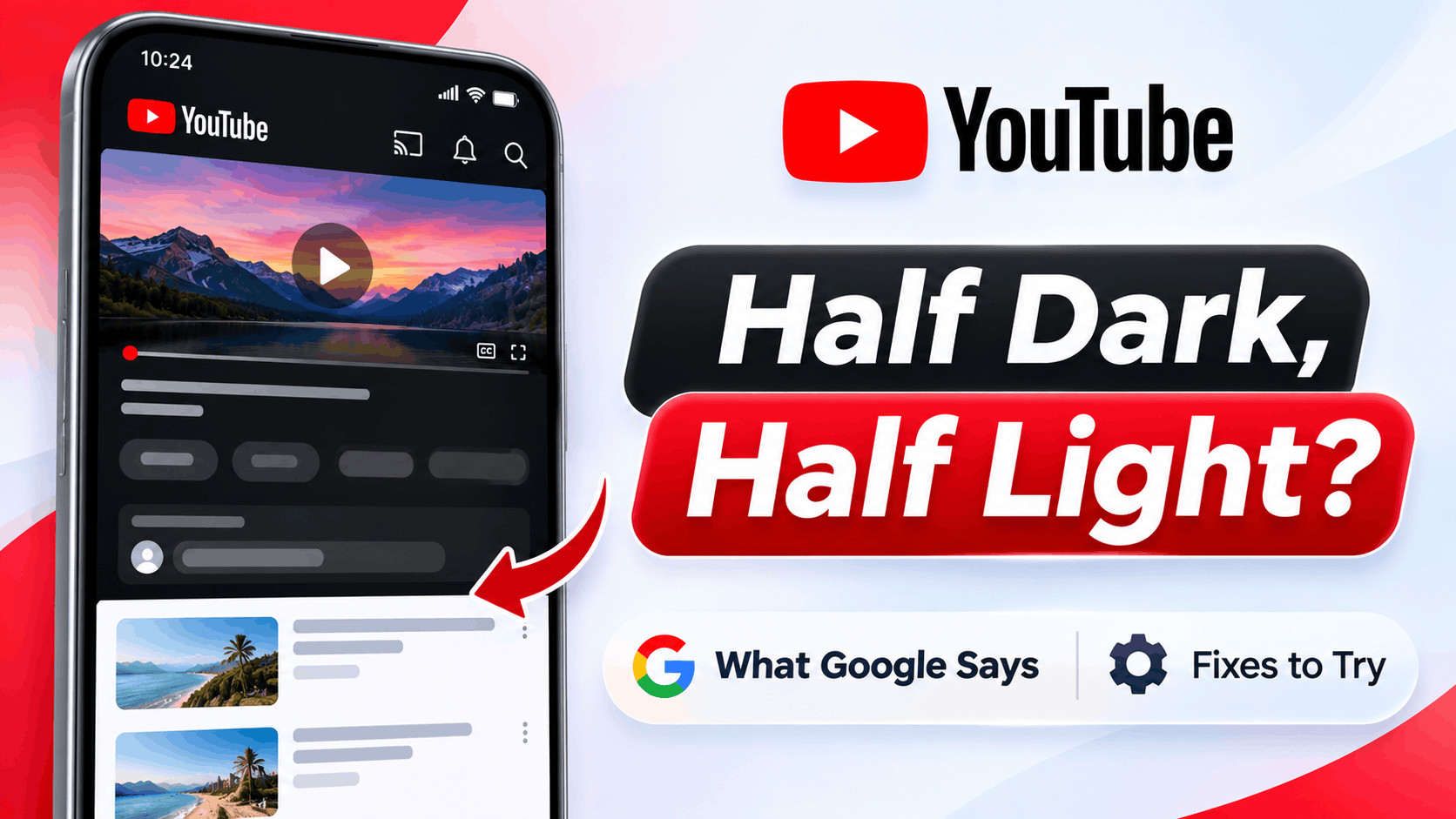
- Some YouTube users notice a strange appearance where the video player and comments are dark, but recommended videos stay in light mode. This is due to YouTube experimenting with a new design that uses different themes for different parts of the screen.
- Google confirmed that this mixed theme is an intentional experiment to make watching videos more immersive. This affects both Android and iPhone users, and traditional fixes might not solve the issue because it is not a bug.
Have you opened the YouTube app and noticed something strange? The video player, title, and comments section appear in dark mode, while the recommended videos below remain in light mode. It looks like YouTube has applied two different themes to the same screen.
Several Android and iPhone users have reported this unusual appearance, even when their YouTube settings are configured to use a single theme. Changing the appearance settings, restarting the app, or turning off Ambient mode does not always help.
Here is what Google has confirmed, why your YouTube app might look different, and what you can try if you prefer the original appearance.
Why Is My YouTube App Half Dark and Half Light?
The unusual appearance comes from an experimental redesign of YouTube’s mobile video watch page. Instead of displaying the entire interface using one consistent color theme, YouTube is testing a layout that separates the viewing area from the recommended content.
Under this experimental design, different sections of the screen can use different visual treatments:
- Video player: Appears within an Ambient mode-style viewing area.
- Video title and comments: May appear against a dark background, even when light mode is selected.
- Recommended videos: Continue using your selected light or dark theme.
- Other YouTube screens: May retain their normal appearance because the experiment focuses on the watch page.
For example, someone using YouTube in light mode might see a dark background surrounding the video and comments, followed by a bright white background around the recommended videos.
This creates an inconsistent appearance that can initially look like a rendering problem or an incomplete theme change.
What Google Says About the YouTube Dark and Light Mode Issue
On November 5, 2026, Android Authority reported that YouTube had confirmed the mixed-theme appearance was an intentional experiment rather than a conventional bug.
According to the company’s explanation, YouTube is testing a new design for its watch page, with the video player and comments presented in an Ambient mode-style interface. Recommended videos continue to follow the appearance preference selected by the user.
The company says the goal is to create a more immersive video-watching experience.
Three important details have been confirmed:
- The redesigned interface is being tested with a limited group of users.
- The experiment affects both Android and iOS versions of YouTube.
- The different backgrounds are an intentional part of the experimental layout.
This explains why the problem can appear unexpectedly and why traditional troubleshooting methods may not restore the original interface.
As of November 9, 2026, YouTube has not publicly announced a dedicated option for opting out of this specific experiment. It also has not confirmed whether the design will become permanent or when the test will end.
How to Fix YouTube Showing Half Dark and Half Light
Because the mixed appearance can be part of a server-controlled experiment, there is currently no guaranteed fix. However, the following steps can help rule out ordinary theme problems and make YouTube more comfortable to use.
1. Manually Change YouTube’s Appearance Settings
The first thing to try is switching YouTube to a specific appearance setting rather than allowing it to follow your phone’s theme.
On Android and iPhone:
- Step 1: Open the YouTube app.
- Step 2: Tap your profile picture or the You tab.
- Step 3: Open Settings.
- Step 4: Select General, followed by Appearance.
- Step 5: Choose Light theme or Dark theme instead of Use device theme.
- Step 6: Return to a video and check whether its appearance changes.
You can also switch to the opposite theme and then return to your preferred setting.
Why this might help: Manually selecting a theme can correct situations where the app is not properly following your device’s appearance settings.
However, if your account is included in YouTube’s experiment, manually selecting Light theme may not change the darker video and comments area.
2. Try Turning Off YouTube Ambient Mode
YouTube’s Ambient mode creates a subtle lighting effect around videos by extending colors from the content into the surrounding background.
Because the experimental interface uses an Ambient mode-style presentation, it is reasonable to check whether disabling the regular Ambient mode setting changes anything.
To turn it off:
- Step 1: Open any video in the YouTube app.
- Step 2: Tap the video to display its playback controls.
- Step 3: Tap the Settings gear icon.
- Step 4: Open Additional settings.
- Step 5: Find Ambient mode.
- Step 6: Turn Ambient mode off if the option is available.
Return to the video and inspect the background around the playback area.
Important: Users have reported that disabling Ambient mode does not necessarily remove the half-dark, half-light layout. The experimental watch-page design is not the same thing as the ordinary Ambient mode lighting effect.
3. Update the YouTube App
Running an outdated YouTube version can sometimes cause interface inconsistencies, particularly when Google introduces changes to the video player or appearance settings.
On Android, open the Google Play Store, search for YouTube, and tap Update if an update is available.
On iPhone, open the App Store, search for YouTube, and select Update if one is offered.
After updating, reopen YouTube and play a video to check its appearance.
Updating is useful for resolving genuine app defects, but it does not guarantee removal from Google’s experimental design. The experiment may remain active regardless of the installed app version.
4. Force Close and Reopen YouTube
If the mixed appearance started suddenly after changing your phone’s theme, closing and reopening YouTube is worth trying.
On Android:
- Step 1: Open your phone’s Settings.
- Step 2: Navigate to Apps and select YouTube.
- Step 3: Tap Force stop.
- Step 4: Open YouTube again.
On iPhone, open the app switcher, swipe up on YouTube to close it, and launch the app again.
This forces YouTube to restart its interface and reload your appearance preferences.
If the app is simply displaying an outdated theme state, restarting may help. However, it will not reliably disable an experiment assigned to your account.
5. Clear the YouTube Cache on Android
Cached app files can occasionally contribute to interface problems, particularly after an application update.
You can clear YouTube’s temporary cache without deleting your Google account.
- Step 1: Open Settings on your Android phone.
- Step 2: Select Apps and find YouTube.
- Step 3: Tap Storage or Storage & cache.
- Step 4: Select Clear cache.
- Step 5: Reopen YouTube and check the video page.
The exact menu names may vary depending on whether you use Samsung, Google Pixel, OnePlus, or another Android device.
Does this actually fix the problem? Not necessarily. Some users have already tried clearing the cache without success. It is useful for ordinary rendering issues, but it cannot reliably override a server-side experiment.
Avoid selecting Clear storage or Clear data unnecessarily, as this may reset app preferences and remove locally stored information, including downloaded videos.
6. Try Watching YouTube in Your Mobile Browser
If the experimental appearance makes videos uncomfortable to watch, using YouTube through a browser may be the most practical temporary workaround.
- Step 1: Open Chrome, Safari, Firefox, or your preferred browser.
- Step 2: Visit youtube.com.
- Step 3: Sign in to your Google account if needed.
- Step 4: Open a video and inspect the watch-page appearance.
- Step 5: Adjust the browser site’s theme if the option is available.
The mobile website may display a different interface from the YouTube app because features and experiments can vary between platforms.
However, Google also runs experiments on the website, so switching to a browser is not a guaranteed solution.
7. Send Feedback to YouTube
If you dislike the new design, sending feedback is more useful than repeatedly resetting your device.
YouTube has an official feedback feature that allows users to report interface problems and submit screenshots.
- Step 1: Open YouTube on your Android phone or iPhone.
- Step 2: Tap your profile picture.
- Step 3: Open Settings.
- Step 4: Select Send feedback. On some versions, this appears under Help and feedback.
- Step 5: Explain that the video player and comments appear dark while recommended videos remain light.
- Step 6: Attach a screenshot if possible.
- Step 7: Submit your feedback.
Explain that the mixed appearance makes the app uncomfortable to use and request an option to keep the entire watch page in your selected theme.
Feedback does not guarantee that Google will remove the experiment, but it gives the company a clearer picture of how users respond to the redesign.
Why Doesn’t Reinstalling YouTube Fix the Problem?
Several affected users have reported trying common troubleshooting methods without restoring the original layout.
These include reinstalling YouTube, restarting their phones, clearing application data, and changing accessibility settings.
The likely explanation is that experimental features can be controlled remotely by YouTube rather than being determined entirely by the files installed on your phone.
When an experiment is associated with your account or an assigned testing group, reinstalling the app may simply reload the same experimental interface.
That is why a fresh installation does not necessarily make any difference.
There is also no confirmed evidence that resetting your phone, downgrading Android, or changing your Google account settings will permanently remove this particular experiment.
For this reason, we do not recommend performing a factory reset or installing unofficial modified YouTube applications just to restore the previous appearance.
Is the YouTube Half-Dark, Half-Light Design Affecting Everyone?
No. YouTube has confirmed that the experiment is being tested with a relatively small group of users.
This means two people using the same phone model and YouTube version may see different watch-page layouts.
For example, one Android user might see the normal light theme across the entire screen, while another sees a dark video area and light recommendations.
The same difference can appear between iPhones.
Google has not publicly detailed the exact selection criteria for this experiment. It is therefore difficult to predict which accounts will receive the design or when it might disappear.
If your YouTube appearance changes without an app update, that does not automatically mean something is wrong with your device.
How to Tell Whether It’s the YouTube Experiment or a Real Display Problem
Not every unusual dark background in YouTube is caused by the November 2026 experiment. Other appearance and screen problems can look similar.
Here are some useful differences.
Signs You Are Seeing the YouTube Experiment
- The video player and comments use a darker background.
- Recommended videos display your selected light or dark theme.
- The unusual appearance mainly occurs on the video watch page.
- Videos continue playing normally.
- Changing themes does not consistently remove the split appearance.
Signs You May Have a Different Problem
- The actual video image is unusually dim, but the surrounding interface looks normal.
- The entire phone screen changes brightness when opening YouTube.
- Videos show flickering, color distortion, or black areas.
- The same appearance problem occurs in several unrelated applications.
- The screen remains partially dark even after closing YouTube.
If the problem affects the actual video image or other applications, check your phone’s brightness, accessibility, display enhancement, and color settings.
For Samsung and other Android devices, also check whether any device-level dark-mode customization or forced darkening feature is affecting YouTube.
These settings can cause separate display problems, but they are not confirmed causes of the intentional YouTube experiment.
Will Google Remove the Mixed Dark and Light YouTube Design?
Google has not confirmed whether the experimental design will eventually become the default YouTube interface.
The company may refine the layout, expand testing, discontinue the experiment, or introduce additional appearance controls based on its findings.
However, these are possible outcomes rather than announced plans.
For now, the best approach is to keep YouTube updated, provide feedback if the appearance bothers you, and use the browser version if you prefer its layout.
There is no need to repeatedly reinstall the application while waiting for a change.
Frequently Asked Questions
Why is my YouTube app half dark and half light?
YouTube is testing an experimental watch-page design that can display the video player and comments in a darker Ambient mode-style area while recommended videos follow your chosen theme. Google confirmed the experiment on November 5, 2026.
Is the YouTube half-dark screen a bug?
The specific mixed-theme watch-page appearance reported in November 2026 is an intentional experiment, according to YouTube. However, other problems involving dark videos, incorrect brightness, or display corruption may still be genuine bugs.
How do I get YouTube back to full light mode?
Open YouTube, go to Settings, select General and Appearance, and choose Light theme. If you are included in the experiment, parts of the watch page may remain dark despite this setting. There is currently no confirmed opt-out control for the experiment.
Does turning off Ambient mode fix the half-dark YouTube screen?
Not reliably. The experimental watch-page layout is separate from the usual Ambient mode lighting option. Some users have reported that disabling Ambient mode does not restore the original appearance.
Is this happening on iPhones too?
Yes. YouTube confirmed that the experimental interface is being tested on both Android and iOS. It is not exclusive to Samsung, Pixel, or any particular phone brand.
Can I disable YouTube’s experimental features?
YouTube has not announced a dedicated setting to disable this particular watch-page experiment. Changing themes or reinstalling the app does not guarantee that you will be removed from the test.
Will reinstalling YouTube remove the new design?
There is no guarantee. If YouTube has assigned the experiment remotely, reinstalling the application may result in the same interface appearing again. Some affected users have already reported that reinstalling did not help.
Final Thoughts
If your YouTube app suddenly looks half dark and half light, the most important thing to know is that Google has acknowledged the appearance as part of an intentional interface experiment.
The redesign separates the video-watching area from recommendations, creating a mixed appearance that some users may find distracting.
You can try changing YouTube’s appearance settings, disabling Ambient mode, updating the app, or watching videos through a browser. However, none of these methods is a confirmed way to opt out of the experiment.
Until YouTube announces additional controls or changes the design, sending feedback and using your preferred alternative viewing interface are the most practical options.