
- After installing Samsung One UI 9, some Galaxy phone users experienced issues with Android Auto not connecting or disconnecting. The problem was reported after the update to Android 17, which altered system components necessary for Android Auto to work properly.
- Google acknowledged these connection issues and confirmed a fix was released to address them. However, until all updates reach every device, problems may persist. Keeping Android Auto, Google Play services, and Samsung software updated is crucial to applying the fix.
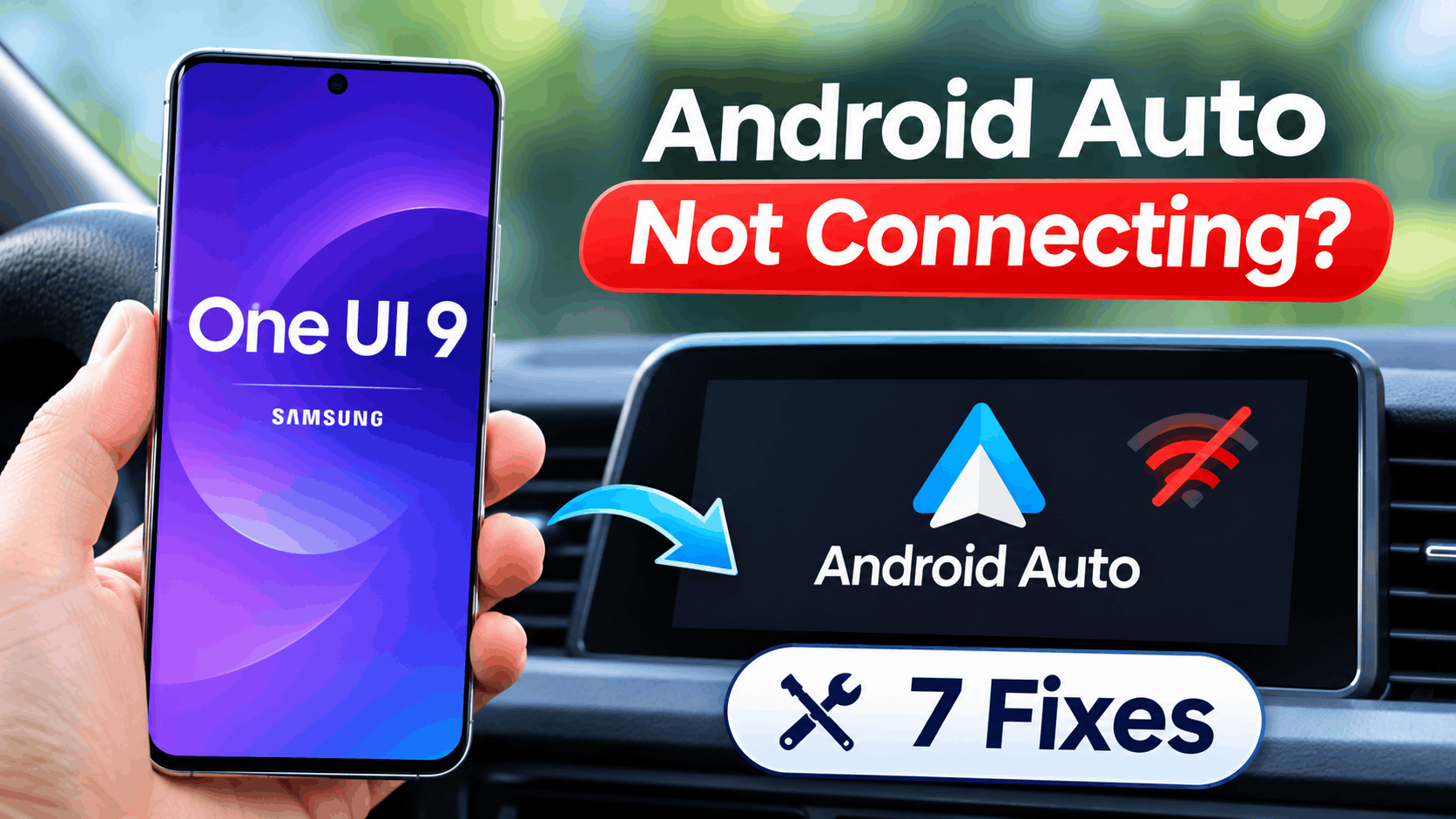
If Android Auto stopped connecting after installing Samsung One UI 9, the problem may not be your car, USB cable, or Galaxy phone. Some Samsung users have reported Android Auto refusing to connect, disconnecting repeatedly, or stuttering after upgrading to One UI 9 based on Android 17.
The good news is that Google has acknowledged the One UI 9 Android Auto connection problem and confirmed on November 3, 2026 that a fix has been rolled out. However, because Google has not publicly explained exactly how the fix is being delivered, some Galaxy owners may still experience problems until all relevant updates and background components reach their devices.
Before resetting your phone or changing expensive parts in your car, try the seven fixes below. Start with the first method because updating Android Auto and related Google components is currently the most important step.
Why Is Android Auto Not Connecting After One UI 9?
Samsung’s One UI 9 update is based on Android 17 and changes several underlying parts of the operating system. Android Auto depends on Android, Google Play services, Bluetooth, Wi-Fi, USB data access, and your vehicle’s infotainment system working together correctly.
Reports from Galaxy owners started appearing after the wider One UI 9 rollout. The most common symptoms include:
- Android Auto does not start when the phone is connected.
- The car does not recognize the Galaxy phone.
- Wireless Android Auto connects and immediately disconnects.
- Android Auto works briefly before losing connection.
- The dashboard interface freezes or stutters.
- A USB connection only charges the phone instead of opening Android Auto.
- Android Auto worked normally before installing One UI 9.
The issue does not appear to affect every Galaxy device. Some users report that Android Auto continues working normally after the update, which suggests the problem may depend on a combination of Android Auto versions, Google services, phone models, and vehicle infotainment systems.
Google Has Already Rolled Out a One UI 9 Android Auto Fix
There is an important development before you start troubleshooting. Google has confirmed that a fix for the Android 17 and One UI 9 Android Auto issue has been rolled out and that affected connections should be resolved.
Google has not clearly stated whether the fix is delivered entirely through an Android Auto update, Google Play services, a server-side change, or a combination of components. For that reason, updating everything related to Android Auto should be your first step.
1. Update Android Auto and Google Play Services
If Android Auto is not connecting after the One UI 9 update, check for app updates before changing anything else. Since Google has already deployed a fix, an outdated Android Auto or Google component could prevent your phone from receiving the latest correction.
Update Android Auto
- Open the Google Play Store.
- Search for Android Auto.
- Tap Update if an update is available.
- Restart your Galaxy phone after the installation.
Android Auto is integrated into modern Android versions, so you may not see it behaving like a normal standalone app. You can still update its components through Google Play when an update is available.
Check Google Play System Updates
- Open Settings.
- Go to Security and privacy.
- Open the update section.
- Check for a Google Play system update.
- Install any available update and restart your phone.
Also update Google Maps, Google Play services, and other Google components available through the Play Store. This gives your Galaxy phone the best chance of receiving all parts of Google’s Android Auto fix.
2. Unlock Your Galaxy Phone Before Connecting Android Auto
This step is easy to overlook. On newer Samsung software, Android Auto may require your Galaxy phone to be unlocked before the connection can start.
Unlock your phone using your PIN, fingerprint, face recognition, or password before plugging it into your car. Then wait several seconds for Android Auto to launch.
If Android Auto suddenly works after unlocking the device, there may not be anything wrong with your USB cable or infotainment system. The connection was simply being blocked while the phone remained locked.
For safety, complete the setup while the vehicle is parked.
3. Change the USB Mode to File Transfer / Android Auto
One of the most important Samsung-specific checks is the USB connection mode. Recent One UI versions can default the USB connection to charging only, which means your phone receives power but does not establish the data connection required by Android Auto.
Connect your Galaxy phone to the vehicle and then:
- Swipe down from the top of the screen to open the notification panel.
- Look for the USB for charging phone notification.
- Tap it to open the USB settings.
- Select Transferring files / Android Auto.
- Wait a few seconds and check the vehicle display again.
If your phone charges normally but Android Auto never appears, this is one of the first settings you should inspect.
You may need to disconnect and reconnect the USB cable before the USB options appear.
4. Clear the Android Auto Cache
An operating system upgrade can leave behind cached Android Auto information created under the previous One UI version. Clearing that temporary data forces Android Auto to rebuild some of its local files.
On your Samsung Galaxy phone:
- Open Settings.
- Tap Apps.
- Find and open Android Auto.
- Tap Storage.
- Select Clear cache.
- Restart the phone.
Try Android Auto again before selecting Clear data. Clearing the cache is less disruptive and normally keeps your existing Android Auto configuration intact.
If Clearing the Cache Does Not Work
You can return to the same Android Auto storage screen and use Clear data or Clear storage. This resets Android Auto and may require you to configure the vehicle again.
It does not erase your photos, messages, contacts, or music. It primarily resets Android Auto’s own configuration.
5. Forget the Car and Pair Android Auto Again
If One UI 9 changed Bluetooth or Android Auto connection information, the existing pairing profile may no longer work correctly. Removing the old connection and creating a fresh one can resolve repeated connection failures.
Remove the Bluetooth Pairing
- Open Settings > Connections > Bluetooth.
- Find your vehicle.
- Tap its settings icon.
- Select Unpair.
You should also remove the Galaxy phone from your car’s Bluetooth or connected-device menu.
Forget the Car in Android Auto
- Open Settings on your phone.
- Search for Android Auto.
- Open Android Auto settings.
- Select Previously connected cars.
- Remove or forget the affected vehicle.
Restart both the phone and vehicle infotainment system. Then pair the phone again as if you were connecting it for the first time.
For wireless Android Auto, keep Bluetooth and Wi-Fi enabled during the initial setup.
6. Check the USB Cable and Vehicle USB Port
A One UI 9 update can make it look like the update caused every connection problem, but USB cables remain one of the most common reasons wired Android Auto fails.
A cable can charge your phone successfully while its internal data connection is damaged. Android Auto requires data transfer, not just electrical power.
Try the following:
- Use a high-quality USB data cable.
- Try another known-working cable.
- Avoid USB hubs and extension cables.
- Connect directly to the vehicle’s Android Auto USB port.
- Try another compatible USB port if your vehicle has one.
- Inspect both USB connectors for dirt or damage.
If Android Auto worked with the exact same cable immediately before One UI 9 and other phones still connect using that cable, software becomes a more likely cause. Even so, testing another cable takes only a minute and helps rule out a coincidental hardware failure.
7. Update One UI and Your Car’s Infotainment Software
Samsung continues to distribute One UI 9 across supported Galaxy devices, and smaller maintenance updates can follow major Android upgrades. Check whether another Samsung update is available after the original One UI 9 installation.
- Open Settings.
- Tap Software update.
- Select Download and install.
- Install any available update.
- Restart the phone.
You should also check your vehicle manufacturer for infotainment firmware updates. Compatibility problems sometimes appear when a newer Android version communicates with older vehicle software.
For aftermarket Android Auto receivers from brands such as Pioneer, Sony, Alpine, or Kenwood, check the manufacturer’s support page for firmware designed for your exact head-unit model.
What to Do If Wireless Android Auto Is Not Connecting
If wired Android Auto works but wireless Android Auto does not, the problem is more likely related to wireless pairing rather than the entire Android Auto service.
Make sure Wi-Fi and Bluetooth are enabled, then remove your vehicle from both your phone’s Bluetooth settings and Android Auto’s previously connected cars list. Restart the phone, restart the infotainment system, and perform the pairing process again.
You should also temporarily disable VPN apps or aggressive battery-saving utilities while testing. These are not the primary cause of the One UI 9 bug, but they can complicate wireless connections and make troubleshooting harder.
What If Android Auto Connects but Keeps Disconnecting?
Random disconnects can have several causes. Start by installing all available Android Auto and Google updates because of the recently confirmed One UI 9 fix.
If the problem continues, test Android Auto using a different USB cable. Wireless users should remove the pairing and reconnect from scratch. Restarting the vehicle’s infotainment system can also clear a temporary connection state.
It is useful to test your Galaxy phone with another Android Auto-compatible vehicle if one is available. Likewise, connect another Android phone to your own vehicle. This can quickly tell you whether the problem follows your Galaxy phone or stays with the car.
Do You Need to Factory Reset Your Galaxy Phone?
No. A factory reset should not be one of your first troubleshooting steps for the One UI 9 Android Auto problem.
Because Google has acknowledged the issue and rolled out a fix, completely erasing your phone is unlikely to be justified before trying updates, USB settings, cache clearing, re-pairing, and basic connection tests.
A factory reset also creates considerably more work because you need to restore accounts, apps, settings, and other data afterward.
Additional Tips for One UI 9 Android Auto Problems
- Restart both the Galaxy phone and vehicle infotainment system after installing updates.
- Keep Android Auto, Google Maps, Google Play services, and Samsung software updated.
- Unlock the phone before attempting the first connection.
- Use the Transferring files / Android Auto USB mode when connecting by cable.
- Do not assume a cable is good simply because the phone is charging.
- Avoid changing several settings simultaneously because it makes identifying the actual fix difficult.
- Test the connection while the vehicle is safely parked.
Frequently Asked Questions
Is One UI 9 breaking Android Auto?
Some Galaxy owners have reported Android Auto connection failures, random disconnects, and stuttering after updating to One UI 9. The issue does not affect every device, but Google acknowledged the Android 17 and One UI 9 problem and confirmed that a fix has been rolled out.
Has Google fixed the One UI 9 Android Auto problem?
Yes. Google confirmed on November 3, 2026 that a fix had been rolled out for the reported Android Auto problems affecting Galaxy devices running One UI 9. Google has not publicly detailed exactly how every part of the fix is being delivered, so keeping Android Auto, Google Play services, the Google Play system, and Samsung software updated is recommended.
Why does my Samsung phone only charge when connected to Android Auto?
Check the phone’s USB mode. After connecting the cable, open the USB notification and select Transferring files / Android Auto. A charging-only connection does not provide the data link Android Auto needs.
Should I clear Android Auto data after the One UI 9 update?
Start by clearing only the Android Auto cache. If that does not help, clearing Android Auto’s data is a reasonable next step. You will need to configure some Android Auto settings and reconnect your vehicle afterward.
Why does wired Android Auto work but wireless Android Auto does not?
This usually points toward a Bluetooth or Wi-Fi pairing problem. Forget the car from your Galaxy phone, delete the phone from your vehicle, remove it from Android Auto’s previously connected cars, and pair everything again.
Final Thoughts
If Android Auto is not connecting after the One UI 9 update, there is now strong reason to check for updates before spending too much time troubleshooting your car. Google has acknowledged the Android 17 and One UI 9 connection issue and says a fix has already been rolled out.
Start by updating Android Auto, Google components, and your Galaxy phone. Then unlock the phone before connecting, verify the USB mode is set to Transferring files / Android Auto, clear Android Auto’s cache, and recreate the vehicle pairing if necessary.
If Android Auto still does not work after all seven fixes, check for an infotainment firmware update and report the issue through Samsung Members or Android Auto support. Avoid factory resetting your Galaxy phone unless you have ruled out the simpler fixes and have a separate reason to believe the phone’s software installation itself is corrupted.