- To activate the beIN SPORTS app on Roku, install the beIN SPORTS CONNECT app, note the activation code displayed, and enter it at watch.beinsports-apps.com/activate/roku after signing in to your account. Follow with the "Activate" button to link your account instantly.
- If activation issues arise, verify that you're using the correct URL, check if any errors exist within the code, and ensure your Roku is up-to-date. Mistakes, such as expiring codes or incorrect sign-ins, are common issues that require checking the web address carefully or generating a new code.
- To solve ongoing activation problems, try restarting your Roku device, updating the software, clearing browser cookies, or reinstalling the beIN SPORTS CONNECT
To activate the beIN SPORTS app on Roku, install the beIN SPORTS CONNECT app, open it, select the sign-in option, and note the activation code displayed on your television. Then visit watch.beinsports-apps.com/activate/roku on a phone or computer, sign in to your beIN SPORTS account, enter the code, and select Activate.
The process normally takes only a few minutes, but incorrect URLs, expired codes, subscription problems, and outdated Roku software can prevent activation. This guide explains the complete activation process and provides practical fixes for the most common beIN SPORTS Roku problems.
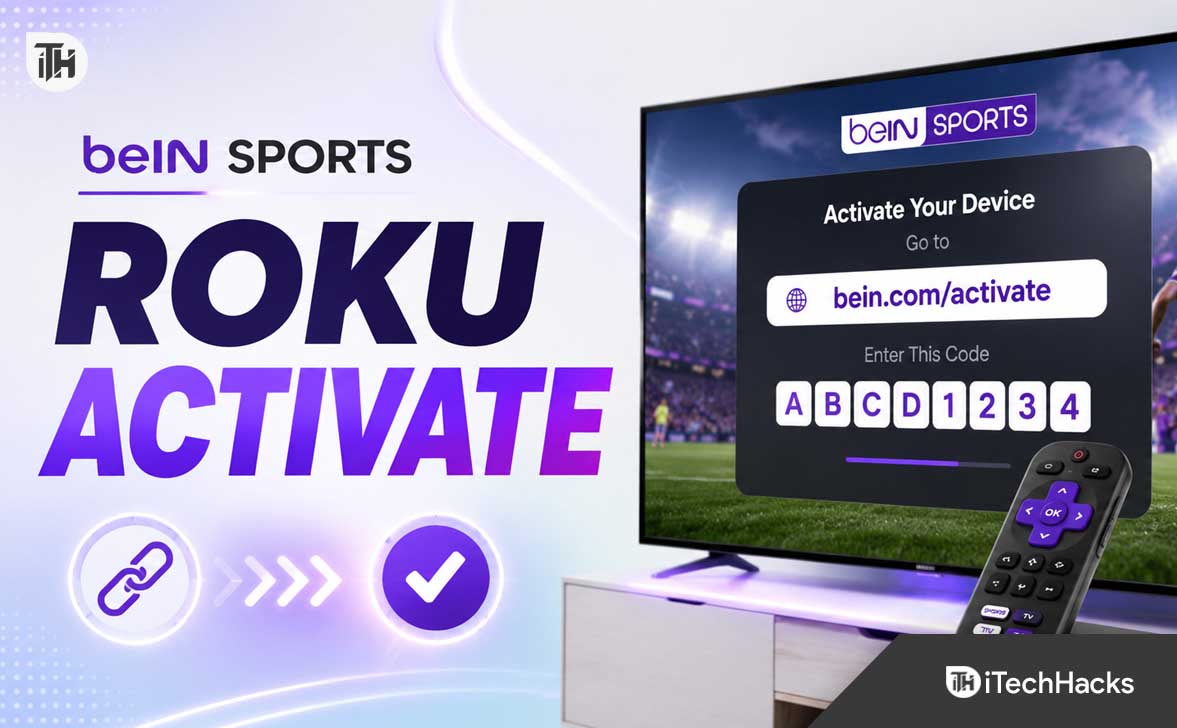
What Is watch.beinsports-apps.com/activate/roku?
watch.beinsports-apps.com/activate/roku is the device-linking page used to connect the beIN SPORTS CONNECT app on Roku with a supported beIN SPORTS account. Instead of entering a long email address and password with the Roku remote, you enter a temporary code using a browser on your phone, tablet, or computer.
After the activation code is verified, the Roku app receives permission to access your account. The television screen should refresh automatically and display the available live channels, events, highlights, replays, or other content included with your subscription.
This activation is different from activating a new Roku streaming player. Your Roku device must already be configured and connected to a Roku account before you can install and activate beIN SPORTS.
Is beIN SPORTS Available on Roku?
Yes. beIN SPORTS currently lists Roku as a supported platform for beIN SPORTS CONNECT in the United States. The service is also available through web browsers, Android, iOS, Android TV, Fire TV, and tvOS.
The Roku Streaming Store also has an official beIN SPORTS CONNECT listing. However, availability can vary by country, Roku account region, subscription type, and the version of the service offered in your market.
If the app does not appear when you search, confirm that your Roku account is registered in a supported country. Changing the language on your Roku does not change the country associated with your Roku account.
What You Need Before Activating beIN SPORTS on Roku
Prepare the following items before starting the activation process:
- A compatible Roku player or Roku TV connected to the internet
- An active Roku account
- The official beIN SPORTS CONNECT app installed on Roku
- A beIN SPORTS CONNECT account or supported TV-provider subscription
- A phone, tablet, or computer with a web browser
- The activation code shown inside the Roku app
- Your beIN SPORTS or television-provider login details
Keep the activation screen open on your television while entering the code. Closing the app, restarting the Roku, or waiting too long may cause the temporary code to expire.
How to Install beIN SPORTS CONNECT on Roku
Method 1: Install the App Directly from Roku
The easiest method is to search for the app using the Roku interface. Roku officially allows apps to be installed from the Streaming Store on the device, through the Roku website, or through the Roku mobile app.
- Turn on your Roku player or Roku TV.
- Press the Home button on the Roku remote.
- Select Streaming Store from the Home screen.
- Open Search.
- Enter beIN SPORTS CONNECT.
- Select the official beIN SPORTS CONNECT app from the results.
- Choose Add app.
- Wait for Roku to download and install it.
- Select Open app when the installation finishes.
The app is usually added near the bottom of the app list on the Roku Home screen. You can highlight it, press the Star button on the remote, and select the option to move it to a more convenient position.
Method 2: Add beIN SPORTS from the Roku Website
You can also install the app remotely through the Roku Streaming Store. This is helpful when typing the app name with the Roku remote feels inconvenient.
- Open the official Roku Streaming Store in a browser.
- Sign in with the Roku account linked to your television.
- Search for beIN SPORTS CONNECT.
- Open the official app listing.
- Select Add app.
- Return to your Roku and check the Home screen.
If the newly added app does not appear immediately, go to Settings > System > Software update > Check Now. Checking for updates forces Roku to refresh the installed app list.
How to Activate beIN SPORTS App on Roku
Once the app has been installed, complete the following steps to link it with your beIN SPORTS account.
Step 1: Open beIN SPORTS CONNECT
Press the Home button on your Roku remote and launch beIN SPORTS CONNECT. Allow the app a few seconds to load, especially when opening it for the first time.
You may see options such as Sign In, Log In, Activate, Start Watching, or TV Provider. The wording can differ slightly depending on the app version and country.
Step 2: Choose Your Sign-In Method
Select the option that matches how you receive beIN SPORTS. You may have a direct beIN SPORTS CONNECT subscription, or access may be included with a participating television or streaming provider.
Do not select the TV-provider option unless beIN SPORTS is included in your provider package. Having an account with a cable or streaming company does not automatically mean that beIN SPORTS access is included.
Step 3: Note the Activation Code
The Roku app will display a temporary activation code. It may contain letters, numbers, or a combination of both.
Write the code exactly as displayed. Check similar-looking characters carefully, such as the number zero and the letter O, or the number one and uppercase I.
Step 4: Visit the Roku Activation Page
On your phone, tablet, or computer, open a current web browser and enter:
watch.beinsports-apps.com/activate/roku
Enter the address directly into the browser’s address bar. Do not type it into an unknown activation website or click a sponsored result claiming that payment is required to activate the app.
Make sure the address includes beinsports-apps.com. Avoid incorrect variations containing spaces, missing dots, additional words, or misspelled brand names.
Step 5: Sign In to Your Account
Sign in with the email address and password associated with your beIN SPORTS CONNECT subscription. If you access beIN SPORTS through a participating provider, select the provider option and authenticate with the provider credentials.
Use the same account that holds your active subscription. Signing in with a different email address is one of the most common reasons that activation succeeds but premium content remains locked.
Step 6: Enter the Roku Code
Enter the code shown on the television into the activation field. Remove accidental spaces and preserve the displayed sequence.
Select Activate, Continue, or the corresponding confirmation button. A successful message should appear in the browser.
Step 7: Return to Roku
Return to the television and wait for the beIN SPORTS app to refresh. In most cases, the activation screen closes automatically after the account is linked.
If the screen does not change, press the Back button once or close and reopen the app. Avoid requesting another activation code until you have confirmed that the first attempt did not work.
How to Activate beIN SPORTS Using a TV Provider
Some users receive beIN SPORTS through a cable, satellite, or internet television package. In this situation, you must authenticate using the credentials supplied by the participating provider.
- Open beIN SPORTS CONNECT on Roku.
- Select Sign In or TV Provider.
- Write down the activation code.
- Open the activation address shown on the television.
- Select your television provider.
- Enter your provider username and password.
- Enter the Roku activation code if requested.
- Approve the connection and return to Roku.
Your provider package must include beIN SPORTS. If the authentication page accepts your credentials but the app displays a subscription error, contact the provider and ask whether TV Everywhere access to beIN SPORTS CONNECT is included.
In the United States, beIN SPORTS currently supports direct subscriptions and access through several participating operators and streaming television services. The exact list can change, so use the provider selection screen displayed during sign-in as the current source of availability.
watch.beinsports-apps.com/activate/roku Code Not Working
An invalid or expired code does not usually indicate a problem with your subscription. Activation codes are temporary and may stop working when the Roku app is closed, restarted, or left inactive.
Generate a New Activation Code
- Return to the beIN SPORTS app on Roku.
- Exit the current activation screen.
- Select Sign In again.
- Wait for a new code to appear.
- Refresh the activation page in your browser.
- Enter only the newest code.
Do not continue using an older screenshot of the activation screen. Once a new code has been generated, the previous code may no longer be accepted.
Check the Code for Typing Errors
Activation codes must be entered exactly. Recheck each letter and number, disable automatic capitalization when necessary, and make sure the browser has not inserted a space before or after the code.
It can be easier to open the activation page on a larger screen if the code is difficult to read. Increasing the television brightness temporarily may also make faint characters clearer.
Use a Private Browser Window
Your browser may be signed in to an old beIN SPORTS account. Open an Incognito or Private window, visit the activation page again, and sign in with the correct account.
This method also bypasses some corrupted cookies and cached login data. It is particularly useful when the page repeatedly redirects to the wrong account.
Fix watch.beinsports-apps.com/activate/roku Not Opening
Confirm the Address
Carefully enter watch.beinsports-apps.com/activate/roku into the address bar. The address should not contain spaces, and “beinsports-apps” should appear as one hyphenated domain name.
If the URL displayed on your Roku differs from the one above, use the address shown by the current app. Regional versions of beIN SPORTS may use a different account or activation system.
Disable VPN or Proxy Services
A VPN can send your browser traffic through a country that does not match your beIN SPORTS subscription. This may cause region errors, endless redirects, missing providers, or an unavailable activation page.
Temporarily disconnect the VPN, close the browser, and try again using your regular internet connection. The Roku and browser do not necessarily need to use the same network, but both should appear to be in a supported subscription region.
Clear Browser Cookies
Old cookies can interfere with the sign-in page. Clear the cookies for the beIN SPORTS website, restart the browser, and request a fresh activation code from Roku.
You can also try another supported browser. Current versions of Chrome, Edge, Firefox, and Safari generally provide better compatibility than outdated browser versions.
Try a Different Device
If the page does not work on your phone, open it on a laptop or tablet. Switching devices helps determine whether the issue is caused by the beIN SPORTS service or by browser settings on one device.
Fix beIN SPORTS App Not Working on Roku
Restart the Roku Device
A system restart clears temporary Roku memory without deleting your apps or account. It can fix frozen activation screens, blank pages, loading loops, and apps that close unexpectedly.
- Press the Home button.
- Open Settings.
- Select System.
- Select Power if that option appears.
- Select System restart.
Some Roku models do not display a Power submenu. On those devices, the System restart option may appear directly under System. Roku confirms this as the standard restart procedure for current devices.
Update Roku Software
An outdated Roku system can create compatibility problems with recently updated streaming apps. Updating Roku also checks for newer versions of installed apps.
- Go to Settings.
- Select System.
- Choose Software update.
- Select Check Now.
- Install any available update.
- Restart Roku and reopen beIN SPORTS.
Roku’s current support instructions use the same Software update and Check Now path for manual updates.
Remove and Reinstall beIN SPORTS CONNECT
Reinstalling replaces damaged app data and downloads the current version from the Roku Streaming Store. You will need to sign in and activate the app again afterward.
- Highlight beIN SPORTS CONNECT on the Roku Home screen.
- Press the Star button on the remote.
- Select Remove app.
- Confirm the removal.
- Restart the Roku device.
- Return to the Streaming Store.
- Search for beIN SPORTS CONNECT.
- Reinstall and reactivate the app.
Restart Roku after removing the app and before reinstalling it. This extra step helps clear temporary app information that could otherwise remain in memory.
Check the Internet Connection
Open another streaming app on Roku and play a video. If multiple apps are buffering or failing, the problem is probably related to the network rather than beIN SPORTS.
- Restart the modem and Wi-Fi router.
- Move the Roku closer to the router.
- Remove large objects blocking the Wi-Fi signal.
- Use a wired Ethernet connection if your Roku supports it.
- Disconnect unnecessary devices from the network.
- Try the 5 GHz Wi-Fi band when Roku is close to the router.
Live sports can expose connection problems more quickly than ordinary on-demand videos because the stream must be delivered continuously. A stable connection is usually more important than a very high advertised internet speed.
Activation Successful but Content Is Still Locked
If Roku shows that activation succeeded but live channels remain locked, verify that you signed in with the account holding the subscription. Many users accidentally maintain multiple accounts with different email addresses.
Sign out of the Roku app, open the beIN SPORTS account in a browser, and check the subscription status. Confirm that the package is active, the payment has not failed, and the requested content is included.
If you use a television provider, check whether beIN SPORTS is present in your current channel package. Provider credentials may be accepted even when the selected package does not include access to beIN SPORTS CONNECT.
beIN SPORTS Keeps Asking for an Activation Code
Repeated activation prompts can be caused by damaged app data, expired login authorization, account changes, or a recent app update. Begin by generating a new code and completing the process again.
If the prompt returns after every restart, remove the app, restart Roku, reinstall it, and activate it with the correct account. Also check whether another household member recently changed the account password or subscription.
Avoid factory resetting the Roku for a single-app problem. A factory reset removes device settings and requires full Roku setup again, so it should be considered only when many apps and system features are failing.
beIN SPORTS Video Buffering, Freezing, or Showing a Black Screen
Test Another Event or Channel
Open another live channel, replay, or highlight inside the app. If only one event fails, the issue may be related to that specific stream rather than your device.
Reduce Network Activity
Pause large downloads, cloud backups, game updates, and high-resolution streaming on other devices. Network congestion can cause buffering even when an internet speed test produces a good result.
Restart the App and Roku
Return to the Roku Home screen, wait several seconds, and reopen beIN SPORTS. If the problem continues, perform a complete System restart from Roku Settings.
Check for a Service Problem
High-profile matches can create temporary service congestion. When the app works normally at other times but fails during one major event, check the official beIN SPORTS support channels for a known outage.
Best Practices for Secure beIN SPORTS Roku Activation
- Use only the activation address displayed by the official Roku app.
- Do not pay a third-party website to activate beIN SPORTS.
- Never share your account password or temporary activation code publicly.
- Check the browser address before entering provider credentials.
- Avoid activation links received through unsolicited messages.
- Use a unique password for your beIN SPORTS account.
- Sign out from Roku devices you no longer own or use.
- Keep your Roku software and beIN SPORTS app updated.
Activating the app itself should not require remote access to your computer. Anyone claiming they must control your phone or computer to complete Roku activation should be treated as suspicious.
Frequently Asked Questions
What is the correct beIN SPORTS Roku activation URL?
The commonly used Roku activation address is watch.beinsports-apps.com/activate/roku. Always compare it with the address displayed inside the current beIN SPORTS CONNECT Roku app because regional versions may use different pages.
Why is my beIN SPORTS activation code invalid?
The code may have expired, been entered incorrectly, or been replaced by a newer code. Return to the Roku app, generate a fresh code, and enter it immediately.
Do I need a subscription to activate beIN SPORTS?
You need an eligible direct subscription or access through a participating television provider for premium content. Installing the Roku app by itself does not create a beIN SPORTS subscription.
Can I activate beIN SPORTS without a cable provider?
Direct beIN SPORTS CONNECT subscriptions are available in certain regions, including the United States. Plans, pricing, and content availability can differ by country, so check the options offered during account registration.
Why can’t I find beIN SPORTS on Roku?
The app may not be available in your Roku account region, or your device may need a system update. Search for beIN SPORTS CONNECT, then run Settings > System > Software update > Check Now.
Can I enter the activation code on my phone?
Yes. You can open the activation page on a phone, tablet, or computer. Using a phone is often the easiest option because you can keep the television activation screen visible while entering the code.
Does the phone need to be connected to the same Wi-Fi as Roku?
Usually, the activation is completed through your online account, so the browser device does not necessarily need to use the same Wi-Fi network. However, turning off VPN services and using a connection within the subscription region can prevent location-related errors.
How long does a Roku activation code remain valid?
The code is temporary and should be entered soon after it appears. If it is rejected after a delay, generate a new code instead of repeatedly submitting the old one.
Why did activation work but the Roku app did not refresh?
Wait a few seconds, then return to the Roku Home screen and reopen the app. If the account is still not connected, restart Roku and complete activation using a new code.
Will reinstalling beIN SPORTS cancel my subscription?
No. Removing the Roku app does not normally cancel a subscription billed through beIN SPORTS, a television provider, or another supported billing service. It only removes the app and its local data from that Roku device.
Can I use one beIN SPORTS account on multiple devices?
Device and simultaneous-stream limits depend on the subscription and region. If you receive a device-limit or concurrent-stream error, sign out from unused devices and stop playback on other screens.
Is beIN SPORTS CONNECT the same as beIN SPORTS XTRA?
No. beIN SPORTS CONNECT is the authenticated streaming service used for subscription and provider access. beIN SPORTS XTRA is a separate free, ad-supported offering in supported markets and may not include the same live events.
Final Thoughts
To activate beIN SPORTS on Roku, install the official beIN SPORTS CONNECT app, open its sign-in screen, and copy the displayed activation code. Visit watch.beinsports-apps.com/activate/roku, sign in with the account that includes your subscription, enter the code, and confirm activation.
If the code fails, generate a new one and verify that you are using the correct account and web address. For persistent problems, restart Roku, install software updates, clear browser login data, and reinstall the beIN SPORTS CONNECT app.
ALSO READ:
- TV.Univision.com Activate Not Working? How to Fix and Stream
- How to Activate YouTube TV via tv.youtube tv/start
- Activate Academy Sports Outdoors Credit Card Login – Full Guide
- Activate Fintwist Card at fintwistsolutions.com Activation Code
- Activate Chase.com/VerifyCard Login: How to Verify and Activate Your Chase Card