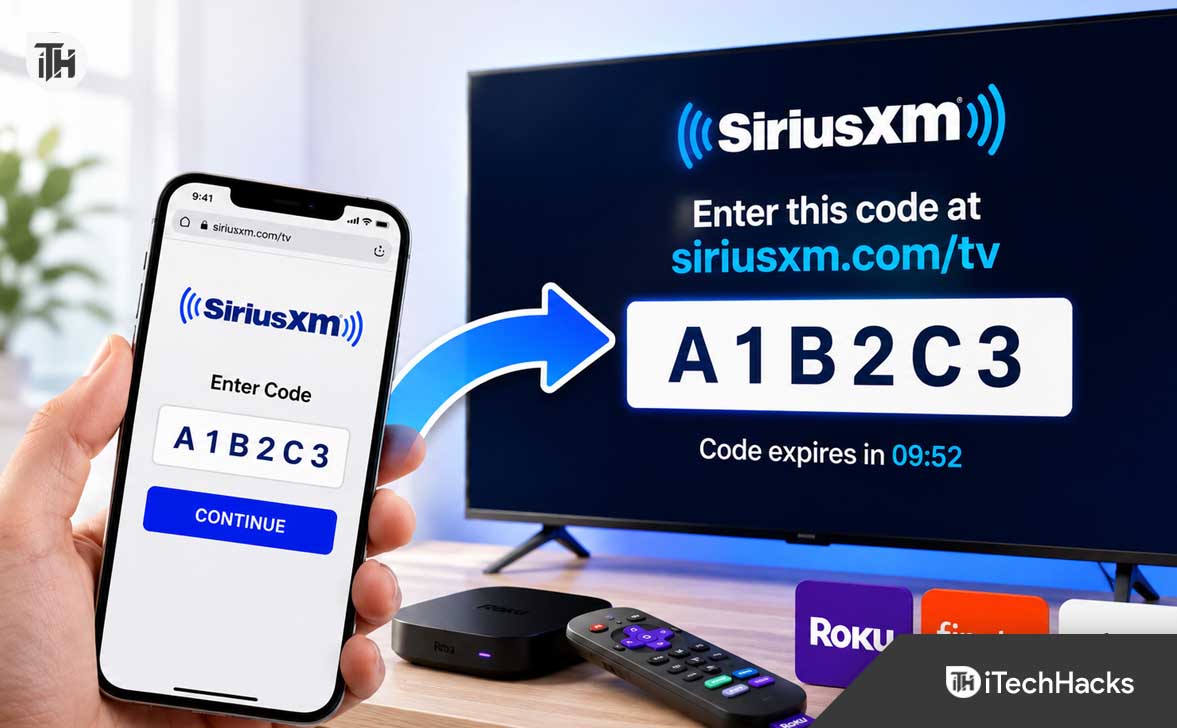
- To activate SiriusXM on your smart TV, first install or open the SiriusXM app, select Sign In, and ensure your TV shows a short code. Then, on your phone or computer, visit siriusxm.com/tv, enter the code exactly as seen on the TV, and sign in using your SiriusXM account.
- If the activation code doesn’t work, it may be expired or incorrectly entered. Generate a new code on your TV, and make sure your app and TV software are updated. Double-check that you are using the correct SiriusXM account details and your device is connected to the internet.
Trying to use the SiriusXM.com/activate TV enter code process on your Roku, Fire TV, Samsung TV, Apple TV, or another smart device? The good news is that linking SiriusXM to your television usually takes only a few minutes once you know the correct sign-in route.
One important detail can save you time: SiriusXM currently directs TV users to siriusxm.com/tv to enter the activation code shown on the screen. The code links the SiriusXM TV app to your existing account, so you do not need to type a long password using your TV remote.
This guide explains how to enter your SiriusXM TV code, activate the app on supported devices, fix invalid-code errors, deal with sign-in problems, and understand the difference between activating SiriusXM on a TV versus activating a SiriusXM car radio.
What Is the SiriusXM TV Activation Code?
The SiriusXM TV activation code is a temporary code displayed by the SiriusXM app when you choose to sign in on a compatible television or streaming device. It allows you to authorize the TV from a phone, tablet, or computer instead of typing your account credentials on the television screen.
Think of it as a secure pairing code. Your TV creates a short code, you enter it on the official SiriusXM website, sign in to your account, and SiriusXM connects that specific device to your streaming account.
This method is commonly available on streaming devices and smart TV apps, including Roku, Fire TV, Fire Stick, Android TV, certain Samsung, LG, and Sony smart TVs, Comcast devices, and Apple TV. App availability can vary based on device model, operating system version, and region.
Important: SiriusXM.com/activate TV vs SiriusXM.com/tv
Many people search for “SiriusXM.com/activate TV enter code,” but the current TV activation page used by SiriusXM is siriusxm.com/tv. Your TV may also display a QR code or a direct URL during the sign-in process.
Always follow the address shown directly inside the official SiriusXM app. Avoid entering activation codes on third-party websites, especially if a page asks for payment information, a Radio ID, or unusual personal details before it lets you sign in.
Your TV activation code is not the same as a SiriusXM Radio ID, ESN, VIN, or vehicle activation number. TV activation is for app streaming, while vehicle activation is used to enable satellite service in a car, truck, boat, or compatible home radio.
What You Need Before Entering Your SiriusXM TV Code
Before you start the SiriusXM.com/activate TV enter code process, make sure you have everything ready. Doing this first prevents the activation code from expiring while you search for passwords, update the app, or troubleshoot your connection.
- A compatible smart TV, TV streaming stick, or media player with the SiriusXM app installed.
- A stable internet connection on the television or streaming device.
- A phone, tablet, laptop, or desktop computer with a web browser.
- An active SiriusXM account with streaming access.
- Your SiriusXM email address or username and password.
- The temporary activation code displayed on your TV screen.
If you have a SiriusXM subscription for your vehicle but have never created an online streaming login, you may need to register your account first. SiriusXM’s registration process may ask for information such as your Radio ID or account number to locate your subscription.
How to Enter Your SiriusXM TV Activation Code
The exact wording may look slightly different depending on your device, but the overall activation process is nearly the same on most supported TVs and streaming players.
1. Install or Open the SiriusXM App on Your TV
Open your television’s app store or channel store and search for SiriusXM. Download the official app if it is not already installed, then launch it from your apps screen.
On Roku, you can find SiriusXM through the Roku Channel Store. On Fire TV or Fire Stick, search the Amazon Appstore. Android TV devices generally use the Google Play Store, while Samsung, LG, and Sony users can search their respective smart TV app stores.
2. Select Sign In
Once the app opens, choose Sign In, Log In, or a similar option. Do not select a free trial or subscription option unless you are a new customer who genuinely needs a SiriusXM streaming plan.
Most devices will show more than one login option. You may see a QR code, an on-screen activation code, a browser URL, or an option to enter your email address and password using the remote.
3. Keep the Activation Code Visible on Your TV
Choose the activation-code or mobile sign-in method. Your TV should display a short temporary code, often made up of letters and numbers.
Leave that screen open. Do not exit the SiriusXM app, press the Home button, or allow the TV to go into sleep mode while you complete the process on your phone or computer.
4. Visit SiriusXM.com/tv on Your Phone or Computer
Open a browser on your phone, tablet, laptop, or desktop computer. Enter siriusxm.com/tv in the address bar, or scan the QR code shown on your television if one is available.
Make sure you are using the official SiriusXM site before entering your code. A valid activation page should ask for the temporary code shown on your TV and then prompt you to sign in to your SiriusXM account.
5. Enter the Code Exactly as Displayed
Type the code carefully. Activation codes are usually case-sensitive, so enter letters exactly as they appear on your television screen.
Do not add spaces before or after the code. A single incorrect character can produce an invalid-code error, especially with similar characters such as O and 0, I and 1, or S and 5.
6. Sign In to Your SiriusXM Account
After entering the code, sign in using the SiriusXM email address or username connected to your subscription. Enter your password, then approve the sign-in request if SiriusXM asks you to confirm the device connection.
If you have multiple SiriusXM accounts, be careful to use the account that has your active streaming subscription. Signing in with an old trial account or a different family member’s account can make it appear as though your plan is inactive.
7. Return to Your TV and Wait for the App to Refresh
After you complete the browser sign-in, your TV should update automatically. On most devices, the SiriusXM app refreshes within a few seconds and opens the home screen, channel guide, or welcome page.
If nothing happens after about a minute, reopen the app or select the activation-code screen again. In many cases, the app simply needs a manual refresh before it recognizes that the account has been linked.
How to Activate SiriusXM on Roku
Roku users can sign in by entering their SiriusXM username and password with the remote, but the activation-code method is usually much faster. SiriusXM recommends adding the app from the Roku Channel Store, opening it, selecting Sign In, and using SiriusXM.com/tv to enter the code if you do not want to type credentials on-screen.
- Press the Home button on your Roku remote.
- Open Streaming Channels or the Roku Channel Store.
- Search for SiriusXM and select Add Channel.
- Launch the SiriusXM channel after installation.
- Select Sign In.
- Choose the activation-code login method if it appears.
- Use your phone or computer to visit siriusxm.com/tv.
- Enter the code from your Roku screen and sign in.
If the SiriusXM app does not appear in your Roku Channel Store, update the Roku system software first. SiriusXM’s current TV help information lists Roku OS version 11.0 or later as the required baseline for the Roku app.
How to Activate SiriusXM on Fire TV or Fire Stick
Fire TV and Fire Stick users can usually activate SiriusXM through a QR code or browser-based code entry. SiriusXM states that Fire TV users may receive a six-character activation code after selecting Sign In, which can be entered from a phone, computer, or tablet.
- Open the Amazon Appstore on your Fire TV or Fire Stick.
- Search for SiriusXM and install the official app.
- Launch the app and select Sign In.
- Scan the displayed QR code or visit the web address shown on screen.
- Enter the six-character activation code.
- Sign in with your SiriusXM email or username and password.
- Wait for the Fire TV app to display the welcome screen.
Fire TV also offers a remote-based sign-in option. Choose Use Your Remote or Other Ways to Login if you prefer to enter your email and password directly using the Fire TV keyboard.
How to Activate SiriusXM on Samsung, LG, Sony, and Android TV
SiriusXM supports its app on selected smart TV platforms, including Samsung, LG, and Sony devices. It is also available on compatible Android TV devices, although the exact setup screen and sign-in options may differ by TV manufacturer.
Start by checking your TV’s app store for SiriusXM. If the app is missing, update the TV software and search again before assuming your model is unsupported.
- Open your TV’s app store.
- Search for SiriusXM.
- Install or update the SiriusXM app.
- Open the app and choose Sign In.
- Select the browser-code or QR-code method where available.
- Enter the displayed code through siriusxm.com/tv.
- Sign in and wait for the TV app to refresh.
For Android TV, SiriusXM recommends keeping your device updated and lists Android OS version 7 or later as the starting requirement for the TV app. Older TVs may not support the latest SiriusXM app, even if the device previously had an older version installed.
How to Use SiriusXM on Apple TV
Apple TV can use a browser-based activation code, remote sign-in, or mobile-device authentication. SiriusXM notes that Apple TV users may open the SiriusXM app on an iPhone or iPad connected to the same Wi-Fi network, authorize the connection, enter the displayed activation code in a browser, or manually log in with the Apple TV remote.
Using a phone or computer is usually easier because it avoids typing long passwords with the Apple TV remote. Keep both devices connected to the same network when using mobile authentication, especially if the SiriusXM app asks for local device permission.
Can New Customers Sign Up Through the TV App?
Some television platforms allow new users to start a SiriusXM streaming subscription from the app. SiriusXM currently notes that RokuPay and Android TV can support certain in-app sign-up flows, while Comcast devices do not support in-app purchasing for SiriusXM.
For the smoothest setup, many new users prefer creating the subscription through the SiriusXM website first. Once the account is active and the streaming login is ready, they can return to the TV app and use the activation code to connect the device.
Remember that subscriptions purchased through a TV platform may be billed and managed through that platform instead of directly through SiriusXM. For example, a Roku-billed plan may need to be managed through Roku account settings rather than SiriusXM billing settings.
SiriusXM TV Activation Code Not Working? Try These Fixes
If the SiriusXM.com/activate TV enter code process fails, do not keep retrying the same expired or rejected code. Start with the quick fixes below, then create a fresh code if necessary.
Get a New Activation Code
Activation codes are temporary. If you waited too long, closed the app, restarted the TV, or entered the wrong code several times, the original code may no longer be valid.
Return to the SiriusXM app, select Sign In again, and generate a new code. Then enter the new code immediately through the official SiriusXM TV activation page.
Check for Typing Errors
Look closely at every character before submitting the code. Short activation codes are easy to mistype because some letters and numbers look nearly identical on certain TV fonts.
Try typing the code manually instead of relying on browser autofill. Also make sure your browser did not insert a space before or after the code.
Use the Correct SiriusXM Account
A successful sign-in does not always mean the right account was used. If your account is inactive, missing channels, or shows an unexpected subscription message, sign out from the browser and verify the email address connected to your paid SiriusXM plan.
This is especially common when a household has multiple users, an old SiriusXM trial, a separate vehicle subscription, or a different email address used for billing.
Update the SiriusXM App and Device Software
An outdated app can cause activation screens to freeze, fail to load, or reject a valid code. Open your device’s app store and install any available SiriusXM update.
Then check for a system update on your Roku, Fire TV, Apple TV, Android TV, or smart television. Updating both the app and device software helps prevent compatibility issues with newer sign-in methods.
Restart the TV or Streaming Device
A basic restart can fix an app that is stuck on the code screen. Fully restart the television or streaming device, reopen SiriusXM, and request a fresh activation code.
On a streaming stick, unplugging the power cable for about 30 seconds is often more effective than simply turning the TV off with the remote. This clears temporary memory and forces the app to reconnect cleanly.
Check Your Internet Connection
Your TV needs internet access to receive the activation confirmation after you enter the code. Test another streaming app, such as YouTube or Netflix, to confirm that the device is online.
If other apps are buffering or unable to load, restart your router and reconnect the television to Wi-Fi. Do not continue the code process until your device has a stable connection.
Disable VPNs, Aggressive Ad Blockers, or Private DNS Temporarily
Browser extensions, VPNs, privacy tools, and filtered DNS services can sometimes interfere with sign-in pages, QR-code redirects, or account authentication. If the activation page keeps loading forever, try a normal browser window or temporarily disable those tools.
You can also test from a different device. For example, if the code fails on your phone browser, try entering it on a laptop or another phone connected to a normal internet connection.
Clear App Data or Reinstall SiriusXM
If the app repeatedly returns to the same broken login screen, uninstalling and reinstalling it may help. This removes stored sign-in data and lets the TV app request a fresh authorization session.
After reinstalling, launch SiriusXM, choose Sign In, and complete the SiriusXM TV activation code process again from the beginning.
Why SiriusXM Says Your Subscription Is Not Active
If the activation code works but SiriusXM says you do not have streaming access, the issue is usually related to your subscription type, account login, payment status, or third-party billing.
- You signed in with the wrong email address or username.
- Your SiriusXM trial or paid subscription has ended.
- Your vehicle plan does not include the same streaming features as your current TV app setup.
- Your subscription was purchased through Roku, Apple, Google, Amazon, or another billing platform.
- Your payment method failed or your account has a billing hold.
- Your TV app has not refreshed since the subscription was updated.
Start by signing in to your SiriusXM account from a browser and reviewing your subscription status. If your plan is active but the TV still does not work, sign out of the SiriusXM TV app and activate it again with a newly generated code.
What to Do If SiriusXM Is Activated but There Is No Sound
Sometimes activation succeeds, but audio does not play through the TV. This is usually a TV audio setting, HDMI connection, Bluetooth device, or app playback issue rather than an account activation problem.
- Raise the TV volume and make sure the television is not muted.
- Check whether Bluetooth headphones or speakers are connected.
- Test audio in another streaming app.
- Restart the SiriusXM app.
- Restart the TV, soundbar, receiver, or streaming device.
- Check HDMI audio settings if you are using an external Roku, Fire Stick, Apple TV, or Android TV box.
- Try another SiriusXM channel to rule out a temporary stream issue.
SiriusXM streaming content can differ from the channels available on a vehicle satellite radio. Some channels are app-exclusive, while others may be available through satellite but not through streaming.
Best Practices for a Smooth SiriusXM TV Login
A few simple habits make the SiriusXM activation process faster and more secure. They also reduce the chance of getting trapped in a loop where the app keeps showing the same sign-in code.
- Use a phone or computer instead of typing a long password with your TV remote.
- Enter the activation code as soon as it appears.
- Keep the SiriusXM app open on the TV while using the browser.
- Use only the official SiriusXM URL shown on your device.
- Save your correct SiriusXM login in a trusted password manager.
- Keep the TV app and device software updated.
- Use a strong Wi-Fi signal or wired connection where possible.
- Do not share an activation code publicly, since it temporarily connects a device to your account.
Frequently Asked Questions
Where do I enter my SiriusXM TV activation code?
Enter the code at siriusxm.com/tv using a phone, tablet, or computer. You may also be able to scan the QR code shown inside the SiriusXM app on your television.
Is SiriusXM.com/activate TV the correct website?
People often search for SiriusXM.com/activate TV enter code, but SiriusXM’s current TV activation instructions point users to siriusxm.com/tv. Follow the exact URL shown on your TV app whenever possible.
Why does my SiriusXM activation code say invalid?
The code may have expired, been mistyped, or been replaced by a newer code after the app refreshed. Generate a new code in the SiriusXM TV app and enter it right away.
Can I activate SiriusXM on Roku without entering my password on the TV?
Yes. On Roku, choose Sign In and use the activation-code method. Visit siriusxm.com/tv on another device, enter the TV code, and sign in there instead of using the Roku remote keyboard.
Can I use my SiriusXM car Radio ID to activate my TV?
No. Your Radio ID or ESN is for satellite radio activation and vehicle account management. A TV uses a separate temporary app activation code to connect to your SiriusXM streaming account.
Does SiriusXM work on Fire Stick?
Yes, SiriusXM supports Fire TV and Fire Stick through its TV app. You can sign in with a browser-based activation code, scan a QR code, or enter your credentials directly with the Fire TV remote.
Can I use SiriusXM on more than one TV?
You can sign in on supported devices using your SiriusXM account, but simultaneous streaming and device access may depend on your plan and current SiriusXM account rules. Check your subscription details if you receive a playback or account-use message.
Why is the SiriusXM app missing from my smart TV?
Your television model may not support the app, the device software may be outdated, or the app may not be available in your region. Updating the TV and checking a compatible streaming device such as Roku, Fire TV, or Apple TV can be a practical workaround.
Final Thoughts
The SiriusXM.com/activate TV enter code process is simple once you use the correct TV activation page and keep the code screen open while signing in. For most users, the fastest method is to open the SiriusXM app on the TV, select Sign In, visit siriusxm.com/tv on a phone or computer, enter the temporary code, and log in with the correct SiriusXM account.
If the code fails, do not waste time repeatedly entering the same one. Generate a new code, check that your app and TV software are updated, verify your subscription account, and make sure your device has a stable internet connection. Once activation is complete, you can start listening to SiriusXM music, sports, talk shows, podcasts, and other streaming content directly from your TV.
ALSO READ:
- Teleport Failure “Response Code Is Not 200”: 10 Fixes That Work
- How to Activate Starlink Mini on an Existing Account in 2026
- Activate Fintwist Card at fintwistsolutions.com Activation Code
- Activate Chase.com/VerifyCard Login: How to Verify and Activate Your Chase Card
- Activate My5 TV at my5tv/activate on PC, Phone, TV 2026