

- The “Liquid Detected in Lightning Connector” message appears when your iPhone senses moisture in the charging port or cable tip.
- Safely fix it by unplugging your charger, letting the port air-dry, or placing your phone with silica gel, avoid heat, blowing, or inserting objects.
- If the error won’t go away, try a different cable, restart your phone, or use Emergency Override only if you’re sure the port is completely dry.
If you’ve picked up your iPhone to charge it and suddenly see a message like “Liquid Detected in Lightning Connector” or “Charging Not Available”, it’s a common issue that many iPhone users experience, especially in humid weather or after accidental exposure to moisture.
This warning is your iPhone’s way of protecting itself. It’s trying to tell you that moisture — even just a tiny bit—has been found in the Lightning port or on the cable tip. While it’s a useful safety feature, it can be annoying, especially if you’re sure your phone didn’t touch water.
In this guide, we’ll explain what the “Liquid Detected in Lightning Connector” message really means, how to fix it safely, and what to do if the error keeps showing up even after drying your phone. We’ll also share the best practices to avoid this issue in the future.
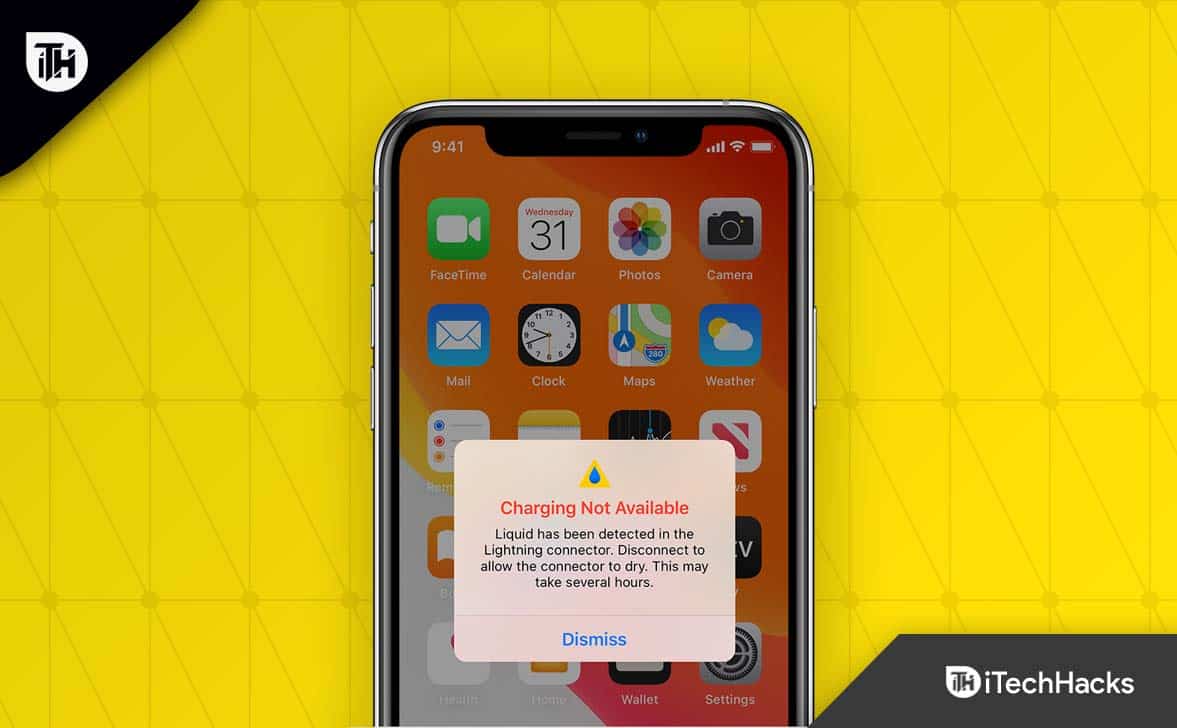
What Does “Liquid Detected in Lightning Connector” Mean?
When your iPhone detects moisture in the charging port or on the Lightning accessory, it will stop wired charging or data transfer to prevent short circuits or hardware damage.
- “Liquid has been detected in the Lightning connector. Disconnect to allow the connector to dry.”
- “Charging not available: Liquid has been detected in the Lightning connector.”
This warning can appear even when:
- The phone hasn’t been in water
- You’re charging with a damp or faulty cable
- There’s high humidity in the air
- Monsoon season
- You just came inside from rain or snow
How iPhones Detect Liquid in the Lightning Connector?
iPhones use small sensors and voltage detection across the pins of the Lightning port. When moisture is present, electrical signals behave differently — the system flags it and throws the warning.
The iPhone models that commonly show this warning include:
- iPhone 8 and later
- iPhone X, XR, XS, 11
- iPhone 12, 13, 14, 15, and iPhone 16 series
What NOT to Do First (Important!)
Before we get into how to fix it, avoid doing the following:
- ❌ Don’t use a hair dryer — heat can damage internal components.
- ❌ Don’t poke anything into the port — even cotton swabs or paper.
- ❌ Don’t ignore the warning and force charging — this can fry your phone.
- ❌ Don’t try to “blow hard” into the port — you’ll add moisture.
Ways to Resolve the Liquid Detected In Lightning Connector on iPhone
If you’re seeing the “Liquid Detected in Lightning Connector” error on your iPhone, don’t panic. This section covers everything you need to do to fix it properly, without damaging your device.
Follow these step-by-step instructions carefully. Each one is safe, recommended, and works across iPhone models including iPhone 8, X, XR, XS, 11, 12, 13, 14, 15 and 16 series.
Step 1: Immediately Unplug All Accessories
As soon as you see the message — “Liquid Detected in Lightning Connector. Charging Not Available.” — You should unplug the Lightning cable or any connected accessories right away.
Why?
- Leaving the cable connected could create a short circuit or permanently damage the charging port or battery.
- Gently remove the charger or accessory.
- Do not try to reconnect it until the port is fully dry.
Step 2: Turn Your iPhone So the Port Faces Down
Hold your iPhone with the Lightning port facing downward. This allows gravity to help any trapped water or moisture drain out naturally.
- Hold the phone at a slight angle.
- Gently tap the device against your palm to encourage droplets to exit the port.
- This step alone can often clear minor moisture buildup.
Step 3: Let the Lightning Port Air-Dry (Minimum 30 Minutes)
Now that the port is unplugged and positioned correctly, let it air-dry naturally.
- Place your iPhone upright on a clean, dry towel with the port hanging off the edge of a table (for airflow).
- Leave it in a well-ventilated room — ideally with a ceiling fan or cross breeze.
- Do not blow into the port using your mouth. Breath contains moisture.
- Let it sit for 30 to 60 minutes, or longer if the error persists.
If moisture is still present, repeat this step before moving on.
Step 4: Avoid These Common Mistakes
Many people unknowingly make things worse by using unsafe drying methods. These can damage internal components and worsen the issue.
NEVER:
- ❌ Use a hair dryer or heat gun — heat can warp circuits.
- ❌ Stick cotton swabs, tissues, or toothpicks in the port.
- ❌ Use uncooked rice — it can leave dust and starch particles.
- ❌ Force the cable back in and override the warning without checking for moisture.
Stick to the safe methods listed below.
Step 5: Use Silica Gel Packets to Speed Up Drying
If you want to dry the port faster, silica gel is your best friend.
What to do:
- Place your iPhone in an airtight container (like a lunchbox or ziplock bag).
- Add 5–10 silica gel packets (from new shoes, electronics, or order online).
- Leave the phone sealed for 4 to 6 hours or overnight.
- Silica gel absorbs moisture more efficiently and cleanly than rice.
Step 6: Restart Your iPhone
Once you’ve let the port dry, restart your iPhone to help the system reset any moisture detection sensors.
- On iPhones with Face ID: Press and hold the Power button + Volume Down until you see the power-off slider.
- On older models: Hold the Power button alone.
- Slide to turn off.
- Wait 30 seconds.
- Press the power button again to turn it back on.
Sometimes, the “Liquid Detected in Lightning Connector” message gets stuck and will disappear after a proper reboot.
Step 7: Try a Different Charging Cable and Adapter
If your iPhone is dry but still shows the liquid warning, the issue might be with your Lightning cable or charger, not the iPhone itself.
Do this:
- Use a new or known-working Apple-certified Lightning cable (MFi-certified).
- Inspect your original cable for:
- Rust or corrosion on the tip
- Bent pins or dirt buildup
- Dampness or residue
If the error disappears with a different cable, the original one may be wet or damaged.
Step 8: Use Wireless Charging (If Supported)
If you urgently need to charge your iPhone but can’t clear the error, use a wireless charger if your model supports it.
iPhones that support wireless charging:
- iPhone 8, 8 Plus
- iPhone X and later models
What to do:
- Place the iPhone on a Qi-compatible wireless charger.
- Make sure the back of the phone and the charging surface are clean and dry.
- Let it charge normally — this method bypasses the Lightning port entirely.
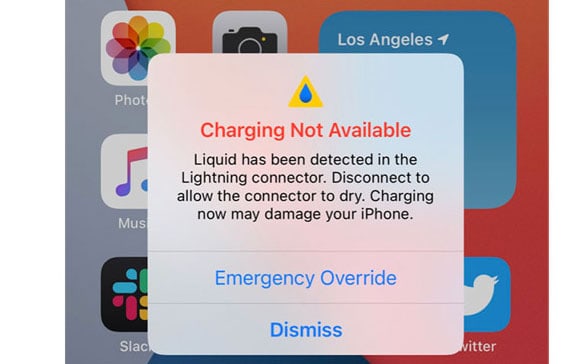
Step 9: Use Emergency Override (Only If Port is Dry)
Apple gives you an option to bypass the warning manually if you’re absolutely sure the port is dry.
When you plug in the cable again and see the warning:
- Tap “Emergency Override” on the screen.
- Your iPhone will begin charging despite the warning.
⚠️ Warning:
Only use Emergency Override if you are 100% confident that:
- The port is completely dry.
- There is no residue or corrosion.
- You understand the risk of electrical damage.
- Use this as a last resort, not a first step.
Step 10: Clean the Lightning Port (If Needed)
Sometimes, the detection error may be caused by sticky residue, corrosion, or salt — especially if exposed to drinks, ocean water, or sweat.
Advanced Cleaning Method:
- Only recommended if you’re confident and careful.
- Get 99% isopropyl alcohol (not lower, as it has water content).
- Wrap a piece of lint-free cloth around a plastic toothpick.
- Lightly dip it into alcohol (just slightly damp, not dripping).
- Gently clean around the inner edges of the Lightning port.
- Let it dry fully before reconnecting any cables.
Note: Avoid metal tools, excessive pressure, or alcohol spills.
Step 11: Update to the Latest iOS Version
Sometimes, iOS updates can include bug fixes for false-positive liquid detection issues.
To update:
- Open Settings > General > Software Update
- Tap Download and Install (if an update is available)
Keeping your iPhone updated ensures it has the latest Lightning port and sensor management improvements.
Step 12: Visit Apple Support or Authorized Service Center
If you’ve tried everything and the “Liquid has been detected in the Lightning connector” message keeps appearing for hours or days, it’s time to get professional help.
Your iPhone might have:
- A malfunctioning moisture sensor
- Hidden corrosion or salt buildup
- Water damage on the logic board
Head to:
- The nearest Apple Store
- An Apple Authorized Service Provider
- Or contact Apple Support online for diagnostics
Some Frequently Asked Questions – FAQs
1. How long does it take for the lightning connector to dry?
Most iPhones will air-dry in 30 minutes to 2 hours depending on humidity and airflow. For faster results, place your iPhone upright in a well-ventilated area or use silica gel packets in a sealed container. Avoid using heat sources or inserting anything into the port.
2. Can I use Emergency Override if my iPhone says liquid has been detected in the lightning connector?
Yes, but only if you’re absolutely sure the Lightning port is dry and clean. Using Emergency Override while moisture is still present may damage your iPhone’s internal components. Use it only as a last resort if you can’t charge wirelessly and need power urgently.
3. Why does my iPhone say “liquid detected in lightning connector” even if it hasn’t touched water?
This warning can appear due to high humidity, sweaty hands, or a damp or corroded cable. It’s also possible the moisture sensor is triggered by dust or residue in the port. Clean the connector gently and let the port dry fully before retrying.
From Author’s Desk
While the “liquid has been detected in the lightning connector” message can feel like a panic moment, it’s often a temporary situation that can be fixed with a little patience and the right steps.
Dry the port properly, avoid shortcuts like rice or heat, and protect your device going forward with smart habits and quality accessories.
Your iPhone is smarter than you think — and when it warns you, it’s for good reason. Just follow these steps, and you’ll be back to normal charging in no time.
RELATED GUIDES:







