- Most cases of LG TV not finding channels UK are caused by poor aerial connections or the tuner being set to the wrong source (Cable instead of Antenna).
- A complete auto-tuning scan after checking signal strength, combined with the latest LG firmware update, fixes over 90% of Freeview channel issues across the UK.
If your LG TV is not finding channels in the UK, it can be frustrating, especially when you depend on Freeview for live television. Whether your set skips channels, fails to detect any stations at all, or shows “no signal,” this issue usually relates to a few key areas: aerial connection, signal strength, tuning settings, or software faults.
The good news is that most cases of LG TV not finding channels UK can be fixed without professional help, as long as you follow a systematic troubleshooting process. This guide walks you through the exact steps a technician would take to restore your missing channels, check your signal, and get your Freeview lineup back.
LG TV Not Finding Channels UK
In the UK, almost all terrestrial broadcasts are transmitted via the Freeview platform, which your LG TV receives through its internal tuner and a connected aerial. When your LG TV fails to find channels, it means the tuner isn’t detecting a valid broadcast signal during the scan.
- The aerial isn’t connected properly or isn’t suited for digital signals.
- The TV is tuned to the wrong input (for example, “Cable” instead of “Antenna”).
- Outdated firmware or corrupted data is interfering with scanning.
- There are changes in the transmitter frequencies in your area.
- The signal strength in your location is too weak or unstable.
Let’s go step-by-step through the causes and their solutions.
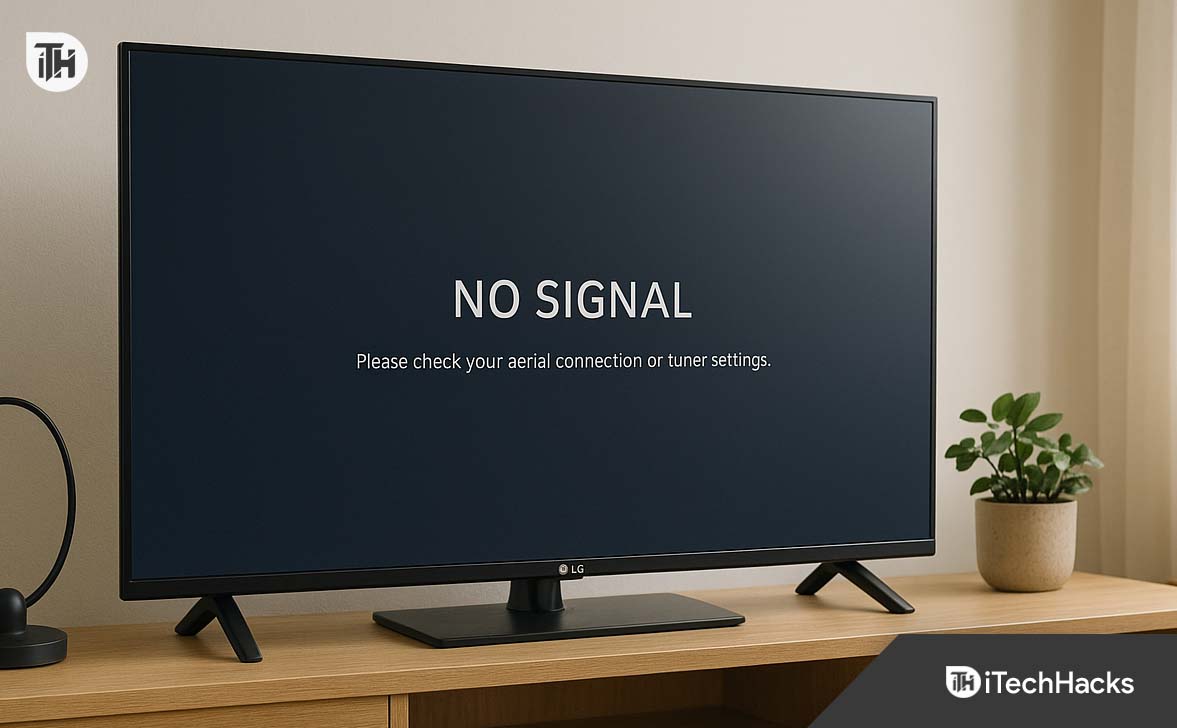
Common Reasons Why LG TV Is Not Finding Channels in the UK
1. Faulty or Loose Aerial Connection
A poor or disconnected aerial is the most common reason for missing channels. If the coaxial cable is not securely plugged into the “Antenna In” port on your LG TV, the tuner won’t detect any signal. Damaged cables, corroded connectors, or broken indoor aerials can all interrupt transmission.
2. Wrong Tuner Settings
LG TVs have multiple tuner modes—Antenna, Cable, and Satellite. In the UK, Freeview requires the Antenna mode. If the TV is set to Cable or Satellite, the tuner will scan the wrong signal type and fail to find channels.
3. Signal Strength or Interference
Even when the aerial is connected, weak or unstable signals prevent proper channel detection. Interference from large buildings, nearby electronics, or poor weather can also cause the TV to show “No Signal” during or after a scan.
4. Outdated Software
Firmware updates occasionally fix tuning or signal recognition issues. If your LG TV has not been updated in a while, it may be running an older software version that causes scanning bugs or compatibility issues with current broadcast standards.
5. Frequency or Transmitter Changes
Broadcasters sometimes change transmission frequencies. When this happens, your LG TV must retune to the new channels. If you haven’t done a retune recently, the channel list may be outdated or empty.
6. Internal Memory or Configuration Errors
Sometimes the stored channel list or tuning data becomes corrupted. This prevents new channels from being saved or found during scanning. Performing a factory reset can resolve such issues.
LG TV Channel Scan Not Working UK – Proven Solutions
Step 1: Check and Secure the Aerial Connection
- Turn off your LG TV and unplug it from the wall.
- Remove the aerial cable from the back of the TV and inspect it for damage.
- Ensure the metal connector pin is straight and clean.
- Firmly reconnect the aerial to the “Antenna In” port.
- If using an indoor aerial, reposition it near a window or higher spot.
- For outdoor aerials, check for damage, corrosion, or alignment issues.
If your area uses a communal aerial (for example, in flats), confirm with neighbours or building management whether others are facing the same issue.
Step 2: Set the Correct Input and Tuner Type
- Turn on your LG TV and press the Settings button on the remote.
- Go to All Settings → Channels → Channel Tuning.
- Ensure the input is set to Antenna or Air (not Cable or Satellite).
- Select Auto Tuning and confirm you’re scanning from the aerial.
- Start the scan and allow it to complete.
If the tuner was previously set incorrectly, this alone may restore all channels.
Step 3: Perform a Full Auto Tuning (Retune)
- Navigate again to Settings → All Settings → Channels → Auto Tuning.
- Choose the Antenna option.
- Select Start to begin the scan.
- Wait patiently until the process completes—do not switch inputs or power off.
- Once done, select Live TV and browse through the channel list.
If you still see “No channels found,” move to manual tuning.
Step 4: Try Manual Channel Tuning
Manual tuning allows you to directly enter specific broadcast frequencies. This is useful when the automatic scan misses certain multiplexes or signal groups.
- Go to Settings → Channels → Manual Tuning.
- Find the correct frequency for your local transmitter (you can get this from Freeview’s coverage checker or by noting nearby regions).
- Enter the frequency manually and press Search.
- Save any channels found.
- Repeat the process for all major multiplex frequencies in your area.
Step 5: Check Signal Strength and Quality
- Go to Settings → Channels → Signal Information or Signal Strength.
- Review both Signal Strength and Signal Quality indicators.
- Strength below 60% often leads to missing channels.
- Quality below 70% indicates interference or weak reception.
- Adjust the aerial position for optimal readings.
- If you are using a signal splitter, try connecting the TV directly to the main aerial feed to see if signal improves.
- Once you have stable signal readings, run Auto Tuning again.
Step 6: Update LG TV Firmware
An outdated software version can prevent proper tuning. To update:
- Go to Settings → All Settings → General → About This TV.
- Select Check for Updates.
- If an update is available, install it and let the TV restart automatically.
- After reboot, repeat the auto-tuning process.
Updating ensures your TV’s tuner software remains compatible with UK Freeview standards and frequency updates.
Step 7: Reset the TV to Factory Settings
If you’ve tried everything and your LG TV is still not finding channels, perform a factory reset.
- Go to Settings → General → Reset to Initial Settings.
- Confirm the reset when prompted.
- The TV will restart and guide you through the setup process.
- Connect your aerial again and perform Auto Tuning.
A reset clears any corrupted configurations and refreshes your channel database from scratch.
Step 8: Inspect the Aerial Hardware and Environment
If all settings are correct but reception remains poor, inspect your hardware and surroundings:
- Outdoor aerial: Check orientation; ensure it points toward the correct transmitter.
- Cables: Replace old or thin coaxial cables with high-quality, shielded ones.
- Amplifiers: If you live far from a transmitter, use an aerial amplifier. However, avoid excessive amplification as it can distort signals.
- Weather interference: High winds or heavy rain can temporarily affect reception. Wait until weather stabilizes before retuning.
Advanced Troubleshooting for Persistent Channel Issues
If your LG TV is still not finding channels UK after all standard steps, explore these deeper checks:
1. Confirm DVB-T2 Compatibility
Most HD Freeview channels in the UK broadcast using DVB-T2. If you own an older LG TV model that only supports DVB-T, it won’t find HD or newer digital channels. Check your model number online or in the manual to confirm compatibility.
2. Bypass Splitters or Distribution Boxes
If your aerial feed runs through a wall socket, splitter, or booster box shared with other rooms, signal strength can drop. Connect the aerial directly from the wall to the TV and test tuning again.
A simple direct connection can often reveal whether the splitter or amplifier is at fault.
3. Check for Interference
Common interference sources include Wi-Fi routers, cordless phones, LED lighting, and even nearby mobile masts. Turn off nearby electronic devices temporarily while scanning to see if the issue improves.
4. Avoid Retuning During Bad Weather
Atmospheric conditions such as high-pressure weather can cause temporary Freeview reception issues. Retuning during these periods may cause your LG TV to store weak or incorrect frequencies. Wait until normal signal levels return before attempting another scan.
5. Professional Signal Testing
If you continue to have problems, it’s worth calling a local aerial technician. They can test the strength and quality of the signal at your aerial point using specialized equipment, helping determine whether the issue is with your TV or the broadcast feed.
Preventive Maintenance and Long-Term Fixes
Once your channels are restored, a few preventive steps will help ensure your LG TV maintains consistent reception in the UK.
Regular Retuning
Retune your LG TV every few months to capture new or changed channels. UK broadcasters occasionally update frequencies, and regular scanning ensures you don’t miss out on regional or HD content.
Keep Software Updated
LG frequently releases firmware updates that improve performance, signal recognition, and tuner accuracy. Set your TV to check for updates automatically or verify once a month.
Maintain Aerial and Cabling
Inspect your outdoor aerial annually for rust, corrosion, or misalignment caused by weather. Replace damaged coaxial cables and avoid sharp bends that could weaken the internal wire.
Avoid Over-Splitting the Signal
Using too many splitters or extensions reduces signal strength. Connect the TV directly or use a powered splitter if multiple TVs share one aerial feed.
Use Quality Accessories
If you live far from a transmitter, use a properly rated signal booster or amplifier. Conversely, if your signal is too strong, consider using an attenuator to reduce distortion.
Store Favourite Channel Lists
After tuning, organize and save your channel list. This helps restore preferred viewing order easily if you need to reset or retune again later.
FAQs
1. Why is my LG TV not finding any channels after a move?
Moving changes your proximity to local transmitters. You need to retune your TV using Auto Tuning after reconnecting the aerial in the new location. Ensure the tuner mode is set to Antenna, not Cable.
2. My LG TV only finds a few channels. What should I do?
This usually means signal strength is weak. Check aerial alignment, replace damaged cables, and test the connection without splitters. If you still receive only a few stations, try manual tuning for missing frequencies.
3. Do I need to retune after UK broadcast updates?
Yes. Freeview frequencies occasionally change. Retuning your LG TV ensures you receive all available and updated channels.
4. Why does my LG TV show “No Signal” after tuning?
This typically points to an aerial or signal issue. Verify the aerial cable is connected firmly, check signal strength, and make sure you’re on the correct input source (Antenna).
5. Will resetting my LG TV delete apps or Smart settings?
A factory reset clears channel lists and basic settings but may not delete your LG account or installed apps. You’ll need to sign back in and set up channels again.
Conclusion
When your LG TV is not finding channels in the UK, the solution lies in systematically checking your aerial, tuner settings, signal quality, and software. Start with basic cable inspections and retuning before moving to firmware updates or manual tuning.
Most reception problems stem from loose aerials or incorrect tuner settings, both of which are easily fixed in minutes. With regular maintenance—like periodic retuning, software updates, and proper aerial care—you can ensure your LG TV continues delivering every Freeview channel clearly across the UK.
Restoring your channels isn’t just about getting a signal back—it’s about optimizing your setup so that your LG TV performs reliably day after day.
ALSO READ: