- To stream Univision on your TV using the Univision app, begin by installing the app on your device, opening it, and selecting "Sign In" to generate a short activation code. Go to tv.univision.com/activate on your phone or computer, enter the code, and sign in with your TV provider to activate the app.
- If the activation code doesn't work, ensure you are using the right app: the Univision app for TV services or Univision NOW for subscriptions. Problems may arise from expired codes, browser issues, or unsupported TV providers, so always use a fresh code and correct activation page.
If you are trying to watch Univision on Roku, Apple TV, Android TV, Fire TV, or another connected TV device, the activation process usually starts with a code shown on your TV screen. You then visit TV.Univision.com activate on your phone or computer, enter the code, sign in with your TV provider, and your TV app should refresh automatically.
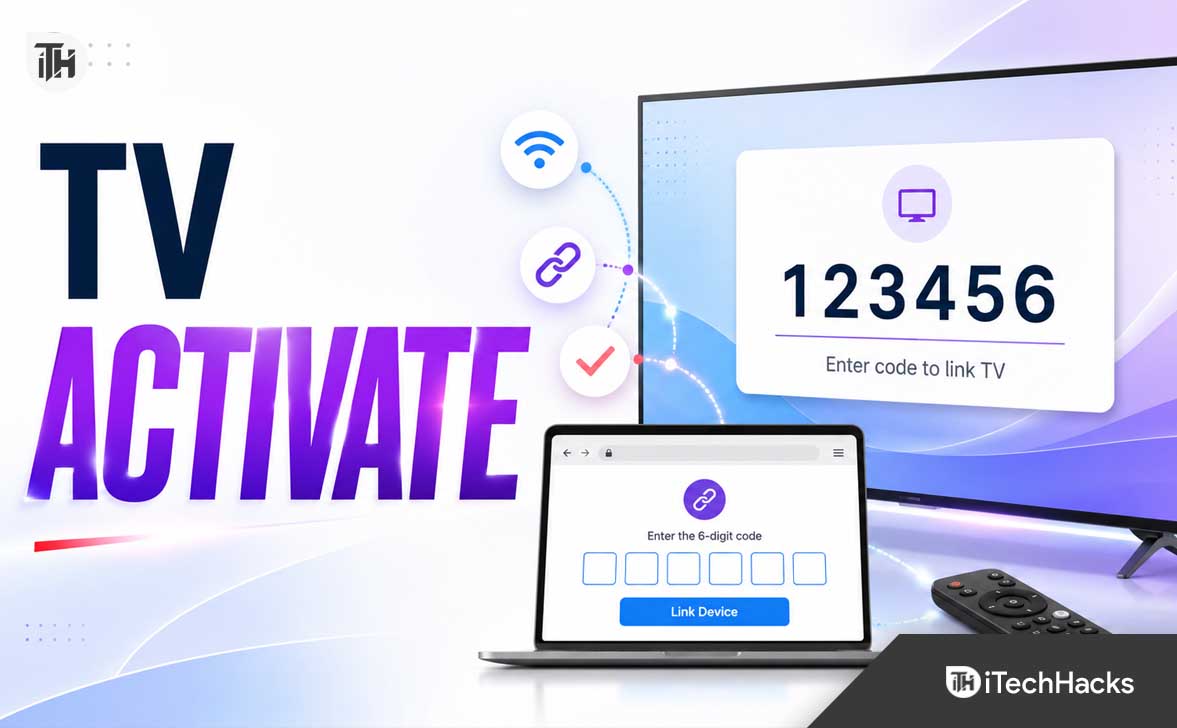
The process is simple, but it can become confusing because Univision has more than one streaming experience. The regular Univision app uses tv.univision.com/activate to link your TV with a participating TV provider, while Univision NOW uses a separate subscription-based activation page. Univision’s official FAQ says the Univision app shows a 6-digit code on TV and asks users to enter that code through the activation URL shown on the screen.
This guide explains how to use TV.Univision.com activate, how to link your TV correctly, which devices are supported, why your activation code may not work, and what to do if Univision does not start streaming after sign-in.
What Is TV.Univision.com Activate?
TV.Univision.com activate is the device-linking page used by the Univision app. It lets you connect the Univision app on your TV or streaming device to your TV provider account. Instead of typing a long username and password with your TV remote, the app gives you a short activation code that you enter using a mobile or desktop browser.
Once the code is accepted and your TV provider login is verified, the Univision app on your TV gets linked to your account. After that, you can stream eligible live and on-demand content included with your TV package.
According to Univision’s help page, the Univision app is available on mobile devices, tablets, connected TV devices, and web browsers. The official FAQ lists Roku, Apple TV, Fire TV, and Android TV for the Univision app, along with Chromecast and web viewing options.
TV.Univision.com Activate vs Univision NOW Activate
Before entering your code, make sure you are using the correct activation website. This is one of the most common reasons users see invalid code errors or cannot link their TV.
Use TV.Univision.com Activate If You Have a TV Provider
Use tv.univision.com/activate when you downloaded the regular Univision app and want to sign in with a cable, satellite, live TV streaming, or other participating TV provider account. This is the correct option for users who already get Univision through a provider such as Xfinity, Spectrum, DIRECTV, Dish, Verizon Fios, Cox, YouTube TV, FuboTV, or another supported provider.
The regular Univision app lets you watch live and on-demand content that is already included in your TV package. Univision says access through the app is included as part of a participating cable or satellite TV subscription.
Use Univision NOW Activate If You Subscribe to Univision NOW
Use univisionnow.com/activate only if you are using the Univision NOW app and have a Univision NOW subscription. Univision NOW’s own help page says users should launch the Univision NOW app, visit the Univision NOW activation page, enter the 6-digit code, and select “Link Device.”
This distinction matters because a code from the regular Univision app may not work on the Univision NOW activation page, and a Univision NOW code may not work at TV.Univision.com activate. If your screen shows a 7-digit code or your app name says Univision NOW, check that you installed the correct app before continuing.
Devices That Support Univision Activation
The regular Univision app works on many common streaming platforms. Univision’s official FAQ lists connected TV support for Roku, Apple TV, Fire TV, and Android TV. It also supports iOS and Android mobile apps, Chromecast, and browser streaming through tv.univision.com.
Univision NOW has a slightly different supported device list. Its help page lists iOS, Android, Roku, Apple TV, Android TV, Chromecast, AirPlay, and web. Another Univision NOW help article also notes that Univision NOW is not available on Fire TV.
This is why it is important to check the exact app name on your TV. If your article, TV screen, or app store says Univision App, you are likely using the TV-provider version. If it says Univision NOW, you are using the subscription version.
How to Activate Univision on Your TV Using TV.Univision.com Activate
Follow these steps carefully to link your TV and start streaming Univision.
Step 1: Install the Univision App on Your TV
Open the app store on your streaming device or smart TV. Search for Univision, then install the official Univision app. Make sure you are not accidentally installing a third-party app or the wrong Univision service.
On Roku, go to Streaming Channels, search for Univision, and add the channel. On Apple TV, open the App Store and install Univision. On Android TV or Google TV, use the Play Store. On Fire TV, open the Amazon Appstore and search for Univision.
Step 2: Open the App and Select Sign In
Launch the Univision app on your TV. Go to the settings, account, or sign-in section. Select Sign In or Entrar, depending on your app language.
The TV screen should show a short activation code. Univision’s FAQ says the regular TV app should display a 6-digit code and asks users to stay on that screen while completing the activation on a phone or computer.
Step 3: Visit TV.Univision.com Activate on a Phone or Computer
On your phone, tablet, laptop, or desktop computer, open a browser and go to the activation URL shown on your TV screen. For the regular Univision app, this is usually tv.univision.com/activate.
Do not close the activation screen on your TV while doing this. If you go back, exit the app, or leave the screen inactive for too long, the activation code may expire and you may need to generate a new one.
Step 4: Enter the Activation Code
Type the code exactly as shown on your TV. Activation codes are usually time-sensitive, so enter the code soon after it appears. Avoid adding spaces before or after the code.
If the code does not work, refresh the Univision app on your TV, select sign in again, and use the new code. Do not keep retrying an old code because most activation systems invalidate older codes after a short time.
Step 5: Choose Your TV Provider
After entering the code, select your TV provider from the list. Univision’s FAQ lists many participating services, including AT&T U-verse, Comcast Xfinity, Cox, DIRECTV, DIRECTV Stream, Dish, Frontier, FuboTV, Verizon Fios, Optimum, Spectrum, YouTube TV, and others.
If your provider is not listed, your subscription may not currently support Univision app authentication. In that case, you may still be able to watch limited free content, but full live TV access usually requires a participating provider.
Step 6: Sign In With Your TV Provider Account
Enter the username and password you use for your TV provider account. This is not always the same as your Univision account login. In most cases, it is the same login you use to pay your cable bill, manage your live TV streaming account, or access your provider’s website.
Univision says users should use the username and password from their TV service provider. If you forgot those details, you need to recover them through the provider, not through Univision.
Step 7: Wait for the TV App to Refresh
After successful login, return to your TV. The Univision app should refresh automatically and unlock the available content. If it does not refresh within a short time, press back once, restart the app, or relaunch the channel.
How to Activate Univision on Roku
Roku is one of the easiest devices for Univision activation because the activation code usually appears clearly on the TV screen.
- Press the Home button on your Roku remote.
- Go to Streaming Channels and search for Univision.
- Add the Univision channel.
- Open the app and select Sign In.
- Write down the 6-digit activation code.
- Visit TV.Univision.com activate on your phone or computer.
- Enter the code, choose your provider, and sign in.
- Return to Roku and wait for the app to refresh.
If Univision is not activating on Roku, remove the channel, restart Roku, reinstall the channel, and generate a fresh code. This clears many app-level sign-in problems without changing your TV provider account.
How to Activate Univision on Apple TV
To activate Univision on Apple TV, open the App Store, search for Univision, and install the official app. Launch the app, select Sign In, and keep the activation code visible on your TV.
On your iPhone, iPad, Mac, or another browser device, visit tv.univision.com/activate. Enter the code and sign in with your TV provider. Apple’s App Store listing for the Univision app says it supports iPhone, iPad, and Apple TV and allows access with most TV services.
If the Apple TV app freezes after activation, force close the app and reopen it. You can also restart Apple TV from system settings, then try signing in again with a new code.
How to Activate Univision on Android TV or Google TV
On Android TV or Google TV, open the Play Store, search for Univision, and install the official app. Once installed, open the app and select Sign In. You should see an activation code on the screen.
Visit TV.Univision.com activate on another device, enter the code, and complete TV provider verification. Google Play’s listing describes the Univision app as offering live and on-demand programming from Univision and UniMás, with access through most TV services.
If the code page keeps failing on Android TV, clear the Univision app cache from your TV settings. Then relaunch the app and generate a new code.
How to Activate Univision on Fire TV
For the regular Univision app, open the Amazon Appstore on Fire TV, search for Univision, and install the app. Open it, select Sign In, and use the code at tv.univision.com/activate.
Be careful not to confuse this with Univision NOW. The regular Univision FAQ lists Fire TV support, but Univision NOW’s help page says Univision NOW is not available on Fire TV.
If Fire TV activation fails, go to Settings, Applications, Manage Installed Applications, Univision, then clear cache. If that does not help, clear data, reopen the app, and activate again.
What Can You Watch After Activating Univision?
After linking your TV, you can watch content that your provider package allows. Univision’s FAQ says the app can include live streams and on-demand content from networks such as Univision, UniMás, TUDN, Galavisión, De Película, Bandamax, and TLNovelas, depending on your TV package.
The Google Play listing also mentions Univision, UniMás, TUDN, Galavisión, Noticias 24/7, Zona TUDN, and Canal ViX inside the Univision app experience. It also says on-demand episodes may be available one day after broadcast and that some programming can be rewound for up to three days.
Access is not the same for every user. Your available channels depend on your provider, your plan, your location, and Univision’s content rights. If one show opens but another says unauthorized, that usually means your TV plan does not include that channel or content category.
Why TV.Univision.com Activate Is Not Working
If TV.Univision.com activate is not working, the problem is usually caused by an expired code, wrong activation website, unsupported provider, browser issue, app cache problem, or location restriction.
1. The Activation Code Expired
Activation codes do not stay valid forever. If you waited too long, closed the TV app, or refreshed the page, the code may expire. Go back to the Univision app, select Sign In again, and use the new code.
2. You Are Using the Wrong Activation Page
If you are using the regular Univision app, use tv.univision.com/activate. If you are using Univision NOW, use the Univision NOW activation page. Univision NOW’s support page specifically instructs users to visit univisionnow.com/activate for that service.
3. Your TV Provider Is Not Supported
Not every TV provider supports Univision app authentication. If your provider does not appear in the list, you may need to contact your provider and ask whether Univision app access is included.
4. Your TV Package Does Not Include the Channel
Even if your provider appears, your package must include the channel you want to watch. For example, you may have access to Univision but not TUDN, or you may get national programming but not a specific local stream.
5. Browser Cookies or Pop-Ups Are Blocking Sign-In
TV provider sign-in pages often rely on cookies, redirects, and pop-up windows. If the page keeps looping or does not load, try another browser, disable strict tracking protection temporarily for that sign-in, or open the activation page in a private window.
Univision NOW’s help page also suggests switching to an incognito or private browser window if the activation link has trouble opening.
6. The Univision App Cache Is Corrupted
Streaming apps store temporary data to load faster. Sometimes this cache stores an old sign-in session or broken activation token. Clearing cache or reinstalling the app forces it to request a fresh code.
7. Your Internet Connection Is Unstable
The TV and the browser device do not need to be on the exact same Wi-Fi network in every case, but both need a stable internet connection. If your TV is connected but slow, the activation may complete on the browser but not refresh on the TV.
Fix TV.Univision.com Activate Code Not Working
Try these fixes in order. Do not skip directly to reinstalling unless the basic checks fail.
Generate a Fresh Code
Close the activation page on your browser. On your TV, go back from the sign-in screen, reopen Sign In, and wait for a new code. Enter the new code immediately.
Check the App Name
Look at the app icon and title on your TV. If it says Univision NOW, do not use TV.Univision.com activate. Use the Univision NOW activation flow. If you want provider-based access, install the regular Univision app instead.
Use a Different Browser
If Chrome does not work, try Safari, Edge, or Firefox. If the provider login page keeps refreshing, open a private browsing window and try again.
Disable VPN Temporarily
Univision’s app access is location-sensitive. The official FAQ says the app is available to participating TV service customers in the United States watching from the United States, except Puerto Rico.
If you are using a VPN, proxy, or smart DNS service, the sign-in page may fail or the stream may remain locked. Turn off the VPN and activate again from a normal US connection.
Update the Univision App
Open your device’s app store and check for updates. Activation problems often happen when an old app version cannot communicate properly with the latest sign-in system.
Restart Your Streaming Device
A full restart can fix stuck sessions. Do not just press the power button on the remote if your device goes into sleep mode. Use the restart option in system settings or unplug the device for 30 seconds.
Reinstall the App
If nothing else works, remove the Univision app completely, restart the device, install the app again, and generate a new activation code.
Fix Univision App Not Refreshing After Activation
Sometimes the browser says activation was successful, but the TV app stays on the code screen. This usually means the app did not receive the updated sign-in response.
- Wait 30 to 60 seconds after successful activation.
- Press the back button once, then reselect the live or on-demand content.
- Close and reopen the Univision app.
- Restart your TV or streaming device.
- Clear cache and activate again with a new code.
Do not keep entering the same code repeatedly. Once a code is used or expired, it may no longer work.
Fix “Not Authorized” or “This Content Is Not Included” Error
A “not authorized” error usually means your TV provider login worked, but your subscription does not include the selected channel or program. This is different from an activation failure.
First, open your TV provider’s website and confirm your package includes Univision, UniMás, TUDN, Galavisión, or the channel you are trying to watch. Then sign out of the Univision app, restart it, and sign in again.
If the issue continues, contact your TV provider. Univision’s FAQ says that authorization or credential problems related to cable or satellite service should be handled with the TV provider.
Fix TV Provider Login Loop on Univision Activation
If the provider login page keeps sending you back to the same screen, the browser may be blocking cookies or redirects. This is common on mobile browsers with strict privacy settings.
- Try a desktop browser instead of a mobile browser.
- Allow cookies for the activation and provider login pages.
- Turn off content blockers temporarily.
- Use private or incognito mode.
- Clear browser cache and try again.
- Make sure your provider login works directly on the provider’s own website.
If your provider login fails even on the provider website, reset the provider password first. Then return to TV.Univision.com activate and try again.
Can You Watch Univision Without a TV Provider?
Yes, but with limits. Univision’s FAQ says the app includes a selected number of full episodes and digital-only channels that may be available without a paid TV subscription. Full access to live TV and the complete catalog usually requires a participating TV provider.
If you do not have a TV provider, check whether Univision NOW fits your needs. The App Store listing for the Univision app also says users without television service can try a subscription to the Univision NOW app.
Best Tips Before Activating Univision on TV
- Use the correct app: Regular Univision and Univision NOW are not the same activation flow.
- Keep the TV screen open: Do not leave the code screen until activation is complete.
- Use a fresh code: Old codes often fail even if they look correct.
- Confirm provider access: Your provider must support Univision authentication.
- Check your package: Some channels may be locked even after sign-in.
- Avoid VPN during activation: Location mismatch can block access.
- Update the app: Older versions may fail during sign-in.
Frequently Asked Questions
What is the correct website for Univision activation?
For the regular Univision app, use tv.univision.com/activate. For Univision NOW, use the Univision NOW activation page. Always follow the URL shown on your TV screen.
Why is my Univision activation code not working?
Your code may have expired, you may be using the wrong activation page, or your browser may be blocking the provider sign-in process. Generate a new code, use the correct activation URL, and try another browser.
Do I need a TV provider to activate Univision?
For full access through the regular Univision app, yes, you usually need a participating TV provider. Some limited content may be available without a paid TV subscription, but live TV and many full episodes require provider authentication.
Can I activate Univision on Roku?
Yes. Install the Univision channel on Roku, open it, select Sign In, enter the activation code at TV.Univision.com activate, and sign in with your TV provider.
Can I activate Univision on Fire TV?
The regular Univision app supports Fire TV according to Univision’s FAQ. However, Univision NOW support says Univision NOW is not available on Fire TV, so check which app you are using before troubleshooting.
This usually means your provider login worked, but your TV package does not include the selected channel or program. Contact your TV provider to confirm whether that content is part of your plan.
Can I use the same Univision activation on multiple TVs?
You may be able to use the Univision app on more than one device, but the number of simultaneous streams can depend on your TV provider. Univision’s FAQ says the maximum number of devices depends on the specific TV service.
Why is Univision not showing my local channel?
Local live streams depend on your market and location. Univision’s FAQ says local station streams are available in select markets, including New York, Los Angeles, Houston, Dallas, Chicago, Miami, Atlanta, and San Francisco. Users outside supported local markets may see national programming instead.
Final Thoughts
TV.Univision.com activate is the fastest way to link the Univision app on your TV with your TV provider account. Install the official Univision app, open Sign In, enter the 6-digit code on the activation page, choose your provider, and complete the login. Once verified, your TV app should refresh and unlock the live or on-demand content included in your package.
If activation fails, do not panic. In most cases, the fix is simple: use a fresh code, confirm you are on the correct activation site, try a different browser, update the app, clear cache, or check whether your TV provider supports Univision access. Also remember that Univision and Univision NOW are different services, so using the wrong activation page can stop the process before it even begins.
ALSO READ:
- How to Activate YouTube TV via tv.youtube tv/start
- How to Activate Starlink Mini on an Existing Account
- Activate Fintwist Card at fintwistsolutions.com Activation Code
- Activate Chase.com/VerifyCard Login: How to Verify and Activate Your Chase Card
- Activate Bravo TV at bravotv link on Roku, Fire TV, Xbox, Apple TV