- G HUB Is Essential in 2025 – Logitech Gaming Software is outdated. Install Logitech G HUB and run it as admin to detect and calibrate G920, G923, and G29 pedals properly.
- Manual Rebinding Solves Most Issues – Even if pedals are connected, they often need to be manually reassigned inside the game (F1 24, NFS Unbound, etc.) for proper functionality.
- Stable USB & Clean RJ12 Connections Matter – Always use a rear USB 2.0 port and check the RJ12 cable between your pedals and wheelbase. Loose connections are a top cause of non-responsive pedals.
Logitech racing wheels are still among the best options in 2025 for players looking for realistic feedback in games like F1 24, Need for Speed Unbound, Assetto Corsa, and Forza Horizon 5. But despite their solid build and compatibility, the Logitech G29, G920, and G923 pedals sometimes stop working, either the game won’t detect them, or they don’t respond in races.
If you’re stuck with non-working pedals, you’re not alone. Whether you’re on PC, Xbox, or PlayStation, this guide covers all working fixes for 2025 to get your Logitech pedals responding again—no fluff, just real solutions.
Fix Logitech Pedals Not Working – G920, G923, G29 with F1, Need for Speed
There are a few potential solutions you can try if you are having issues with your Logitech G920, G923, or G29 pedals not working with F1 or Need for Speed:
Use Logitech G HUB – Not Logitech Gaming Software
Many users still try using Logitech Gaming Software (LGS), but as of 2025, it’s discontinued. The only supported software for Logitech G920, G923, and G29 wheels is Logitech G HUB.
- Uninstall LGS (if installed)
- Download Logitech G HUB from the official site
- Install it and restart your PC
- Open G HUB and check if the wheel and pedals are properly detected
- Test pedal movement in G HUB to confirm calibration
Tip: Always launch G HUB with administrator privileges to avoid detection issues.
Switch to a Stable USB Port – Preferably USB 2.0 on the Back Panel
Logitech G920, G923, and G29 pedals don’t plug into the PC directly—they connect to the wheelbase, which then connects to your PC via USB. If your racing wheel is connected to a faulty or unstable USB port, the pedals may not register at all.
- Unplug the wheel’s USB cable.
- Plug it into a rear USB 2.0 port (directly on your motherboard).
- Avoid USB 3.0/3.1 or front panel ports.
- Do not use USB hubs, splitters, or extension cords.
- Reboot your PC after switching the port.
This small change resolves up to 40% of Logitech pedal detection problems reported by users.
Rebind Your Pedals Inside the Game Settings (F1 24, NFS Unbound, etc.)
Even when your Logitech pedals are detected by G HUB, the game might not recognize them if inputs aren’t properly assigned. This is especially common after a game update or fresh install.
- Launch the game and go to Settings > Controls & Feedback.
- Select your Logitech wheel profile (e.g., G923).
- Choose Edit Mappings.
- Scroll to Accelerator, Brake, and Clutch.
- Manually press each pedal when prompted to bind them.
- Delete any conflicting or empty bindings.
- Save changes and test in Time Trial or Practice mode.
Also works in Need for Speed Unbound, Assetto Corsa, Forza Horizon 5, and Project CARS series.
Inspect the RJ12 Cable That Connects Pedals to the Wheelbase
Logitech pedals connect to the racing wheel using an RJ12-style cable (looks similar to a phone cable). If this cable is loose, dirty, or damaged, your pedals will not work.
- Turn off your PC or console.
- Carefully unplug the pedal cable from the back of the wheelbase.
- Inspect the pins and connector for dust or corrosion.
- Clean with compressed air or a dry brush if needed.
- Reconnect firmly until you hear a click.
- Power the system back on and check input in G HUB.
If the RJ12 cable is damaged, consider contacting Logitech for a replacement. Generic cables may not always work reliably.
Update Your Game to the Latest Version (F1, NFS, Forza, etc.)
New game updates often include support patches or input fixes for racing wheels and pedals. If your Logitech pedals stopped working after a patch, you may just need to update the game.
On Steam:
- From the left pane of the Steam client, go to Library and click on the game.
- It will automatically search for the latest update. Click on update if an update is available.

- You may need to wait a while for the update to install. Once the update has been installed, close Steam.
- In order for the changes to take effect, you need to restart your PC and relaunch the game.

On Xbox/PS5:
- Go to the game tile > Options > Check for Updates
- Install the update and restart the console.
Calibrate Pedals in Logitech G HUB
If your Logitech pedals are working but behave erratically (e.g., brake is always pressed, or acceleration is stuck), you likely need to recalibrate them in G HUB.
- Launch G HUB
- Click on your connected wheel (e.g., G923)
- Navigate to the Pedals tab
- Press each pedal slowly and ensure the software shows full range of motion
- If not, click Restore Defaults
- Test again in-game
You can also set dead zones or sensitivity curves depending on the title you’re playing.
Update Windows Build
In order to avoid system glitches, compatibility issues, and crashes, PC users and PC gamers should always update Windows OS builds. In the meantime, the latest version offers a number of improved features, security patches, and improvements. For that, follow these steps:
- To open Windows Settings, press Windows + I.
- After that, click on Windows Update and hit Check For Updates.


Verify and Repair Game Files
To easily check for game files that are corrupt or missing, follow this method if you think there may be a problem with the game files.
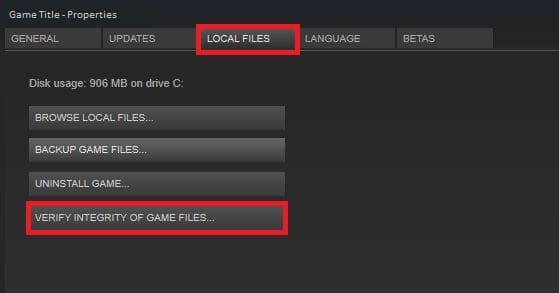
- Launch Steam and click Library.
- On the list of games installed, right-click on your game.
- In the next step, click on Properties > Local Files.
- Select Verify Integrity of Game Files.

Launch Steam in Big Picture Mode
Steam’s Big Picture Mode was designed for full controller compatibility. Launching your game through this interface can help resolve pedal not detected issues in certain racing titles.
- From the top-left corner of your Steam client, click View.
- Next, choose Big Picture Mode > If prompted, click Continue.

- Under Browse, click on Library > Games.
- After selecting the game, exit Big Picture Mode and recheck for the issue.

Reinstall The Game
If none of the methods worked, try uninstalling and reinstalling your game. In order to do so:
- To open the Start menu, press the Windows key or click on the Windows icon.
- Next, type Control Panel and search for it. Once you find it, click on it.
- Then click on Uninstall a program and search for the game.
- To uninstall, click on the title and choose Uninstall > Follow the on-screen instructions.
- To apply the changes, restart your PC. Next, open Steam.
- Make sure you search for your game and reinstall the game.
If these troubleshooting steps do not fix the pedals not working problem, contact Logitech customer support for further assistance.
Some Frequently Asked Questions – FAQs
Is the Logitech G29 still supported in F1 24 and NFS Unbound?
Yes, the G29 is fully compatible with modern racing games like F1 23/24, Assetto Corsa, Gran Turismo 7, and Need for Speed Unbound.
Why is G HUB not detecting my pedals?
- Not running G HUB as admin
- Faulty RJ12 cable
- Conflicting older drivers (LGS)
- Using USB hubs or unsupported ports
Do I need special drivers for G920 or G923?
No separate drivers are needed beyond Logitech G HUB. Windows will install base drivers, and G HUB will handle device recognition and calibration.
Can I use the same fix on Xbox or PlayStation?
Yes, but without G HUB. On consoles, focus on:
Reconnecting the pedals securely
- Manually rebinding inputs in-game
- Ensuring firmware is up to date (via PC if needed)
- Conclusion
If your Logitech pedals (G920, G923, or G29) aren’t working in 2025, it usually boils down to software conflicts, incorrect bindings, or loose cables. Updating to Logitech G HUB, checking connections, and remapping inputs will fix most issues without much hassle.
These wheels are still some of the best for racing sim fans, and with the right setup, they’ll deliver a rock-solid experience in the latest titles.
ALSO READ:
- Fix Logitech G920, G923, G29 Steering Wheel Not Working
- How to Fix Logitech Wireless Keyboard not Working
- How to Fix Logitech K400 Plus Not Pairing to Bluetooth
- How To Fix Forza Horizon 5 Crashing on PC
- Check Mouse DPI | Instant DPI Analyzer Windows/Mac
- How to Fix Elden Ring Connection Error Occurred