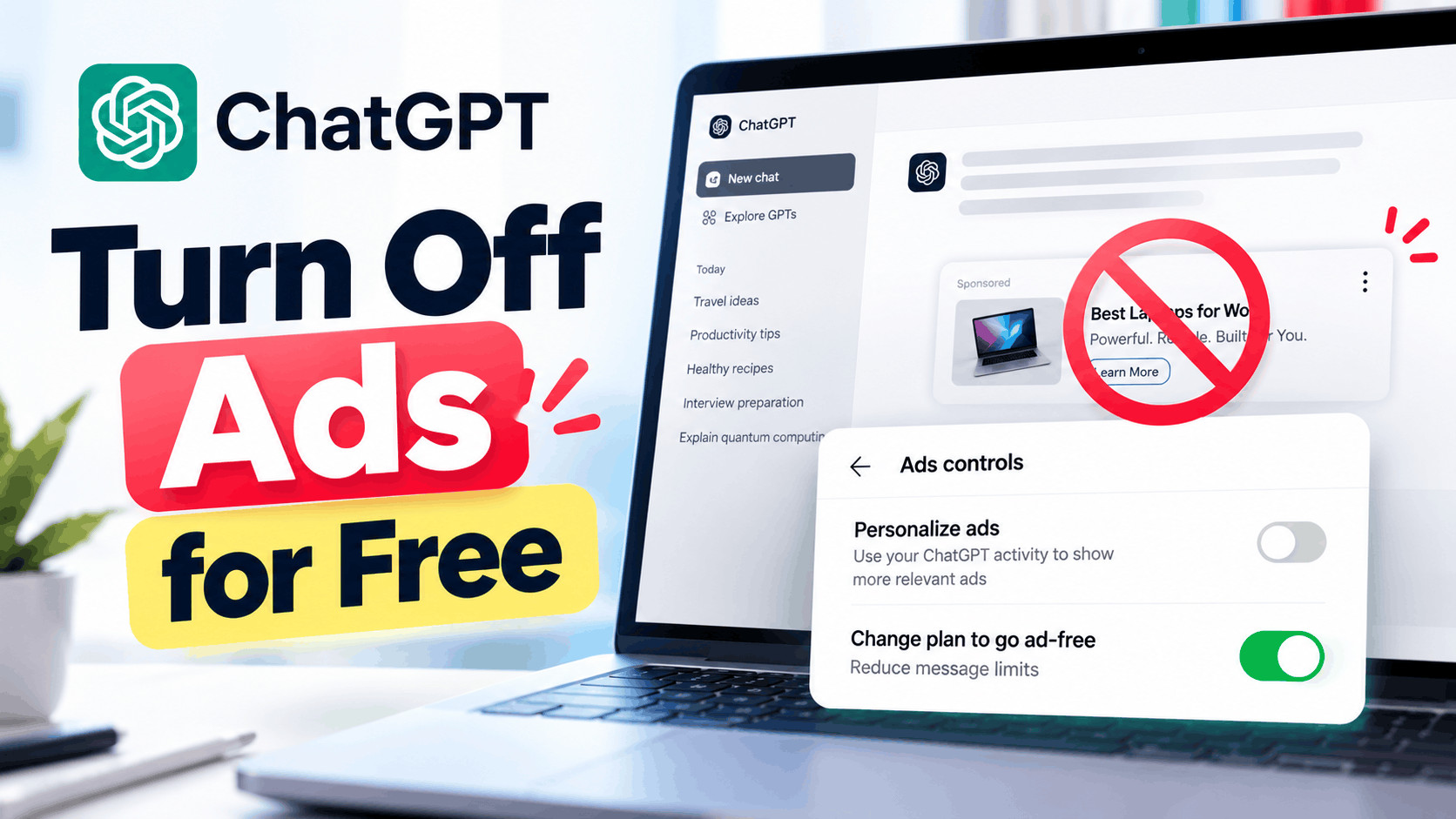
- ChatGPT started showing ads to support its free access, but users can turn off these ads without paying by choosing the Ads-Free option, which may limit message counts and access to certain features.
- To remove ads, users can switch to the Ads-Free setting in ChatGPT's settings by selecting to reduce message limits. Alternatively, Temporary Chat can provide an ad-free experience without changing account settings.
- While disabling personalized ads reduces the use of conversation history for ads, ads can still appear. Individual ads can be hidden or reported, and no ads are shown to ChatGPT Plus or Pro subscribers.
Are you suddenly seeing ads in ChatGPT while asking questions or having conversations? You are not alone. OpenAI started introducing sponsored advertisements in ChatGPT in February 2026, and the rollout has gradually expanded to more users.
While these advertisements help support free access to ChatGPT, not everyone wants sponsored content appearing alongside their conversations. Naturally, many users are searching for ways to disable ChatGPT ads without purchasing a subscription.
The good news is that you can turn off ads in ChatGPT for free. OpenAI provides an official Ads-Free option for eligible Free users. However, there is a catch: choosing this option reduces your message limits and restricts access to certain features.
In this guide, we explain how to remove ChatGPT ads without paying, disable personalized advertisements, hide unwanted sponsored content, and fix missing ad settings on Android, iPhone, and desktop.
Why Am I Seeing Ads in ChatGPT?
ChatGPT advertisements are sponsored placements that can appear below responses. OpenAI began testing these advertisements in the United States on February 9, 2026, before gradually expanding availability to eligible users in additional regions.
Ads are primarily associated with the Free and Go plans. Users subscribed to Plus, Pro, Business, Enterprise, and Edu plans do not see these sponsored placements.
The advertisements may relate to your conversation. For example, if you are researching laptops, you might see a sponsored product or service connected to technology shopping.
ChatGPT ads have several recognizable characteristics:
- They appear separately from the main ChatGPT response.
- They are clearly identified as sponsored content.
- They may feature a product image, advertiser name, and website link.
- They can be selected using the context of your current conversation.
- Eligible users can manage their advertising preferences through ChatGPT settings.
Importantly, advertisers cannot modify ChatGPT’s answers or purchase a position inside the actual response. Sponsored advertisements operate separately from the system that generates answers.
How to Turn Off ChatGPT Ads Without Paying
The most effective way to remove ads from ChatGPT is to activate the official Ads-Free experience. This option is available to eligible users on the Free plan in supported regions.
Method 1: Enable the Free Ads-Free Option
OpenAI provides an option called “Reduce message limits” that removes advertisements without requiring a paid subscription. It is designed for people who prefer an ad-free experience over higher usage allowances.
Follow these steps:
- Step 1: Open ChatGPT on your computer or smartphone and sign in to your account.
- Step 2: Open your account menu and select Settings.
- Step 3: Find and open Ads controls.
- Step 4: Select Change plan to go ad-free.
- Step 5: Choose Reduce message limits.
- Step 6: Review the information about reduced usage limits and confirm your selection.
Once activated, the Ads-Free option removes sponsored advertisements from your eligible Free account. You do not need to provide payment details or upgrade to ChatGPT Plus.
Important: The wording of these settings may differ slightly between the desktop website, Android app, and iPhone app. The option is also restricted to regions where the advertising test and corresponding controls are available.
What Happens After You Disable ChatGPT Ads?
Removing advertisements through this method comes with several limitations. These restrictions are part of the trade-off for using ChatGPT without ads and without paying.
- Fewer messages: You may reach your usage limit sooner than users on the ad-supported Free experience.
- Reduced tool availability: Some features, including image generation and deep research, may become unavailable.
- Lower usage allowances: Certain capabilities may have more restrictive limits.
- No sponsored advertisements: ChatGPT removes ads from the Ads-Free experience.
For someone who mainly uses ChatGPT to answer questions, understand topics, or write simple content, these limitations might be acceptable. However, users who regularly depend on advanced tools may prefer keeping the regular Free experience.
Can You Switch Back to ChatGPT With Ads?
Yes. Activating Ads-Free does not permanently lock your account into reduced usage limits.
Open Settings, navigate to Ads controls, and select the available option to return to the ad-supported Free experience. You may also see a Show ads option when you reach a usage limit.
Switching back allows you to regain the additional access associated with the ad-supported Free plan, subject to the limits currently available for your account.
Method 2: Use Temporary Chat to Avoid Ads
Another way to use ChatGPT without seeing sponsored advertisements is through Temporary Chat. OpenAI confirms that advertisements are not displayed in Temporary Chats.
This feature is particularly useful when you want to ask a few questions without changing your main account’s advertising preferences.
Here’s how to use it:
- Open ChatGPT and start a new conversation.
- Locate and select the Temporary option.
- Choose your preferred personalization setting before sending the first message.
- Enter your question and continue the conversation normally.
Temporary Chats are not added to your regular conversation history unless you choose to save them. They also do not create or update memories while they remain temporary.
However, Temporary Chat is not a permanent replacement for regular conversations. If you frequently return to previous chats, you may find this approach inconvenient.
Best for: Occasional conversations where you want to avoid advertisements without reducing the limits on your main Free plan.
Method 3: Hide Individual Sponsored Ads in ChatGPT
If you do not want to reduce your message limits, you can dismiss advertisements individually. This does not disable all ChatGPT ads, but it gives you some control over unwanted sponsored content.
Follow these steps when an advertisement appears:
- Find the sponsored advertisement beneath the ChatGPT response.
- Click or tap the three-dot menu on the advertisement.
- Select Hide ad to dismiss it.
- If the advertisement appears inappropriate or misleading, select Report ad instead.
Hiding an advertisement dismisses that particular placement. It does not guarantee that different advertisements will stop appearing in future conversations.
You can also select About this ad to learn more about the advertiser and the reason the advertisement may have been shown to you.
Method 4: Turn Off Personalized Ads in ChatGPT
Some users are less concerned about seeing advertisements and more concerned about ads appearing related to their conversations or interests.
For those users, ChatGPT provides advertising personalization controls. These settings change how advertisements are selected rather than removing them entirely.
Steps to Disable ChatGPT Ad Personalization
- Open ChatGPT and go to Settings.
- Select Ads controls.
- Find the Personalize ads setting.
- Turn off the personalization toggle.
- Review the Past chats and memory option if it is available.
When ad personalization is disabled, ChatGPT can still display advertisements related to your current conversation. However, other conversation threads, advertising history, and advertising topics are not used to personalize those advertisements.
Remember: Turning off personalized ads is not the same as turning off advertisements. To remove ads completely, use the Ads-Free option described in Method 1.
Method 5: Delete Your ChatGPT Advertising Data
ChatGPT also provides controls for reviewing and deleting information associated with advertising. This can be helpful if you want to clear advertising history or topics used to determine which sponsored content appears.
To delete available advertising data:
- Open Settings in ChatGPT.
- Navigate to Ads controls.
- Look for History and Topics.
- Review the advertising information associated with your account.
- Select Delete ads data and follow the confirmation instructions.
Deleting advertising data does not delete your regular conversations. OpenAI states that removed advertising data is no longer used to select ads and may take up to 30 days to be removed from its servers.
This is a privacy-related setting, not an ad blocker. Advertisements may continue to appear based on your current conversation and other permitted context.
Can ChatGPT Go Users Remove Ads for Free?
ChatGPT Go is a lower-cost paid plan offering expanded access compared with the Free plan. However, it is not necessarily an ad-free subscription, and eligible Go users may encounter sponsored content.
The official free Ads-Free option is specifically intended for Free-plan users. If you currently subscribe to ChatGPT Go, you cannot simply activate the same reduced-limit option while remaining on Go.
You would need to switch back to the Free plan to use the free Ads-Free experience, where available. Alternatively, Plus and Pro provide ad-free access without those additional Free-plan restrictions.
Before changing your subscription, consider whether losing the additional features and usage limits offered by Go would be worthwhile.
ChatGPT Ads Controls Missing? Here’s How to Fix It
Some users cannot find Ads controls or the Reduce message limits option in their ChatGPT settings. This does not always indicate a problem with the app.
1. Check Whether Ads Are Available in Your Region
OpenAI is rolling out advertisements gradually. If the advertising program is not available for your region or account, the corresponding settings may also be missing.
There is no guaranteed method to enable these controls before your account becomes eligible.
2. Update the ChatGPT App
An older version of ChatGPT may not show newly introduced advertising controls.
Open the Google Play Store or Apple App Store, find ChatGPT, and install any available updates. Restart the app afterward and check Settings again.
3. Confirm Your Current Subscription
Ads-Free with reduced message limits is a Free-plan option. Users on Plus, Pro, Business, Enterprise, and Edu generally will not need these controls because those plans do not display ads.
Go subscribers may have advertising controls but will not have the same free Ads-Free switching option while remaining on Go.
4. Try ChatGPT in Your Browser
If the settings are not appearing correctly in the mobile app, sign in through the official ChatGPT website and check your account settings there.
This can help identify whether the problem is related to the app interface. However, using a browser does not bypass regional eligibility restrictions.
Do Browser Ad Blockers Work on ChatGPT?
Popular browser extensions such as uBlock Origin and AdGuard may filter some web advertising elements, depending on their rules and the website implementation.
However, there is no guarantee that these extensions will consistently remove native ChatGPT advertisements. Filtering rules may become outdated, and aggressive content blocking can interfere with legitimate website features.
Browser extensions also generally cannot remove advertisements displayed inside the official Android or iPhone app.
For reliable results, the built-in Ads-Free setting is preferable to relying on third-party extensions or unofficial modified ChatGPT applications.
Tips for Managing ChatGPT Ads
If you prefer keeping the ad-supported Free plan for its higher limits, these practices can make the experience easier to manage.
- Disable ad personalization: Reduce the use of your broader ChatGPT activity for advertising selection.
- Hide irrelevant ads: Dismiss sponsored content that does not interest you.
- Report suspicious advertisements: Use the reporting option for misleading or inappropriate promotional content.
- Use Temporary Chat: Choose it when you need an ad-free conversation without changing your plan.
- Review advertising controls: Check available settings periodically because features may change as the rollout expands.
Avoid downloading unofficial applications that claim to unlock unlimited ad-free ChatGPT access. Such applications can introduce privacy risks and may request unnecessary account permissions.
Frequently Asked Questions
1. Can I turn off ChatGPT ads without paying?
Yes. Eligible Free-plan users can open Settings, select Ads controls, choose Change plan to go ad-free, and activate Reduce message limits. This removes advertisements without requiring payment, but it reduces message allowances and access to some features.
2. Is ChatGPT Free completely ad-free?
Not necessarily. ChatGPT Free may display sponsored advertisements in supported regions. However, eligible users can switch to the reduced-limit Ads-Free option to avoid advertisements without upgrading to a paid subscription.
3. Why are ads suddenly appearing in my ChatGPT conversations?
You may have become eligible for OpenAI’s expanding advertising rollout. Sponsored placements are shown to certain Free and Go users, often based on the context of their current conversation and applicable advertising preferences.
4. Does disabling personalized ads remove all advertisements?
No. Disabling personalized advertisements only changes how ads are selected. Sponsored content can still appear based on your current conversation. To remove ads, activate Ads-Free on an eligible Free account.
5. Can advertisers read my ChatGPT conversations?
No. OpenAI states that advertisers cannot access your chats, memories, conversation history, or personal details. They receive aggregated advertising performance information, such as overall views and clicks, rather than your private conversations.
6. Are ChatGPT advertisements shown on Android and iPhone?
Ads can appear on supported ChatGPT experiences for eligible accounts, including mobile. Available advertising controls may vary by region, account, and app version. Updating the official app can help ensure newer controls appear when available.
7. Will ChatGPT Plus or Pro show advertisements?
No. According to OpenAI’s current advertising policy, ChatGPT Plus and Pro are ad-free. Business, Enterprise, and Edu plans also do not display ChatGPT sponsored advertisements.
8. Can I use ChatGPT without ads and keep all Free features?
The official Ads-Free option reduces usage limits and access to selected features. Temporary Chat offers another ad-free experience without requiring a plan change, but it is intended for temporary conversations rather than replacing all regular chats.
Final Thoughts
Seeing ads in ChatGPT can be frustrating, particularly if you prefer a clean conversation interface. Fortunately, you do not necessarily need a paid subscription to remove them.
The best way to turn off ChatGPT ads without paying is through Settings > Ads controls > Change plan to go ad-free > Reduce message limits. This officially supported option removes advertisements for eligible Free users, although it comes with reduced message limits and feature availability.
If you want to keep your existing Free-plan allowances, Temporary Chat is another useful option for ad-free conversations. You can also hide individual advertisements and disable personalization to manage sponsored content.
Ultimately, the right choice depends on how frequently you use ChatGPT and whether an advertisement-free interface matters more to you than additional usage limits and tools.