- Jupyter Notebook is a tool to run and write Python code easily, showing results right away, and allowing you to combine code, charts, notes, and files in one place. You can start Jupyter Notebook using the command line on Windows, macOS, and Linux, as long as Python and Jupyter are installed.
- You can use "jupyter lab" for a very complete workspace or "jupyter notebook" for a simpler, less busy interface. It's beneficial to start Jupyter from a specific folder to keep all related files and notebooks organized, and you should use a virtual environment for each different project to avoid errors or dependency issues.
Jupyter Notebook is one of the easiest ways to write and run Python code interactively. Instead of working only in a standard code editor, you can run code in small cells, view results immediately, create charts, add notes, and save everything in one notebook file.
Many beginners install Jupyter but get stuck on one simple question: how do you actually start it from Command Prompt, Terminal, or PowerShell? The good news is that the process is almost identical on Windows, macOS, and Linux once Python and Jupyter are installed correctly.
This guide explains how to run Jupyter Notebook from the command line, launch JupyterLab, open the correct notebook folder, fix common command errors, manage virtual environments, change ports, and stop a running Jupyter server safely.
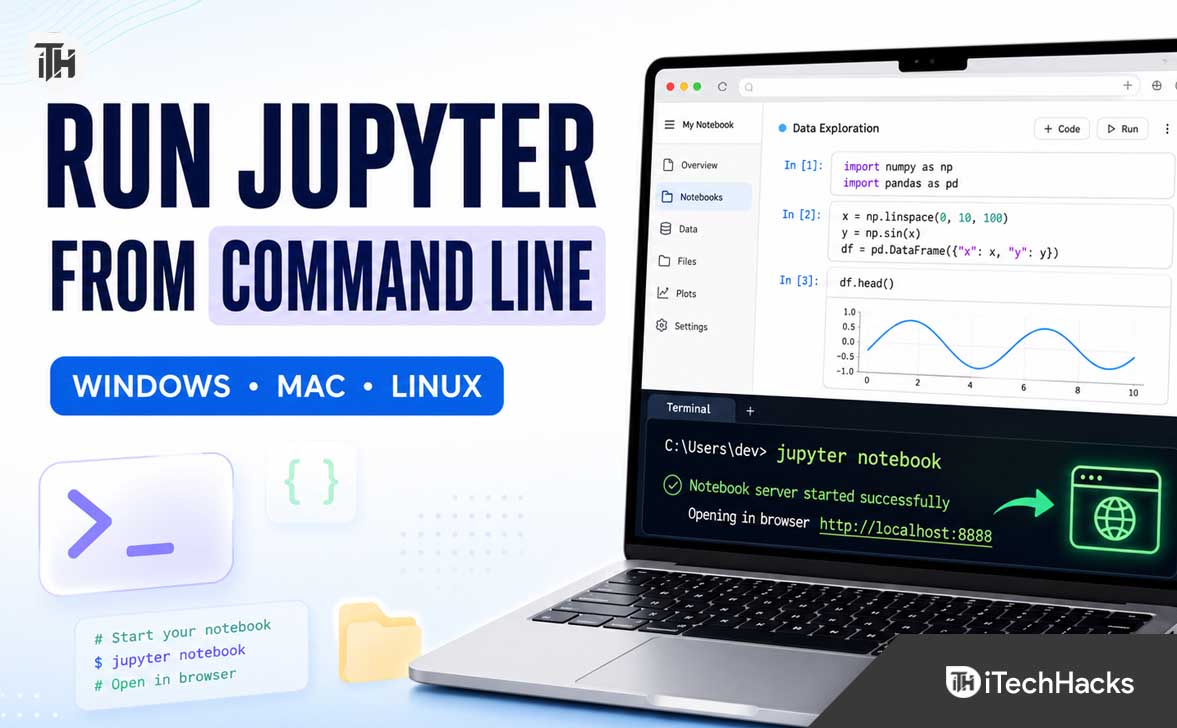
What Is Jupyter Notebook?
Jupyter Notebook is a browser-based coding environment used for Python programming, data analysis, machine learning, automation, education, and scientific computing. A notebook file usually ends with the .ipynb extension and can contain code, output, charts, images, explanations, and formulas in one place.
When you run Jupyter from the command line, it starts a local server on your computer and opens a browser window. The browser is only the interface. Your Python code still runs on your own computer through a Python kernel.
There are two popular ways to use Jupyter today:
- Jupyter Notebook: A simpler notebook-focused interface for writing and running notebook files.
- JupyterLab: A more complete workspace with notebooks, terminals, file browsing, tabs, text editors, extensions, and multiple panels.
For most new users, JupyterLab is the better choice because it is more flexible and actively used for modern Python workflows. Jupyter Notebook is still useful when you want a cleaner, less crowded notebook-only interface. Project Jupyter officially supports installing JupyterLab with pip and launching it through the jupyter lab command, while the Notebook interface can be launched with jupyter notebook.
Before You Run Jupyter Notebook From Command Line
You need Python installed before Jupyter can work. Open your system terminal and check whether Python is already available.
Check Python on Windows
Open Command Prompt, Windows Terminal, or PowerShell and run:
Command: py –version
You can also try:
Command: python –version
If Python is installed, you should see a version number such as Python 3.12 or Python 3.13. If neither command works, install Python first and make sure the Python launcher or Python executable is available in your system PATH.
Check Python on macOS and Linux
Open Terminal and run:
Command: python3 –version
Most modern macOS and Linux systems use python3 instead of python. This helps avoid confusion with older Python installations.
On Windows, using py -m pip is often more reliable than typing only pip, because it ensures pip installs packages into the Python version selected by the Windows Python launcher.
How to Install JupyterLab From Command Line
The cleanest approach is to install JupyterLab in a virtual environment. A virtual environment keeps your Jupyter packages separate from other Python projects, which prevents dependency conflicts later.
Install JupyterLab on Windows
Open Command Prompt, PowerShell, or Windows Terminal. First, create a virtual environment in your current folder:
Command: py -m venv jupyter-env
Activate the environment:
Command Prompt: jupyter-env\Scripts\activate
PowerShell: .\jupyter-env\Scripts\Activate.ps1
After activation, you should see something similar to (jupyter-env) at the beginning of your command line.
Now update pip and install JupyterLab:
Command: py -m pip install –upgrade pip
Command: py -m pip install jupyterlab
Once installation finishes, you can launch JupyterLab with:
Command: jupyter lab
Install JupyterLab on macOS
Open Terminal and create a virtual environment:
Command: python3 -m venv jupyter-env
Activate it:
Command: source jupyter-env/bin/activate
Then update pip and install JupyterLab:
Command: python3 -m pip install –upgrade pip
Command: python3 -m pip install jupyterlab
Launch it with:
Command: jupyter lab
Install JupyterLab on Linux
The Linux process is nearly the same as macOS. Open your terminal and run:
Command: python3 -m venv jupyter-env
Command: source jupyter-env/bin/activate
Command: python3 -m pip install –upgrade pip
Command: python3 -m pip install jupyterlab
Then start JupyterLab:
Command: jupyter lab
How to Run Jupyter Notebook From Command Line
After Jupyter is installed, you can start it from any folder. However, the folder where you run the command matters because Jupyter usually opens that folder as the starting location for your notebooks and files.
Run JupyterLab From Your Project Folder
Create a dedicated folder for notebooks before you launch Jupyter. This keeps your Python files, datasets, and notebook files organized.
On Windows, you can create and open a folder like this:
Command: mkdir “%USERPROFILE%\Documents\Jupyter Notebooks”
Command: cd “%USERPROFILE%\Documents\Jupyter Notebooks”
Then launch JupyterLab:
Command: jupyter lab
On macOS and Linux, use:
Command: mkdir -p ~/Documents/jupyter-notebooks
Command: cd ~/Documents/jupyter-notebooks
Command: jupyter lab
JupyterLab should open automatically in your default browser. The file browser inside JupyterLab will start in the folder where you launched the command. JupyterLab documentation recommends launching from a specific working directory rather than from your entire drive, such as C:\ on Windows or / on Linux, so you do not accidentally browse, modify, or expose system files.
Run the Classic Jupyter Notebook Interface
If you prefer the simpler traditional notebook interface, install the Notebook package instead of JupyterLab.
On Windows:
Command: py -m pip install notebook
On macOS and Linux:
Command: python3 -m pip install notebook
Then move into your notebook folder and run:
Command: jupyter notebook
This opens the Jupyter Notebook interface in your browser. You can create a new Python notebook by selecting the Python kernel from the New menu.
JupyterLab vs Jupyter Notebook: Which Command Should You Use?
Use jupyter lab when you want a modern development workspace. It is useful when you work with multiple notebooks, Python scripts, CSV files, terminals, and project folders at the same time.
Use jupyter notebook when you want a simpler interface that focuses mainly on notebook files. It can feel less overwhelming for beginners, teachers, students, and users who only need to run a few Python cells.
- Use JupyterLab for: data science projects, machine learning, research, coding projects, dashboards, and multiple files.
- Use Jupyter Notebook for: simple Python learning, smaller notebooks, assignments, quick calculations, and lightweight experimentation.
Both commands run a local Jupyter server. The main difference is the browser interface you see after launching it.
How to Open Jupyter in a Specific Folder
The easiest way to open Jupyter in the correct folder is to use the cd command first. This is more reliable than launching Jupyter from your Downloads folder, Desktop, or system drive without checking where you are.
Windows Example
Command: cd “C:\Users\YourName\Documents\Python Projects\Sales Analysis”
Command: jupyter lab
macOS and Linux Example
Command: cd ~/Documents/python-projects/sales-analysis
Command: jupyter lab
You can also tell JupyterLab exactly where to start without manually changing directories.
Windows example: jupyter lab –notebook-dir=”C:\Users\YourName\Documents\Jupyter Notebooks”
macOS/Linux example: jupyter lab –notebook-dir=”$HOME/Documents/jupyter-notebooks”
This is useful when you always store notebook files in one dedicated workspace. JupyterLab supports setting a notebook directory and preferred working directory through command-line options.
How to Run Jupyter Without Opening a Browser Automatically
Sometimes you may be working through SSH, a remote server, Windows Subsystem for Linux, or a terminal-only environment. In that case, you may not want Jupyter to try opening a browser automatically.
Use this command:
Command: jupyter lab –no-browser
For the Notebook interface, use:
Command: jupyter notebook –no-browser
The terminal will display a local URL that usually includes a security token. Copy that full URL and paste it into a browser on the same machine, or use an SSH tunnel if you are connecting from another device.
Do not remove the token just to make the address shorter. Jupyter Server uses token-based authentication by default because anyone with access to your Jupyter server can run code and access the files available to that server.
How to Change the Jupyter Notebook Port
Jupyter usually starts on port 8888. If another Jupyter session or application is already using that port, Jupyter may automatically try another available port such as 8889 or 8890.
You can choose a port manually with the following command:
Command: jupyter lab –port 8890
For Jupyter Notebook:
Command: jupyter notebook –port 8890
This is helpful when you are running several projects, testing different virtual environments, or using Jupyter on a local server.
How to Check Running Jupyter Servers
If you are unsure whether Jupyter is already running, use this command:
Command: jupyter server list
The command shows active Jupyter servers, their local URLs, ports, and running notebook directories. This is especially useful when your browser closes but the Jupyter server continues running in the background.
You can stop a running server by returning to the terminal window where it was launched and pressing:
Command: Ctrl + C
Jupyter may ask you to confirm the shutdown. Type y and press Enter.
You can also stop a server running on a known port:
Command: jupyter server stop 8888
The Jupyter Server command-line tools include options for listing active servers and stopping a server by port number.
How to Create Your First Notebook After Launching Jupyter
After running jupyter lab, your browser should open a JupyterLab page. Look for the Launcher page, then select the Python option under the Notebook section.
A new notebook will open in a tab. Click inside the first cell and enter a simple Python command:
Example: print(“Hello, Jupyter!”)
Run the cell by pressing Shift + Enter. Jupyter will execute the code and show the output directly under the cell.
Save your notebook with a meaningful name such as python-basics.ipynb, data-cleaning.ipynb, or monthly-report.ipynb. Avoid vague names like untitled.ipynb because they become confusing once you have several notebook files.
Common Problems When Running Jupyter Notebook From Command Line
“jupyter is not recognized” Error on Windows
This error usually means Jupyter is not installed in the currently active Python environment, or the command is not available in your PATH.
First, activate the virtual environment where you installed Jupyter:
Command: jupyter-env\Scripts\activate
Then try again:
Command: jupyter lab
You can also confirm whether Windows can find Jupyter:
Command: where jupyter
If the command still fails, reinstall JupyterLab inside the active environment:
Command: py -m pip install jupyterlab
“pip is not recognized” Error
On Windows, avoid relying on a standalone pip command. Use the Python launcher instead:
Command: py -m pip install jupyterlab
On macOS and Linux, use:
Command: python3 -m pip install jupyterlab
This makes sure the package installer is connected to the same Python installation you plan to use for Jupyter.
Jupyter Opens in the Wrong Folder
Close Jupyter, return to your terminal, move to the correct directory with the cd command, and launch Jupyter again.
Windows example: cd “C:\Users\YourName\Documents\My Project”
macOS/Linux example: cd ~/Documents/my-project
Then run:
Command: jupyter lab
The Browser Does Not Open
Check the terminal window where you launched Jupyter. It should display a URL similar to a localhost address with a token. Copy the full URL and paste it into Chrome, Edge, Firefox, Safari, or another browser.
Keep the terminal window open while working. Closing it can stop the Jupyter server and disconnect your notebook kernel.
Port 8888 Is Already in Use
Start Jupyter on another port:
Command: jupyter lab –port 8890
You can also use jupyter server list to see whether another Jupyter server is already using port 8888.
“ModuleNotFoundError” Inside a Notebook
This usually happens because a package was installed into one Python environment while Jupyter is using another environment as its notebook kernel.
Activate the same environment used for Jupyter and install the missing package there:
Windows: py -m pip install pandas
macOS/Linux: python3 -m pip install pandas
If you have multiple virtual environments, install an IPython kernel for the correct project environment:
Command: python -m pip install ipykernel
Command: python -m ipykernel install –user –name project-env –display-name “Python (project-env)”
After that, reopen the notebook and select the correct kernel from the Kernel menu.
Best Practices for Running Jupyter From Terminal
Creating a clean structure early makes Jupyter much easier to use later. Treat each notebook project like a separate workspace with its own files, data, packages, and virtual environment.
- Create a separate folder for every important project.
- Use a virtual environment for each project when dependencies differ.
- Launch Jupyter from the project folder instead of your full C: drive or root directory.
- Give notebooks clear names based on what they do.
- Keep source data in folders such as data, input, output, and notebooks.
- Save package requirements before sharing a project with someone else.
- Stop the Jupyter server when you finish working, especially on shared computers.
To save the packages installed in your current virtual environment, run:
Command: pip freeze > requirements.txt
Later, you or another developer can recreate the packages with:
Command: pip install -r requirements.txt
For Windows, you can use py -m pip instead of pip. For macOS and Linux, use python3 -m pip when you want to be certain the correct Python installation is being used.
Useful Jupyter Command Line Commands
These commands are worth remembering once you start using Jupyter regularly.
- jupyter lab: Starts the modern JupyterLab interface.
- jupyter notebook: Starts the notebook-focused interface.
- jupyter lab –no-browser: Starts JupyterLab without automatically opening a browser.
- jupyter lab –port 8890: Starts JupyterLab on a custom port.
- jupyter server list: Shows currently running Jupyter servers.
- jupyter server stop 8888: Stops the Jupyter server running on port 8888.
- jupyter –version: Displays installed Jupyter-related package versions.
- jupyter server –help-all: Shows the full list of server command-line options.
- jupyter kernelspec list: Shows Python kernels available inside Jupyter.
Should You Use Anaconda to Run Jupyter Notebook?
Anaconda can be useful if you need a large collection of data science libraries such as NumPy, pandas, Matplotlib, SciPy, and scikit-learn. It also includes tools for managing Python environments.
However, Anaconda is not required just to run Jupyter Notebook or JupyterLab. For many users, installing Python, creating a virtual environment, and installing JupyterLab with pip is faster and easier to maintain.
Use a standard Python virtual environment when you want a lightweight setup. Consider Conda or Mamba when you work with complex scientific packages, compiled libraries, GPU tools, or environment configurations that are difficult to manage through pip alone.
Final Thoughts
Running Jupyter Notebook from the command line is simple once you understand the basic flow: open your terminal, activate your Python environment, move into the project folder, and run either jupyter lab or jupyter notebook.
For most users in 2026, JupyterLab is the best default option because it provides notebooks, terminals, text editors, file management, and multiple workspaces in one browser-based interface. Still, the classic Jupyter Notebook command remains a great option when you want a focused, lightweight notebook experience.
The most important habit is to launch Jupyter from the correct project folder and use a virtual environment for each major project. That small step prevents messy file locations, package conflicts, and many of the common errors beginners face when using Jupyter from Command Prompt or Terminal.
ALSO READ: