- Google Chrome might search using Yahoo instead of Google because the default search engine settings were changed by an extension or unwanted software, which can sometimes be a sign of malware.
- To fix this, you can change back to Google by updating the search engine settings, removing suspicious browser extensions, and resetting Chrome, while ensuring your data like bookmarks and passwords are not lost.
- If the issue persists, scan your device for malware, check Chrome’s startup and homepage settings, and ensure that the browser isn't being managed by an external policy; on Android, you may need to remove suspicious apps and clear Chrome’s storage.
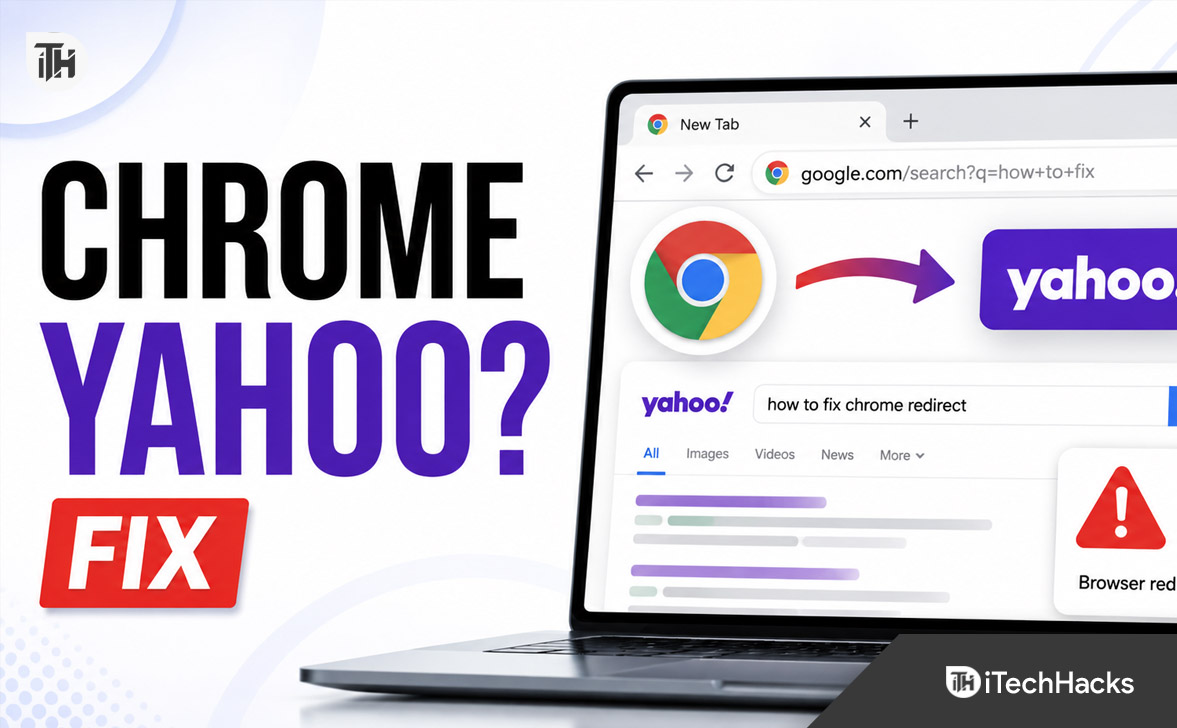
You open Google Chrome, type a search into the address bar, and unexpectedly land on Yahoo Search. This can be confusing because Chrome is a browser, while Google and Yahoo are search engines. Using Chrome does not guarantee that every search will go through Google.
In most cases, Yahoo appears because the default search engine was changed, a browser extension modified your settings, or unwanted software is redirecting searches. Google also warns that unexpected search engine changes may indicate malware or another unwanted program.
The good news is that you can usually fix this problem in a few minutes without deleting your bookmarks, saved passwords, or personal files.
Why Is My Google Chrome Searching With Yahoo?
Chrome lets you choose which search engine handles searches entered in the address bar. Depending on your region or device setup, you may have selected Yahoo during installation. A legitimate program may also have changed the setting after receiving permission.
However, repeated redirects can also be caused by a browser hijacker. This is unwanted software that changes the homepage, new tab page, search provider, or startup settings. It may arrive with a free program, suspicious extension, fake update, download manager, or misleading advertisement.
Common causes include:
- Yahoo is selected as Chrome’s default search engine.
- An extension is controlling or redirecting your searches.
- A recently installed app changed your browser settings.
- Chrome opens a suspicious page whenever it starts.
- Your browser is managed by a workplace, school, or software policy.
- Chrome Sync restored an unwanted setting from another device.
How to Stop Chrome From Searching With Yahoo
1. Change the Default Search Engine to Google
Start with the simplest fix. Open Chrome, click the three-dot menu in the upper-right corner, and select Settings. Choose Search engine, click Change under the Search engine section, and select Google. These steps match Chrome’s current desktop settings.
You can also enter chrome://settings/search in the address bar to open the relevant settings page directly. Test the change by opening a new tab and searching for something from the address bar.
2. Remove Suspicious Search Shortcuts
If Chrome continues using Yahoo, open Settings, select Search engine, and then open Manage search engines and site search. Review the listed search engines and site-search shortcuts carefully.
Delete or deactivate unfamiliar entries, especially ones with unusual names or URLs. Chrome allows users to edit, deactivate, delete, or make eligible site-search shortcuts the default.
Do not remove a search provider simply because you recognize Yahoo. The important target is any suspicious shortcut that sends searches through an unknown website before loading Yahoo.
3. Remove Unwanted Chrome Extensions
Extensions can change search behavior, display advertisements, or redirect new tabs. Enter chrome://extensions in the address bar to see everything installed in Chrome.
Remove extensions you do not recognize, no longer use, or installed shortly before the problem started. Chrome’s extension manager lets you remove an extension and confirm the removal directly from this page.
Pay close attention to search tools, coupon finders, PDF converters, video downloaders, browser toolbars, and “safe search” extensions. After removing them, close Chrome completely and reopen it.
If you are unsure which extension is responsible, disable all extensions temporarily. Turn them on one at a time and test Chrome after each change. When Yahoo returns, the extension you just enabled is likely causing the redirect.
4. Check Chrome’s Startup and Homepage Settings
Sometimes the default search engine is correct, but Chrome opens a Yahoo-based page at startup. Go to Settings and select On startup. Choose Open the New Tab page, or remove any page you did not add yourself.
Next, open the Appearance section and review the homepage setting if the Home button is enabled. Remove unfamiliar web addresses. This prevents a suspicious page from loading whenever Chrome starts or you press the Home button.
5. Reset Chrome Settings
If the problem remains, reset Chrome. Open Settings, select Reset settings, choose Restore settings to their original defaults, and confirm by clicking Reset settings.
A reset restores settings related to the default search engine, startup pages, new tab page, content permissions, extensions, and themes. Your saved bookmarks and passwords are not deleted or changed, although extensions are disabled.
After the reset, re-enable only the extensions you recognize and trust. Test your searches before enabling the next extension.
6. Scan Windows for Adware or Malware
If Yahoo returns after you change the setting, a program on the computer may be changing Chrome again. Open Windows Security, select Virus & threat protection, open Scan options, and run a Full scan.
Microsoft recommends a full scan when you believe a computer may be infected. Windows Security can detect malware, spyware, adware, and other potentially unwanted software.
Also review recently installed programs through Settings > Apps > Installed apps. Uninstall unfamiliar software added around the time the redirect began. Avoid downloading random “browser cleaner” tools, as some of them may create additional problems.
7. Check Whether Chrome Is Managed
Open the three-dot Chrome menu and look at the bottom. If you see Managed by your organization, a policy may control the search engine or automatically install extensions.
This message is normal on a work or school computer because administrators can restrict browser features and control settings. Google recommends contacting the administrator if the browser is legitimately managed.
On a personal computer, enter chrome://management and chrome://policy to inspect whether software has applied unexpected browser rules. Run a security scan before attempting advanced policy or system changes.
How to Change Yahoo to Google on Android
Open Chrome on your Android phone, tap the three-dot menu, and select Settings. Under Basics, tap Search engine and choose Google. Chrome’s Android settings allow you to select the preferred search engine from this menu.
If searches still redirect, remove recently installed apps that seem suspicious, especially cleaners, launchers, keyboards, downloaders, and free utility apps. Make sure Google Play Protect is enabled, then scan the device.
You can also clear Chrome’s app storage as a final step, but this may sign you out of websites and remove locally stored browsing data. Try changing the search engine and uninstalling suspicious apps first.
How to Prevent the Yahoo Redirect From Returning
- Install extensions only from developers you trust.
- Read installation screens instead of accepting every recommended option.
- Keep Chrome, Windows, and security software updated.
- Avoid fake browser update prompts and unofficial download websites.
- Review Chrome extensions and installed apps regularly.
- Do not allow unknown websites to send browser notifications.
Frequently Asked Questions
Is Yahoo Search a virus?
Yahoo Search itself is not a virus. The concern is how your searches are reaching Yahoo. If an unknown website or extension redirects every search without permission, the computer may contain a browser hijacker or potentially unwanted program.
Why does Yahoo keep returning after I select Google?
An extension, installed program, synced setting, or browser policy may be changing Chrome again. Remove suspicious extensions, check startup pages, reset Chrome, and run a full malware scan.
Will resetting Chrome delete my passwords and bookmarks?
No. Chrome’s standard settings reset does not delete or change saved bookmarks and passwords. However, it resets several browser preferences and disables installed extensions.
Should I uninstall and reinstall Chrome?
Reinstalling Chrome can help if browser files are damaged, but it may not remove another program that keeps changing the settings. Complete the extension check, app removal, Chrome reset, and malware scan first.
Final Thoughts
When Google Chrome starts searching with Yahoo, first change the default search engine back to Google. If the problem returns, treat it as a possible extension, startup-page, browser-policy, or unwanted-software issue.
Work through the fixes in order: correct the search setting, remove suspicious shortcuts and extensions, check startup pages, reset Chrome, and scan the device. Once the source of the redirect is removed, Chrome should continue using your preferred search engine normally.
ALSO READ:
- Google Chrome Keeps Switching to Bing or Yahoo? Fix It Fast
- Download Google Chrome Offline Installer (64-bit, 32-bit)
- Stop Google Chrome from Automatically Signing You In to a Google Account
- How to Fix file://tmp/error.html Error in Google Chrome
- How to Fix Can’t Download Images from Google Chrome on Android