- If your iPhone shows "Unable to Connect to Wallet Services," it may stop you from adding cards or using Apple Pay, often caused by issues like Apple service outages, unstable internet, or incorrect settings.
- To fix this error, start by checking Apple's System Status for outages, test your internet connection by switching networks, and make sure Wallet has access to mobile data. Disabling VPNs and restarting your iPhone could also help.
- Update your iOS and banking app, set your date and time automatically, and verify if your card supports Apple Pay. Contact your bank if one card has problems or reset network settings if issues persist with multiple cards.
Seeing the “Unable to Connect to Wallet Services” error on your iPhone can prevent you from adding a payment card, connecting a bank account, viewing transaction activity, or using certain Apple Pay features. The message may appear even when other apps are connecting to the internet normally.
In most cases, this problem is caused by an Apple service outage, an unstable internet connection, outdated iOS software, incorrect account settings, or a restriction from your bank or card issuer. This guide explains how to fix the Unable to Connect to Wallet Services error on iPhone using safe and practical troubleshooting methods.
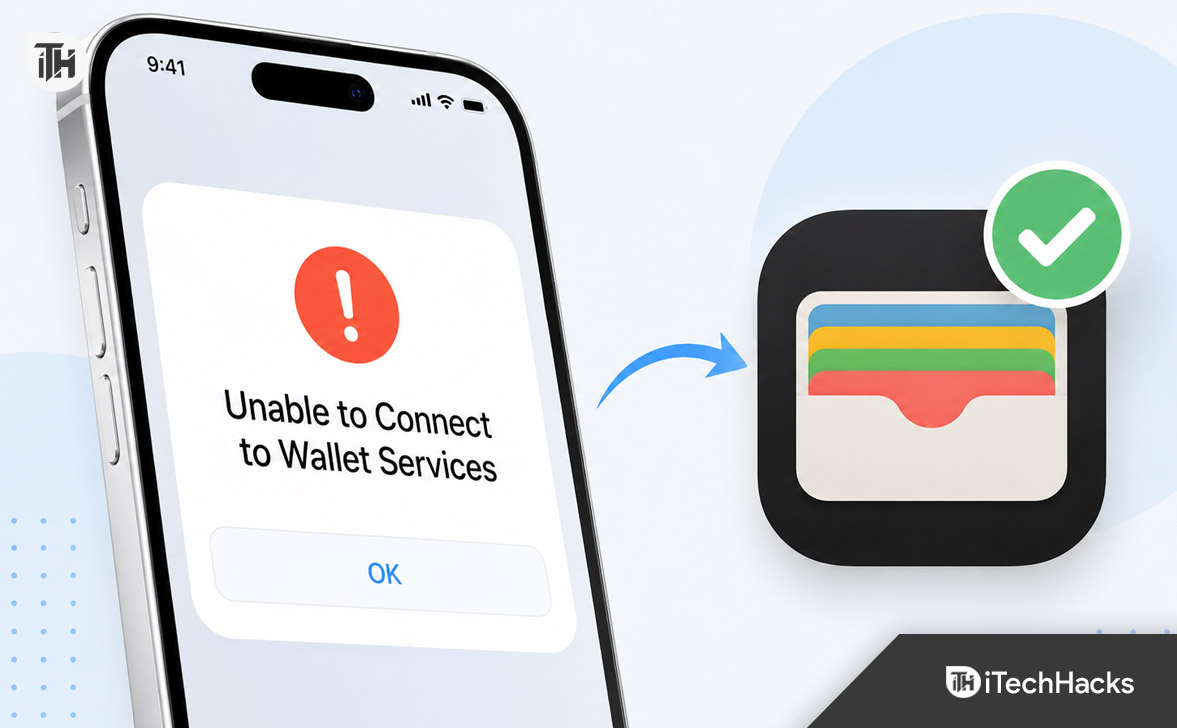
What Does “Unable to Connect to Wallet Services” Mean?
The error means that the Wallet app could not establish a secure connection with Apple, your bank, your card issuer, or another service required to complete the request. It does not necessarily mean that the Wallet app itself is damaged.
You may encounter the message while performing tasks such as:
- Adding a debit or credit card to Apple Wallet
- Setting up Apple Pay on a new iPhone
- Connecting a bank account to view balances and transactions
- Verifying a payment card
- Adding a transit card, ticket, key, or supported pass
- Restoring Wallet information after an iPhone update
The correct solution depends on whether the error affects every Wallet feature or only one specific card.
Why Is Apple Wallet Unable to Connect?
Apple Wallet depends on several services working together. A problem with any one of them can interrupt the connection.
Common causes include:
- A temporary Apple Wallet or Apple Pay service outage
- Weak Wi-Fi or mobile data connectivity
- A VPN, DNS filter, firewall, or security app blocking the connection
- An outdated version of iOS
- Incorrect date, time, or region settings
- An Apple Account verification problem
- Apple Pay not being available in your country or region
- A card that is not supported by Apple Pay
- A temporary problem with your bank’s verification system
- Corrupted network settings on the iPhone
How to Fix Unable to Connect to Wallet Services on iPhone
1. Check the Apple System Status
Before changing your iPhone settings, check whether Apple Wallet, Apple Pay, Apple Cash, or another related service is temporarily unavailable. Apple occasionally performs maintenance, and unexpected outages can also happen.
Open Apple’s official System Status page in Safari and look for an issue affecting Apple Pay, Apple Account, or iCloud services. A green indicator generally means the service is operating normally.
If Apple reports an outage, troubleshooting your iPhone will not fix the problem. Wait until the affected service is restored, and then try opening Wallet again.
2. Test Your Internet Connection
Wallet requires a stable internet connection when adding cards, verifying accounts, downloading passes, or refreshing account information. A network can appear connected while still blocking Apple’s secure verification request.
Try the following:
- Open Safari and load two or three different websites.
- Turn Airplane Mode on for about 15 seconds, and then turn it off.
- Switch from Wi-Fi to mobile data.
- Connect to a different Wi-Fi network.
- Restart your Wi-Fi router if other devices are also having connection problems.
Avoid public Wi-Fi networks that require a browser login page. Hotel, airport, office, and café networks may block or interrupt secure Wallet connections.
3. Allow Wallet to Use Mobile Data
If Wallet works over Wi-Fi but fails while using your mobile network, cellular access may be disabled for the app.
- Open Settings.
- Tap Cellular or Mobile Service.
- Make sure cellular data is turned on.
- Scroll through the app list and enable access for Wallet.
- If shown, also make sure the Settings app is allowed to use cellular data.
Open Wallet again and repeat the action that previously produced the Unable to Connect to Wallet Services message.
4. Disable Your VPN or Network Filter
VPN apps, private DNS services, ad blockers, antivirus apps, and company security profiles can route or filter network traffic. This may interfere with the secure connection between Wallet, Apple, and your bank.
Temporarily disconnect your VPN and test Wallet again. Also check Settings > General > VPN & Device Management for active VPN configurations or organization profiles.
Do not permanently remove a work or school management profile without permission. Instead, test Wallet on a personal network or contact the organization managing the iPhone.
5. Restart Your iPhone
A restart clears temporary system processes and reconnects services used by Wallet. This simple method is especially useful when the error started after an iOS update, network change, or failed card verification.
To restart an iPhone with Face ID, press and hold the side button and either volume button until the power slider appears. Drag the slider, wait for the device to shut down, and then hold the side button to turn it back on.
After the restart, connect to a reliable network and open Wallet.
6. Set the Date and Time Automatically
Secure connections rely on accurate date and time information. If the time on your iPhone is incorrect, Apple or your bank may reject the connection because the security certificate cannot be verified correctly.
- Open Settings.
- Go to General > Date & Time.
- Turn on Set Automatically.
- Confirm that the displayed time zone is correct.
Restart the iPhone after changing this setting, and then test Wallet again.
7. Update iOS and Your Banking App
Apple frequently includes Wallet, security, networking, and Apple Pay fixes in iOS updates. Banks may also update their apps when verification requirements or Wallet integrations change.
To update your iPhone:
- Connect the device to Wi-Fi and power.
- Open Settings > General > Software Update.
- Install the latest update available for your iPhone.
Next, open the App Store, tap your profile picture, and install any available update for your bank or card issuer’s app. Restart the iPhone once the updates are complete.
8. Confirm That Your Device, Region, and Card Are Supported
Apple Pay is not available in every country, and not every bank or card from a participating bank is eligible. Wallet can still store tickets and passes in many regions where Apple Pay payment cards are unavailable.
For Apple Pay, confirm the following requirements:
- Your iPhone is compatible with Apple Pay.
- Apple Pay is supported in your country or region.
- Your bank participates in Apple Pay.
- The specific card type is supported by the issuer.
- A device passcode, Face ID, or Touch ID is enabled.
- Two-factor authentication is enabled for your Apple Account.
- You are signed in to your Apple Account on the iPhone.
Most iPhone models with Face ID or Touch ID support Apple Pay, except the iPhone 5s. However, regional and card requirements can still prevent setup even on a compatible device.
9. Check for Apple Account Alerts
Wallet may fail to connect if your Apple Account needs verification, updated terms must be accepted, or account information is incomplete.
Open Settings and tap your name or Apple Account section at the top. Look for messages such as “Update Apple Account Settings,” “Apple Account Suggestions,” or a request to enter your password.
Complete any pending verification and confirm that two-factor authentication is active. Then restart Wallet and try again.
10. Remove and Add the Affected Card Again
Use this method when Wallet opens normally but one specific card cannot connect, update, or complete verification. Removing the card refreshes the device-specific payment credentials stored for that card.
- Open the Wallet app.
- Tap the affected payment card.
- Tap the More button.
- Open Card Details.
- Scroll down and tap Remove Card.
- Restart the iPhone.
- Open Wallet, tap the add button, and add the card again.
Make sure you know your physical card details and have access to the phone number or banking app used for verification. Some banks require a one-time password, an in-app approval, or a call to activate the card for Apple Pay.
11. Reset the iPhone Network Settings
If Wallet still cannot connect on multiple Wi-Fi and cellular networks, the saved network configuration may be corrupted. Resetting network settings removes saved Wi-Fi networks, passwords, VPN configurations, and certain cellular preferences without deleting your photos or apps.
- Open Settings.
- Go to General > Transfer or Reset iPhone.
- Tap Reset.
- Select Reset Network Settings.
- Enter your iPhone passcode and confirm.
After the iPhone restarts, reconnect to Wi-Fi and test the Wallet app. Keep your Wi-Fi password available before performing the reset.
12. Contact Your Bank or Card Issuer
If only one card is affected, the problem is more likely to be on the issuer’s side than with your iPhone. Apple does not approve or decline individual cards for Apple Pay.
Contact the number printed on the back of your card and ask the bank to check:
- Whether the card supports Apple Pay
- Whether digital wallet access is blocked
- Whether the card has reached its device limit
- Whether identity verification is pending
- Whether the card was recently replaced or reissued
- Whether the bank’s Wallet verification service is unavailable
Messages such as “Could Not Add Card,” “Invalid Card,” and “Card Device Limit” generally require help from the card issuer.
Fix Wallet Account Balance or Transaction Connection Problems
Connecting a bank account to display balances and extended transaction history is different from adding a card for Apple Pay. The account activity feature is available only through eligible issuers.
If the card is already in Wallet but account activity will not connect, make sure:
- Your iPhone is running iOS 17.1 or later.
- Your bank supports connected account information in Wallet.
- The latest version of your banking app is installed.
- You selected the correct account during bank authentication.
- Apple and your bank are not experiencing an outage.
You can also open Settings > Wallet & Apple Pay, find the Connections section, disconnect the affected issuer, and then reconnect it. This removes the account activity connection, not necessarily the payment card itself.
Common Wallet Problems and Their Solutions
Wallet Opens, but Apple Pay Is Declined
A declined payment is usually a bank, card, merchant, or payment network issue. Check the card status in Wallet and contact the card issuer. Removing the card is rarely the first step for an ordinary declined transaction.
The Side Button Opens a Different Payment App
In supported regions, another contactless payment app may be selected as the default. Open your iPhone’s contactless payment settings and select Apple Wallet as the default app, or open Wallet manually before paying.
Wallet Works on Wi-Fi but Not on Mobile Data
Enable cellular data for Wallet and Settings. Also disable Low Data Mode temporarily and verify that your mobile carrier connection is working properly.
The Error Appeared After Changing Countries
Apple Pay availability, participating banks, and supported cards vary by region. Review your iPhone region, Apple Account country, billing address, and bank eligibility before attempting to add the card again.
Frequently Asked Questions
Why does my iPhone say Unable to Connect to Wallet Services?
The error normally appears when your iPhone cannot communicate with Apple or your card issuer. Outages, poor internet connectivity, VPN filtering, outdated software, account verification problems, and unsupported cards are common causes.
Will resetting network settings remove my Wallet cards?
Resetting network settings should not erase your photos, apps, or personal files. It removes saved Wi-Fi passwords, network preferences, and VPN configurations. Your bank may still request verification when Wallet reconnects.
Can I use Apple Wallet without Apple Pay?
Yes. Depending on your region and the issuing organization, Wallet can store boarding passes, event tickets, loyalty cards, transit passes, digital keys, IDs, and other supported items even when Apple Pay payment cards are unavailable.
Why can I add one card but not another?
Card support is controlled by the issuer. A bank may support Apple Pay while excluding certain prepaid, business, virtual, regional, or older card products. Contact the issuer to confirm eligibility for the exact card.
Should I erase my iPhone to fix Wallet Services?
No. Erasing the iPhone is not an appropriate early troubleshooting step. Try the network, account, software, eligibility, card, and issuer fixes first. Contact Apple Support before considering a full device reset.
Final Thoughts
The Unable to Connect to Wallet Services error on iPhone is usually fixable without erasing the device. Start by checking Apple’s service status and testing a different internet connection. Then restart the iPhone, disable VPN services, enable automatic date and time, and install the latest iOS and banking app updates.
If the problem affects only one payment card, verify that the card and issuer support Apple Pay and contact the bank for assistance. When every Wallet feature fails across multiple networks, resetting network settings or contacting Apple Support is the most sensible next step.
ALSO READ:
- How to Fix iOS 26 Brightness Issue on iPhone (Fixes)
- How to Force YouTube Desktop Mode on Safari for iPhone and iPad
- iOS 26 Fast Battery Drain on iPhone? How to Restore iPhone Battery Health
- Can’t Make Outgoing Calls After iOS 26 Update? Fix iPhone Call Failed Errors
- How Do I Turn Off Do Not Disturb? A Guide for iPhone, Android, Mac, and Windows