

- Perplexity Pro might not work due to reasons like server issues, forgotten login details, outdated app versions, network problems, or missed subscription payments. It’s commonly used by students and professionals for advanced research tools, so any disruption can affect their tasks.
- Users should initially check if there is a service outage on Perplexity's end. If not, common fixes include ensuring correct login credentials, checking payment statuses, clearing browser cache, updating or reinstalling the app, and disabling VPNs or ad blockers.
- Once all basic troubleshooting is done and the problem persists, contacting Perplexity support for assistance with detailed information about the issue is advisable, particularly for problems related to subscription verification or account syncing.
If Perplexity Pro not working is the issue you are facing, it can be frustrating, especially when you have paid for premium features like Pro Search, advanced models, file uploads, image generation, Deep Research, or faster responses. In many cases, the problem is not always with your subscription. It can happen because of a temporary server issue, browser cache, app bugs, payment verification delay, login mismatch, VPN conflict, or account syncing problem.
Perplexity Pro is widely used by students, researchers, marketers, developers, writers, and professionals who need quick answers with sources. So when Pro features suddenly stop showing, searches fail, files do not upload, or the app keeps asking you to upgrade even after payment, it can interrupt your entire workflow.
The good news is that most Perplexity Pro problems can be fixed with a few practical checks. In this guide, we will go through the best working methods to fix Perplexity Pro not working on desktop, mobile, browser, and app.
What Is Perplexity Pro?
Perplexity Pro is the paid version of Perplexity that gives users access to more advanced search and research features compared to the free plan. Depending on the latest availability in your region and account, Pro may include higher usage limits, access to advanced AI models, file upload support, image generation, longer research queries, and enhanced answer quality.
Unlike a normal search engine, Perplexity gives direct answers with sources. The Pro version is designed for users who need deeper research, faster responses, and more flexible model choices. That is why users quickly notice when Pro features stop working or their account suddenly behaves like a free account.
Common Reasons Why Perplexity Pro Is Not Working
Before jumping into fixes, it helps to understand why this issue happens. Most users face Perplexity Pro not working because of one of these reasons:
- You are logged into the wrong Perplexity account.
- Your payment or subscription has not synced properly.
- Perplexity servers are temporarily down or under maintenance.
- Your browser cache or cookies are corrupted.
- The mobile app is outdated or buggy.
- Your VPN, proxy, ad blocker, or browser extension is blocking requests.
- Your Pro usage limit for a specific feature has been reached.
- File upload, image generation, or model selection is temporarily restricted.
- Your subscription was purchased through Apple, Google Play, Airtel, or another partner and has not linked correctly.
How to Fix Perplexity Pro Not Working
1. Check If Perplexity Is Down
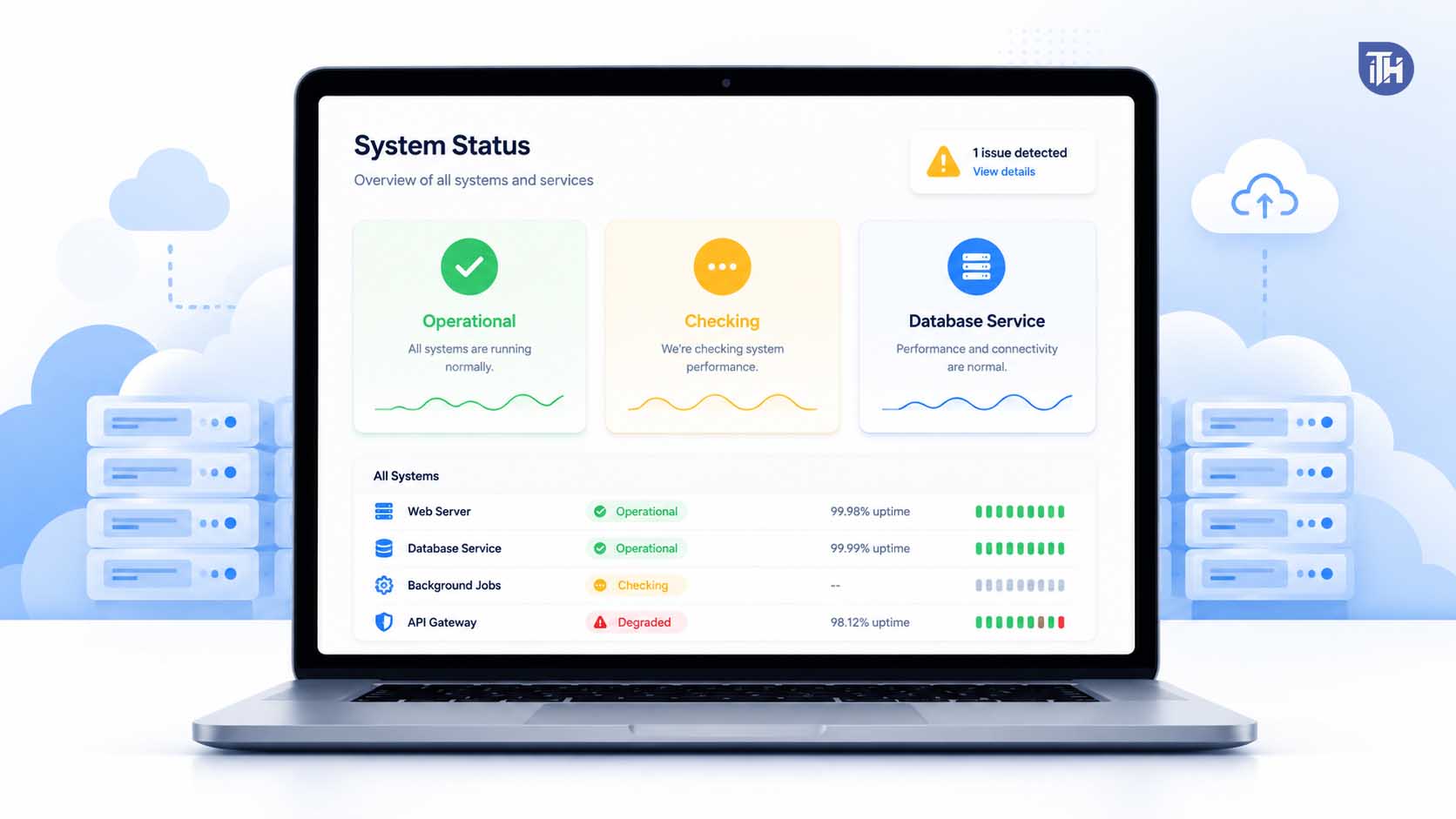
The first thing you should check is whether Perplexity itself is having a service outage. If the website, app, Pro Search, file uploads, or model switching are not working for many users at the same time, the issue is likely on Perplexity’s side.
Open the official Perplexity status page and check whether the website or API is operational. You can also check Downdetector, Reddit, or X posts to see if other users are reporting the same problem.
If there is an active outage, you cannot fix it from your device. In that case, wait until Perplexity resolves the issue. However, if the status page shows everything is working, continue with the next fixes.
2. Confirm You Are Logged Into the Correct Account
This is one of the most common reasons behind Perplexity Pro not working. Many users accidentally log in with a different email, Apple ID, Google account, or work account. As a result, Perplexity shows the free version even though Pro is active on another login.
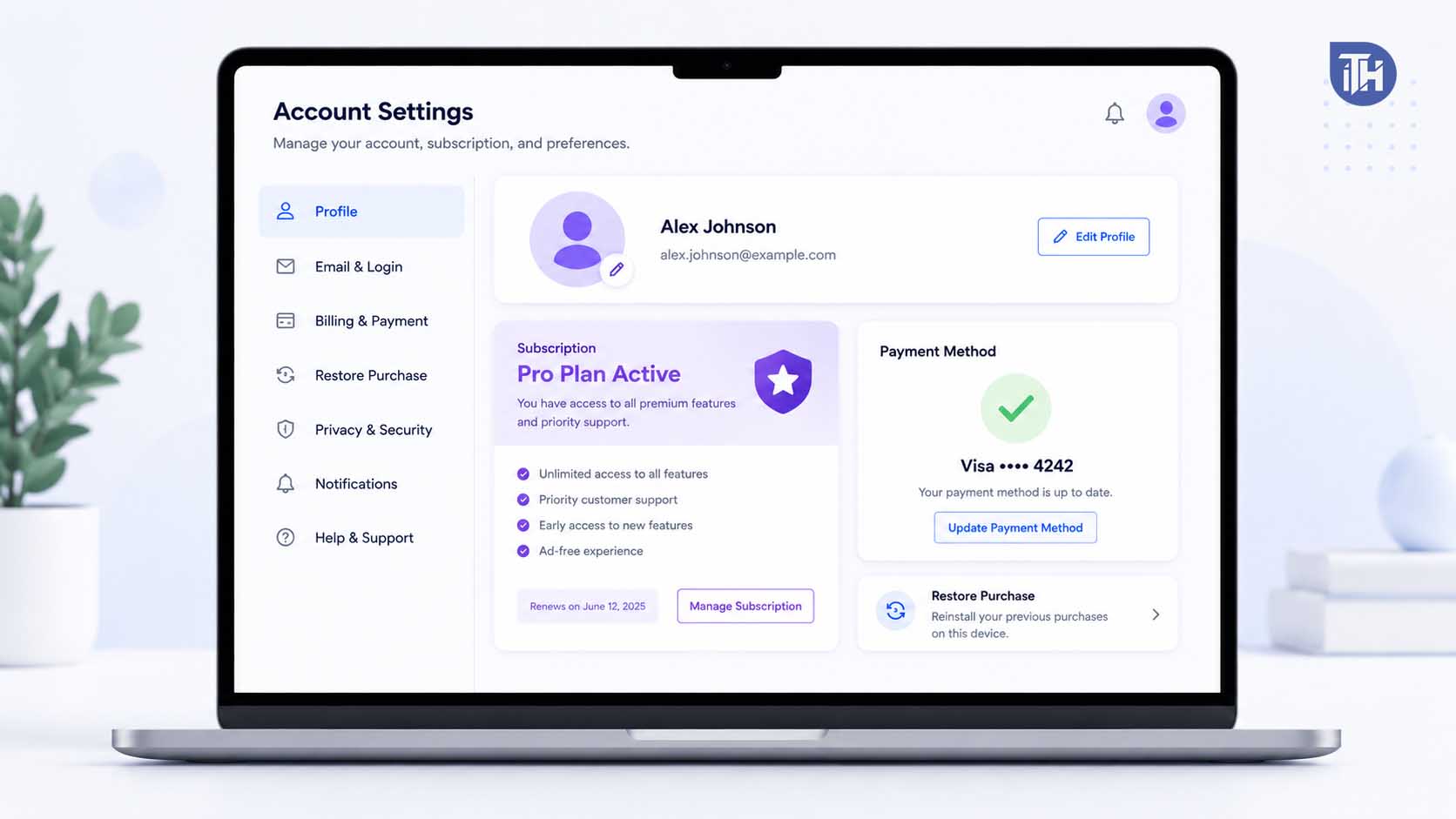
Open Perplexity and go to your account settings. Check the email address shown there. Make sure it is the same account you used when buying Perplexity Pro.
If you purchased Pro through Apple App Store or Google Play, check which email is linked to that purchase. If you redeemed Perplexity Pro through Airtel or another partner offer, make sure you are logged in with the same account used during activation.
3. Sign Out and Sign Back In
Sometimes your account subscription is active, but the session does not refresh correctly. Signing out and signing back in forces Perplexity to reload your account status.
Follow these steps:
- Open Perplexity on browser or mobile app.
- Go to your profile or account settings.
- Click Sign Out.
- Close the browser tab or app completely.
- Open Perplexity again.
- Sign in with the correct Pro account.
- Check whether Pro features are now visible.
This simple method often fixes cases where Perplexity keeps showing an upgrade button even after you already paid.
4. Check Your Subscription Status
If Perplexity Pro is not working after login, verify your subscription status. Go to your Perplexity account settings and look for billing, subscription, or plan details.
You should see whether your plan is active, expired, cancelled, or pending. If the payment failed or your bank declined the renewal, Perplexity may automatically move your account back to the free plan.
If you paid through Apple or Google Play, open the subscription section on your phone:
- On iPhone, go to Settings > Apple ID > Subscriptions.
- On Android, open Google Play Store > Payments & subscriptions > Subscriptions.
Make sure Perplexity Pro is active there. If the subscription is active in Apple or Google but not showing inside Perplexity, restore the purchase from the app if that option is available.
5. Clear Browser Cache and Cookies
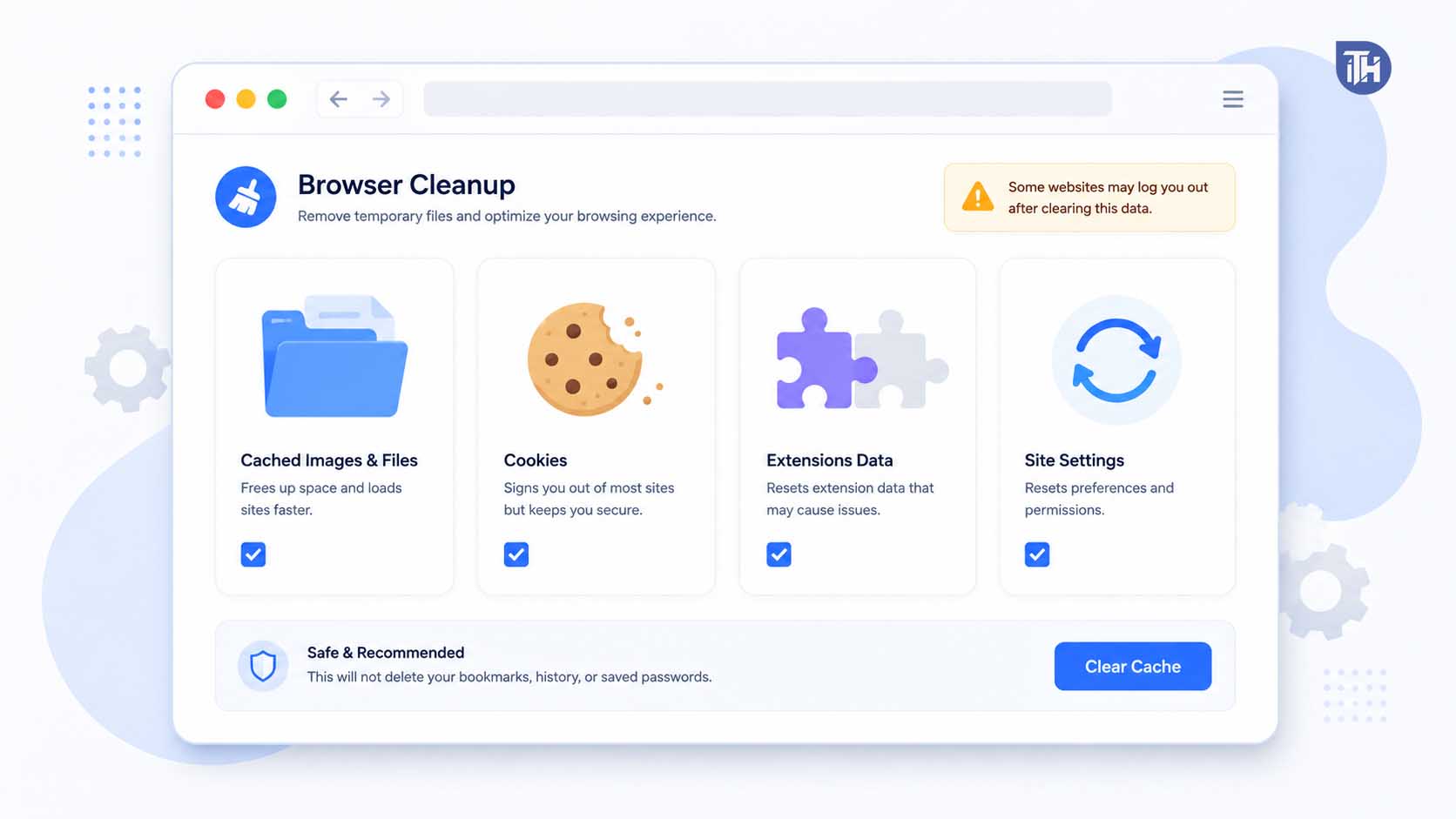
Old cookies and cached files can cause login, billing, and Pro feature detection problems. If Perplexity Pro works on mobile but not on your desktop browser, clearing cache can help.
For Chrome, Edge, or Brave:
- Open browser settings.
- Go to Privacy and Security.
- Select Clear browsing data.
- Choose cookies and cached images/files.
- Clear data for Perplexity or all sites if needed.
- Restart the browser.
- Log in again to Perplexity.
This works because it removes broken session data that may be forcing Perplexity to treat your account as a free user.
6. Try Incognito Mode or Another Browser
If clearing cache feels risky or you do not want to log out from every website, test Perplexity in incognito mode first. Open a private window, visit Perplexity, and sign in with your Pro account.
If Perplexity Pro works in incognito mode, the issue is likely caused by your browser cache, cookies, or extensions. You can then disable extensions one by one or clear Perplexity-specific site data.
You can also try a different browser such as Chrome, Edge, Firefox, Safari, or Brave. If Pro works in one browser but not another, the problem is local to the browser, not your Perplexity subscription.
7. Disable VPN, Proxy, or Ad Blocker
VPNs and ad blockers can sometimes interfere with Perplexity requests, especially if they block scripts, authentication calls, payment verification, or model endpoints. If Perplexity Pro not working started after enabling a VPN or privacy extension, turn it off temporarily.
Disable these tools and test again:
- VPN apps
- Proxy extensions
- Ad blockers
- Script blockers
- Privacy-focused browser shields
- DNS filtering apps
If Perplexity starts working after disabling one of them, add Perplexity to the allowlist. This lets the website load correctly without turning off protection for all websites.
8. Update the Perplexity App
If Perplexity Pro is not working on iPhone or Android, update the app first. Older app versions may have bugs with account syncing, model selection, file uploads, or Pro feature access.
Open the App Store or Google Play Store and search for Perplexity. If an update is available, install it. After updating, close the app completely and open it again.
If the issue continues, restart your phone and check again. App updates often fix bugs silently, so this step is important before trying more advanced methods.
9. Reinstall the Perplexity App
If updating does not help, uninstall and reinstall the app. This removes corrupted local files and forces a clean login session.
On iPhone, long-press the Perplexity app icon and delete it. Then reinstall it from the App Store. On Android, uninstall the app from your home screen or settings, then reinstall it from Google Play Store.
After reinstalling, sign in with the same account linked to your Pro subscription. Do not create a new account by mistake.
10. Restore Purchase on Mobile
If you bought Perplexity Pro through Apple App Store or Google Play and the app still asks you to upgrade, look for a Restore Purchase option inside the Perplexity app settings or subscription screen.
This tells the app to check your Apple or Google subscription again and link it with your Perplexity account. It is especially useful when you recently changed phones, reinstalled the app, switched accounts, or restored your device from backup.
11. Check Whether You Hit a Usage Limit
Some users think Perplexity Pro is broken when actually a specific feature has hit a temporary limit. Pro plans usually offer higher limits than the free plan, but certain advanced features may still have fair usage limits depending on the model, feature, region, or current Perplexity policy.
If Pro Search works but file upload, image generation, Labs, or a specific model does not work, the issue may be feature-specific. Try switching to another model, asking a shorter query, uploading a smaller file, or waiting before using that feature again.
This is important because not every Pro issue means your entire subscription has failed.
12. Try a Smaller File Upload
If Perplexity Pro is not working only when uploading files, the file itself may be the problem. Large files, scanned PDFs, password-protected documents, corrupted files, or unsupported file formats can fail during upload.
Try these fixes:
- Upload a smaller file first.
- Rename the file using simple English characters.
- Remove special symbols from the file name.
- Convert the document to PDF or TXT.
- Remove password protection.
- Check whether the file opens properly on your device.
- Try uploading from desktop instead of mobile.
If smaller files work but large files fail, the issue is likely related to file size, processing limits, or temporary upload restrictions.
13. Switch to a Different AI Model
Perplexity Pro users often get access to different advanced models. Sometimes one model may be temporarily unavailable, overloaded, or slower than usual. If your query fails repeatedly, switch to another available model from the model selector.
For example, if one advanced model does not respond, choose another model and submit the same query again. This helps you confirm whether the problem is with Perplexity Pro overall or only with one model.
14. Check Your Internet Connection
A slow or unstable internet connection can also make Perplexity Pro feel broken. This is especially true for file uploads, long research queries, and deep searches that need constant connectivity.
Try opening another website, running a speed test, or switching from Wi-Fi to mobile data. If you are using office, college, or public Wi-Fi, the network may block certain scripts or AI tools. In that case, test Perplexity on a personal hotspot.
15. Disable Browser Extensions One by One
Extensions can break websites in unexpected ways. Grammar tools, ad blockers, privacy extensions, download managers, dark mode extensions, script blockers, and security add-ons can interfere with Perplexity.
Open your browser extension page and disable extensions one by one. After disabling each extension, refresh Perplexity and check if Pro starts working.
If you find the problematic extension, keep it disabled for Perplexity or add Perplexity to the extension’s allowlist.
16. Check Date and Time Settings
Incorrect system date and time can cause login and security token issues. If your device clock is wrong, Perplexity may fail to verify your session correctly.
On Windows, go to date and time settings and enable automatic time. On Mac, enable automatic date and time from system settings. On iPhone or Android, turn on automatic time zone and network-provided time.
After fixing the time, restart your browser or app and log in again.
17. Try Perplexity on Another Device
If you are still unable to use Pro features, test your account on another device. For example, if it is not working on your laptop, try your phone. If it is not working on the app, try the desktop browser.
If Perplexity Pro works on another device, your account is fine and the issue is device-specific. In that case, focus on browser cache, extensions, app data, VPN, network settings, or device updates.
If Pro does not work on any device, the issue is more likely related to your account, subscription, payment, or Perplexity server-side settings.
18. Contact Perplexity Support
If nothing works, contact Perplexity support with complete details. Do not simply write “Perplexity Pro not working.” Give them enough information so they can check your account faster.
Include these details:
- Your Perplexity account email
- Subscription purchase method
- Payment receipt or order ID
- Device name
- Browser or app version
- Screenshots of the error
- Whether Pro works on another device
- Which feature is not working
If you bought Pro through Apple, Google Play, Airtel, or another partner, mention that clearly. Partner-based subscriptions may require extra verification.
Fix Perplexity Pro Asking to Upgrade Again
If Perplexity keeps asking you to upgrade even after payment, the most likely causes are wrong login, delayed payment sync, expired subscription, or app store purchase mismatch.
First, verify the email address. Then check your subscription in Perplexity settings. If you bought it through Apple or Google, check your app store subscription page. After that, sign out, restart the app, sign in again, and use the restore purchase option if available.
If it still does not work, contact support with your receipt. Do not buy another subscription immediately unless you are sure the original payment failed.
Fix Perplexity Pro Search Not Working
If only Pro Search is not working, check whether normal search works first. If normal search also fails, it may be a server, network, or browser issue. If normal search works but Pro Search fails, the issue may be related to Pro limits, model availability, or account status.
Try switching models, shortening your query, refreshing the page, disabling VPN, and testing in another browser. Also check if the official status page reports any ongoing issue.
Fix Perplexity Pro File Upload Not Working
For file upload problems, check the file format, file size, and file name. Avoid uploading password-protected, corrupted, scanned, or extremely large files. Rename the file with simple text and try again.
If upload fails on mobile, try desktop. If it fails on desktop, try another browser. Also disable ad blockers and VPN because they can interrupt upload requests.
Fix Perplexity Pro Not Working on iPhone
On iPhone, start by updating the Perplexity app. Then check your Apple subscription under Settings. Make sure your App Store account is the same one used to purchase Pro.
After that, sign out of Perplexity, restart your iPhone, and sign in again. If available, tap restore purchase. If the issue continues, reinstall the app and test again.
Fix Perplexity Pro Not Working on Android
On Android, update the app from Google Play Store. Then open Google Play subscriptions and confirm that Perplexity Pro is active. Clear the Perplexity app cache from Android settings and restart the app.
If that does not help, uninstall and reinstall the app. Make sure you sign in using the same Google account or email connected to your Pro purchase.
Additional Tips to Avoid Perplexity Pro Issues
- Always use the same email account for login and subscription.
- Keep the Perplexity app updated.
- Avoid using aggressive ad blockers with Perplexity.
- Do not use unstable VPN servers while uploading files.
- Keep payment details updated before renewal.
- Save your payment receipt after buying Pro.
- Check the status page before troubleshooting heavily.
- Use desktop browser for large file uploads and research tasks.
Frequently Asked Questions
Why is Perplexity Pro not working after payment?
It may happen because your payment has not synced yet, you are logged into the wrong account, your app store purchase has not been restored, or Perplexity is facing a temporary service issue.
This usually means Perplexity is not detecting your Pro subscription. Sign out and sign back in, verify your account email, check billing status, and restore purchase if you subscribed through Apple or Google Play.
Is Perplexity Pro down?
Perplexity can occasionally face outages or degraded performance. Check the official Perplexity status page and user reports before assuming the issue is with your device or account.
Why is Perplexity Pro file upload not working?
File upload can fail because of large file size, unsupported format, corrupted document, password protection, weak internet, VPN interference, or temporary upload restrictions.
Can VPN cause Perplexity Pro problems?
Yes, some VPNs, proxies, or privacy tools can block authentication, payment verification, search requests, or file uploads. Temporarily disable them and test again.
Should I buy Perplexity Pro again if it is not working?
No. First check your subscription status and payment receipt. If your payment already went through, contact Perplexity support instead of buying another subscription.
Final Thoughts
Perplexity Pro not working can happen for several reasons, but the fix is usually simple. Start by checking the service status, then verify your login account and subscription details. After that, clear browser cache, update the app, disable VPN or extensions, and test on another device.
If your subscription is active but Perplexity still shows the free plan, the issue is likely account syncing or purchase verification. In that case, restoring the purchase or contacting Perplexity support with your receipt is the best option.
Most users can fix the problem without cancelling or repurchasing Pro. The key is to first confirm whether the issue is server-side, account-related, browser-related, app-related, or feature-specific.
ALSO READ:




