- Windows 11 requires an internet connection during installation, making it difficult for users without the right Wi-Fi drivers to proceed, but you can bypass this using the "OOBE BYPASSNRO" command to skip the network requirement and continue installation offline.
- To apply this workaround, you need to open a Command Prompt during setup by pressing Shift + F10, then type "OOBEBYPASSNRO" which restarts the computer and allows the installer to continue without an internet connection.
- Once Windows 11 is installed offline, you can create a local user account, which enhances privacy by preventing automatic data sync and telemetry, and later manually install Wi-Fi drivers and connect to the internet to receive updates if needed.
Installing a fresh operating system used to be a liberating experience. It was a clean slate a moment to wipe away digital clutter and start fresh. You would insert your installation media, click “Next” a few times, create a user name, and within minutes, you would be staring at a pristine desktop.
However, with the release of Windows 11 (and specifically the strict requirements introduced in versions 23H2 and the current 24H2 builds), Microsoft has fundamentally changed the rules of engagement. The installation process, technically known as the OOBE (Out of Box Experience), now acts less like a setup wizard and more like a gatekeeper.
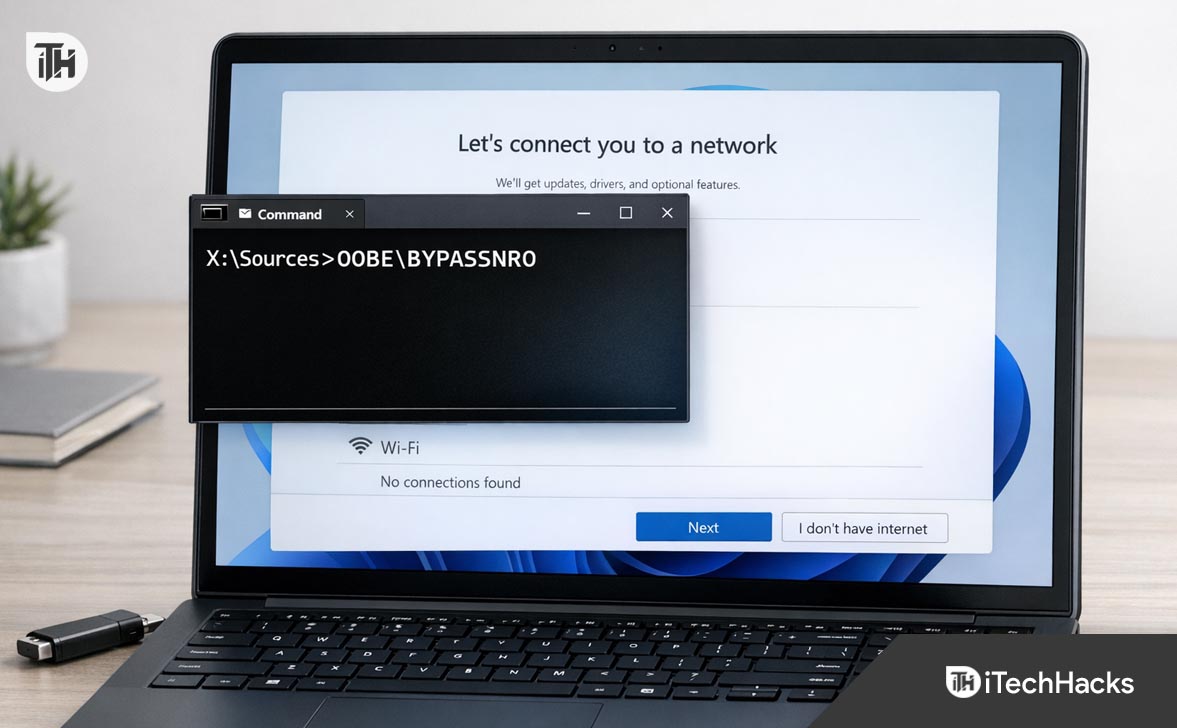
The most frustrating hurdle for users in 2026 is the “Let’s connect you to a network” screen.
For Windows 11 Home and Pro users, this screen is a dead end. If your computer does not have an active internet connection – or if your Wi-Fi drivers aren’t installed yet – the “Next” button is grayed out. You cannot proceed and you cannot skip it. You are effectively locked out of your own computer until you satisfy Microsoft’s demand for connectivity.
The “Chicken and Egg” Problem
Why is this internet requirement such a big deal? For many users, it isn’t just a matter of preference; it is a technical impossibility.
The Driver Paradox
When you build a custom PC or install Windows on a brand-new laptop, the installation media (the USB stick) often contains generic drivers. However, modern Wi-Fi 6E and Wi-Fi 7 cards often require specific, proprietary drivers to function.
Here is the paradox:
- To install the Wi-Fi driver, you need to reach the Windows Desktop.
- To reach the Windows Desktop, Microsoft requires you to connect to Wi-Fi.
Without the ability to bypass this check, you are stuck in a loop. You cannot get online because you don’t have drivers, and you can’t install drivers because you aren’t online. The oobe bypassnro command is the scissors that cut this loop.
The Privacy Argument
Beyond technical issues, there is the privacy aspect. When you connect to the internet during setup, Windows 11 forces you to sign in with a Microsoft Account (Outlook, Hotmail, Live).
- Forced Sync: This automatically syncs your wallpaper, browser history, and settings from other PCs, which you might not want.
- Folder Naming: When you use a Microsoft Account, Windows automatically names your user folder (C:\Users…) using the first five characters of your email address. If your email is
[email protected], your user folder becomesC:\Users\jonat. This is annoying for professionals who want clean file paths. - Telemetry: An online setup immediately begins communicating with Microsoft servers, setting up advertising IDs and diagnostic tracking.
By using the offline bypass, you force Windows to let you create a Local Account. This gives you a clean user folder (e.g., C:\Users\Jonathan), keeps your data local, and prevents the OS from uploading your usage habits from minute one.
What is OOBE BYPASSNRO?
It sounds like a cheat code, and in many ways, it is.
- OOBE: Stands for Out of Box Experience. This is the internal name for the
setup.exesequence that runs before you see the desktop. - BYPASSNRO: Stands for Bypass Network Requirement Option.
When you run this command, it executes a script located in the System32 folder. This script modifies the Windows Registry—specifically a key labeled BypassNRO inside the OOBE configuration hive. It sets this key to “1” (True). The script then triggers an immediate system reboot.
When Windows starts up again, the OOBE wizard reads this registry key, realizes the “Network Requirement” has been bypassed, and dynamically renders the “I don’t have internet” button that was previously hidden.
Step-by-Step Guide to Bypassing the Internet
Ready to install Windows 11 on your own terms? Follow these steps exactly. This method works for Windows 11 21H2, 22H2, 23H2, and the 2025/2026 version 24H2.
Step 1 1: The Setup
- Insert your Windows 11 USB installation media.
- Boot your computer and press the necessary key (F12, Delete, Esc) to boot from the USB.
- Follow the initial prompts:
- Select your Language, Time, and Keyboard method.
- Click Install Now.
- Select “I don’t have a product key” (or enter it if you have it).
- Select the customized installation (Advanced) to choose your hard drive.
- Let Windows copy the files and reboot.
Step 2: The Blockade
Once the files are copied, the PC will restart and launch the graphical setup wizard (OOBE).
- Is this the right country or region? Select your country and click Yes.
- Is this the right keyboard layout? Select your layout and click Yes.
- Want to add a second keyboard layout? Click Skip.
- Let’s connect you to a network.
- Here you will see a list of Wi-Fi networks.
- If you don’t have drivers, the list will be empty.
- Notice that the “Next” button is grayed out. You are stuck.
STOP HERE. Do not try to connect to Wi-Fi, even if you can.
Step 3: The Command Prompt
We need to inject our command.
- On your keyboard, press Shift + F10.
- Laptop Users: If pressing Shift + F10 does nothing (likely because your F-keys control volume or brightness), you must hold the Fn (Function) key. Press Fn + Shift + F10.
- A black Administrator Command Prompt window will appear on top of the blue setup screen.
Step 4: Executing oobe bypassnro
- Click inside the black window to ensure it is active.
- Type the following command. It is case-insensitive, but ensure you use a backslash (
\) and not a forward slash (/).
OOBE\BYPASSNROPress Enter.
What happens next?
The moment you hit Enter, the Command Prompt will disappear, and your computer will immediately restart. Do not panic; this is the intended behavior. The script is applying the registry change and rebooting the OOBE wizard to reload the settings.
Step 5: The “Limited Setup”
- Your PC will reboot and take you back to the “Is this the right country?” screen.
- Repeat the steps: Select Region > Yes. Select Keyboard > Yes > Skip.
- You will arrive at the “Let’s connect you to a network” screen again.
- Look closely: At the bottom right (or sometimes bottom left) of the screen, there is a new button that wasn’t there before.
- It will be labeled “I don’t have internet”.
- Click “I don’t have internet”.
Step 6: Creating the Local Account
Microsoft will try one last time to convince you. You will see a screen shouting, “Connect now to quickly get started with your device!” It will list features you are missing out on.
- Click the button that says “Continue with limited setup”.
- Success: Windows will now ask, “Who’s going to use this device?”
- Type in your desired username (e.g., “Alex”).
- Create a password (or leave it blank to boot directly to the desktop).
- Choose your privacy settings (toggle them all to No if you prefer privacy).
- Windows will say “Hi,” “Getting things ready for you,” and finally drop you onto the Desktop.
You have successfully installed Windows 11 completely offline.
Part 5: Post-Installation Checklist
Congratulations, you are on the desktop. But because you installed offline, your computer is in a “raw” state. Here is what you need to do next.
1. Install Drivers
Since you skipped the internet connection, Windows Update couldn’t run to find drivers for your GPU, Sound, or Network.
- You will need to use another computer to download the Wi-Fi / Ethernet Driver for your specific motherboard or laptop model.
- Put the driver installer on a USB stick.
- Plug it into your new offline PC and install the network driver.
2. Connect and Update
Once the network driver is installed, connect to your Wi-Fi.
- Go to Settings > Windows Update.
- Click Check for updates.
- Windows will now flood in with all the missing drivers, security patches, and definition updates.
3. Activation
Bypassing the network requirement does not bypass Windows Activation. Windows is still unlicensed.
- Once online, Windows will check your motherboard’s digital signature. If you previously had Windows 10 or 11 on this PC, it will activate automatically.
- If this is a new build, you will need to enter your Product Key in Settings > System > Activation.
4. Convert to Microsoft Account (Optional)
If you actually wanted to use a Microsoft Account but just couldn’t because of the missing drivers, you can now switch.
- Go to Settings > Accounts > Your Info.
- Click Sign in with a Microsoft account instead.
- This gives you the best of both worlds: the clean user folder name of a local account, with the syncing benefits of an online account.
Conclusion
The evolution of Windows 11 has brought many modern features, but the restrictive installation process is a step backward for user agency. Microsoft’s insistence on connectivity ignores the reality of driver issues, remote locations, and privacy concerns.
Fortunately, the oobe bypassnro command remains a reliable lifeline in 2026. It is a powerful reminder that underneath the glossy, simplified interface of Windows 11, the robust, command-line backbone of Windows still exists for those who know how to use it.
By mastering this simple command, you ensure that you are the one in control of your computer—not the other way around. Whether you are building a gaming rig, setting up a laptop for a relative, or just trying to get around a missing Wi-Fi driver, OOBE\BYPASSNRO is the key to a frustration-free installation.