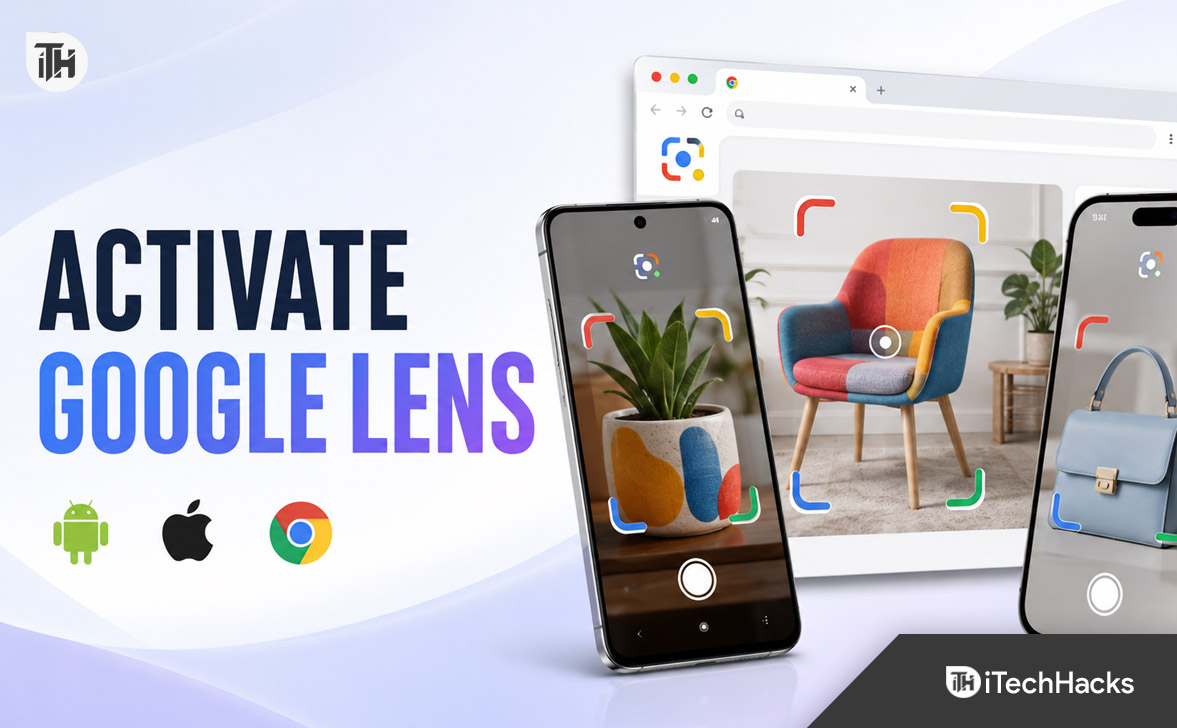
- Google Lens is a feature that allows you to use your phone camera to search and get information on objects, plants, translations, and much more. It is integrated into the Google app, Google Photos, and Chrome on most Android and Apple devices, eliminating the need for a separate app.
- To activate Google Lens on Android, simply open the Google app, Google Photos, or use Chrome for live searches or on saved images. On iPhones, usage is similar with no need for a special Google Lens app; just use these existing apps. To use Lens on a computer, Chrome supports searching images directly from webpages.
Google Lens lets you search using your camera, a saved picture, or anything displayed on a webpage. It can identify plants, products, landmarks, and animals, translate text, scan QR codes, copy printed words, and find visually similar images.
In most cases, you do not need to manually activate Google Lens through a hidden setting. Lens is built into the Google app, Google Photos, and current versions of Chrome. You only need to update the appropriate app, grant camera or photo permissions, and select the Google Lens icon.
This guide explains how to activate Google Lens on Android, iPhone, iPad, and desktop Chrome, along with solutions for situations where the Lens icon is missing or not working.
What Is Google Lens?
Google Lens is a visual search feature developed by Google. Instead of describing an object with keywords, you can show it to Google using your camera or upload an existing image.
Google Lens analyzes the selected image or area and provides relevant search results. Depending on what it detects, you can use Lens to:
- Identify plants, animals, landmarks, and products
- Translate printed text into another language
- Copy text from a document, sign, or handwritten note
- Scan QR codes and product barcodes
- Find similar clothes, furniture, and accessories
- Search for the source of an image
- Read menus, signs, and instructions
- Extract phone numbers, email addresses, and website links
- Ask follow-up questions about an object or image
The exact controls can differ slightly according to your device, operating system, app version, region, and Google account configuration.
How to Activate Google Lens on Android
On Android, the easiest way to open Google Lens is through the Google app. It is already installed on most Android phones, although it may need to be updated before the Lens option appears.
Method 1: Activate Google Lens Through the Google App
- Open the Google app on your Android phone.
- Find the search bar at the top of the screen.
- Tap the Google Lens camera-shaped icon beside the microphone.
- If you are opening it for the first time, accept the introductory message.
- Allow Google to access your camera and photos when requested.
- Point the camera at an object and tap the shutter or Search button.
You can also select a screenshot or picture shown below the camera view. After choosing an image, adjust the selection box around the particular object or text you want Google to analyze.
Method 2: Use Google Lens in Google Photos
Google Photos is useful when you have already taken or downloaded the picture. You do not have to open the live camera again.
- Open the Google Photos app.
- Select the picture you want to examine.
- Tap More and select Google Lens. On some versions, the Lens icon appears directly below the photo.
- Wait while Google analyzes the image.
- Select an object or highlight text to refine the results.
If several objects appear in the photo, crop the selection area around the relevant one. A more precise selection often produces better results.
Method 3: Activate Google Lens in Android Chrome
Chrome for Android includes Lens for live camera searches, saved images, and pictures displayed on websites.
- Open the latest version of Google Chrome.
- Open a new tab.
- Tap the Lens icon inside the Google search bar.
- Allow camera access if Chrome requests permission.
- Take a picture or choose an existing image from your device.
To search an image displayed on a website, touch and hold the image and select Search image with Google Lens. Chrome will open visual results for that image without requiring you to download it first.
Method 4: Check the Phone’s Camera App
Some Android manufacturers integrate Lens or a similar visual search function into the default camera. Open the camera and inspect its modes, settings, or shortcut icons for Lens, Google Lens, or Visual Search.
This option is not available on every Android device. If your camera does not display Lens, use the Google app, Chrome, or Google Photos instead.
How to Activate Google Lens on iPhone or iPad
Apple’s Camera app does not include Google Lens. On an iPhone or iPad, Lens is available through the Google app, Google Photos, or Google Chrome. There is no separate Google Lens app that you must install.
Method 1: Use Google Lens Through the Google App
- Install or update the Google app from the App Store.
- Open the Google app.
- Tap the Lens icon inside the search bar.
- Choose Allow Camera Access when prompted.
- Point the camera at the object or text you want to search.
- Tap the shutter button to start the visual search.
To analyze an existing image, tap the photo picker and select a picture. If iOS asks which photos Google may access, choose the required pictures or allow full photo-library access.
Method 2: Use Google Lens in Google Photos on iPhone
- Install and open Google Photos.
- Sign in if required.
- Open the image you want to search.
- Tap More and then Google Lens.
- Select the relevant text, product, or object.
Google Photos is particularly helpful for analyzing screenshots, receipts, documents, and pictures that were taken earlier.
Method 3: Activate Google Lens in Chrome on iPhone
The current Chrome app for iOS supports Google Lens for webpages, camera searches, and gallery images.
- Open Chrome on your iPhone.
- Open a new tab.
- Tap the Google Lens icon in the search bar.
- Use the camera to search, or tap the photo picker to upload an image.
To search content shown on an open webpage, tap the Lens icon near the address bar. If it is not visible there, open the three-dot menu and select Search Screen with Google Lens. You can then draw around an image, video frame, or piece of text.
How to Activate Google Lens in Chrome on a Computer
Google Lens is integrated into recent versions of Chrome for Windows, macOS, Linux, and ChromeOS. No browser extension is required.
Search a Specific Image
- Open the webpage containing the image.
- Right-click the image.
- Select Search with Google Lens.
- Review the visual results in the Chrome side panel.
You can resize the selection box to focus on one part of the image. This is useful when a picture includes multiple products, people, or objects.
Search Any Part of a Webpage
- Open the webpage in Chrome.
- Click the three-dot menu in the upper-right corner.
- Select Search this tab with Google Lens.
- Click an item, highlight text, or drag a box around an area.
- View the matching information in the side panel.
You may also right-click an empty part of the webpage and choose Search with Google Lens. On supported Chrome versions, selecting the address bar may display an Ask Google about this page option.
Upload an Image to Google Lens
If an image is stored on your computer, open lens.google.com in Chrome. Drag the image into the upload area, browse for the file, or paste an image link. Google Lens will then display visual matches, detected text, and related webpages.
How to Give Google Lens Camera and Photo Permission
Google Lens cannot scan your surroundings if camera access is blocked. It also cannot open saved images without permission to access your photos.
On Android
- Open Settings.
- Go to Apps and select Google, Chrome, or Google Photos.
- Tap Permissions.
- Set Camera to Allow only while using the app.
- Allow access to photos and videos if you want to upload images.
On iPhone
- Open Settings.
- Scroll down and select Google, Chrome, or Google Photos.
- Enable Camera.
- Tap Photos and choose Full Access or Limited Access.
Limited access is sufficient if you manually select the pictures that the app may use.
How to Fix Google Lens Not Showing or Working
Update the Required Apps
Update Google, Google Photos, and Chrome through the Play Store or App Store. Older app versions may lack newer Lens controls or may use a different menu layout.
Check Your Internet Connection
Google Lens sends visual information to Google for processing, so it needs an active internet connection. Switch between Wi-Fi and mobile data, then try the search again.
Restart the App and Device
Close the affected app completely and reopen it. If the Lens icon still does not respond, restart the phone to clear temporary camera and app-process errors.
Clear the Google App Cache on Android
- Open Settings and go to Apps.
- Select the Google app.
- Tap Storage & cache.
- Select Clear cache.
Clearing the cache removes temporary files but normally keeps your account and personal settings. Avoid clearing storage unless updating and clearing the cache do not work.
Confirm That the App Is Enabled
Some Android phones allow preinstalled Google apps to be disabled. Open the Google app’s information page and tap Enable if that option appears.
Try Another Lens Entry Point
If Lens fails in the camera or Google app, try it through Chrome or Google Photos. This can help determine whether the problem affects Lens generally or only one app.
Tips for Better Google Lens Results
- Use bright, even lighting and avoid glare.
- Hold the camera steady until the object is clear.
- Move closer instead of relying heavily on digital zoom.
- Keep the entire QR code or barcode inside the frame.
- Crop out unrelated objects before searching.
- Add descriptive words to refine visual search results.
- Verify important identifications through another reliable source.
Lens results are based on visual similarities and detected information. They can occasionally be incorrect, particularly with unclear photographs, uncommon objects, medical images, or visually similar plant species.
Frequently Asked Questions
Do I need to download Google Lens separately?
Usually, no. Lens is included in the Google app, Google Photos, and Chrome. On some Android devices, a separate Lens shortcut may also be available, but it is not necessary.
Is Google Lens free?
Yes. Google Lens can be used without a separate subscription. You need a compatible device, a supported Google app, and an internet connection.
Can I use Google Lens without taking a picture?
Yes. You can select an existing photo, screenshot, or image from a webpage. Desktop Chrome also allows you to draw around any visible part of a page.
Can Google Lens scan QR codes?
Yes. Open Lens, place the complete QR code inside the highlighted camera area, and tap the detected link. Lens can also read many product barcodes.
Why is the Google Lens icon missing?
The most common causes are an outdated app, disabled Google app, restricted permissions, unsupported interface, account or regional differences, and temporary app errors. Update the app and try Lens through another supported Google service.
Does Google Lens work offline?
Most Lens searches require an internet connection because the image is processed using Google’s online services. Some basic camera or text functions may behave differently depending on the device, but reliable visual search should be treated as an online feature.
Final Thoughts
Learning how to activate Google Lens is straightforward because the feature is already integrated into Google’s main apps. Android users can open it through the Google app, Google Photos, or Chrome. iPhone users can access it through the Google app, Google Photos, and Chrome, while desktop users can search images or complete webpage sections directly in Chrome.
If Google Lens is missing, update your apps, verify camera and photo permissions, check the internet connection, and try another entry point. Once activated, Lens provides a quick way to search objects, copy text, translate signs, compare products, and understand images without manually typing a complicated description.
ALSO READ: