- If you see the message "Something Went Wrong. Please Try Again in a Few Minutes" on Netflix, it could be due to temporary app data, saved passwords, or your network settings, and it can happen even if your internet seems fine.
- To solve this issue, try restarting your device, clearing Netflix app data, removing old saved passwords, and updating the Netflix app and your device's software before considering more complex fixes like changing network settings or disabling VPNs.
- If Netflix works in a browser but not the app, focus on app-specific fixes like clearing data and updating; if it fails on all devices, check your network, account details, and visit Netflix's service-status page to inform whether it's a wider problem.
If Netflix shows “Something went wrong. Please try again in a few minutes” while you are signing in or opening the app, the problem is usually caused by temporary app data, saved login credentials, an outdated Netflix installation, or a device/network setting that is stopping the app from completing its request. The message can appear even when your internet connection looks completely normal.
This Netflix problem can usually be fixed without resetting your entire device. First determine whether Netflix is down, whether your account works in a browser, and whether the failure is limited to the app. Below are the working methods worth trying in 2026.
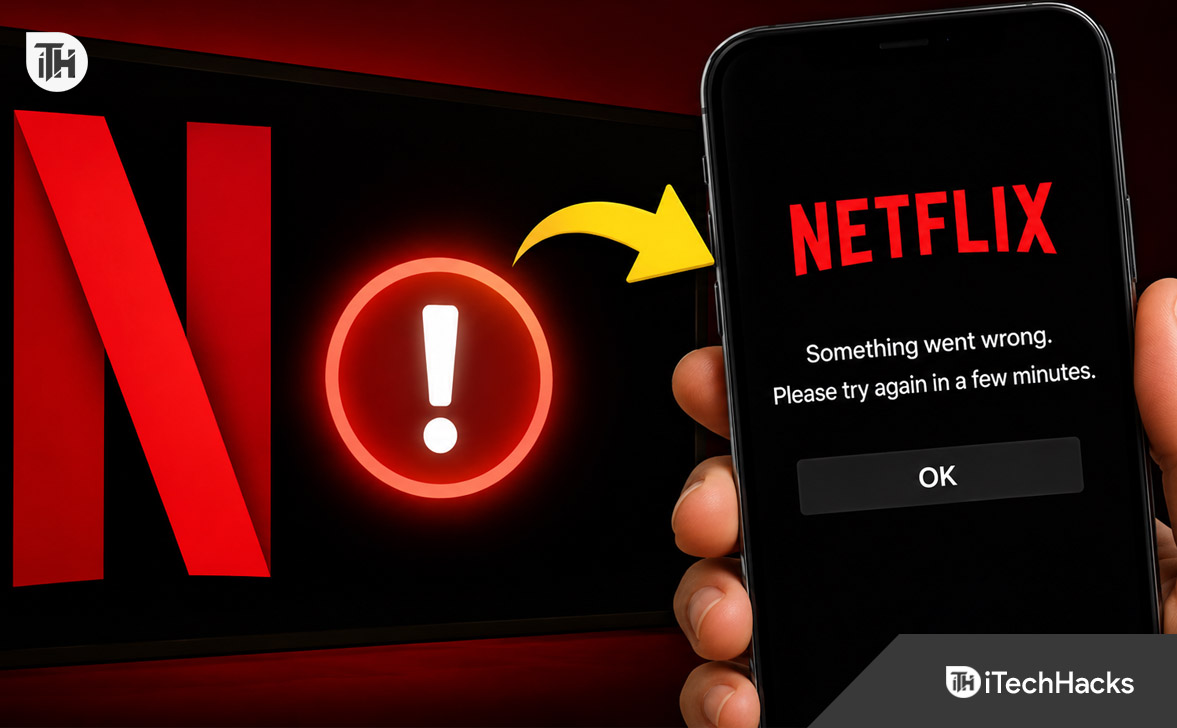
What Does “Something Went Wrong. Please Try Again in A Few Minutes” Mean on Netflix?
Netflix uses this general error when a request cannot be completed correctly. Netflix says the message may occur during sign-in because of a problem with the device, network connection, or Netflix password. In many cases, the issue is temporary and disappears after a short time.
If the message keeps returning, waiting may not help. A corrupted session, stale saved password, damaged app data, VPN configuration, or outdated software can recreate the error.
What Does “Something Went Wrong. Please Try Again in A Few Minutes” Mean on Netflix?
Before changing network settings, open a browser and sign in to Netflix.com with the same account. This tells you whether the problem is account-wide or app-specific.
- If Netflix works in the browser but fails in the app, concentrate on the Netflix app, saved password, and device software.
- If Netflix fails in both the browser and app, check the password, account status, network, VPN, and Netflix service status.
- If Netflix fails on every device in your home, check Netflix’s official service-status page before changing device settings. Netflix maintains that page when a streaming-service interruption occurs.
1. Completely Restart Your Phone, Tablet, TV, or Streaming Device
Do a full restart first, rather than only closing Netflix or locking the screen. Netflix recommends turning the affected device off completely and starting it again.
On a phone or tablet, power it off, wait around 30 seconds, and turn it back on. On a TV or streaming box, switch it off and unplug it from power for about 30 seconds before reconnecting it. Open Netflix and test the login again.
2. Clear Netflix App Data, Not Just the Cache
This is one of the best fixes when Netflix works in a browser but not in the app. Clearing storage/data removes the existing local session and forces Netflix to create fresh app data.
On Android or Samsung Galaxy Devices
- Open Settings.
- Go to Apps and select Netflix.
- Tap Storage or Storage & cache.
- Tap Clear data/Clear storage.
- Confirm the action, reopen Netflix, and sign in again.
Netflix officially recommends clearing app data for common Android problems. Keep in mind that doing this signs you out and removes Netflix downloads stored on that device, so make sure you know your account password first.
3. Remove an Old Netflix Password From Google Password Manager or Samsung Pass
If the error appears after tapping Sign In, check the password stored on your device. An autofill service may still be inserting an older Netflix password.
Google Password Manager
- Open Settings and search for Password Manager.
- Open the password manager under Google Play services.
- Find Netflix.
- Delete the saved entry or update it with the correct password.
- Return to Netflix and type the credentials manually.
Samsung users who use Samsung Pass can open Samsung Pass, locate the saved Netflix login under IDs and passwords, and remove it before trying again. Netflix specifically includes saved-password cleanup in its current troubleshooting for this sign-in error.
4. Update the Netflix App
Open your device’s supported app store and check the Netflix listing for an update. An outdated build may stop working correctly after app or operating-system changes.
On Android, open the Netflix page in Google Play and tap Update if the button appears. If you only see Open, the installed version is already current. Netflix continues to recommend app updates as a standard fix for Android playback and connection problems.
5. Update Android, One UI, iOS, or Your TV Software
If updating Netflix does not help, update the operating system. Netflix recommends updating Android when the app continues to malfunction.
On recent Samsung Galaxy phones and tablets, look under Settings > Software update or System updates, then check for an available download. Menu wording varies by model and One UI version. Samsung’s current support documentation continues to use this update path on supported Galaxy devices.
6. Reinstall Netflix, or Use Clear Data if Netflix Cannot Be Uninstalled
If Netflix can be removed normally, uninstall it, restart the device, and install a fresh copy from the official app store. Netflix lists reinstalling the app as an Android troubleshooting method.
On some Samsung devices and smart TVs, Netflix is preinstalled and the normal Uninstall option may not be available. Do not factory-reset the device just because Netflix cannot be removed. Clear Netflix data and cache, install any available Netflix update, restart the device, and update the system software instead.
7. Make Sure Date and Time Are Set Automatically
An incorrect device clock can interfere with authentication. Check this especially after a device reset or if date and time were configured manually.
Open the device’s date and time settings and enable Automatic date and time and the automatic time-zone option when available. Netflix currently recommends automatic date and time as part of its Android troubleshooting when the latest Netflix app cannot be installed or updated.
8. Temporarily Disable VPN, Proxy, Private DNS, or Custom Network Settings
If you use a VPN, proxy, filtering service, custom DNS, or unusual router configuration, temporarily return the connection to default settings. Netflix states that VPNs, proxies, and changed network settings can cause connection problems.
After disabling those services, force-close Netflix and reopen it. If Netflix starts working, re-enable your custom settings one at a time to identify which one caused the problem.
9. Switch Between Wi-Fi and Mobile Hotspot
If Netflix works through mobile data or a hotspot but not through home Wi-Fi, focus on the router, ISP, DNS, or network filtering. Restarting the modem and router may help.
If the same error appears on Wi-Fi and a different hotspot, the home router is less likely to be the cause. Focus on app data, saved credentials, updates, and device software.
10. Clear Google Play Store and Google Play Services Data if Netflix Will Not Update
Use this method only when the Netflix update or installation itself is failing on Android. Netflix currently recommends clearing the cache and data for Google Play Store and Google Play Services when the latest app version cannot be installed.
Open Settings > Apps, clear cache/data for Google Play Store and Google Play Services, restart the device, and check Netflix for updates again.
Common Netflix “Something Went Wrong” Scenarios
Netflix Works in Chrome but Not in the App
This points toward the app or device. Clear Netflix storage, remove saved credentials, update Netflix, restart the device, and install system updates.
Netflix App Fails on Wi-Fi and Mobile Hotspot
A router-only problem becomes unlikely. Concentrate on app data, password autofill, system updates, VPN software, and Google Play components.
Netflix Cannot Be Uninstalled on a Samsung Device
If Netflix is preinstalled, clear its data and cache under Settings > Apps > Netflix > Storage. Then update Netflix and Samsung software.
Frequently Asked Questions
Why does Netflix keep saying “Something went wrong. Please try again in a few minutes”?
Persistent cases can involve the device, network, saved password, or Netflix session data. If the account works in a browser, troubleshoot the app first.
Will clearing Netflix data delete my account?
No. It removes local Netflix information from that device and signs you out. It can also remove downloaded Netflix titles, but it does not delete your Netflix membership, profiles, watch history, or account itself.
Should I factory-reset my Samsung tablet or phone?
Not as an early fix. First clear Netflix data, remove saved credentials, update the app and device, check date and time, and test without VPN or custom network settings.
Final Thoughts
The fastest way to fix the Something Went Wrong. Please Try Again in A Few Minutes Netflix problem is to troubleshoot where the failure occurs. If Netflix works in a browser but not the app, clear app data and saved passwords, then update Netflix and the device.
Only reset routers or DNS when the problem follows a particular network. If the error remains after refreshing the app, verifying credentials, updating software, and testing another network, check Netflix service status and contact Netflix support with your device model and operating-system version. Avoid changing several settings at once, because testing each fix individually makes it easier to identify the actual cause.
ALSO READ:
- How Many People can Watch Netflix at Once in One Account
- 8 Ways to Fix Netflix Download Stuck or Frozen at 0%
- 5 Ways to Fix This TV Isn’t Part of Your Netflix Household Error
- Netflix Not Working on TV? Here Are 8 Fixes for Freezing or Crashing Issues
- How to Activate Netflix on All Devices at Netflix.com/tv8
- Download Netflix for Windows 11 PC Free (32/64 Bit) Latest Version