

- cURL technology is crucial for data transfer in WordPress and similar CMS through the URL, aiding in API calls and website operation.
- Error message "cURL Error 28: Connection Timed Out" can occur due to delays in data exchange, DNS issues, firewall conflicts, or plugin problems.
- Solutions include disabling WordPress Firewall, deactivating plugins, adjusting server memory limits, resolving DNS problems, updating software, configuring SSL, and seeking help from hosting providers.
cURL is the technology that WordPress or similar CMS uses for transferring data from the server to the server through the help of the URL. The cURL is integrated within the REST API that helps make API calls. The cURL helps a lot in running WordPress websites. But some users and owners have reported that they are being displayed with an error message which is cURL Error 28: Connection Timed Out.
Many users are unfamiliar with this error message as they are experiencing it for the first time on the website. We are here with the guide where we will add the methods for How To Fix the “cURL Error 28: Connection Timed Out.” We hope this guide will be helpful and interesting for you, as the users who are getting the error message will surely be able to resolve the problem after reading this guide.

What is cURL Error 28: Connection Timed Out?
Many users cannot figure out why they are getting the cURL Error 28. The cURL is a Client URL that helps transfer data from and to the server. However, there are some different cases in which it works. If the data transfer gets delayed to and from the server, then the cURL Error 28 occurs.
So if there is any delay with the response from and to the cURL, it will display the error message. Thus, if you are getting the error message, there are chances that some issues are preventing the cURL from making proper connections on time for the interchange of the data. Some of the most common reasons that are available for the cause of the issue are listed below.
- There are chances the WordPress Firewall that you are using is causing issues.
- The DNS Servers are not working properly.
- There are some changes made by the Hosting Provider, which are causing issues with the cURL.
- The plugins that are installed on WordPress are causing problems with the cURL.
Fix “cURL Error 28: Connection Timed Out” Error
1. Disable WordPress Security Plugins or WAF Temporarily
Many popular security plugins like Wordfence, Sucuri, and iThemes Security include built-in firewalls that may block outgoing cURL requests or REST API calls.
- Go to your WordPress Dashboard > Plugins.
- Deactivate any active firewall/security plugin temporarily.
- Check if the cURL error disappears (use Tools > Site Health).
If it resolves the issue, reconfigure your security plugin to allow internal or loopback HTTP requests or whitelist the domain/IP being blocked.
2. Increase Timeout Limits in wp-config.php or Plugin Code
If a cURL operation is timing out, increasing the timeout threshold often solves it.
For themes or plugins using wp_remote_get() or wp_remote_post(), developers can increase timeout like this:
$response = wp_remote_get( $url, array( 'timeout' => 30 ) ); // Default is 5
To apply this site-wide, you can also define the timeout in your functions.php:
add_filter( 'http_request_timeout', function() { return 30; });
This helps especially with slow external API responses.
3. Test REST API & Loopback Requests
- Many cURL 28 issues arise from loopback or REST API failures. To test:
- Go to Tools > Site Health > Status.
Look for issues like:
- “The REST API encountered an error.”
- “Your site could not complete a loopback request.”
If those errors show up, studyfor:
- Security plugins blocking requests.
- DNS resolution issues (see below).
- Conflicting cron jobs.
- This will help isolate where the timeout is happening (internal vs external).
4. Deactivate Recently Installed Plugins or Theme
Incompatibility or improper coding in a plugin/theme can block cURL requests.
- From Plugins > Installed Plugins, deactivate all non-essential plugins.
- Switch to a default theme like Twenty Twenty-Four.
- Recheck the Site Health tool.
- Re-activate plugins one by one to identify the culprit. Often, backup, SEO, or performance plugins are the cause.
5. Increase PHP Memory Limit and Execution Time
Low server resources can delay cURL responses. You can try increasing limits by editing your wp-config.php:
If you’re on shared hosting and can’t edit these, contact your provider to raise:
- PHP
max_execution_time - PHP
memory_limit
6. Check DNS Configuration and Nameservers
A misconfigured DNS server can block proper HTTP responses.
- Use tools like dnschecker.org or Google Dig to check your domain’s DNS propagation.
- Ask your hosting provider to switch to Google DNS (8.8.8.8) or Cloudflare DNS (1.1.1.1) temporarily to see if the issue resolves.
If you’re using WPML or similar plugins, ensure their IPs are resolving properly. In rare cases, editing /etc/hosts (on VPS) may help.
7. Update PHP, WordPress Core, and cURL Library
Older PHP versions like 7.4 or outdated cURL libraries can cause timeout issues.
- Ensure you’re using PHP 8.2+ and WordPress 6.5 or later.
- Ask your host to update the cURL library to the latest stable version (v8.6+ as of 2025).
You can check your PHP and cURL version in Site Health > Info > Server.
8. Check for .htaccess or Server-Level Timeout Settings
Server-side configurations can restrict response time for cURL operations.
Add the following rules to your .htaccess file:
Also, look for rules like Deny from all or Timeout values that may interfere.
If using NGINX, ask your provider to increase fastcgi_read_timeout.
9. Use a Staging Site to Troubleshoot Safely
Before applying changes on your live site, set up a staging site using tools like:
- WP Staging
- LocalWP
- Host-provided staging environments
Use the staging site to test plugin deactivation, DNS changes, or code tweaks.
This avoids breaking your production site and helps debug the cURL timeout in a risk-free way.
10. Reconfigure or Reinstall SSL Certificate
Misconfigured or expired SSL certificates can prevent proper cURL connections.
- Use tools like SSL Labs Test to verify SSL status.
- If needed, reinstall a new SSL certificate (Let’s Encrypt or commercial).
- Ensure your WordPress and site URL is set to
https://in Settings > General.
Also verify that your host isn’t blocking SSL requests from your own site.
11. Contact Hosting Provider (If All Else Fails)
If none of the above works, reach out to your web hosting support and share:
- Exact cURL error log from Site Health or error_log
- Actions you’ve tried
- Request for reviewing server firewall, DNS, and timeout policies
Ask them to allow loopback requests, review mod_security/firewall rules, and whitelist any blocked APIs.
Check For the Latest Software Of Your Hosting
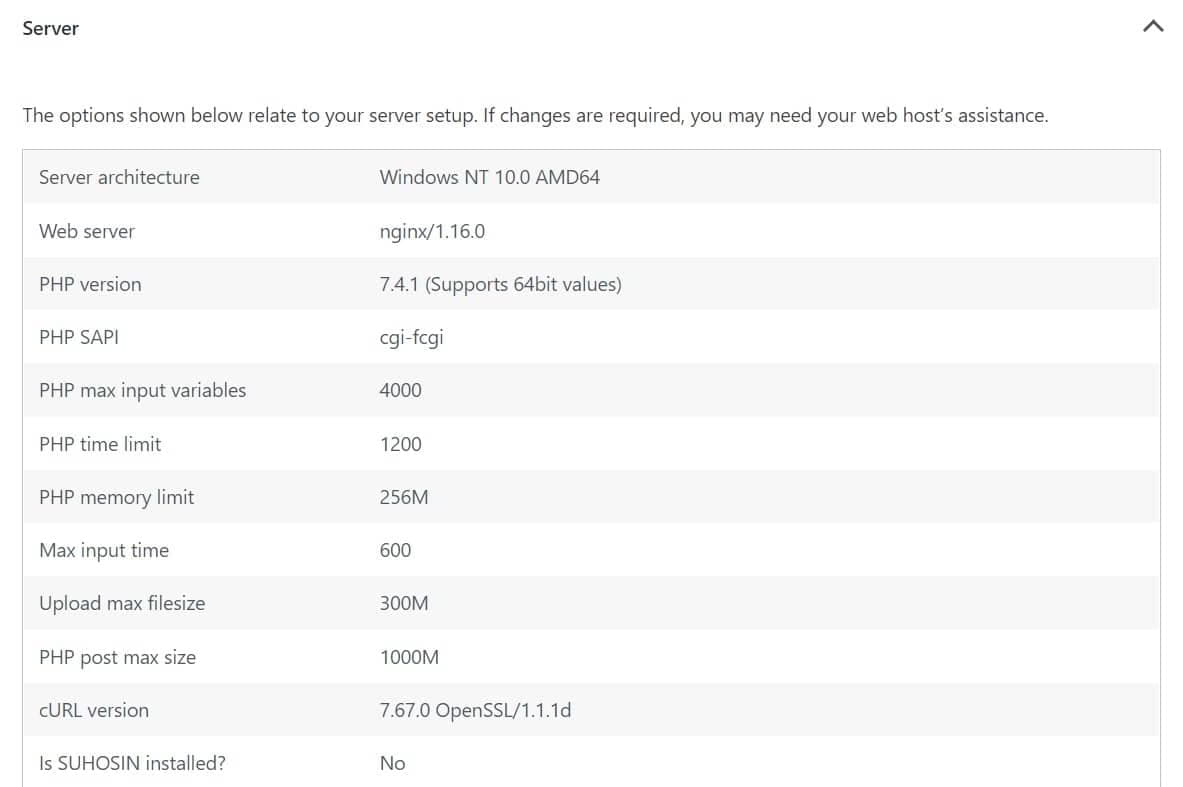
Your WordPress website needs to be on the latest version of PHP and cURL to avoid the cURL Error 28. If you’re not aware, an outdated PHP version and cURL on your WordPress website may also be the cause of the issue. Thus, you need to check for the latest updates in the software of your WordPress website to prevent such issues from happening. There are a lot of users who have done this, and they were able to resolve the problem.
Contact Your Hosting Provider
If you’ve gone through all the above troubleshooting steps and the cURL Error 28 still persists, it’s time to escalate the issue to your hosting provider. Share the exact error details and request a full review of:
- Server-level firewall and security rules (e.g., mod_security, WAF)
- DNS and IP resolution issues
- PHP, cURL, and OpenSSL version compatibility
- Timeout or execution limits at the server level
- Blocked loopback or internal HTTP requests
Most reliable hosts now have automated diagnostic tools to detect and fix such issues quickly. If the issue is beyond repair or tied to a restrictive shared hosting environment, you may want to consider moving to a managed WordPress host or VPS with greater control.
As a last resort, if everything else fails—including after hosting-side intervention—you can reinstall WordPress or migrate your site to a clean installation while retaining your database and content.
Wrapping Up
WordPress powers millions of websites—from blogs and portfolios to full-scale businesses. While the platform is incredibly flexible, it’s not immune to technical hiccups—especially when it comes to server-level issues like cURL Error 28: Connection Timed Out.
This guide explained why the error happens and what updated methods you can apply in 2025 to fix it. From tweaking timeout settings to checking REST API responses and server-level configurations, the solutions provided here are practical and proven.
If you follow each method carefully and collaborate with your host when needed, you’ll likely resolve the issue without downtime or disruption.
Need to bookmark this for future use? Keep this page handy for any time cURL error 28 shows up again.
ALSO READ:






![Fix Phone Screen Unresponsive Touch on Android & iPhone [Step-by-Step]](https://itechhacks.com/wp-content/uploads/2025/10/Fix-Phone-Screen-Unresponsive-Touch-150x150.jpg "Fix Phone Screen Unresponsive Touch on Android & iPhone [Step-by-Step]")
