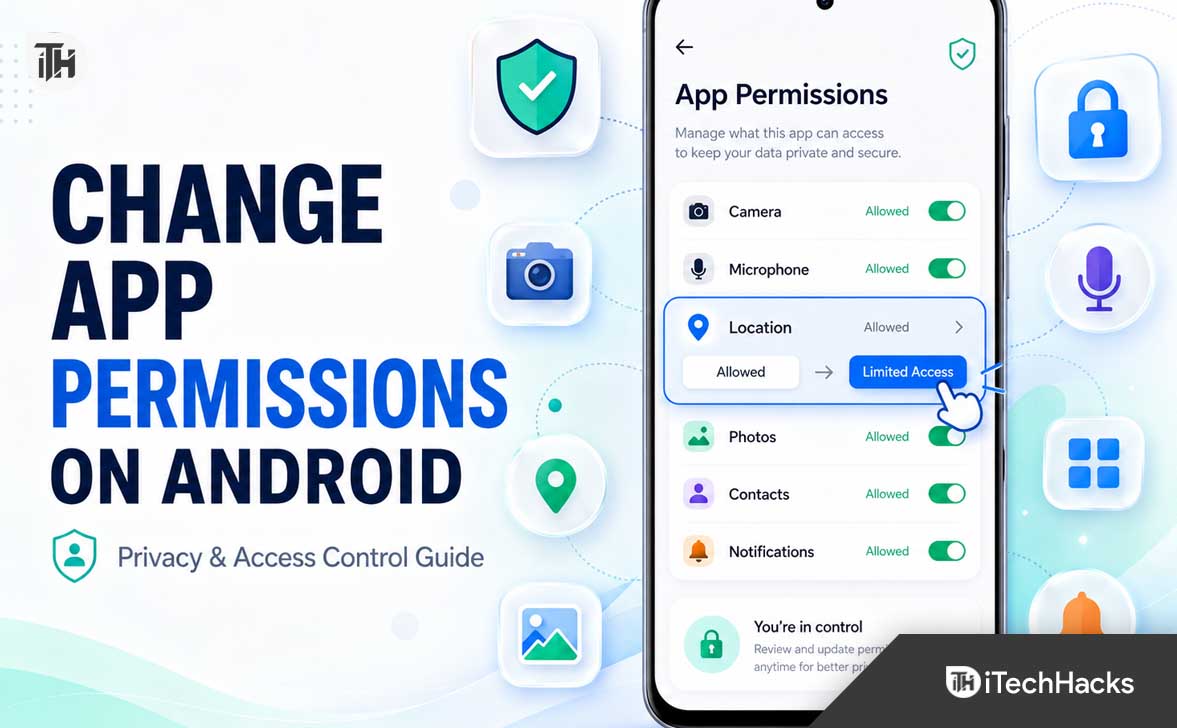
- Apps on Android phones often request access to features like the camera, location, and contacts, but not all apps need every permission they ask for. Learning how to change app permissions is important for protecting your privacy and controlling what apps can see and use on your phone.
- Android has improved privacy controls, allowing permissions only when using the app, giving approximate rather than precise location, and removing permissions from unused apps. You can manage permissions for specific apps or by permission type, improving security and reducing unwanted background access.
Apps on your Android phone often need access to certain features to work properly. A camera app needs camera access, a map app needs location access, and a messaging app may need contacts or notification access. But not every app needs every permission it asks for.
That is why learning how to change app permissions Android settings is important. It helps you control what apps can see, use, or track on your phone. It can also improve privacy, reduce unwanted background access, and make your device feel safer to use every day.
Android has improved its privacy controls a lot in recent versions. You can now allow permissions only while using an app, give approximate location instead of precise location, review camera and microphone usage, remove permissions from unused apps, and manage special access like notification access, accessibility access, and background location.
In this guide, we will explain what Android app permissions are, why they matter, and how to change app permissions on Android phones step by step.
What Are App Permissions on Android?
App permissions are controls that decide what an app can access on your Android phone. These permissions protect sensitive parts of your device such as your camera, microphone, location, contacts, photos, files, call logs, messages, nearby devices, and notifications.
For example, when you install a ride-booking app, it may ask for location permission so it can find your pickup point. A video calling app may ask for camera and microphone permission. A gallery editing app may ask for photo access so it can edit images saved on your phone.
Android usually asks you for permission when an app needs access to something sensitive. You can choose to allow it, deny it, allow it only once, or allow it only while using the app, depending on the permission type and your Android version.
Why You Should Review Android App Permissions
Many users tap “Allow” without thinking because they want the app to work quickly. But over time, apps can collect more access than they actually need. Reviewing permissions is a simple way to take back control.
You may want to change app permissions on Android for several reasons:
- Protect your privacy: Stop apps from accessing your location, microphone, camera, contacts, or files unnecessarily.
- Reduce background tracking: Some apps may access location or nearby device data even when you are not actively using them.
- Improve security: Removing risky permissions can reduce damage if an app becomes compromised or behaves suspiciously.
- Clean up old app access: Apps you installed months ago may still have permissions you forgot about.
- Fix app issues: Some apps stop working correctly if a needed permission was denied by mistake.
- Control notifications: You can stop apps from sending unnecessary alerts without uninstalling them.
In short, Android permissions are not just technical settings. They decide how much of your personal data an app can touch.
Common Android App Permissions Explained
Before changing permissions, it helps to understand what each permission actually does. Here are the most common Android app permissions you should know about.
Location Permission
Location permission allows an app to access your phone’s location. Android may let you choose between precise location and approximate location. Precise location is useful for navigation, delivery, weather, and ride-hailing apps. Approximate location is usually enough for apps that only need your city or general area.
You can also choose whether the app can access location all the time, only while using the app, ask every time, or never.
Camera Permission
Camera permission lets an app use your phone’s camera. It is needed for apps like camera tools, video calling apps, QR scanners, banking verification, and social media apps.
If a simple calculator, flashlight, wallpaper, or notes app asks for camera access, that should raise a red flag unless there is a clear feature that needs it.
Microphone Permission
Microphone permission allows an app to record audio. It is required for voice messages, calling apps, video meetings, voice search, and audio recording apps.
You should be careful with this permission because microphone access is sensitive. Android shows microphone indicators when an app is actively using it on newer versions.
Contacts Permission
Contacts permission allows an app to read or sometimes modify your contact list. Messaging apps, calling apps, and contact backup apps may need it. But games, editing apps, shopping apps, or random utilities usually do not need full contact access.
Photos and Videos Permission
Photo and video permission allows apps to access media stored on your phone. On newer Android versions, apps may let you select only specific photos or videos instead of giving access to your entire gallery.
This is useful when you want to upload one image to an app but do not want the app to browse your whole photo library.
Files and Storage Permission
Storage or file access lets an app read, manage, or save files on your device. File managers, document scanners, cloud storage apps, and backup apps may need this access.
Be careful with apps asking for broad file access because it may include documents, downloads, images, videos, and other personal files.
Phone and SMS Permissions
Phone and SMS permissions can allow apps to read call logs, make calls, read text messages, or send SMS messages. These are highly sensitive permissions.
Banking apps may use SMS access for verification in some regions, but you should avoid granting SMS or call log access to unknown apps unless you fully trust them and understand why they need it.
Notifications Permission
On modern Android versions, apps may need your permission to send notifications. This is helpful because you can stop spammy apps from filling your notification panel.
You can allow important notifications from messaging, banking, calendar, and delivery apps while blocking promotional alerts from shopping, gaming, or entertainment apps.
Nearby Devices Permission
Nearby devices permission is used for Bluetooth, Wi-Fi, smartwatches, wireless earbuds, speakers, smart home devices, and file sharing. It helps apps discover or connect to devices around you.
Only allow this permission when the app has a clear reason to connect with nearby devices.
How to Change App Permissions in Android Settings
There are two main ways to change permissions on Android. You can change permissions for one specific app, or you can review all apps that have access to a specific permission type.
Method 1: Change Permissions for a Specific App
This is the easiest method when you already know which app you want to manage. For example, if you want to stop Instagram, WhatsApp, Chrome, or a shopping app from accessing your camera or location, use this method.
Steps to Change Permissions for One App
- Open the Settings app on your Android phone.
- Tap Apps.
- Select the app you want to manage. You may need to tap See all apps first.
- Tap Permissions.
- Choose the permission you want to change, such as Camera, Location, Microphone, Contacts, Photos, or Notifications.
- Select the permission option you prefer.
Depending on the permission, you may see options like:
- Allow all the time
- Allow only while using the app
- Ask every time
- Allow this time only
- Don’t allow
For most apps, Allow only while using the app is a safer choice than allowing access all the time. It lets the app work when you open it but prevents constant background access.
Method 2: Change Permissions by Permission Type
This method is better when you want to review all apps that have access to something sensitive. For example, you may want to see every app that can use your microphone or track your location.
Steps to Use Permission Manager on Android
- Open Settings on your Android phone.
- Tap Security & privacy or Privacy. The name may vary depending on your phone brand.
- Tap Permission manager.
- Choose a permission type, such as Location, Camera, Microphone, Contacts, or Photos and videos.
- Select an app from the list.
- Change the permission setting as needed.
This is one of the best ways to audit your phone. You may quickly find apps that still have access to your camera, microphone, or location even though you rarely use them.
How to Change Location Permission on Android
Location is one of the most important permissions to review. Some apps need your location to work properly, but many apps only use it for personalization, ads, analytics, or recommendations.
Steps to Change Location Access
- Go to Settings.
- Tap Location.
- Tap App location permissions or open Permission manager and choose Location.
- Select the app you want to change.
- Choose the location access level.
You may see options like:
- Allowed all the time: The app can access your location in the background.
- Allowed only while in use: The app can access your location only when you are using it.
- Ask every time: Android asks before giving location access.
- Not allowed: The app cannot access your location.
If available, you can also turn off Use precise location. This gives the app a general location instead of your exact location. It is a smart option for weather apps, news apps, shopping apps, and apps that do not need street-level accuracy.
How to Change Camera and Microphone Permissions
Camera and microphone permissions are highly sensitive because they can access what you see and hear. Android now includes privacy indicators that show when an app is using the camera or microphone, but it is still better to limit access where possible.
Steps to Manage Camera Permission
- Open Settings.
- Tap Privacy or Security & privacy.
- Tap Permission manager.
- Select Camera.
- Choose an app.
- Select Allow only while using the app, Ask every time, or Don’t allow.
Steps to Manage Microphone Permission
- Open Settings.
- Go to Privacy or Security & privacy.
- Tap Permission manager.
- Select Microphone.
- Choose the app you want to manage.
- Change the permission based on your preference.
You should allow camera and microphone access only for apps that genuinely need them. Video calling, voice recording, camera, banking verification, and messaging apps are common examples. Random games, wallpaper apps, cleaning apps, and unknown utility apps usually do not need these permissions.
How to Change Photos and Videos Permission
Photo access has become more privacy-friendly on newer Android versions. Instead of giving an app access to your entire gallery, you may be able to allow access only to selected photos and videos.
Steps to Manage Photo and Video Access
- Open Settings.
- Tap Apps.
- Select the app you want to manage.
- Tap Permissions.
- Choose Photos and videos or Files and media.
- Select the access level available on your phone.
Where possible, choose Select photos and videos instead of allowing full gallery access. This is especially useful for social media, editing apps, shopping apps, dating apps, and websites opened through a browser.
How to Change Notification Permissions on Android
Notifications are not always a privacy risk, but they can become annoying. Some apps send promotional alerts, reminders, offers, breaking news, and unnecessary updates throughout the day.
Changing notification permissions can make your Android phone feel cleaner and less distracting.
Steps to Turn App Notifications On or Off
- Open Settings.
- Tap Notifications.
- Tap App notifications.
- Select the app you want to manage.
- Turn notifications on or off.
You can also long-press a notification when it appears, then tap the settings icon to control that app’s notification behavior. Some apps let you disable promotional notifications while keeping important alerts active.
How to Remove Permissions from Unused Apps
Android can automatically remove permissions from apps you have not used for a while. This is useful because forgotten apps should not continue to access your camera, microphone, location, contacts, or files.
Steps to Check Unused App Permissions
- Open Settings.
- Go to Apps.
- Select the app you have not used recently.
- Tap Permissions.
- Remove permissions that are no longer needed.
Some Android phones also show an option called Remove permissions if app is unused. Keep this turned on for apps you do not use frequently.
This setting is especially helpful for old games, file tools, shopping apps, travel apps, photo editors, and apps installed for one-time use.
How to Use Android Privacy Dashboard
The Privacy Dashboard gives you a clear view of which apps recently accessed sensitive permissions such as location, camera, and microphone. It is one of the easiest ways to spot unusual behavior.
Steps to Open Privacy Dashboard
- Open Settings.
- Tap Privacy or Security & privacy.
- Tap Privacy Dashboard.
- Review recent access for Location, Camera, Microphone, and other permissions.
- Tap an app if you want to change its permission.
If you see an app using your microphone or location at a time when you were not using it, review that app carefully. There may be a valid reason, but it is worth checking.
How to Change Special App Permissions on Android
Some Android permissions are more powerful than normal app permissions. These are often listed under special app access. You should review them carefully because they can affect security, privacy, battery, and system behavior.
Common Special App Permissions
- Accessibility access: Allows apps to read screen content and perform actions. Only trusted apps should have this.
- Notification access: Allows apps to read notifications from other apps.
- Display over other apps: Allows apps to appear on top of other apps.
- Install unknown apps: Allows apps to install APK files from outside the Play Store.
- Usage access: Allows apps to see which apps you use and for how long.
- Device admin apps: Gives apps deeper control over device security settings.
- Do Not Disturb access: Allows apps to control silent mode behavior.
Steps to Review Special App Access
- Open Settings.
- Tap Apps.
- Tap Special app access. On some phones, this may be under the three-dot menu.
- Select the permission category you want to review.
- Turn off access for apps you do not fully trust.
Be especially careful with accessibility access and install unknown apps permission. These can be misused by harmful apps, fake support apps, screen recorders, and scam APKs.
Best Permission Settings for Better Privacy
There is no single perfect setup for everyone, but these permission habits are good for most Android users.
- Set location to Allow only while using the app for most apps.
- Use Approximate location when exact location is not needed.
- Deny camera and microphone access to apps that do not clearly need them.
- Use selected photo access instead of full gallery access when available.
- Disable notifications from apps that only send promotions.
- Keep Remove permissions if app is unused enabled.
- Review special app access at least once every few months.
- Uninstall apps you no longer use.
- Avoid installing APKs from unknown websites unless you fully trust the source.
Which Apps Should You Check First?
If you have many apps installed, reviewing every permission one by one can feel tiring. Start with the apps that are most likely to request unnecessary access.
Check These Apps First
- Free VPN apps
- Phone cleaner apps
- Flashlight apps
- Wallpaper apps
- Random file managers
- Screen recorder apps
- Unknown photo editing apps
- Games from unfamiliar developers
- Shopping apps you rarely use
- Apps installed from outside the Play Store
These apps are not always unsafe, but they are worth reviewing. If an app provides a simple function but asks for contacts, SMS, phone, microphone, accessibility, and location access, you should be skeptical.
Common Problems and Fixes After Changing App Permissions
Sometimes an app may stop working properly after you deny a permission. This does not always mean you made a mistake. It simply means the app may need that permission for a specific feature.
Problem 1: Camera Is Not Working in an App
If the camera does not open in WhatsApp, Instagram, Snapchat, Google Meet, or another app, camera permission may be disabled.
To fix it, go to Settings > Apps > select the app > Permissions > Camera > choose Allow only while using the app.
Problem 2: App Cannot Detect Your Location
If a map, delivery, weather, or ride app cannot detect your location, location permission may be denied or precise location may be turned off.
Go to the app’s permission settings and allow location access. If the app needs accurate navigation or pickup location, enable precise location for that app.
Problem 3: Voice Messages or Calls Are Not Working
If people cannot hear you during calls or voice messages do not record, microphone access may be blocked.
Open the app permission settings and allow microphone access. Also make sure your phone’s microphone privacy toggle is not turned off from quick settings.
Problem 4: App Cannot Upload Photos
If an app cannot upload images, it may not have photo or media access. This often happens after choosing limited photo access.
You can either select more photos when prompted or go to the app’s permissions and update photo access. For privacy, avoid full gallery access unless the app genuinely needs it.
Problem 5: Notifications Are Not Coming
If you are missing messages, OTP alerts, delivery updates, or reminders, notifications may be turned off for that app.
Go to Settings > Notifications > App notifications, select the app, and turn notifications back on. Also check whether Do Not Disturb mode is blocking alerts.
Problem 6: App Keeps Asking for Permission Again
Some apps ask again because the permission is required for a feature you are trying to use. For example, a QR scanner cannot scan without camera access.
If you trust the app and need the feature, allow the permission only while using the app. If the app keeps asking for unrelated permissions, consider using an alternative app.
Permission Tips for Samsung, Xiaomi, OnePlus, Pixel, and Other Android Phones
The exact menu names may differ slightly depending on your Android phone brand. Google Pixel phones usually follow Google’s standard Android layout. Samsung phones may place permissions under Security and privacy or Apps. Xiaomi, Redmi, POCO, Vivo, Oppo, Realme, Motorola, and OnePlus phones may use slightly different names.
If you cannot find Permission Manager, use the search bar inside the Settings app. Search for terms like:
- Permission manager
- App permissions
- Privacy Dashboard
- Location access
- Special app access
- Notification access
The feature is still there on most modern Android phones, but the path can vary because each brand customizes Android settings.
Should You Deny All App Permissions?
No, you should not deny everything blindly. Some permissions are necessary for apps to work correctly. A camera app needs camera access. A navigation app needs location access. A voice recorder needs microphone access.
The goal is not to block every permission. The goal is to allow only what makes sense.
A good rule is simple: if the permission matches the app’s main function, it is probably reasonable. If the permission feels unrelated, deny it or choose a limited option.
When Should You Uninstall an App Instead of Changing Permissions?
Sometimes changing permissions is not enough. If an app behaves suspiciously, shows too many ads, redirects your browser, asks for unnecessary special access, or keeps requesting sensitive permissions without a clear reason, uninstalling it is safer.
You should consider uninstalling an app if:
- It asks for SMS, contacts, camera, microphone, or location without a valid reason.
- It was installed from an unknown APK website.
- It shows popups or ads outside the app.
- It asks for accessibility access when it does not need it.
- It drains battery in the background.
- It appears in Privacy Dashboard even when you never use it.
- It cannot be trusted with your personal data.
After uninstalling suspicious apps, run a Play Protect scan from the Google Play Store for extra safety.
Frequently Asked Questions
How do I change app permissions on Android?
Open Settings, go to Apps, select the app, tap Permissions, choose the permission you want to change, and select allow or deny. You can also use Permission Manager to review permissions by category.
Where is Permission Manager on Android?
On most Android phones, Permission Manager is available under Settings > Privacy or Security & privacy > Permission manager. On some phones, you can find it by searching “Permission Manager” in the Settings search bar.
Can I allow an app permission only while using it?
Yes. For permissions like location, camera, and microphone, Android often lets you choose Allow only while using the app. This is safer than allowing access all the time.
What happens if I deny app permissions?
The app may still work, but some features may stop working. For example, denying camera access will stop an app from taking photos. Denying location access may stop maps, delivery tracking, or weather updates from working correctly.
Should I allow precise location?
Allow precise location only when the app truly needs exact location, such as navigation, ride booking, food delivery, or emergency services. For weather, news, shopping, and general recommendations, approximate location is usually enough.
Can apps access my camera or microphone without permission?
Modern Android versions require apps to request permission before accessing the camera or microphone. Android also shows privacy indicators when these sensors are being used. Still, you should regularly review which apps have access.
Why does an app keep asking for the same permission?
The app may need that permission for a feature you are trying to use. If you choose “Ask every time” or deny permission, the app may request it again when needed. If the request feels unnecessary, keep it denied.
Is it safe to give accessibility permission?
Accessibility permission can be powerful and sensitive. Only give it to trusted apps that genuinely need it, such as screen readers, password managers, automation tools, or accessibility tools. Avoid giving accessibility access to unknown apps.
Can Android remove permissions automatically?
Yes. Android can remove permissions from apps you have not used for a while. You can also enable or check this option from the app’s settings page under permissions or unused app settings.
What is the safest permission setting for most apps?
For most apps, choose limited access where possible. Use Allow only while using the app for location, camera, and microphone. Use selected photo access instead of full gallery access. Deny permissions that do not match the app’s purpose.
Final Thoughts
Knowing how to change app permissions Android settings is one of the easiest ways to improve your phone’s privacy and security. You do not need to be a technical expert. You only need to review what each app can access and remove permissions that do not make sense.
Start with sensitive permissions like location, camera, microphone, contacts, photos, SMS, and special app access. Then check unused apps and remove access from anything you no longer use.
A good Android permission setup should be balanced. Allow apps to access what they truly need, but do not give full access by default. A few minutes of permission cleanup can make your Android phone safer, cleaner, and more private.
ALSO READ:
- How to Change Home Address on Google Maps on Android, iPhone & PC
- How to Install Flix Vision on Firestick Easily (Android TV Method Included)
- Fix Phone Screen Unresponsive Touch on Android & iPhone [Step-by-Step]
- How Do I Turn Off Do Not Disturb? A Guide for iPhone, Android, Mac, and Windows
- How to Fix Android Text Messages Stuck “Downloading” or “Expired”