- Error 500121 appears when signing into Microsoft services; it happens if the multi-factor authentication (MFA) step fails, often because the user did not finish the MFA prompt or the setup wasn't fully completed.
- Common issues leading to this error include an expired approval request, incorrect device time, phone connectivity problems, or using an old, unregistered phone for authentication.
- To fix Error 500121, try the MFA request again, use a different verification method, ensure Microsoft Authenticator notifications are active, set phone date and time automatically, and re-register the Authenticator app if you've changed phones. Administrators can help by inspecting the MFA setup, requiring re-registration, and checking sign-in logs.
If you are trying to sign in to Microsoft 365, Azure, Outlook, Teams, or another organization-managed Microsoft service and see Error 500121, the sign-in has failed during the multi-factor authentication stage. You may also see the message “Authentication failed during strong authentication request” or the code AADSTS500121.
Microsoft describes error 500121 as a sign-in where the user did not successfully complete the MFA prompt. This can happen when an approval request expires, Microsoft Authenticator is not configured correctly, MFA setup was never completed, or the account is still associated with an old authentication device.
The good news is that this is usually an MFA configuration problem rather than a problem with your Microsoft account password. Below are the most effective ways to fix Microsoft MFA Error 500121 for both regular users and Microsoft Entra administrators.
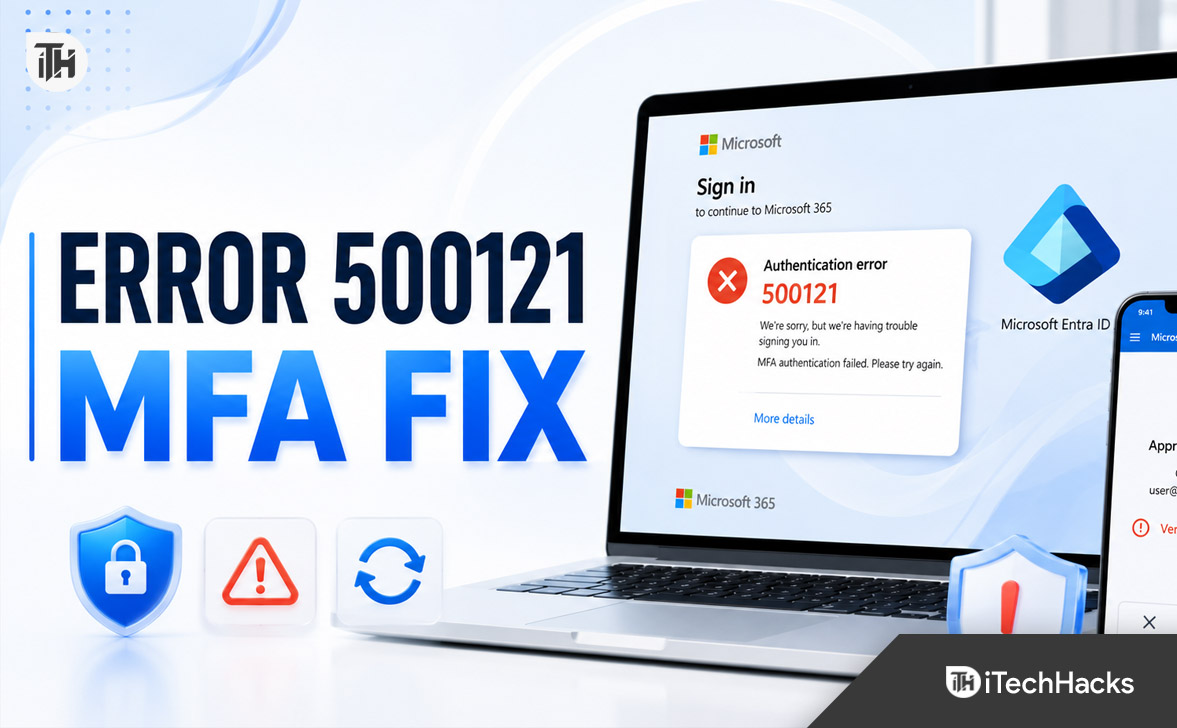
What Does Microsoft Error 500121 Mean?
Error 500121 is associated with Microsoft Entra ID authentication and generally appears when a sign-in requires multi-factor authentication but the required verification cannot be completed.
Microsoft’s current troubleshooting documentation specifically lists error 500121 as “User didn’t complete the MFA prompt.” Microsoft also notes that this error commonly appears when MFA registration has not been completely configured for the affected account.
You may encounter the error after entering your correct username and password because the password represents only the first authentication step. If your organization requires MFA, Microsoft must also successfully verify an additional authentication method before granting access.
Common Causes of Error 500121
- The Microsoft Authenticator approval request expired.
- The MFA notification was accidentally denied.
- Microsoft Authenticator notifications are disabled.
- The phone has no stable internet connection.
- The phone’s date and time are incorrect.
- Your work or school account is still registered to an old phone.
- MFA registration was never fully completed.
- The registered authentication method has become invalid or needs to be registered again.
- A Conditional Access policy requires an authentication method you cannot currently satisfy.
- You entered an incorrect verification code.
1. Retry the Microsoft MFA Request
Start with the simplest solution. Return to the Microsoft sign-in page and try signing in again. Enter your username and password, then carefully complete the Microsoft Authenticator request when it appears.
If number matching is displayed, enter or select the number requested by the Microsoft sign-in screen instead of simply approving the notification. Microsoft Authenticator uses number matching for MFA push notifications as an additional protection against accidental approvals.
Do not leave the authentication screen open for too long. An MFA request can expire, and Microsoft may then record the sign-in attempt as Error 500121.
2. Try Another Verification Method
If Microsoft Authenticator is not working, look for Other ways to sign in, Sign in another way, or a similar option on the verification screen.
Depending on what your organization has enabled and what methods are already registered to your account, you may be able to authenticate using another method. Available methods vary according to your organization’s Microsoft Entra authentication policies.
If another registered method works, sign in and review your security information afterward. Remove authentication methods you no longer use and make sure you have access to your current verification method.
3. Fix Microsoft Authenticator Notifications
If Error 500121 occurs because the Authenticator request never reaches your phone, check the app before resetting your entire MFA configuration.
- Open Microsoft Authenticator manually.
- Make sure your phone has working Wi-Fi or mobile data.
- Turn off Airplane mode.
- Allow notifications for Microsoft Authenticator.
- Remove battery restrictions that prevent Authenticator from running properly in the background.
- Update Microsoft Authenticator from the Google Play Store or Apple App Store.
- Restart your phone.
Microsoft also recommends temporarily disconnecting a VPN when troubleshooting Authenticator connectivity problems. A network or device configuration issue can prevent authentication requests from completing correctly.
4. Set Your Phone’s Date and Time to Automatic
An incorrect device clock is an easy problem to overlook, especially if Microsoft MFA verification codes are being rejected or Authenticator requests appear to expire unexpectedly.
On Android or iPhone, open the device’s Date & Time settings and enable automatic date, time, and time-zone configuration. Restart the phone after changing the setting and attempt the Microsoft login again.
Microsoft specifically notes that Authenticator depends on the mobile device clock and recommends automatic time settings when troubleshooting expired authentication notifications.
5. Re-Register Microsoft Authenticator After Changing Phones
Error 500121 frequently appears after replacing, resetting, or losing a phone. Installing Microsoft Authenticator on a new phone does not necessarily mean that your organization’s MFA registration has been transferred correctly.
This is especially important for work and school accounts. Microsoft’s current Authenticator backup documentation states that for work or school accounts, only the account name is restored from backup and the user must sign in again.
If you can still access your Microsoft Security Info page using another verification method, add Microsoft Authenticator on the new device and complete the QR-code registration process. Test the new method before removing an old working authentication method.
If you cannot access your security information because every sign-in requires the unavailable Authenticator device, contact your organization’s IT administrator. The administrator may need to reset your MFA registration.
6. Ask Your Administrator to Require MFA Re-Registration
For work or school accounts, one of the most effective fixes for persistent Microsoft MFA Error 500121 is to force the affected account to register its authentication methods again.
A Microsoft Entra administrator can use the following process:
- Open the Microsoft Entra admin center.
- Go to Entra ID > Users.
- Select the affected user.
- Open Authentication methods.
- Select Require re-register MFA.
- Confirm the action.
Microsoft states that requiring MFA re-registration removes relevant registered methods such as Microsoft Authenticator registrations, phone numbers, and software OATH tokens, causing the user to configure a new MFA method during the next sign-in.
Because this changes the user’s authentication configuration, it should only be performed by an authorized administrator after verifying the user’s identity.
7. Revoke Existing Sign-In Sessions
If MFA has been reset but the user continues receiving confusing authentication prompts or errors from existing applications, an administrator can also revoke the user’s active sessions.
In the same Authentication methods area of Microsoft Entra, administrators can use Revoke sessions. Microsoft explains that this invalidates the user’s refresh tokens and forces applications to authenticate again.
After the sessions are revoked, close Microsoft 365 applications and browser windows, reopen the service, and complete a fresh sign-in using the newly configured MFA method.
8. Check Microsoft Entra Sign-In Logs
If Error 500121 continues after MFA has been reconfigured, administrators should stop guessing and examine the actual sign-in event in Microsoft Entra.
Open the Microsoft Entra sign-in logs and find the failed login for the affected user. Pay particular attention to the Failure reason, Additional Details, Authentication Details, and Conditional Access sections.
The Authentication Details tab shows the authentication methods used, the sequence of authentication attempts, whether each attempt succeeded, and authentication policies involved in the sign-in. The Conditional Access tab can show whether a policy affected or blocked the authentication attempt.
Also save the Request ID, Correlation ID, error code, and timestamp shown on the error page. These details can help an administrator or Microsoft Support locate the exact failed sign-in.
9. Review Conditional Access and Authentication Policies
If multiple users suddenly experience Microsoft MFA authentication failures, the issue may be related to an organizational policy rather than individual phones.
Administrators should review recently modified Conditional Access and authentication-method policies. Confirm that affected users are permitted to use the authentication methods they have registered and that a policy is not requiring a stronger method that they cannot currently satisfy.
Microsoft’s sign-in logs show whether Conditional Access policies were applied, succeeded, failed, or were not applied, making them one of the best places to diagnose organization-wide MFA problems.
10. Try a Fresh Browser Session
If MFA itself appears to work but the browser keeps returning to an old Error 500121 page, close all Microsoft sign-in tabs and start a new private or incognito browser session.
You can also clear cookies associated with Microsoft sign-in services before trying again. This does not repair a broken MFA registration, but it can eliminate stale browser sessions after an administrator has already reset authentication methods or revoked sessions.
What Not to Do When Fixing Error 500121
Avoid repeatedly approving unexpected Authenticator requests just to see whether the error disappears. Only approve an MFA request when you personally initiated the corresponding login.
You also should not immediately uninstall Microsoft Authenticator if it contains your only working MFA method. For organizational accounts, removing the app from the phone does not automatically repair or remove the authentication registration stored by Microsoft Entra.
Microsoft specifically notes that adding Authenticator to a new device does not automatically remove the old device registration. The old registration must also be removed or updated within Microsoft’s authentication configuration.
Frequently Asked Questions
What does AADSTS500121 mean?
AADSTS500121 means Microsoft Entra could not successfully complete the strong authentication or MFA portion of the sign-in. Microsoft’s troubleshooting documentation describes it as a situation where the user did not complete the MFA prompt, often because MFA setup has not been completed correctly.
Can changing my Microsoft password fix Error 500121?
Usually not. Error 500121 happens during the MFA stage rather than ordinary password authentication. If your password is accepted but MFA cannot be completed, resetting the MFA authentication method is usually more relevant than repeatedly changing the password.
Why am I getting Error 500121 after getting a new phone?
Your Microsoft Entra account may still expect authentication from the old registered device. Work and school Authenticator registrations generally need to be set up again on the new phone, even when Authenticator backup has restored the account name.
Can an administrator fix Microsoft MFA Error 500121?
Yes. An authorized Microsoft Entra administrator can inspect the user’s authentication methods, require MFA re-registration, revoke sessions, and review sign-in logs to identify exactly where authentication failed.
What if I am the only administrator and MFA is locked?
If you are the only administrator and have no working alternative authentication method or usable signed-in administrative session, avoid deleting authentication data blindly. You may need Microsoft support to recover administrative access after your organization’s ownership and identity are verified.
Final Thoughts
Error 500121: Microsoft MFA Authentication Failed usually means the account password was accepted but the required multi-factor authentication process was not successfully completed. Start by retrying the MFA prompt, checking Microsoft Authenticator notifications, internet connectivity, automatic date and time, and any available alternative sign-in methods.
If you recently changed phones or the error continues on a work or school account, the most reliable next step is usually to re-register Microsoft Authenticator. Administrators should use the current Microsoft Entra Users > Authentication methods controls and inspect the sign-in logs rather than relying on older MFA management instructions.
Once the registered authentication method and the MFA requirement match correctly, AADSTS500121 should stop appearing and Microsoft 365, Azure, Teams, Outlook, and other Entra-protected services should allow the account to complete sign-in normally.