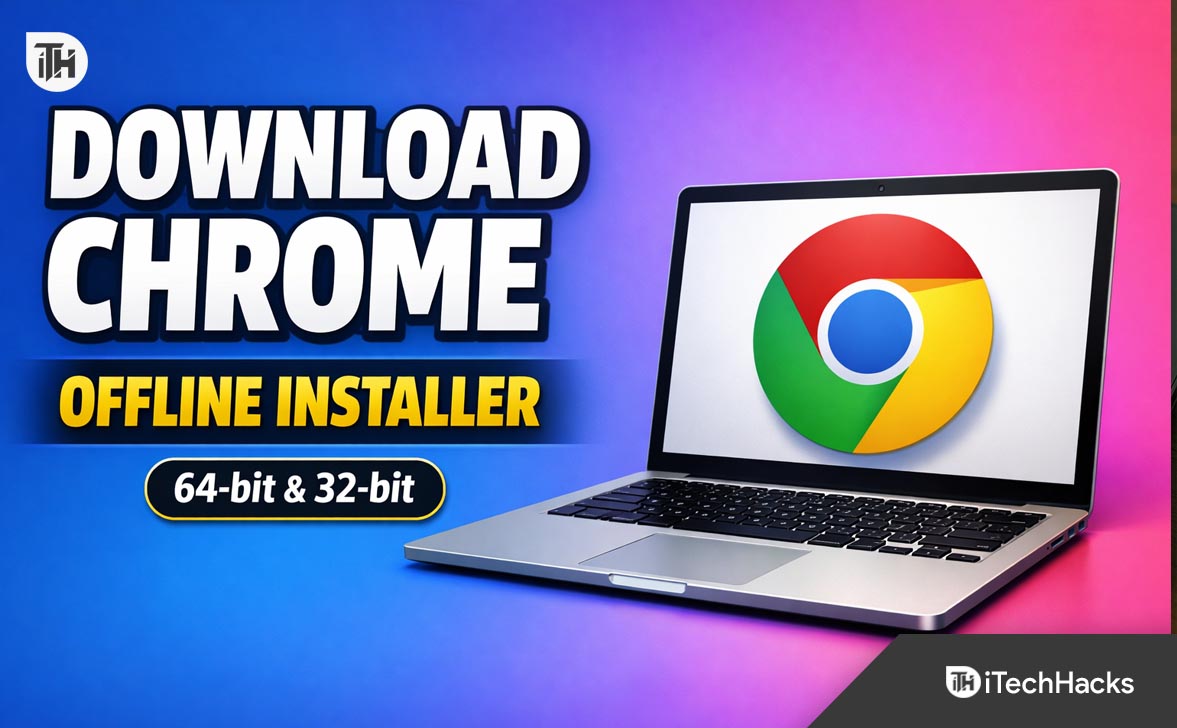
- Google Chrome is a fast and secure web browser. The Google Chrome Offline Installer is a large standalone setup file that lets you install Chrome without an internet connection, unlike the usual small online setup file which downloads more files during installation.
- The offline installer is useful for situations like slow or unstable internet, installing Chrome on multiple computers, or when network restrictions block downloads. It ensures you have a complete setup file that can be reused, making installation smooth without interruptions.
Google Chrome is one of the most widely used web browsers in the world. It is known for its speed, clean interface, strong security, and regular updates. While most users download Chrome using the small online setup file, that method does not work well in every situation. This is where the Google Chrome Offline Installer becomes useful.
In this guide, you will learn what the Chrome offline installer is, why you might need it, how to download the correct 64-bit or 32-bit version, and how to install it properly. Everything is explained in simple English so you can follow it easily.
What Is Google Chrome Offline Installer?
The Google Chrome offline installer is a full setup file that contains all the files required to install Chrome on your computer. Unlike the regular online installer, it does not need an active internet connection during installation.
When you download Chrome from the main website, you usually get a small file that downloads the rest of Chrome during installation. That method can fail if your internet is slow, unstable, or blocked by network restrictions. The offline installer avoids these problems.
Once downloaded, the offline installer can be used multiple times on the same PC or even copied to other computers using a USB drive.
Why Download Google Chrome Offline Installer?
There are several practical reasons why users prefer the offline installer instead of the standard setup.
1. Slow or Unstable Internet
If your internet connection drops frequently, the online installer may fail again and again. The offline installer downloads once and installs without interruption.
2. Installing Chrome on Multiple Computers
System administrators, office users, and technicians often need to install Chrome on many PCs. The offline installer saves time and bandwidth.
3. Network Restrictions
In offices, schools, or restricted networks, Chrome may not download properly during setup. Offline installation works even when downloads are blocked.
4. Clean and Reliable Installation
The full installer reduces errors related to missing files, failed downloads, or partial installations.
Google Chrome Offline Installer 64-bit vs 32-bit
Before downloading Chrome, you need to know whether your Windows system is 64-bit or 32-bit. Installing the wrong version can cause errors or prevent Chrome from installing.
- Direct Download Link of Chrome 144 Offline Installer (64-bit)
- Direct Download Link of Chrome 144 Offline Installer (32-bit)
64-bit Chrome
- Recommended for most modern computers
- Better performance and security
- Uses more system memory efficiently
- Works on Windows 10 and Windows 11 64-bit
32-bit Chrome
- For older computers with 32-bit Windows
- Uses less memory
- Limited performance compared to 64-bit
If your computer was made in the last 8 to 10 years, it is almost certainly 64-bit.
How to Check If Your Windows Is 64-bit or 32-bit
Follow these steps to check your system type.
- Press Windows Key + I to open Settings
- Go to System
- Click About
- Look for System type
You will see something like:
- 64-bit operating system, x64-based processor
- 32-bit operating system, x86-based processor
Download Google Chrome Offline Installer (Official Method)
Google provides official offline installers directly on its website. This is the safest and recommended way to download Chrome.
Steps to Download Chrome Offline Installer
- Open any browser already installed on your PC
- Go to the official Chrome offline installer page
- Select your operating system
- Choose 64-bit or 32-bit based on your system
- Click Download
You will receive a large setup file instead of a small downloader.
Tip: Avoid third-party websites offering modified Chrome installers. Always download from Google’s official source to prevent malware.
Google Chrome Offline Installer File Details
After downloading, you will notice the file size is much larger than the regular installer.
- 64-bit installer size: around 80 to 90 MB
- 32-bit installer size: around 70 MB
- File format: .exe
Once downloaded, you can install Chrome even without internet access.
How to Install Google Chrome Using Offline Installer
Installing Chrome from the offline installer is simple.
Standard Installation Steps
- Double-click the downloaded Chrome offline installer file
- Allow permission if Windows asks
- The installation will start automatically
- Wait until the setup completes
- Chrome will launch after installation
No additional downloads are required during this process.
Install Chrome Offline Without Admin Rights
If you do not have administrator access on your PC, you can still install Chrome for your user account only.
During download, choose the option that installs Chrome for a single user instead of all users. This is useful in office or school environments.
Common Issues While Installing Chrome Offline and Fixes
Chrome Installer Not Opening
Right-click the installer file and choose Run as administrator. Also check if your antivirus is blocking the file.
Installation Stuck or Freezes
Close all running programs and try again. Make sure you have enough free disk space.
Wrong Version Installed
If Chrome fails to install, recheck whether you downloaded the correct 64-bit or 32-bit version.
Chrome Opens but Crashes
Update Windows and graphics drivers. Older system files can cause Chrome to crash.
How to Update Google Chrome Installed via Offline Installer
Even if you install Chrome offline, it will still update automatically when internet access is available.
To manually check for updates:
- Open Chrome
- Click the three-dot menu
- Go to Help
- Click About Google Chrome
Chrome will check for updates and install them automatically.
Is Google Chrome Offline Installer Safe?
Yes, the offline installer is safe as long as it is downloaded from the official Google website. It contains the same Chrome version that users get through online installation.
Avoid modified installers or cracked versions. They may contain spyware, adware, or harmful scripts.
Benefits of Using Google Chrome on Windows
- Fast page loading
- Strong security features
- Regular updates
- Large extension library
- Sync bookmarks, passwords, and history
Chrome works well on Windows 10 and Windows 11 and integrates smoothly with most modern websites.
Frequently Asked Questions
Can I use Chrome offline after installation?
Yes. Chrome can open saved pages, local files, and offline-supported websites without internet access.
Does offline installer work on Windows 11?
Yes. Google Chrome offline installer fully supports Windows 11.
Is Chrome offline installer free?
Yes. Google Chrome is completely free to download and use.
Can I keep the installer for future use?
Yes. You can store the offline installer on a USB drive or external disk and reuse it anytime.
Final Thoughts
Downloading the Google Chrome Offline Installer (64-bit or 32-bit) is the best option if you want a smooth, reliable installation without internet interruptions. It is especially useful for slow connections, multiple installations, and restricted networks.
Always choose the correct system version and download Chrome only from official sources. Once installed, Chrome will keep itself updated and secure automatically.
If you frequently set up new computers or reinstall Windows, keeping the Chrome offline installer saved can save you time and frustration.
ALSO READ:
- How to Stop Google Chrome from Automatically Signing You In to a Google Account
- How to Turn Off Google Chrome AI Features on Windows 11 (Complete Guide)
- Top 50 List of Chrome URLs for Internal Built-in Pages 2026
- How to Fix Google Chrome STATUS_ACCESS_VIOLATION Error 2026
- How to Install iTunes on Chromebook Quickly in 2026