- Apple TV is a popular streaming device known for its design, interface, and capabilities, but it can face technical issues like volume control not working on the 4K remote.
- Common causes include dead batteries, connectivity issues, software issues, and obstruction of the IR receiver.
- Solutions include replacing batteries, checking Bluetooth connectivity, restarting Apple TV, unblocking the IR receiver, resetting the remote, updating the software, checking for interference, and contacting Apple Support if needed.
When your Apple TV remote volume is not working, it can be one of the most frustrating problems. You sit down, ready to watch your favorite show, but the volume buttons don’t respond. Do you grab another remote? Do you start fiddling with TV settings?
Don’t worry, this guide is built to walk you through every possible fix. We’ll look at why the Apple TV remote volume stops working and then go step by step with working solutions for 2026. By the end, you’ll know exactly how to fix it without wasting time guessing.
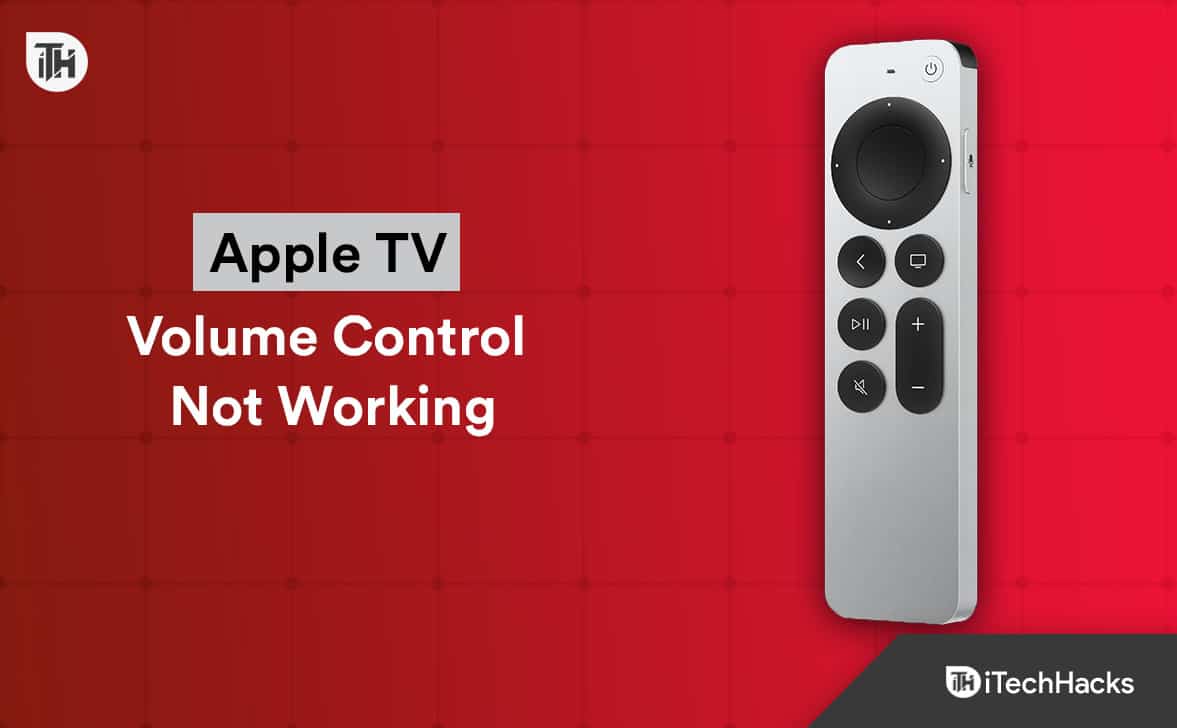
Why Your Apple TV Remote Volume May Not Be Working
The Apple TV remote isn’t just a simple remote — it connects through Bluetooth, IR (infrared), and HDMI-CEC depending on your setup. That means volume control depends on several factors. Here are the most common causes:
HDMI-CEC Disabled
HDMI-CEC is the feature that lets your Apple TV control TV and receiver volume. If it’s off on your TV, the volume buttons won’t work.
IR Signal Blocked
Some setups use IR (infrared). If the front of the TV or receiver is blocked, the Apple TV remote can’t send volume commands.
Software Glitch
Bugs in tvOS or remote pairing can cause the volume buttons to stop responding.
Low or Dead Battery
Siri Remotes use a built-in rechargeable battery (USB-C in 2023 model, Lightning in older ones). If it’s almost empty, buttons may lag or fail.
Wrong Audio Setup
If your Apple TV audio is routed through a soundbar or receiver, but settings aren’t correct, the remote won’t know where to send volume commands.
Remote Not Paired Properly
If the remote has lost connection, volume control won’t work until you re-pair it.
Fix Volume Control Not Working on Apple TV | 4K Remote
We now know the possible reasons behind the apple tv remote volume not working problem, so we can begin looking for solutions. So, let’s get started with them:
Charge Your Remote
The Apple TV Siri Remote has a rechargeable battery. If the charge is low, the volume buttons may stop working.
- Plug the remote into a charger with USB-C (2023 Siri Remote) or Lightning cable (older model).
- Charge it for at least 30 minutes.
- Test the volume buttons again.
Tip: You can check the battery level under Settings → Remotes and Devices → Remote Battery.
Enable HDMI-CEC on Your TV
If your remote controls TV volume through HDMI-CEC, this setting must be enabled on both Apple TV and your television.
On Apple TV:
- Go to Settings → Remotes and Devices → Volume Control.
- Set it to Auto (HDMI Receiver).
On TV (varies by brand):
- Samsung: Anynet+ (HDMI-CEC)
- LG: Simplink (HDMI-CEC)
- Sony: Bravia Sync
- Panasonic: Viera Link
Make sure CEC is turned ON in your TV settings.
Check Audio Receiver or Soundbar Settings
If you use a soundbar or AV receiver, make sure they also have HDMI-CEC enabled. Some brands call it ARC/eARC control.
- Verify HDMI cable is plugged into the ARC/eARC HDMI port.
- On the soundbar/receiver, enable HDMI control.
- Restart all devices after enabling settings.
Switch to IR (Infrared) Control
If your TV or receiver doesn’t support HDMI-CEC, you can program the Apple TV remote to control volume via IR:
- Go to Settings → Remotes and Devices → Volume Control.
- Select Learn New Device.
- Use your TV/soundbar remote to “teach” Apple TV the volume up/down commands.
- Make sure the remote has a clear line of sight to the TV’s IR receiver.
Replace the Batteries
You won’t be able to adjust the volume if the batteries in your Apple TV 4K remote are dead. Here’s how to ensure that the remote has enough power to send signals to the Apple TV:
- Your Apple TV 4K remote does not have a battery compartment, so you will need to locate it on the back.
- Open the battery cover and remove it.
- Ensure that the batteries are not dead and replace the old ones.
- Put the battery cover back on.
If the volume control does not work after replacing the batteries, try the next solution.
Check if iPhone Remote Works
Apple TV has a built-in remote app on iPhone.
- On iPhone, swipe down to open Control Center.
- Tap the Apple TV Remote icon.
- Use iPhone volume buttons.
If volume works from iPhone but not Siri Remote, the issue is with your physical remote.
Check the Bluetooth Connectivity
Using Bluetooth connectivity, the Apple TV 4K remote communicates with the Apple TV. If the Bluetooth connection is problematic, the remote will not work. Here are the guidelines you need to follow to check the Bluetooth connection:
- Go to Settings on your Apple TV.
- Select Remotes and Devices.

- Select Bluetooth.
- You must ensure that the Apple TV 4K remote is listed under My Devices.
- Follow the instructions on the screen to pair a new remote if it isn’t listed.
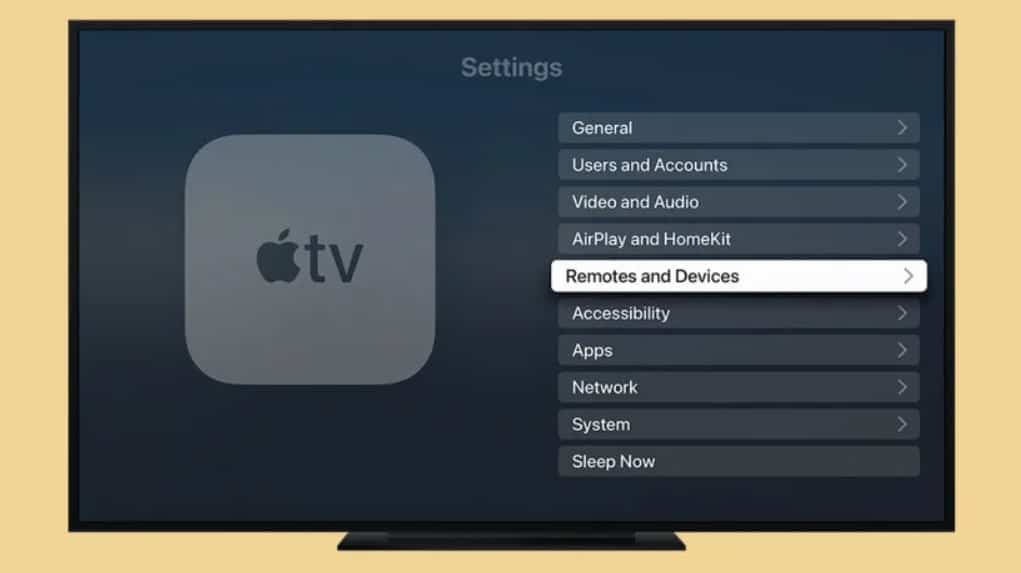
After completing these steps, check whether the volume control works. If it still does not work, try the next solution.
Restart Apple TV
Sometimes, the volume control does not work correctly due to software issues. You might be able to fix the apple tv remote volume not working by restarting your Apple TV. To do this, follow these steps:
- Go to Settings on your Apple TV.
- Select System.
- To restart, click the Restart button.
- If you want to restart your Apple TV, confirm that you want to do so.
After the Apple TV restarts, check whether the volume control works. If it still does not work, try the next solution.
Reset Apple TV
If none of the above solutions worked, it is possible to fix the apple tv remote volume not working issue by resetting the Apple TV to its factory settings. Here’s how:
- Go to the Settings option on your Apple TV.
- Select System.
- To reset, click the Reset button.
- You can choose either to reset all settings or to erase all content and settings.
- To complete the reset, follow the instructions on the screen.
When you have reset your Apple TV, you need to set it up and check whether the volume control works. Next, try the next solution if it still doesn’t work.
Unpair and Repair the Remote
It is sometimes possible to fix the apple tv remote volume not working issue by unpairing and repairing the Apple TV 4K remote. You can do this by following these guidelines:
- Go to Settings on your Apple TV.
- Select Remotes and Devices.
- Select Remote.

- Choose Unpair Remote.
- You will need to restart your Apple TV after you have unpaired the remote.
- Afterwards, select Pair remote in the Remote settings once your Apple TV has restarted.
- You must follow the on-screen instructions to pair your remote with your Apple TV.
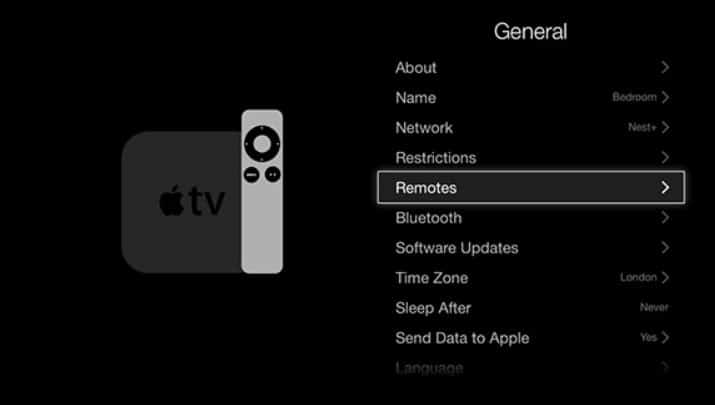
If the volume control does not work after repairing the remote, try unplugging it first and re-plugging it.
Update the Apple TV Software
It may be difficult to use the remote if your Apple TV software is outdated. It may be possible to fix the problem by updating the software. You can do this by following these guidelines:
- Go to Settings on your Apple TV.
- Select System.
- Select Software Updates.

- Click the Download and Install button if an update is available.
- You will need to wait for the update to download and install.
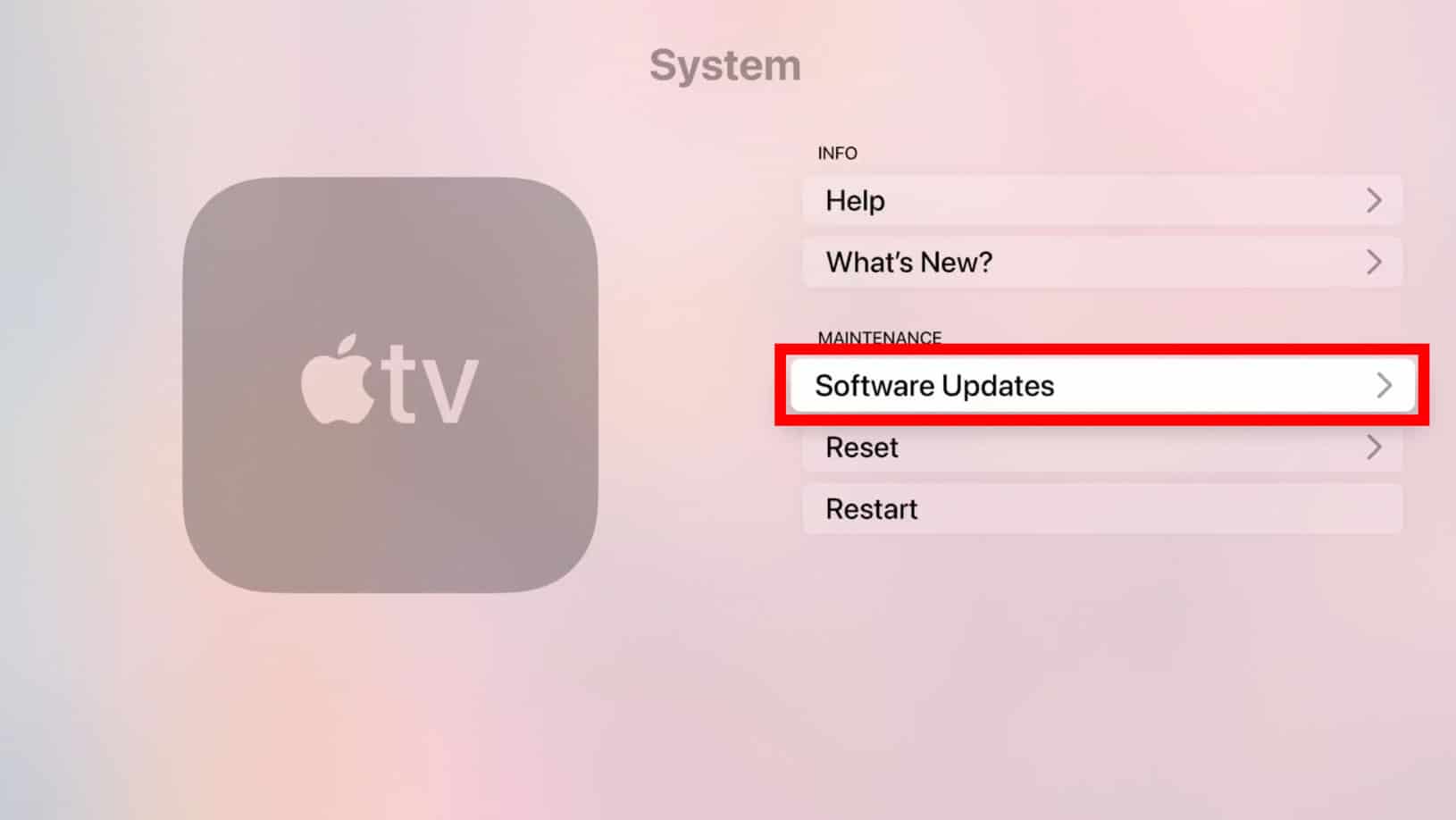
After updating the software, check whether the volume control works.
Check for Interference
It is possible that other electronic devices near your Apple TV or remote may cause interference and interfere with Bluetooth. To avoid interference with your Apple TV and remote, move any electronic devices away from them. It is also important to make sure that large metal objects do not block your remote and Apple TV.
Reset the Remote
To resolve the issue, reset the remote if necessary. To do so, follow these steps:
- Using your Apple TV 4K remote, press and hold the Menu and Volume Up buttons for 6 seconds.

- After the remote’s LED light flashes rapidly, release the buttons.
- You will need to wait for the remote to reset.
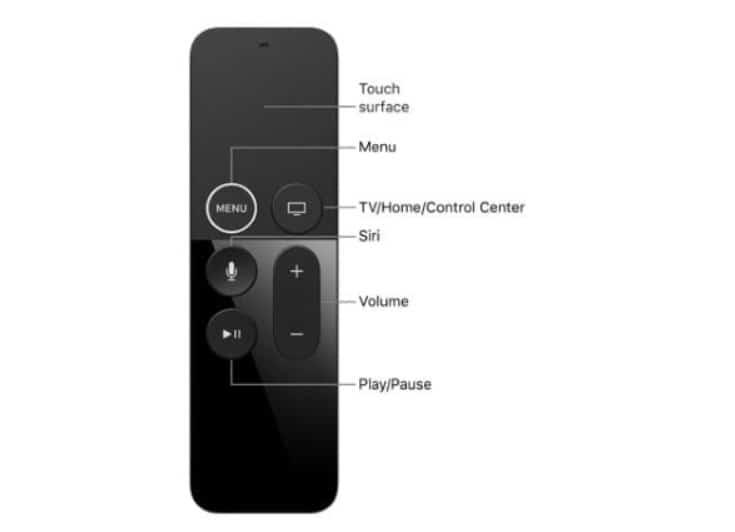
After resetting the remote, check whether the volume control works.
Contact Apple Support
If none of these solutions works, contact Apple Support. You will be provided with further troubleshooting instructions, or a replacement remote or Apple TV will be arranged.
Sum Up
When the Apple TV remote volume control stops working, it’s usually a simple fix—charging the remote, enabling HDMI-CEC, or re-pairing it solves the problem. Only in rare cases do you need to reset or replace it.
ALSO READ:
- Activate CTV at ctv ca/activate on Apple TV, SmartTV, Roku
- How to Connect Apple TV to WiFi Without Remote
- How to Download Apple TV or Apple Music on Windows 11
- Turn off Apple TV and Apple Watch Keyboard Notifications
- How To Fix When Apple TV Stuck and Could Not Sign In
- How To Mirror iPhone To Smart TV Without Apple TV
- How To Get Apple TV+ Subscription for Free
- How to Fix “Apple Pay Services are Currently Unavailable”