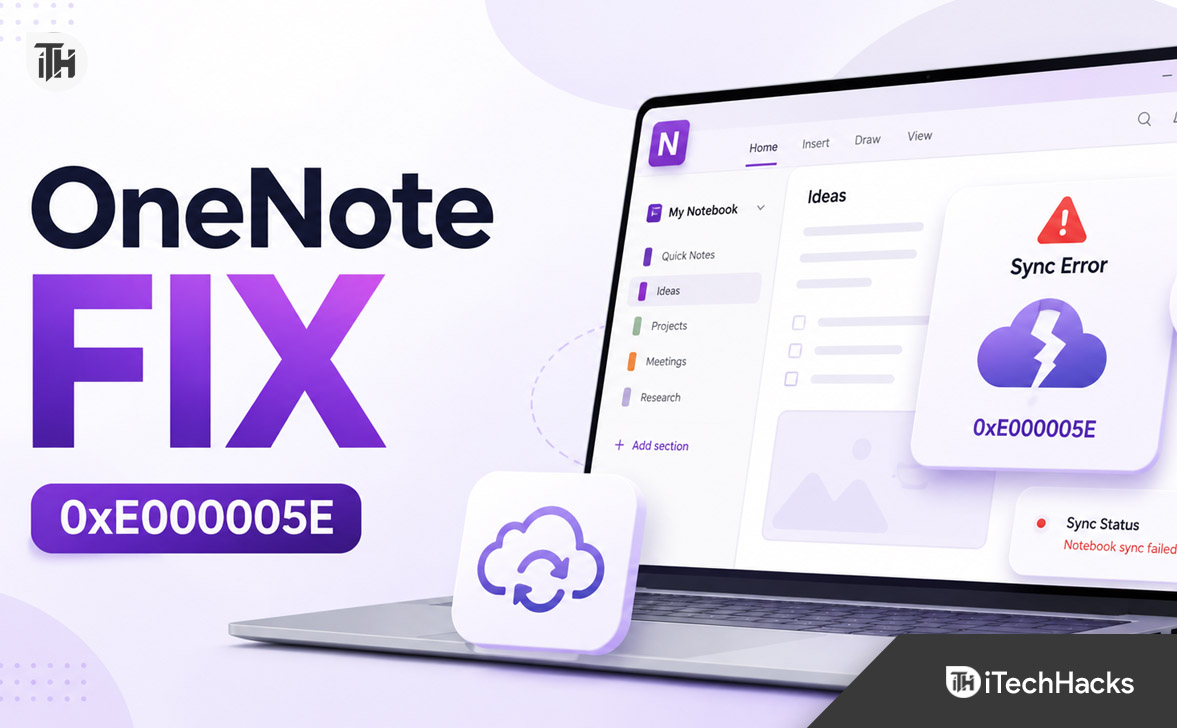
- OneNote error 0xE000005E occurs when the app can't sync a section of your notebook due to missing or mismatched revisions, often caused by interrupted connections, permission changes, or relocated notebooks. It can impact single pages, sections, or shared notebooks, even with good internet.
- To fix this, manually ensure all your notes are safe, then sync the notebook or copy pages into a new section. Avoid immediately clearing the OneNote cache as it might remove unsynced notes. Try reopening OneNote in a web browser and syncing to check if the error persists.
OneNote error 0xE000005E can appear when the app fails to synchronize a section of your notebook with OneDrive or SharePoint. You may see the error beside a notebook, section, or page even though your internet connection appears to be working normally.
The complete error is commonly identified as 0xE000005E ReferencedRevisionNotFound. It usually means OneNote cannot find or correctly match a previous revision of a notebook section. This can happen after conflicting edits, an interrupted synchronization, notebook relocation, account permission changes, or damage within a specific section.
Fortunately, you normally do not need to delete the entire notebook. In most cases, manually syncing the notebook or copying the affected pages into a new section will fix OneNote error 0xE000005E without losing your notes.
This guide explains how to troubleshoot the error safely on Windows, Mac, mobile devices, OneNote for the web, OneDrive, and SharePoint.
What Is OneNote Error 0xE000005E?
OneNote error code 0xE000005E means that OneNote cannot synchronize one or more sections because a referenced revision cannot be found. Microsoft therefore describes the error as ReferencedRevisionNotFound.
OneNote keeps a local cached copy of your notebook and synchronizes changes with the version stored in OneDrive or SharePoint. Every time you edit a page, OneNote must determine which version is newer and merge the changes correctly.
If OneNote expects to find a previous section revision but that revision is missing, inaccessible, or inconsistent, synchronization can stop. The app may continue opening the notebook, but recent edits might remain only on the affected computer until the sync problem is resolved.
The error can affect:
- A single page inside a section
- An entire notebook section
- A notebook shared between multiple users
- A notebook that was recently moved or renamed
- A locally stored notebook being synchronized through the OneDrive desktop folder
- A notebook opened with the wrong Microsoft account
Before Troubleshooting: Protect Unsynced Notes
Before resetting OneNote, signing out, closing the notebook, clearing its cache, or reinstalling Microsoft 365, protect any notes that have not yet synchronized. Some aggressive troubleshooting methods can remove the local cached copy that contains your newest changes.
Check whether your recent notes appear online
Open OneNote in a web browser and sign in with the same Microsoft account used in the desktop app. Open the affected notebook and compare the most recent pages with the desktop version.
If your latest content appears in OneNote for the web, the cloud copy is likely current. You can continue with app repair, reopening, or account troubleshooting with less risk.
If recent content appears only in the desktop app, copy it to a temporary safe location before continuing. You can paste important text into a Word document, export pages, create a PDF, or copy the pages into another notebook that is syncing correctly.
Do not clear the OneNote cache immediately
Deleting the OneNote cache is frequently recommended as a universal fix, but it can be dangerous when the cache contains unsynced notes. Treat cache deletion as a last resort, not the first troubleshooting step.
First confirm that all important content exists online or has been manually backed up. Only then should you consider resetting the app or removing cached data.
1. Force OneNote to Sync Manually
A temporary interruption may prevent OneNote from completing a synchronization cycle. Manually starting the process forces the app to reconnect and check the affected notebook again.
Use the Shift and F9 shortcut
Open the notebook showing error 0xE000005E and press Shift + F9. On some laptops, you may need to press Fn + Shift + F9.
Wait for the synchronization icon to finish. Avoid closing OneNote or putting the computer to sleep while it is checking the notebook.
Use View Sync Status
In the supported OneNote desktop application for Windows:
- Open OneNote.
- Select File.
- Open the Info section.
- Select View Sync Status.
- Choose Sync Now beside the affected notebook.
- Alternatively, select Sync All to synchronize every open notebook.
Microsoft recommends using the sync status window to identify the notebook and section responsible for the error.
If the error disappears after a manual sync, it was probably caused by a temporary network, authentication, or service interruption. If the same section continues showing 0xE000005E, proceed to the next method.
2. Identify the Section That Is Not Syncing
Error 0xE000005E usually affects a specific section rather than every page in the notebook. Finding that section prevents you from making unnecessary changes to the rest of the notebook.
Open File > Info > View Sync Status and look for a notebook marked with a yellow warning triangle or synchronization error. Expand its details to see whether OneNote identifies a specific section.
You can also inspect the section tabs inside the notebook. A warning icon, red mark, or message such as “This section cannot be synced” may appear beside the affected section.
After identifying it, avoid making additional edits in that section until you have copied or backed up its pages. Continued editing can create more conflicting versions.
3. Create a New Section and Copy the Pages
Creating a clean replacement section is one of the most effective ways to fix OneNote error 0xE000005E. It works because the new section receives a fresh synchronization history without the damaged or missing revision references attached to the original section.
Create the replacement section
- Open the affected notebook.
- Select the option to add a new section.
- Give it a temporary name such as Recovered Notes.
- Wait briefly and confirm that the new section synchronizes without an error.
Copy pages from the damaged section
- Open the original section showing error 0xE000005E.
- Right-click the first page.
- Select Move or Copy.
- Choose the newly created section.
- Select Copy.
- Repeat the process for the remaining pages.
Use Copy instead of Move during this process. Copying leaves the original page in place until you confirm that the new version has synchronized successfully.
If the section contains many pages, copy them in small groups. After each group, manually sync the notebook and check whether the new section remains error-free.
Microsoft recommends creating a new section, copying the affected pages into it, and then synchronizing the notebook again when a section refuses to sync.
Find a damaged page
If the error returns after copying a particular group of pages, one page in that group may be causing the problem. Create another test section and copy the pages one at a time until you identify the problematic page.
Once found, create a completely new page and manually copy only the required text, images, and attachments into it. Avoid duplicating the entire damaged page because that may also copy the synchronization problem.
4. Open the Notebook in OneNote for the Web
Opening the notebook online helps determine whether the issue exists in the cloud notebook or only in the local OneNote application.
Copy the notebook address
- Open OneNote on Windows.
- Select File > Info.
- Find the affected notebook.
- Right-click the notebook address shown beneath its name.
- Select Copy.
- Paste the address into a web browser.
Sign in with the correct personal, work, or school Microsoft account. Allow enough time for a large notebook to load.
Interpret the result
If the notebook opens and displays the latest content online, the cloud version is accessible. The problem is probably related to the local app, cached credentials, or local notebook data.
If the notebook opens but recent edits are missing, those edits may still exist only in the local cache. Back them up before closing the notebook or resetting OneNote.
If the notebook does not open online, check whether you are signed into the correct account. For a work or school notebook, you may also need permission from the notebook owner or Microsoft 365 administrator.
5. Close and Reopen the Notebook Safely
Closing and reopening a notebook can rebuild the connection between the OneNote desktop app and the cloud copy. However, do this only after confirming that important recent changes are visible online or backed up elsewhere.
- Open File > Info.
- Copy the web address of the affected notebook.
- Select the notebook settings or right-click its name.
- Choose Close This Notebook.
- Open the copied address in your browser.
- Select Open in Desktop App.
OneNote will reconnect to the notebook and download a fresh local copy. Microsoft includes reopening the notebook from OneNote for the web as a recommended step for persistent synchronization problems.
After reopening it, select File > Info > View Sync Status and run another manual synchronization.
6. Check Your Internet Connection and Microsoft Services
A stable internet connection does not guarantee that OneNote can reach OneDrive or SharePoint. VPN software, corporate firewalls, DNS problems, proxy settings, and temporary Microsoft service interruptions can all affect notebook synchronization.
Test another network
Temporarily connect the computer to another trusted network, such as a mobile hotspot. Open OneNote and press Shift + F9 to test synchronization.
If OneNote works on the second network, the original router, DNS service, proxy, firewall, or network filtering policy may be blocking a required Microsoft connection.
Temporarily disconnect VPN software
Some VPN services route Microsoft 365 traffic through distant or unstable servers. Disconnect the VPN briefly, reopen OneNote, and try another manual sync.
If the notebook is managed by your company, ask the IT department before disabling a corporate VPN or changing security settings.
Check Microsoft 365 service health
OneDrive or Microsoft 365 service disruptions can temporarily stop OneNote synchronization. Microsoft recommends checking its service status when notebooks stored on OneDrive cannot sync.
If a service incident is reported, avoid repeatedly resetting or reinstalling OneNote. Wait until Microsoft confirms that the service has recovered, then manually synchronize the notebook again.
7. Verify Your Microsoft Account and Notebook Permissions
OneNote error 0xE000005E can occur when the app uses an expired sign-in token or when your account no longer has access to the notebook’s storage location.
Confirm the account
Open the account menu in OneNote and verify the email address currently signed in. Many users have separate personal, work, and school Microsoft accounts, which can make it easy to open a notebook with the wrong identity.
Try opening the notebook in a private browser window. Sign in manually with the account that owns the notebook.
If someone else shared the notebook with you, ask the owner to confirm that:
- The notebook has not been deleted or moved.
- Your account still has editing permission.
- The notebook is not restricted to another organization.
- The share link has not expired or been replaced.
Work or school notebooks
SharePoint notebooks may stop syncing after an administrator changes permissions, moves a site, renames a document library, disables an account, or applies a new security policy.
If a SharePoint notebook remains inaccessible in the browser, contact your Microsoft 365 or SharePoint administrator. Provide the notebook name, section name, error code 0xE000005E, affected account, and approximate time the problem started.
8. Update OneNote, Microsoft 365, and Windows
An outdated OneNote installation may contain synchronization bugs that have already been fixed. Microsoft specifically recommends installing available Windows and Office updates when troubleshooting error 0xE000005E.
Update Microsoft 365
- Open OneNote, Word, or another Microsoft 365 application.
- Select File > Account.
- Open Update Options.
- Select Update Now.
- Restart the computer after updates finish.
Update OneNote from Microsoft Store
- Open the Microsoft Store.
- Select Library.
- Select Get updates or Check for updates.
- Install any available OneNote updates.
Install Windows updates
- Press Windows + I.
- Open Windows Update.
- Select Check for updates.
- Install available updates and restart Windows.
9. Stop Using OneNote for Windows 10
This distinction is especially important in 2026. The old application named OneNote for Windows 10 reached the end of support on October 14, 2025 and transitioned to read-only mode. It no longer supports creating, editing, or syncing notebook content.
If you are still opening the older Windows 10 version, install and use the currently supported application named OneNote. It is available through Microsoft 365 and the Microsoft Store.
Do not confuse these two applications:
- OneNote: The supported desktop application for Windows.
- OneNote for Windows 10: The discontinued application that became read-only after October 14, 2025.
Before removing the old app, make sure every notebook has completed its cloud synchronization. If the migration process reports unsynced content, use the available backup and recovery options before uninstalling anything.
10. Repair Microsoft 365 or OneNote
If the notebook works correctly in a browser but error 0xE000005E continues in the desktop app, the local OneNote installation may be damaged.
Run Quick Repair
- Press Windows + I.
- Open Apps > Installed apps.
- Find Microsoft 365, Microsoft Office, or OneNote.
- Select the three-dot menu.
- Choose Modify or Advanced options.
- Select Quick Repair.
- Restart the computer and test OneNote.
Quick Repair checks and replaces damaged program files without requiring a complete download.
Run Online Repair
If Quick Repair does not help, repeat the steps and select Online Repair. This option is more thorough and may reinstall Microsoft 365 components, so it requires an internet connection and may ask you to sign in again.
Microsoft describes Online Repair as the more complete repair option, while Quick Repair mainly detects and replaces corrupted files.
11. Repair or Reset the OneNote App
Windows may provide separate Repair and Reset controls for the Microsoft Store version of OneNote.
- Open Settings.
- Select Apps > Installed apps.
- Find OneNote.
- Select the three-dot menu.
- Open Advanced options.
- Select Repair first.
- Open OneNote and test synchronization.
Repairing the app is less destructive and should normally be attempted before Reset.
Use Reset only after confirming that your notes exist online or are backed up. Resetting can remove local app data, sign-in information, settings, and cached notebooks from the device.
12. Check for Misplaced Sections and Deleted Notes
OneNote may create a Misplaced Sections area when it has content to synchronize but cannot find the original section location. These sections should be reviewed before they are deleted.
Recover a misplaced section
- Open the notebook list.
- Find Misplaced Sections.
- Open the section and review its pages.
- Right-click the section or page.
- Select Move or Copy.
- Choose a valid notebook and section.
- Run a manual synchronization.
Microsoft explains that misplaced sections can appear when OneNote attempts to synchronize changes but cannot find the section file.
Empty Deleted Notes carefully
Corrupted content stored in Deleted Notes or the notebook recycle bin can sometimes continue producing synchronization errors. Review deleted pages and restore anything important before permanently removing the remaining content.
After emptying unnecessary deleted notes, close and reopen OneNote, then manually synchronize the notebook.
13. Check OneDrive or Local Storage Space
OneNote needs available cloud storage and local disk space to upload changes and maintain its cached notebook copy. Synchronization can fail when either location is full.
Check OneDrive storage
Sign in to OneDrive in a browser and review your available storage. Remove unnecessary files or purchase additional storage if the account has reached its limit.
Remember to empty the OneDrive recycle bin when appropriate because deleted files may continue using storage until they are permanently removed.
Check Windows storage
- Open Settings.
- Select System > Storage.
- Check the free space on the Windows drive.
- Remove temporary files or unused applications if space is low.
Large notebooks with images, audio recordings, videos, file printouts, and PDF attachments may require considerable local space. Try to keep several gigabytes free so OneNote and Windows can operate normally.
14. Reduce Large Attachments and Oversized Sections
A very large section can take longer to process and may be more likely to experience synchronization conflicts, especially on slower connections or shared notebooks with many editors.
Consider dividing a large section into several smaller sections. You can also remove duplicate printouts, compress large images, store videos in OneDrive and link to them, or replace large file attachments with cloud links.
After making changes, synchronize one section at a time. This makes it easier to identify which content triggers the error.
15. Move Locally Stored Notebooks Correctly
A OneNote notebook is not an ordinary folder containing independent documents. Manually dragging its folder into the OneDrive synchronization directory does not always convert it into a properly cloud-based notebook.
If error 0xE000005E started after moving a notebook folder, create a new cloud notebook from inside OneNote and copy or move the sections through OneNote’s own Move or Copy command.
This gives OneNote the correct cloud notebook structure, identifiers, and synchronization relationship. Avoid moving individual .one or .onetoc2 files through File Explorer unless you are performing a carefully planned recovery.
Additional Tips to Prevent OneNote Sync Errors
- Allow OneNote to finish syncing before shutting down the computer.
- Avoid editing the same page simultaneously on several devices.
- Keep OneNote and Microsoft 365 updated.
- Use the supported OneNote application instead of OneNote for Windows 10.
- Store active notebooks properly in OneDrive or SharePoint.
- Avoid manually renaming or moving notebook folders in File Explorer.
- Keep enough free OneDrive and local storage space.
- Break very large notebooks into smaller sections.
- Check notebook permissions after changing work, school, or Microsoft accounts.
- Back up important notes before resetting, reinstalling, or clearing cached data.
Common Problems and Fixes
OneNote error 0xE000005E affects only one section
Create a new section and copy the pages from the affected section into it. Synchronize after copying each small group of pages. If one page causes the error to return, rebuild that page manually.
The notebook works online but not in the desktop app
Back up unsynced content, close the notebook, and reopen it using Open in Desktop App from OneNote for the web. If that fails, update and repair OneNote.
The notebook does not open online
Verify that you are using the correct Microsoft account and that the notebook still exists in OneDrive or SharePoint. For shared notebooks, ask the owner or administrator to check your permissions.
Recent notes are missing online
Do not reset, sign out, uninstall OneNote, or clear its cache yet. The newest content may exist only in the local cached copy. Copy important pages to another location before continuing.
The error started after moving the notebook
Create a new cloud notebook through OneNote and use the app’s Move or Copy command to transfer sections. Do not rely on manually moving the notebook folder into OneDrive.
OneNote says the notebook is read-only
Check whether you are using the discontinued OneNote for Windows 10 app. As of October 14, 2025, that application no longer supports editing or synchronization. Install the supported OneNote app and open your cloud notebooks there.
Several users are receiving the error
The problem may involve the shared notebook, SharePoint permissions, or Microsoft 365 services rather than one computer. Ask the notebook owner or administrator to test the notebook online and review its access settings.
Frequently Asked Questions
What does OneNote error code 0xE000005E mean?
It means OneNote cannot synchronize a notebook section because it cannot find or reconcile a referenced revision. The error is also called ReferencedRevisionNotFound.
Will I lose my notes because of error 0xE000005E?
Not necessarily. Your notes may still exist in the local OneNote cache, in OneDrive, or in OneNote for the web. However, you should back up unsynced content before resetting the app, clearing its cache, signing out, or reinstalling Microsoft 365.
What is the fastest way to fix OneNote error 0xE000005E?
Start by pressing Shift + F9 to force a manual synchronization. If the same section still fails, create a new section and copy the pages from the affected section into it.
Should I move or copy the affected pages?
Copy them first. Copying preserves the original section while you verify that the replacement section synchronizes correctly. Delete the damaged section only after confirming that every page exists in the new section and online.
Can clearing the OneNote cache fix the error?
It may help in some app-specific cases, but it can also remove unsynced local content. Do not clear the cache until you have verified that your notes are stored online or backed up elsewhere.
Why does OneNote work in a browser but not on my computer?
The notebook and Microsoft account are probably working, but the desktop application may have damaged cached data, outdated credentials, corrupted program files, or an outdated notebook connection. Reopening the notebook from the web or repairing OneNote can help.
Can a VPN cause OneNote sync problems?
Yes. A VPN, proxy, firewall, DNS filter, or corporate security service can interrupt communication with OneDrive or SharePoint. Temporarily testing another trusted network can help identify a network-related problem.
Does reinstalling OneNote fix error 0xE000005E?
Reinstallation may fix corrupted application files, but it does not repair a damaged notebook section. Try manual sync and the new-section method first. Reinstall only after protecting unsynced notes.
Can I continue using OneNote for Windows 10?
You can use it only to view existing content. The app reached end of support and transitioned to read-only mode on October 14, 2025. Use the supported OneNote desktop application for editing and synchronization.
When should I contact Microsoft 365 support?
Contact support or your organization’s administrator when the notebook cannot be opened online, multiple users are affected, SharePoint permissions appear incorrect, or error 0xE000005E continues after rebuilding the affected section and repairing OneNote.
Final Thoughts
OneNote error 0xE000005E is primarily a synchronization and revision problem affecting one or more notebook sections. The most reliable troubleshooting sequence is to protect unsynced notes, force a manual sync, identify the affected section, and copy its pages into a newly created section.
If that does not work, test the notebook in OneNote for the web, verify the Microsoft account and permissions, check Microsoft service health, install available updates, and repair the OneNote or Microsoft 365 installation.
Avoid immediately deleting cache files or resetting the application because these actions can remove locally stored changes. Once your notes are safely backed up, you can use more advanced repair methods without risking important content.
Finally, make sure you are using the supported OneNote application. OneNote for Windows 10 became read-only after October 14, 2025 and can no longer be used for normal editing or notebook synchronization.
ALSO READ: