
- Windows 11's right-click menu became cluttered over time, but a new update in November 2026 allows users to customize it through settings, making it cleaner without needing to edit the Windows Registry.
- The new customization features for the context menu let users hide unused commands, manage app extensions, and bring back text-based options to make the menu simpler and more like Windows 10.
- To access these changes, users should ensure they have received the latest Windows 11 updates, specifically those released after October 2026, as they roll out gradually.
Windows 11’s right-click menu has been frustrating users for years. What started as a cleaner replacement for the classic Windows 10 menu gradually became crowded with unnecessary options, app shortcuts, and commands that many people rarely use.
Microsoft is finally addressing the problem. With the November 2026 Windows 11 update, users can customize the right-click context menu directly from Settings. You can hide unwanted commands, organize third-party app extensions, restore familiar text-based actions, and make the menu easier to navigate without editing the Windows Registry.
The improvement first appeared in the October 28 preview update (KB5127936) and is now included in the November 10 cumulative update (KB5132061) for Windows 11 versions 25H2 and 26H2. However, Microsoft is rolling out some features gradually, so not everyone will see the new controls immediately.
Here’s how to customize the Windows 11 right-click menu, remove unnecessary options, and bring back some of the familiar behavior from Windows 10.
What’s New in the Windows 11 Right-Click Menu?
When Windows 11 launched, Microsoft introduced a redesigned context menu that moved frequently used commands such as Copy, Paste, Rename, and Delete into a horizontal row of icons. Other commands were hidden behind the Show more options button.
Although the design looked modern, it created usability problems. Many applications added their own shortcuts, making the menu longer and sometimes slower to open. Users also had limited control over which commands appeared.
The redesigned 2026 context menu changes that with a new customization page under Settings > Personalization > Context menu.
The new customization features include:
- Hide unnecessary Windows commands: Turn options such as Send to and Create shortcut on or off.
- Manage third-party app extensions: Decide which installed applications appear directly in the right-click menu.
- Organize extensions into a submenu: Keep less frequently used app actions out of the main menu.
- Restore text-based commands: Show Cut, Copy, Paste, Rename, Delete, and Share as regular menu entries instead of icons.
- Move Properties: Place the Properties command at the bottom of the menu.
- Access legacy commands: Continue using the classic context menu when necessary.
Microsoft has also made performance improvements intended to reduce the delay when opening the context menu. Moving app extensions into a separate submenu helps prevent unnecessary extensions from slowing down the main menu.
How to Customize the Right-Click Menu in Windows 11
The easiest way to clean up the Windows 11 right-click menu is through the new built-in customization settings. You won’t need third-party software or Registry modifications.
Step 1: Open the Context Menu Settings
- Open File Explorer using Windows + E.
- Navigate to any folder containing files.
- Right-click an image, document, or another file.
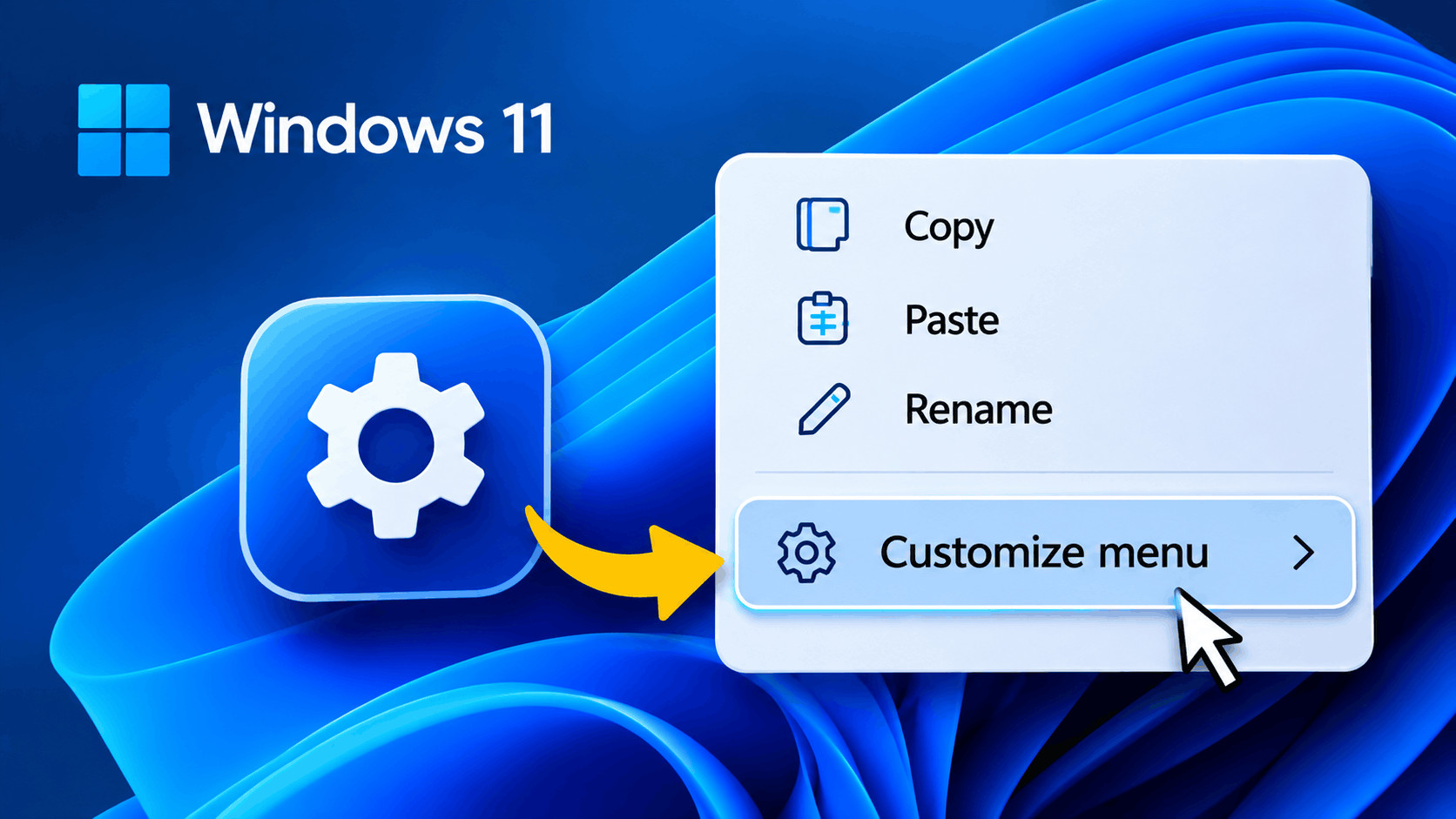
- Look for Customize menu near the bottom of the right-click menu.
- Click it to open the context menu customization page.
Alternatively, open Settings > Personalization > Context menu directly if that page is available on your Windows installation.
You’ll find several categories of settings that control built-in file actions, application extensions, and the layout of frequently used commands.
Note: If Customize menu doesn’t appear, you may not have received the updated experience yet. We’ll cover how to check for it later.
Step 2: Remove Unnecessary Right-Click Commands
The File actions section lets you control several built-in Windows commands. Depending on your configuration, these can include Send to, Print, Create shortcut, Copy as path, and Rotate image.
To remove commands you don’t use:
- Open the new Context menu settings page.
- Find the File actions section.
- Review the available commands.
- Turn off the switches beside unnecessary options.
- Return to File Explorer and right-click a supported file to check the changes.
For example, if you never use Send to or Create shortcut, disabling these commands can make the menu more compact.
You can also enable Print if you frequently print documents or images directly from File Explorer. The command appears only when relevant to the selected file.
These changes control menu visibility. They don’t delete the corresponding Windows features or prevent you from accessing them through other methods.
How to Remove Unwanted App Options From the Right-Click Menu
Third-party application shortcuts are among the biggest causes of context menu clutter. Applications such as OneDrive, Microsoft Clipchamp, Paint, compression utilities, and file-sharing tools may add actions when you right-click particular files.
Previously, removing these entries often required editing application settings, changing Registry entries, or installing a separate menu management utility.
The new Windows 11 customization page makes managing supported app extensions considerably easier.
Step 1: Manage App Extensions
- Open Settings > Personalization > Context menu.
- Scroll to the App extensions section.
- Review the listed applications and their associated commands.
- Enable the extensions you want displayed directly in the main menu.
- Disable the main-menu placement for extensions you rarely use.
The available entries depend on the applications installed on your computer. You might see options for Copilot, Clipchamp, Notepad, Photos, Paint, or cloud storage software.
Disabling an extension’s main-menu switch generally moves it into the App extensions submenu rather than uninstalling the application.
If you prefer a particularly clean right-click menu, Windows also provides a setting called Show app extensions submenu.
Turning this off hides the submenu containing extensions that aren’t enabled in the main menu.
This is useful when your computer has several installed applications that add right-click actions you never use.
However, consider keeping the submenu enabled if you frequently work with compression tools, cloud storage services, or development applications. It provides access to useful commands without displaying all of them immediately.
How to Bring Back the Windows 10-Style Right-Click Menu Layout
One common complaint about Windows 11 is its horizontal row of small action icons. Users familiar with Windows 10 may find it easier to identify commands when they’re displayed as text.
Microsoft’s new context menu settings address this preference without requiring you to restore the entire classic menu.
Show Copy, Paste, Rename, and Delete as Text
- Open the Context menu settings page.
- Find the Additional options section.
- Enable Arrange primary actions inline.
- Close Settings and right-click a file.
Windows will display primary actions such as Cut, Copy, Paste, Rename, Share, and Delete as regular text entries instead of the horizontal icon row.
This makes the menu feel more familiar to Windows 10 users and can make individual commands easier to identify.
Move Properties to the Bottom
If you’re accustomed to finding Properties at the bottom of a context menu, Windows 11 now offers a setting for that too.
- Open Settings > Personalization > Context menu.
- Locate Move Properties to the bottom of the context menu.
- Enable the setting.
Combining this option with inline primary actions gives the redesigned menu a more traditional layout while keeping the newer Windows 11 appearance.
How to Access the Classic Right-Click Menu in Windows 11
Some older applications still rely on legacy context menu extensions that aren’t fully integrated into the modern Windows 11 menu.
If you need an option that isn’t visible, you can open the classic context menu without changing your system configuration.
Method 1: Use Shift + Right-Click
- Open File Explorer.
- Locate the file or folder you want to manage.
- Hold the Shift key.
- Right-click the selected item.
This opens the expanded classic-style context menu, allowing you to access additional commands that may not appear in the modern interface.
Method 2: Enable Show More Options
The new customization page also includes a Show more options setting on supported builds.
Enabling this restores the Show more options entry to the modern right-click menu, making it easier to access legacy commands when needed.
This is particularly helpful for users who regularly work with older compression tools, file managers, or utilities that haven’t updated their Windows 11 context menu integration.
Important: These methods provide access to the classic menu when needed. They don’t necessarily replace the modern context menu as the permanent default.
How to Get the New Customizable Right-Click Menu
Microsoft initially introduced the redesigned context menu through Windows Insider testing in August 2026. It later became available through the optional October preview update, KB5127936.
As of November 11, 2026, the improvements are also included in the November cumulative security update, KB5132061, for Windows 11 25H2 and 26H2.
To check for the update:
- Press Windows + I to open Settings.
- Select Windows Update.
- Click Check for updates.
- Download and install any available cumulative updates.
- Restart your computer if prompted.
- Open File Explorer and check whether Customize menu appears.
You can confirm your Windows version by pressing Windows + R, entering winver, and pressing Enter.
Because Microsoft uses a gradual rollout system, installing the latest cumulative update doesn’t guarantee immediate access to every new feature.
Customize Menu Missing in Windows 11? Try These Fixes
If the new right-click customization option is missing, there are several possible explanations.
1. Check Your Windows Version
The new controls are being introduced for Windows 11 versions 25H2 and 26H2. Older releases may not have the same customization experience.
Use winver to check your installed version. If you’re running an older release, check Windows Update for an available feature update.
2. Install the Latest Windows Updates
Open Windows Update and install the latest applicable cumulative update. Restart your computer afterward, even if Windows doesn’t immediately prompt you to do so.
This ensures your computer has the latest available components, although feature availability can still depend on Microsoft’s rollout schedule.
3. Restart Windows Explorer
Occasionally, File Explorer may continue displaying an older interface until its process restarts.
- Press Ctrl + Shift + Esc to open Task Manager.
- Find Windows Explorer under Processes.
- Right-click it and select Restart.
- Wait for the desktop and taskbar to reload.
- Check the right-click menu again.
Restarting Explorer refreshes its interface without requiring a full Windows restart. However, it cannot enable a feature Microsoft hasn’t made available on your device.
4. Wait for the Gradual Rollout
If your PC is updated but the new controls remain missing, the feature may not have reached your device yet.
Some online guides recommend using experimental feature-enabling tools to force hidden Windows functionality. That approach isn’t necessary for most users and may cause instability when working with features still being rolled out.
Waiting for the official deployment is generally the safer option.
Best Settings for a Cleaner Windows 11 Right-Click Menu
You don’t need to disable every command to improve the context menu. A practical configuration keeps essential actions available while removing distractions.
For most users, the following setup works well:
- Disable Send to and Create shortcut if you rarely use them.
- Keep frequently used actions such as Copy, Paste, and Rename accessible.
- Move rarely used application extensions into the submenu.
- Hide the extensions submenu entirely if you don’t need those commands.
- Enable inline primary actions if you prefer text labels over icons.
- Keep Show more options available if you use legacy applications.
Remember that the menu changes depending on whether you right-click a file, folder, image, or empty desktop space. Certain commands will only appear when they apply to the selected item.
Frequently Asked Questions
Can I completely remove unwanted right-click options in Windows 11?
You can hide many built-in commands and supported application extensions using the new customization settings. However, not every legacy extension is necessarily managed through this interface. Some older application entries may require changes within the application itself.
The redesigned menu includes performance optimizations, and moving app extensions into submenus can reduce unnecessary loading during normal right-click operations. Actual improvements depend on your computer and installed applications.
You can access the classic menu using Shift + right-click or the Show more options command. The new settings also allow you to recreate some familiar Windows 10 behavior, including text-based primary commands and Properties at the bottom.
Microsoft is deploying the feature gradually. Even after installing KB5132061, some eligible Windows 11 computers may not immediately display the customization controls. Check your Windows version and updates, then allow time for the rollout.
Will disabling app extensions uninstall those apps?
No. Hiding an application extension from the context menu doesn’t uninstall the associated application. It only changes where, or whether, its supported shortcut appears in the modern right-click menu.
Final Thoughts
Windows 11’s customizable right-click menu is a welcome improvement, particularly for users who have been frustrated by unnecessary app shortcuts and hidden commands.
The ability to manage built-in actions, organize app extensions, restore text-based controls, and reposition Properties finally makes the modern context menu more practical.
If you’re using Windows 11 25H2 or 26H2, install the latest available updates and check Settings > Personalization > Context menu. Once the feature becomes available on your PC, a few small adjustments can make the right-click menu noticeably cleaner and easier to use.