- Google may think you are a robot due to security reasons like using a shared VPN, bad browser cookies, or harmful extensions causing unusual activity.
- To fix this, try disconnecting or changing your VPN, clear your browser's cookies and cache, and disable any suspicious browser extensions.
- Simple actions like restarting your router, scanning for malware, or turning off iCloud Private Relay can also help stop these robot checks.
You open your browser for a quick search, but instead of results, you hit a frustrating wall: “Unusual traffic from your computer network.” You are forced to click through endless pictures of crosswalks and traffic lights just to prove you are human. Sometimes, even after solving it, the CAPTCHA just loops. If you are constantly searching for Google Thinks I’m a Robot Every Time I Search: How to Fix It, this guide will show you exactly how to stop these annoying interruptions permanently.
Why is Google suddenly treating you like a malicious bot? Due to the massive increase in automated web scrapers and AI tools, search engines have dialed up their network security. This block usually happens because of a shared VPN IP address, corrupted browser cookies, or rogue extensions making invisible background queries. The system flags your connection as suspicious and locks it down. Below, we will walk you through exactly how to fix this CAPTCHA loop, from quick network resets to clearing specific browser data.
Fix Google’s “Unusual Traffic” & CAPTCHA Errors
This article will list various troubleshooting steps to help resolve the constant “Unusual Traffic” prompts that will not disappear, focusing on network settings, privacy tools, and browser data resets.
1. Disconnect or Change Your VPN Server (The Root Cause)
The most common reason for this error is that your internet traffic is being routed through a Virtual Private Network (VPN). VPNs protect your privacy by masking your actual IP address and assigning you a new one from their server. However, popular commercial VPNs route hundreds or even thousands of users through the exact same IP address simultaneously. When Google’s security algorithms see five thousand searches coming from a single IP address in one second, it automatically flags that address as a robot or a scraper.
- Open your active VPN application on your computer or smartphone.
- Click the Disconnect or Turn Off button to temporarily disable the service completely.
- Open a new tab in your web browser, go to Google, and perform a regular search.
- If the CAPTCHA disappears instantly, your VPN’s shared IP address was the culprit.
- If you must use a VPN for work or privacy, open the VPN app’s server list.
- Select a completely different server location (for example, switch from a heavily populated New York server to a quieter Chicago or Dallas server).
- Reconnect to the new server to obtain a fresh IP address that hasn’t been flagged by Google’s automated system yet.
2. Clear Your Browser Cookies and Cache
The integration between your web browser and Google’s tracking systems heavily relies on “cookies.” Cookies are tiny files saved on your device that tell websites you are a returning, verified human user who has safely interacted with the site before. If your cookies become corrupted, outdated, or tangled with an old browsing session, Google fails to recognize your digital footprint. Instead of reading a valid human token, it sees a blank or suspicious connection, triggering the persistent message. Clearing your browser data deletes the bad tokens, allowing you to establish a fresh, trusted connection.
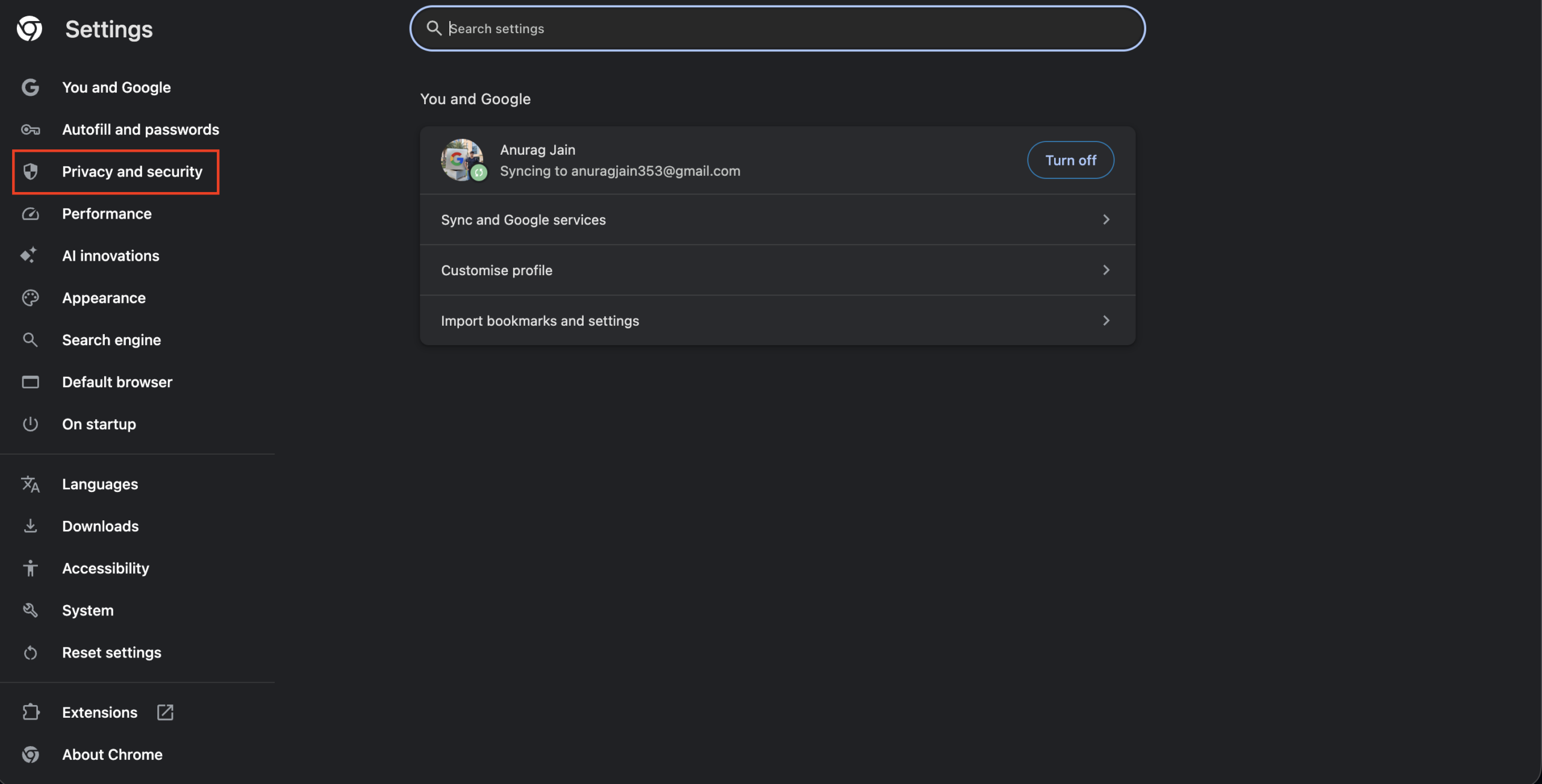
- Open your web browser (these steps apply generally to Chrome, Edge, and Safari).
- Click the Three Dots or Menu icon in the top right corner of the window.
- Select Settings from the drop-down menu that appears.
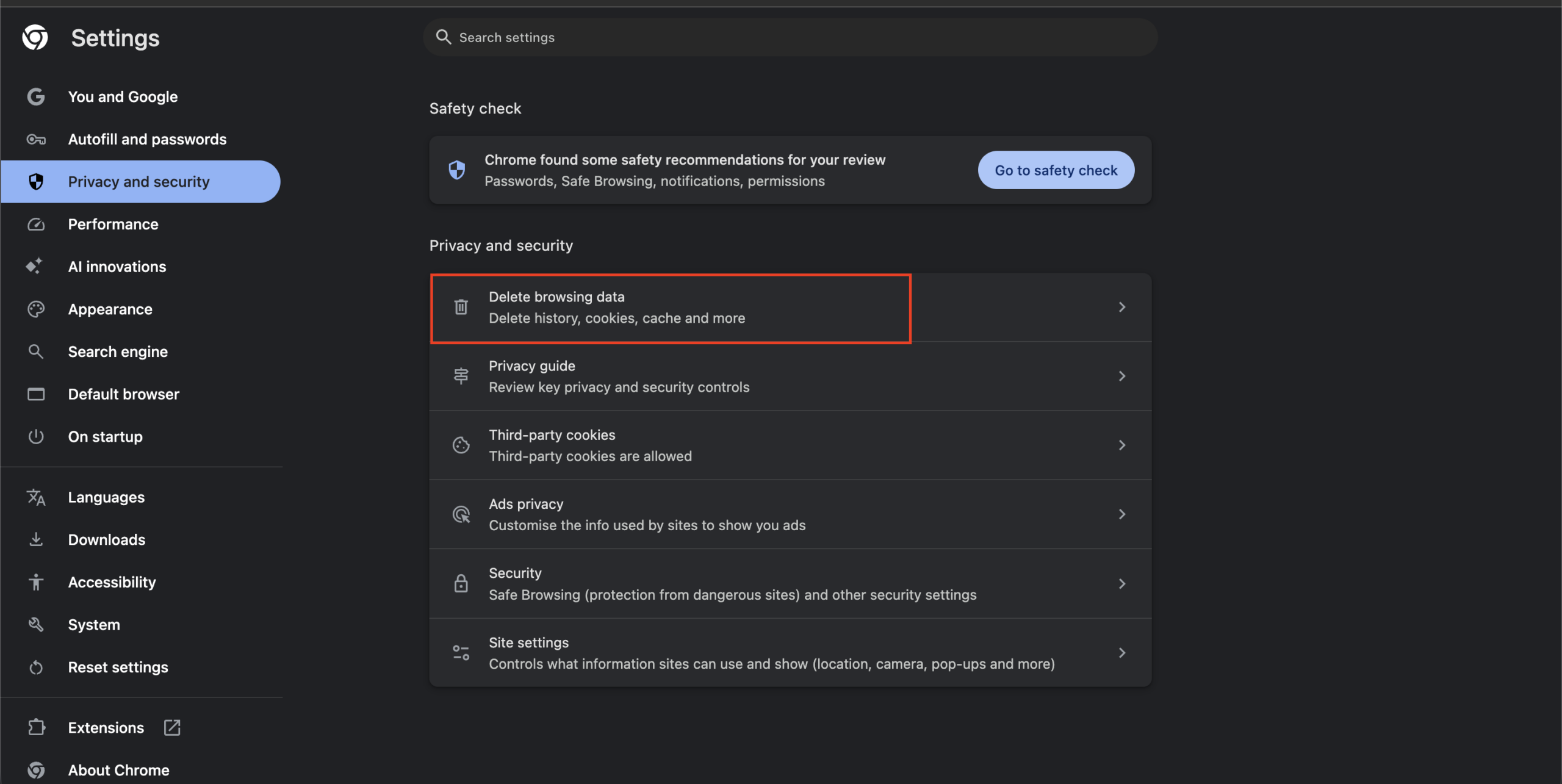
- Navigate to the Privacy and security section on the left sidebar.

- Click on Delete browsing data or Clear history depending on your browser.

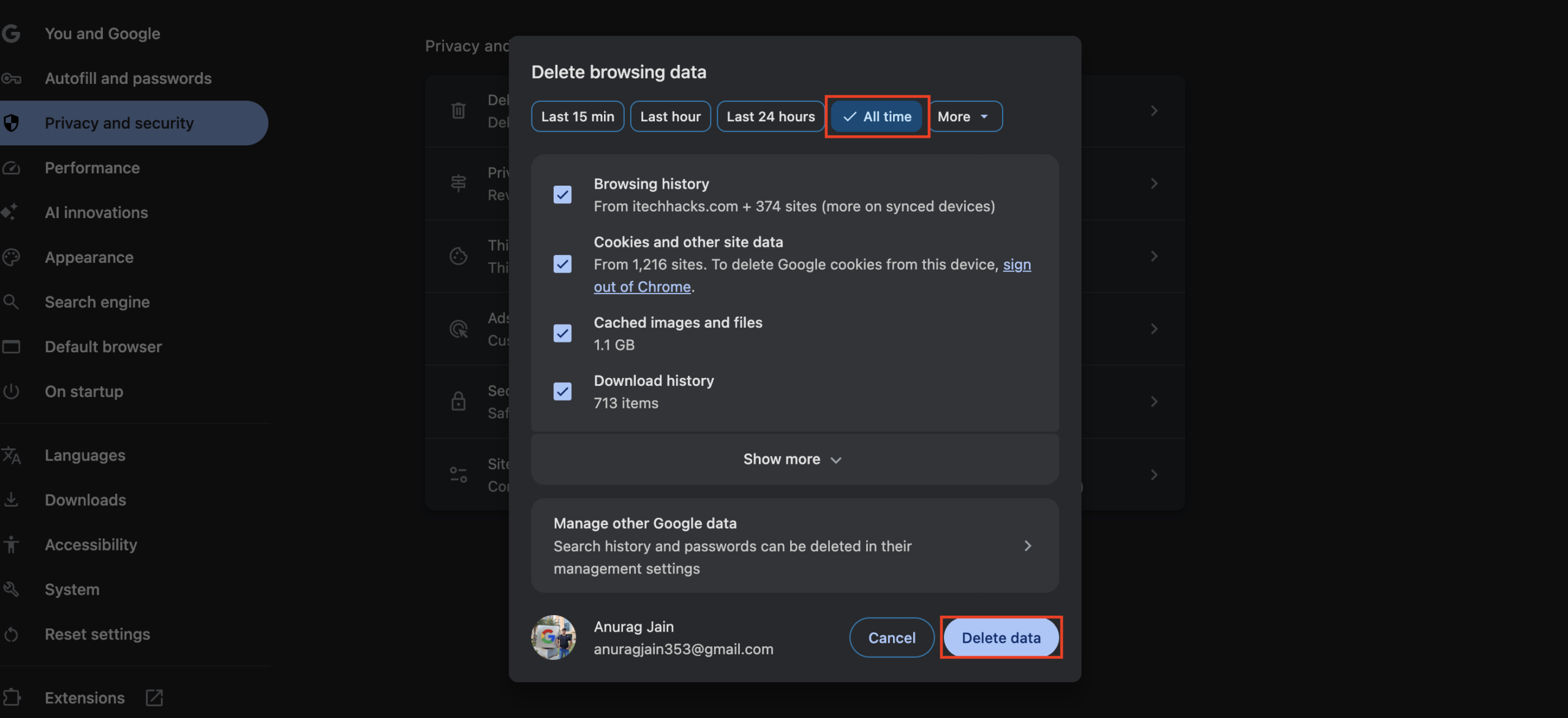
- Set the time range to All time to ensure you remove the corrupted files completely from your drive.
- Check the boxes for Cookies and other site data as well as Cached images and files.
- Click the Clear data button and wait for the system process to finish.

- Close your web browser completely and reopen it before trying your search again to generate a new session token.
3. Disable Rogue Browser Extensions
You might be a real human, but you could have software acting like a robot on your behalf without you ever realizing it. Many people install browser extensions for SEO tracking, price monitoring, grammar checking, or automatic page refreshing. Some of these extensions are poorly coded or deliberately malicious, constantly sending invisible queries to Google in the background to scrape data. Because these searches happen at superhuman speeds, Google immediately locks down your access. Disabling all your extensions is a crucial step to finally answer the question of Google Thinks I’m a Robot Every Time I Search: How to Fix It.
- In your web browser, click the Puzzle Piece icon or the Extensions menu at the top right corner.
- Select Manage Extensions from the drop-down menu to open your addon dashboard.
- You will see a grid or list of all your installed third-party add-ons.
- Toggle OFF the switch next to every single extension to disable them all temporarily.
- Open a new tab and perform a Google search to see if the error is resolved.
- If the CAPTCHA is gone, one of those extensions is the culprit causing the invisible traffic.
- Turn your extensions back ON one by one, performing a Google search after each activation to test the connection.
- Once the CAPTCHA returns, you have identified the exact rogue extension causing the handshake failure.
- Click Remove or Uninstall on that specific extension permanently to secure your browser.
4. Restart Your Router (Refresh Your IP Address)
Sometimes, the “Unusual Traffic” alert is simply tied to the specific IP address your Internet Service Provider (ISP) assigned to your home. If your router has been online for months, or if someone else in your household has been running heavy automated scripts, your home IP address gets temporarily blocked by Google’s servers. A simple computer reboot will not clear this network ban. You need to force your ISP to assign you a brand new, clean IP address. This is done through a process called a power cycle, which resets the Dynamic Host Configuration Protocol (DHCP) connection between your modem and the internet towers.
- Locate your home Wi-Fi router and your modem (they might be combined into a single device).
- Unplug the power cable from the back of the router, or pull the plug directly from the wall outlet.
- Leave the device completely unplugged for at least 5 to 10 minutes. This waiting period is absolutely crucial; if you plug it back in too quickly, your ISP’s lease will not expire, and you will get the exact same banned IP address.
- Plug the power cable back into the router and the modem.
- Wait a few minutes for the hardware to boot up and for the lights to stop blinking, turning solid green or white to indicate a successful internet connection.
- Connect your computer or phone to the Wi-Fi network.
- Attempt a Google search. With a newly assigned Dynamic IP address, the block should be completely lifted.
5. Disable iCloud Private Relay (For Apple Users)
If you use a Mac, iPhone, or iPad and pay for an upgraded iCloud+ subscription, you likely have a feature called iCloud Private Relay turned on by default. Private Relay is Apple’s built-in privacy tool that routes your Safari web traffic through two separate, secure servers to hide your identity, IP address, and location from websites. While this is fantastic for your personal privacy, it functions very similarly to a commercial VPN. Because thousands of Apple users are browsing through these exact same Apple relay servers, Google routinely flags the traffic as a massive botnet and throws up endless CAPTCHAs. Disabling this feature often provides an instant fix.
- On your Mac, open the System Settings application. On an iPhone or iPad, open the Settings app.
- Tap on your Apple ID Name at the very top of the settings menu.
- Select iCloud from the list of account options.
- Scroll down the page and tap on Private Relay.
- Toggle the master switch to OFF.
- A system prompt will appear asking if you want to turn it off completely or pause it until tomorrow. Choose Turn Off Private Relay.
- Open the Safari browser and test your search again to see if the traffic flows normally.
- If the issue is resolved, you may need to leave Private Relay off permanently, or switch to a different browser like Chrome when you need to use Google search without interruptions.
6. Disconnect from Public Wi-Fi Networks
The Google security algorithm monitors traffic at the network level, not just the individual device level. If you are connected to the internet at a busy coffee shop, a university library, an airport, or a hotel, you are sharing a single outward-facing IP address with dozens or hundreds of other people through a process called Network Address Translation (NAT). If just one person on that public network is using scraping software, downloading massive amounts of copyrighted data, or has a virus, Google will block the entire network. Every single person in the building will get the “robot” error. You must separate your device from the shared pool of users to regain access.
- Click the Wi-Fi icon on your computer or smartphone menu bar.
- Disconnect from the public network (e.g., “Starbucks Guest,” “Library Free Wi-Fi,” or “Hilton Honors”).
- Turn off your device’s Wi-Fi entirely to force a cellular connection.
- If you are on a smartphone, perform a Google search using your 4G or 5G mobile data plan.
- If you are on a laptop, turn on your smartphone’s Mobile Hotspot or Personal Hotspot feature.
- Connect your laptop to your phone’s personal hotspot network.
- Because cellular data networks assign vastly different IP ranges that are heavily monitored and less prone to mass scraping, this bypasses the public Wi-Fi block entirely and allows you to search freely.
7. Scan Your Device for Malware
If the message persists despite changing networks, rebooting routers, and clearing your browser, your local machine might be compromised. Hackers often infect everyday computers with malicious software to create massive “botnets.” These viruses quietly run in the background of your system, using your internet connection to send thousands of spam queries, crack passwords, or click on advertisements without your knowledge. Google detects this rapid, invisible activity originating from your hardware and locks down your connection. You need to run a deep system scan to root out any infections that are hijacking your network resources.
- Open your trusted antivirus software. If you use a Windows PC, you can use the built-in Windows Security application.
- Navigate to the Virus & threat protection dashboard.
- Click on Scan options to reveal deeper, more thorough scanning methods.
- Select Full scan rather than a Quick scan. A full scan checks every single file, registry key, and running process on your hard drive, which is necessary for hidden botnet malware.
- Click Scan now and wait for the process to complete, which may take over an hour depending on your drive size.
- If the software detects any trojans, adware, or malware, click Quarantine or Remove immediately to neutralize the threat.
- Restart your computer fully to ensure the malicious background processes are permanently killed off and cleared from your system memory.
8. Stop Using Automated Search Tools
Sometimes, the simplest explanation is the correct one. Are you actually using automated tools? Many digital marketers, academic researchers, and software developers use custom Python scripts, third-party SEO auditing software, or rank trackers that rapidly search Google to collect data on search engine results pages (SERPs). Google’s Terms of Service strictly forbid automated scraping of their search results without using their official, paid API. If you run a script that searches for 100 different keywords in one minute, you will trigger the defense mechanisms immediately, and your IP will be flagged.
- Identify any ranking, SEO, or data collection software you currently have open on your computer or running on a local server.
- Pause or cancel any active scraping campaigns or bulk keyword searches.
- Close the software completely and ensure no background tasks are lingering in your task manager.
- If you are a developer, ensure your scripts are routed through official APIs rather than raw HTML scraping methods that violate terms of service.
- Wait for at least 24 hours. Google’s automated blocks are often temporary “cool-down” periods. Once the aggressive scraping stops, the system will eventually lift the restriction on your IP address automatically, returning your search access to normal.
Final Words
The “Unusual traffic from your computer network” message is more than just a visual annoyance; it is a sign that the delicate web of trust between your browser, your internet provider, and Google’s security servers has tangled. It is rarely a hardware issue with your physical device. By methodically resetting your network connections, disabling problematic extensions, turning off shared IP tools like VPNs, and clearing out your digital cache, you can usually banish this CAPTCHA ghost from your screen for good.
Remember, modern search engines are designed to protect their massive server infrastructure from botnets and scrapers, and sometimes they get too protective, locking out legitimate users who simply want to look up a quick fact. The steps above are designed to force the system to re-verify those handshakes on your terms. Once you fix these network issues, you can go back to browsing soundly—knowing your search engine will actually deliver results when it’s supposed to.
ALSO READ: