

- The R36S is a handheld gaming console designed for retro games, but not all models support TV connection through video output. You need to check if your model has a mini HDMI port or check the product details and firmware version to see if it supports TV output.
- To connect the R36S to a TV using the HDMI method, ensure you have a mini HDMI to HDMI cable and a TV with an HDMI port. Connect the mini HDMI cable from the console to the TV, switch the TV to the correct HDMI input source, and then turn on the R36S.
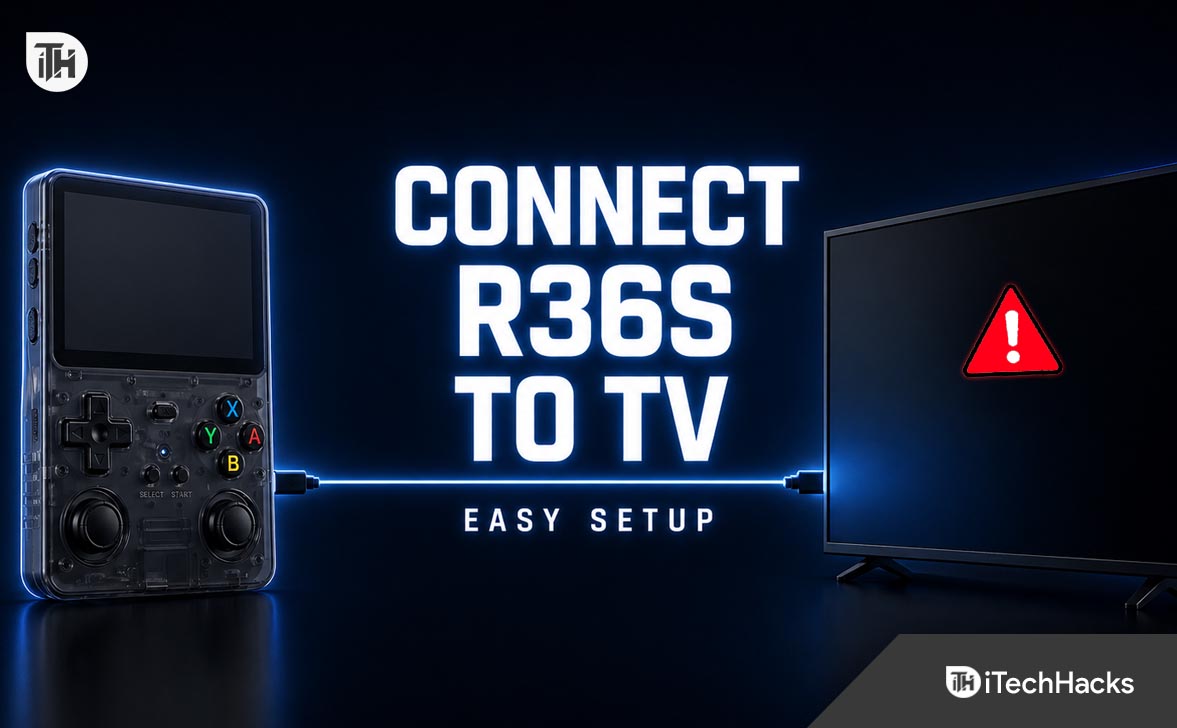
If you own an R36S handheld gaming console, you already know how powerful it is for retro gaming. But playing on a small screen is not always ideal, especially when you want a more immersive experience. That is where connecting your R36S to a TV becomes useful.
Many users search for how to connect R36S to TV because the process is not always clearly explained. Some models support TV output directly, while others require specific cables or adapters. If you try the wrong method, it simply will not work.
This guide explains everything step by step in simple language. You will learn what works, what does not, and how to fix common issues. By the end, you will be able to enjoy your R36S games on a bigger screen without confusion.
What Is R36S and Does It Support TV Output?
The R36S is a budget-friendly retro handheld console designed to emulate classic systems like NES, SNES, PlayStation, and more. It usually runs on Linux-based firmware and comes with a built-in screen.
Before trying to connect R36S to TV, you need to understand one important limitation. Not every R36S unit supports video output. Some versions include a mini HDMI port, while others do not support external display at all.
How to Check If Your R36S Supports TV Output
- Look for a mini HDMI port on the device
- Check the product listing or box specifications
- Search for your firmware version capabilities
- Test with a cable if unsure
If your device does not have a video output port, there is no direct way to connect it to a TV. In that case, you will need alternative methods which we will cover later.
Method 1: How to Connect R36S to TV Using HDMI (Best Method)
This is the easiest and most reliable method if your device supports it. HDMI provides both video and audio output with minimal setup.
What You Need
- Mini HDMI to HDMI cable
- Your R36S console
- TV with HDMI port
Step-by-Step Instructions
First, turn off your R36S device. This prevents any display issues during connection.
Next, connect the mini HDMI end of the cable to your R36S. Then plug the standard HDMI end into your TV.
Turn on your TV and switch to the correct HDMI input source. After that, power on your R36S.
If everything is working correctly, your TV should display the R36S screen automatically.
Why This Method Works
HDMI directly transmits digital video and audio signals. Since the R36S firmware supports external display output through HDMI, the signal is mirrored onto your TV without additional configuration.
Method 2: Using HDMI Adapter or Converter
If your TV does not have an HDMI port, which is rare but still possible with older TVs, you can use a converter.
Common Converters
- HDMI to AV (RCA) converter
- HDMI to VGA adapter
Steps to Connect
Connect your R36S to the HDMI converter using the same mini HDMI cable. Then connect the converter to your TV using AV or VGA cables.
Make sure the converter is powered if required. Switch your TV input accordingly and turn on your R36S.
Important Note
Cheap converters often reduce video quality or cause lag. If you care about performance, invest in a good quality adapter.
Method 3: Wireless Screen Mirroring (Not Recommended for Most Users)
Some users look for wireless ways when searching how to connect R36S to TV. However, this method is usually not supported directly by the device.
The R36S does not come with built-in WiFi casting like smartphones. Any wireless setup requires advanced modifications or external streaming hardware.
Possible Workaround
- Use a capture card connected to a PC
- Stream the PC screen to a smart TV
This setup is complex and introduces delay, which makes gaming difficult. For most users, HDMI remains the best option.
Method 4: Using USB-C Display Output (If Available)
Some newer handheld devices support video output through USB-C. However, most R36S units do not support this feature.
If your model includes USB-C video output, you can use a USB-C to HDMI adapter. The process is similar to the HDMI method.
Still, you should confirm compatibility before buying any adapter because unsupported devices will not display anything.
Best Settings for Playing R36S on TV
After you connect R36S to TV, you might notice stretched or blurry visuals. That is because the device was designed for a smaller screen.
Recommended Adjustments
- Set TV aspect ratio to 4:3 for retro games
- Disable overscan in TV settings
- Adjust brightness and sharpness
- Use game mode on TV to reduce input lag
These settings improve clarity and reduce delay, especially for fast-paced games.
Additional Tips for Better Experience
Connecting your R36S to a TV is just the first step. To get the best gaming experience, you should optimize your setup.
Use External Controllers
Playing on a TV is much better with a controller. Some R36S setups support USB controllers via OTG adapters.
Keep Device Cool
Long gaming sessions on a TV can heat up the device. Ensure proper ventilation to avoid performance drops.
Update Firmware
Some firmware updates improve HDMI output stability. Always use the latest stable version compatible with your device.
Common Problems and Fixes
No Signal on TV
If your TV shows no signal, first check your HDMI cable. Try switching HDMI ports on your TV.
Also confirm that your R36S actually supports TV output. Many users overlook this basic check.
Black Screen After Connection
This usually happens due to unsupported resolution. Restart the device while connected to the TV.
If the issue continues, try a different cable or TV.
Audio Not Working
Make sure your TV volume is not muted. Also check if audio output is enabled in the R36S settings if available.
Lag or Delay in Gameplay
Enable Game Mode on your TV. Avoid using converters if possible, as they often introduce latency.
Screen Flickering
This may be caused by a low-quality cable. Replace it with a better one and ensure a secure connection.
Frequently Asked Questions (FAQs)
Can all R36S devices connect to TV?
No. Only models with HDMI or video output support can connect to a TV.
What cable is required to connect R36S to TV?
You need a mini HDMI to HDMI cable for most supported models.
Why is my R36S not showing on TV?
It could be due to unsupported hardware, wrong input source, or faulty cable.
Can I connect R36S wirelessly to TV?
Not directly. Wireless methods require complex setups and are not recommended.
Is it safe to play R36S on TV for long hours?
Yes, but ensure proper ventilation and avoid overheating.
Final Thoughts
Understanding how to connect R36S to TV is simple once you know what your device supports. The HDMI method remains the most reliable and user-friendly option for most users.
If your device does not support video output, do not waste time trying random adapters. Instead, confirm specifications first and choose the right approach.
Once connected properly, the experience is completely different. Retro games feel more immersive on a bigger screen, especially when paired with the right settings and controller.
Take a few minutes to set things up correctly, and your R36S can easily turn into a full TV gaming system.
ALSO READ:
- How to Fix Windows 11 Bluetooth Not Working Issue
- How to Install Flix Vision on Firestick Easily (Android TV Method Included)
- LG TV Bluetooth Service Needs to Be Initialized? Here’s How to Fix It
- How to Activate YouTube TV via tv.youtube tv/start
- How to Activate Sportsnet TV Code at Watch.sportsnet.ca




