- Stremio is a popular app for watching and organizing movies and shows from various sources, but using it on an iPhone requires different methods due to iOS restrictions and can be done without jailbreaking.
- The easiest way is to use Stremio Web in Safari, add it to your Home Screen for easy access, and possibly use the VLC player for some video streams, making sure to keep your setup legal and safe by using official add-ons and content.
- Advanced users can try sideloading the Stremio IPA for more features, but this requires a more technical understanding and care to download from official sources to avoid risks.
Stremio is one of the most popular media center apps for organizing movies, shows, live channels, and video content from different sources in one place. But using Stremio on iPhone is slightly different from using it on Android, Windows, macOS, or Android TV. If you are trying to use Stremio on iPhone in 2026, you need to understand the correct method, the available options, and the limitations of iOS.
The most reliable way for most iPhone users is still Stremio Web, which Stremio officially recommends for iOS and iPadOS, although it has some limitations compared to the full desktop and Android apps. Stremio also released a fully featured sideloadable IPA for iOS, iPadOS, and tvOS in February 2026, but that method is not as simple as installing a normal App Store app.
In this guide, you will learn how to use Stremio on iPhone in 2026, how to set up Stremio Web, how to add it to your iPhone Home Screen, how to use an external video player, what works, what does not work, and how to fix common Stremio iPhone problems.
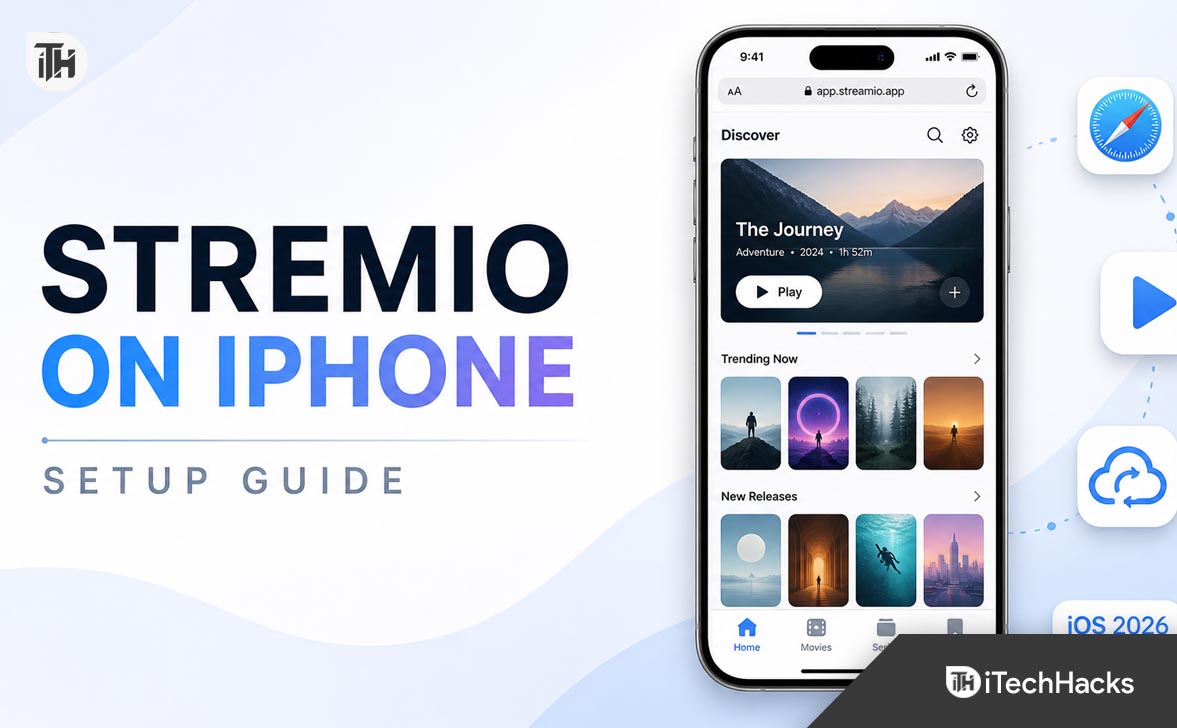
What Is Stremio on iPhone?
Stremio is a media center platform that helps users discover, organize, and watch video content through official sources and add-ons. It works across several platforms, including Windows, macOS, Linux, Android, Android TV, web browsers, and iOS in a limited form.
On iPhone, Stremio does not work exactly like it does on Android. Apple’s iOS restrictions limit how certain streaming features work inside browser-based apps and App Store apps. That is why many iPhone users notice that Stremio on iPhone may require Stremio Web, an external player, or sideloading depending on the type of content they want to access.
For normal users, the easiest method is to open Stremio Web in Safari, sign in to a Stremio account, add it to the Home Screen, and use it like a web app. This gives you access to your Stremio library, watched history, add-ons, and content discovery features without installing anything complicated.
Can You Use Stremio on iPhone in 2026?
Yes, you can use Stremio on iPhone in 2026, but the method depends on how much functionality you need.
There are mainly three ways to use Stremio on iPhone:
- Use Stremio Web in Safari.
- Use Stremio Lite if it is available for your region or device.
- Use the sideloadable Stremio IPA for a fuller experience.
For beginners, Stremio Web is the safest and simplest option. It does not require jailbreak, risky third-party app stores, or complicated developer tools. You only need Safari, a Stremio account, and a stable internet connection.
Stremio Lite was released for Apple’s App Store in 2025, but it came with limitations. Stremio explained that the Lite version did not include the streaming server used on most other platforms, which means torrent streaming support was not included due to App Store rules.
In 2026, Stremio also released a fully featured sideloadable IPA for iOS, iPadOS, and Apple TV. This is more powerful, but sideloading is not ideal for every user because it can involve extra setup, certificate signing, and occasional reinstallation depending on the method used.
Best Method: Use Stremio Web on iPhone
The best method for most iPhone users is Stremio Web. It works directly in Safari and does not require you to install a full iOS app. This method is beginner-friendly and works well for managing your Stremio account, library, calendar, watched progress, and supported streams.
Step 1: Open Stremio Web in Safari
On your iPhone, open Safari and go to Stremio Web. Safari is recommended because it gives the best Home Screen web app experience on iOS. Other browsers on iPhone still use Apple’s WebKit engine, but Safari usually works more smoothly for web apps.
Once the page opens, you should see the Stremio Web interface. If it does not load properly, refresh the page, disable content blockers for that page, and make sure you are not using a restrictive private DNS or VPN that blocks media-related connections.
Step 2: Sign In to Your Stremio Account
After opening Stremio Web, sign in with your Stremio account. If you do not already have an account, create one using your email address. Signing in is important because your installed add-ons, library, watched progress, and preferences are linked to your account.
If you already use Stremio on desktop or Android, signing in with the same account on iPhone will sync much of your setup. This is useful because configuring everything on a larger screen first is usually easier than doing it directly on an iPhone.
Step 3: Add Stremio Web to Your iPhone Home Screen
To make Stremio feel more like a normal iPhone app, add it to your Home Screen.
- Open Stremio Web in Safari.
- Tap the Share button at the bottom of Safari.
- Scroll down and tap Add to Home Screen.
- Rename it to Stremio if needed.
- Tap Add.
Now you will see a Stremio icon on your iPhone Home Screen. When you tap it, Stremio Web opens in an app-like view. This is cleaner than opening it from Safari every time.
Step 4: Install and Configure Add-ons
Stremio works through add-ons. These add-ons help Stremio find catalogs, metadata, trailers, and stream sources. Some add-ons are official, while others are community-made. You should always use add-ons responsibly and only access content you have the right to watch.
To manage add-ons on iPhone, open Stremio Web, go to the add-ons section, and install the add-ons you need. If the interface feels small on your iPhone screen, you can also install and manage add-ons from a desktop browser using the same Stremio account. Once installed, they should sync to your iPhone account.
How to Use an External Player with Stremio on iPhone
One of the most common Stremio iPhone issues is playback. Some streams may not play directly inside the browser because iOS has strict media playback rules. In such cases, an external player like VLC may help for supported stream types.
Step 1: Install VLC on iPhone
Open the App Store and install VLC for Mobile. VLC is a popular media player that supports many video formats and network streams. It is often used when a browser or built-in player cannot handle a specific media format.
After installing VLC, open it once so iOS registers it properly. This can help when another app or web page tries to pass a video stream to VLC.
Step 2: Change External Player Settings in Stremio
Open Stremio Web and go to settings. Look for player or advanced playback settings. If an external player option is available, select VLC or an M3U-compatible player.
The exact menu may look slightly different depending on the Stremio Web version, but the goal is simple: instead of forcing playback inside Safari, Stremio should try to open the stream in an external player.
Step 3: Test Playback
Open any supported content and test playback. If it opens in VLC, you are good to go. If it still says the stream is unsupported, the stream type may not work on iOS, or the add-on source may not provide an iPhone-compatible format.
Remember that external players do not magically make every stream work. They only help when the stream format can be passed correctly to another app. Some stream types, especially torrent-based streams in browser mode, may still fail on iPhone.
Can You Install the Full Stremio App on iPhone?
In 2026, Stremio released official sideloadable IPA files for iOS, iPadOS, and Apple TV. This version is described as fully featured and closer to the Android experience. However, it is not installed like a regular App Store app.
Sideloading means installing an app outside the App Store using methods such as AltStore, Sideloadly, Apple developer signing, or other supported installation tools. This can work, but it is more technical than using Stremio Web.
For most casual users, Stremio Web is still the better starting point. Sideloading is only worth considering if you understand the risks, know how app signing works, and are comfortable reinstalling or refreshing the app when needed.
Important Safety Note About Sideloading
Only download Stremio files from the official Stremio website or official Stremio download page. Do not download random Stremio IPA files from unknown websites, Telegram groups, or file-sharing links. Unofficial app files can contain modified code, malware, tracking scripts, or stolen certificates.
If you are not sure whether a source is official, avoid it. For a normal iPhone user, Stremio Web is safer, cleaner, and easier to maintain.
Stremio Web vs Stremio Lite vs Sideloaded Stremio IPA
Stremio Web is the simplest option. It runs in Safari, works without installation, and is good for library management, browsing, and supported playback. The downside is that some streams may not play due to iOS browser limitations.
Stremio Lite is more app-like, but it may not include all features found in the full Stremio app. Stremio previously explained that Stremio Lite does not include the full streaming server and does not support torrents due to App Store rules.
The sideloaded Stremio IPA offers the fullest feature set, but it requires manual installation. It may also require periodic resigning depending on your Apple account and installation method. This is better for advanced users, not beginners.
If your goal is simple, start with Stremio Web. If you want a fuller experience and understand sideloading, then the official IPA may be worth exploring.
How to Use Stremio on iPhone Without Jailbreak
You do not need to jailbreak your iPhone to use Stremio. In fact, jailbreaking is not recommended for most users because it can reduce security, break banking apps, affect updates, and make your device unstable.
The easiest no-jailbreak method is:
- Open Stremio Web in Safari.
- Sign in to your Stremio account.
- Add Stremio Web to your Home Screen.
- Install VLC if needed for external playback.
- Use only safe and legal add-ons.
This setup gives you a clean Stremio experience without modifying your iPhone. It also works on most modern iPhones running recent iOS versions.
Why Stremio Does Not Work Like Android on iPhone
Many users ask why Stremio works better on Android than on iPhone. The main reason is platform control. Android allows apps to run more flexible background services, handle different stream types, and integrate more deeply with external players. iOS is more restrictive, especially for apps distributed through the App Store.
Apple’s App Store rules also affect what media apps can include. That is why the App Store version of Stremio, when available, may not include the same streaming features as Android or desktop versions.
This does not mean Stremio is useless on iPhone. It only means the setup is different. Once you understand the difference between Stremio Web, Stremio Lite, and sideloaded Stremio, it becomes much easier to choose the right method.
Common Stremio iPhone Problems and Fixes
1. Stremio Web Not Loading on iPhone
If Stremio Web is not loading, first check your internet connection. Switch between Wi-Fi and mobile data to see if the issue is network-related. Sometimes a router, VPN, DNS filter, or content blocker can prevent Stremio Web from loading correctly.
Also try clearing Safari website data. Go to iPhone Settings, open Safari settings, and clear website data for Stremio. Then open Stremio Web again and sign in fresh.
2. Stremio Video Not Playing on iPhone
If the video does not play, the most likely reason is an unsupported stream format. iPhone Safari does not support every type of media stream. Install VLC and try using an external player option if available.
You should also test another source or add-on. If one stream does not work, it does not always mean Stremio is broken. The source may be offline, unsupported, overloaded, or not compatible with iOS playback.
3. Stremio Says Stream Is Not Supported
This message usually means iOS cannot play the selected stream directly. Try opening the same content on desktop or Android to confirm whether the source itself works. If it works elsewhere but not on iPhone, the issue is likely iOS compatibility.
Using VLC may help for some HTTP streams, but it may not solve every case. Some stream types simply do not work properly through Stremio Web on iPhone.
4. Stremio Add-ons Not Showing on iPhone
If your add-ons are missing, make sure you are signed in with the correct Stremio account. Many users accidentally create a new account on iPhone and then wonder why their desktop add-ons are missing.
Sign out and sign in again using the same email account you use on your desktop or Android device. You can also install or manage add-ons from a computer first, then reopen Stremio Web on iPhone.
5. Stremio Home Screen Icon Opens in Safari
If the Home Screen icon opens like a normal Safari tab, remove it and add it again. Make sure you are using Safari, not another browser, when adding it to the Home Screen.
Also keep iOS updated. Apple has improved web app behavior over time, so older iOS versions may behave differently.
6. Stremio Keeps Logging Out on iPhone
This can happen if Safari blocks cookies, private browsing is enabled, or website data is cleared too often. Turn off Private Browsing, allow normal Safari website data, and avoid aggressive cleaner apps.
If you use content blockers, disable them for Stremio Web. Some blockers can interfere with login sessions, scripts, or media loading.
Best Settings for Stremio on iPhone
For a smoother Stremio iPhone experience, keep your setup simple. Use Safari instead of random third-party browsers. Add Stremio Web to the Home Screen. Install VLC as a backup player. Keep your Stremio account synced across devices.
You should also avoid installing too many unnecessary add-ons. Too many add-ons can slow down loading, clutter search results, and create confusion when some sources do not work. Keep only the add-ons you actually use.
If you watch Stremio across multiple devices, use your iPhone mainly for browsing, checking your library, and watching supported streams. For heavier playback, desktop, Android TV, or Android mobile may still provide a smoother experience.
Is Stremio Safe on iPhone?
Stremio itself is a legitimate media center platform. The safety question mostly depends on how you use it, what add-ons you install, and where you download apps from.
To stay safe:
- Use the official Stremio website and official Stremio Web.
- Avoid unofficial IPA files from unknown sources.
- Do not install suspicious add-ons.
- Do not enter your Apple ID on unknown sideloading websites.
- Keep your iPhone updated.
- Use legal sources and content you are allowed to access.
The biggest risk usually comes from unofficial downloads and shady add-ons, not from the basic Stremio Web setup. If you keep your setup clean, Stremio on iPhone can be used safely.
Is Stremio Legal on iPhone?
Stremio is legal as a media center and content organization platform. However, legality depends on what content you access and which add-ons you use. Some add-ons may point to copyrighted content without permission, and accessing such content may violate laws in your country.
The safest approach is to use official sources, public domain content, free legal channels, and services where you have access rights. Stremio can organize content, but users are responsible for how they use add-ons and streams.
Tips to Improve Stremio Performance on iPhone
Use a strong Wi-Fi connection whenever possible. Video playback is more demanding than normal browsing, and weak mobile data can cause buffering or failed loading.
Keep Safari clean. Too many open tabs, aggressive browser extensions, or outdated website data can cause web apps to behave poorly. Closing unused tabs and refreshing Stremio Web can help.
Use a desktop device for setup if needed. Installing add-ons and organizing your library may be easier on a bigger screen. Once everything is configured, your iPhone can access the same account setup.
Keep iOS updated. Newer iOS versions usually improve browser performance, security, and media handling. If your iPhone is running an old iOS version, Stremio Web may not work as smoothly.
Frequently Asked Questions
Can I use Stremio on iPhone?
Yes, you can use Stremio on iPhone through Stremio Web. You can open it in Safari, sign in to your account, and add it to your Home Screen for an app-like experience.
Is there a Stremio app for iPhone?
Stremio has had iOS-related options including Stremio Lite and, in 2026, an official sideloadable IPA. However, the easiest option for most users remains Stremio Web because it does not require manual installation.
Why is Stremio limited on iPhone?
Stremio is limited on iPhone because iOS and App Store rules restrict certain streaming features. Browser playback on iPhone also does not support every stream type.
Can I add Stremio to my iPhone Home Screen?
Yes. Open Stremio Web in Safari, tap the Share button, choose Add to Home Screen, and save it as Stremio. This creates an app-like shortcut on your iPhone.
Do I need VLC for Stremio on iPhone?
VLC is not always required, but it can help when certain supported streams do not play directly in Safari. It is a useful backup player for iPhone users.
Does Stremio support torrents on iPhone?
Stremio Lite did not support torrents because it lacked the full streaming server due to App Store restrictions. Stremio Web on iPhone also has limitations with certain stream types. Advanced users may look at the official sideloadable IPA, but that requires more technical setup.
Is Stremio Web better than Stremio Lite?
For many users, Stremio Web is easier and more flexible. Stremio Lite may feel more like an app, but it can have feature limitations. The best choice depends on what you want to do.
Can I use Stremio on iPad too?
Yes, Stremio Web can also be used on iPad. In fact, the larger iPad screen can make browsing, add-on management, and playback easier than on iPhone.
Final Thoughts
Using Stremio on iPhone in 2026 is possible, but it is important to choose the right method. For most users, the best option is Stremio Web through Safari. It is simple, safe, and does not require jailbreak or complicated installation.
If you want a smoother setup, open Stremio Web in Safari, sign in to your account, add it to your Home Screen, and install VLC as a backup external player. This gives you the most practical Stremio iPhone experience without taking unnecessary risks.
Advanced users can explore the official sideloadable Stremio IPA, but beginners should start with Stremio Web first. Once you understand the iPhone limitations, Stremio becomes much easier to use and manage on iOS.