- Sky remote volume problems are commonly caused by blocked infrared signals, dead batteries, or incorrect TV pairing. Start troubleshooting with basic checks before moving to advanced fixes.
- Each type of Sky remote, Sky Q, Sky+ HD, and Sky Stream, has its own method for pairing and resetting. Using the right process is essential to restore volume control.
- If volume is still not working, disable HDMI-CEC, update your Sky box software, or test the remote’s IR emitter. These advanced steps often resolve stubborn volume control issues.
If the Sky remote volume is not working, you’re likely finding it difficult to enjoy your TV the way you normally would. This is one of the most common issues faced by Sky users everything else works perfectly, but pressing the volume button does nothing. Whether you’re using a Sky Q remote, a Sky+ HD remote, or an older Sky setup, the volume control often operates differently from other functions like changing channels or navigating menus. That’s because while your Sky box responds via Bluetooth or RF, the volume on the Sky remote uses a direct infrared (IR) signal sent to your television or audio system.
This creates a situation where even if the Sky box is working fine, your TV volume stays stuck. From re-pairing your remote with the correct TV code to adjusting HDMI control settings and resetting the device, we’ll cover every proven method to restore full volume control.
Understanding Why the Sky Remote Volume Stops Working
Before you jump into solutions, it’s important to understand what causes this issue in the first place. Sky remotes control your Sky box through Bluetooth or RF, but volume control is handled via infrared (IR) and sent directly to your TV or sound system. This distinction is critical.
- TV not paired properly with Sky remote
- Infrared sensor on TV is blocked or misaligned
- HDMI control (CEC) interference
- Dead or weak remote batteries
- Corrupted or outdated TV code on the remote
- Hardware fault in the remote’s IR emitter
Volume Button Not Working on Sky Remote? Try These 10 Fixes First
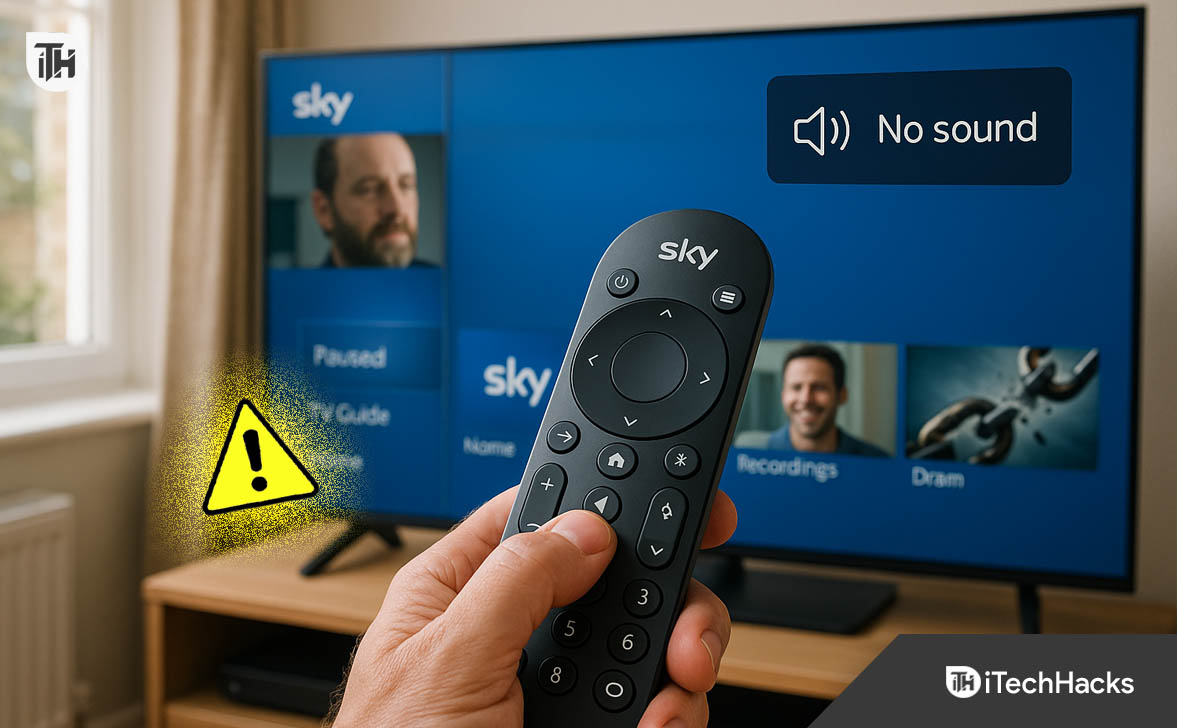
If your Sky remote volume is not working, the good news is that most issues can be fixed at home with a few technical adjustments. Whether it’s due to incorrect TV pairing, signal blockage, or HDMI-CEC conflicts, the steps below cover everything you need to restore volume control on your Sky remote.
Let’s walk through each method carefully.
1. Check and Replace the Remote Batteries
Before diving into advanced troubleshooting, always start with the basics. Weak or expired batteries can send inconsistent infrared signals—or none at all—causing the volume on Sky remote not working issue.
- Open the battery cover on the back of your Sky remote.
- Remove the existing batteries.
- Replace with two new AA alkaline batteries (avoid rechargeable ones as they can underperform in IR remotes).
- Reinsert the batteries with correct polarity.
- Test the volume buttons while pointing directly at the TV’s IR receiver.
Even if your remote can still navigate the Sky menu or change channels, remember that volume control uses IR, not RF or Bluetooth. This is why it may stop working even when other buttons function correctly.
2. Clear the Infrared Line of Sight
Unlike Sky Q’s Bluetooth-based channel control, volume control on Sky remote relies on infrared. If there’s anything obstructing the signal between your remote and the TV’s IR sensor, the volume buttons won’t work.
- Identify where your TV’s infrared sensor is located (usually near the bottom-center or corner).
- Remove anything in front of the TV, including soundbars, set-top boxes, photo frames, or decorations.
- Stand within 2-3 meters and aim the remote directly at the TV’s IR receiver.
- Press volume up or down.
Even reflective surfaces or sunlight can sometimes interfere with IR signals. Ensuring an unobstructed path can resolve many cases of Sky volume not working.
3. Reprogram or Pair Your Sky Remote to the TV
One of the most common reasons why the volume on Sky remote is not working is due to incorrect or missing TV code pairing. Sky remotes must be programmed with the correct code for your TV make and model.
The process varies based on whether you have a Sky Q remote or a Sky+ / Sky HD remote.
For Sky Q Remotes:
These remotes control your Sky Q box via Bluetooth but use IR for volume.
- Press and hold ‘1’ and ‘3’ simultaneously on the Sky Q remote.
- Your screen will prompt you to enter your TV brand.
- Select your TV brand from the list.
- Follow the on-screen test to see if volume control works.
- If it fails, Sky will prompt you to try alternative TV codes.
Continue testing until you find the correct code. Once successful, your Sky remote will control the volume properly.
For Sky+ or Sky HD Remotes:
These older remotes require manual code entry.
- Press the TV button on your remote.
- Hold Select + Red together until the LED blinks twice.
- Enter the 4-digit code for your TV brand.
- Press Select to store the code.
- Press volume up/down to check if it now works.
You can find your TV code on the official Sky website or through third-party code databases. If the volume on Sky remote is not working even after this, try the next closest brand code.
4. Disable HDMI-CEC Control on Sky Q Box
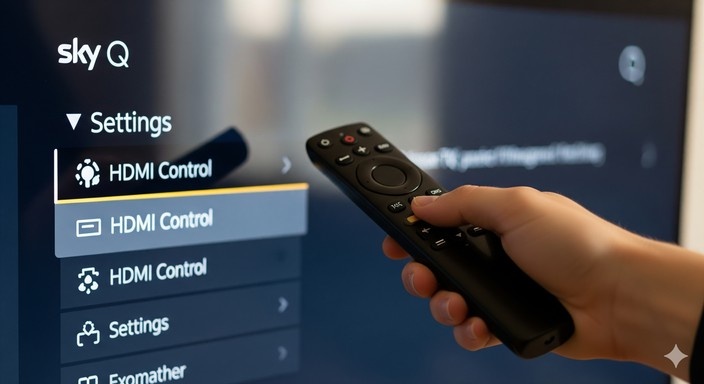
Sky Q boxes offer HDMI-CEC (Consumer Electronics Control), which allows the Sky box to communicate with the TV via HDMI. While this is convenient, it can cause conflicts with infrared volume signals, especially on certain TV models.
Disabling HDMI control often fixes cases where the Sky remote volume is not working despite being correctly paired.
- Press the Home button on your Sky Q remote.
- Navigate to Settings > Setup > Audio Visual.
- Locate HDMI Control and set it to Off.
- Exit the menu and reboot your Sky Q box.
- Test the volume buttons again.
Some TVs expect IR signals and may not recognize HDMI-CEC volume commands. Turning this setting off allows the remote to rely solely on infrared—restoring proper volume control.
5. Reset the Sky Remote to Factory Defaults
If your Sky remote has been previously used with another device, or if incorrect codes were stored, a full reset can eliminate these issues. Resetting clears any stored pairing and allows you to start fresh.
Sky Q Remote Reset:
- Press and hold ‘7’ and ‘9’ together for 3 seconds.
- The LED will blink to confirm a reset.
- Now, re-pair the remote using the ‘1’ and ‘3’ process mentioned earlier.
Sky+ or Sky HD Remote Reset:
- Press TV, then hold down Select + Red until the LED blinks twice.
- Enter code 981.
- Press Select again to confirm.
After resetting, you’ll need to reprogram the remote with your TV code again. This is highly effective in persistent cases of Sky volume not working due to misconfigurations.
6. Manually Update Sky Box Software
Sky Q box updates often include firmware improvements that address bugs and compatibility issues—especially with remote pairing and HDMI control. If your volume on Sky remote is not working despite reprogramming, a manual software update may help.
- Press Home on the Sky Q remote.
- Go to Settings > System Info > Software Version.
- Press ‘0 0 1’ then Select to access the hidden menu.
- Choose Software Download and confirm.
- Wait for the update to complete and the box to reboot.
After the reboot, retest your remote’s volume control. Updating ensures your system has the latest pairing libraries and bug fixes.
7. Set Audio Output Settings Properly
If you’re using a soundbar, AV receiver, or external speakers, incorrect Sky box audio settings may cause the Sky remote volume not working issue. Sky might be sending audio to a different output than your TV expects.
- Go to Settings > Setup > Audio Visual on your Sky box.
- Set Digital Audio Output – HDMI to either
Normal,Dolby Digital, orPCMbased on your setup. - If using Optical Audio, configure Digital Audio Output – Optical accordingly.
- Exit settings and reboot.
Now test if volume control works. If you’re using TV speakers, the correct setting is usually Normal or PCM. For external devices, try Dolby Digital.
8. Test the Remote on Another TV
To rule out a TV-specific issue:
- Take your Sky remote to another TV.
- Pair it using the correct method.
- Check if volume control works.
If it works on the second TV, the problem may lie in the original TV’s IR sensor, HDMI-CEC configuration, or firmware compatibility. In that case, consider updating the TV firmware or contacting the manufacturer.
9. Test the Remote’s Infrared Signal
If everything else has failed, the remote’s infrared emitter might be faulty. You can test this without any tools:
- Open your phone’s camera app.
- Point the Sky remote toward the camera lens.
- Press and hold the volume up or down button.
- Observe the screen—if the IR LED is working, you’ll see a faint flashing light.
If there’s no flash, the IR emitter is likely broken, and your Sky remote volume not working issue is due to hardware failure.
10. Replace the Remote If Hardware Is Faulty
If the remote fails the IR test or all methods above don’t restore volume control, replacing it may be necessary.
- Order a genuine Sky Q, Sky HD, or Sky+ remote depending on your box type.
- Avoid third-party remotes unless verified compatible with Sky’s IR protocols.
- After getting a new remote, follow the pairing process immediately to link it with your TV.
Sky also offers replacement remotes via their official support portal.
Frequently Asked Questions (FAQs)
This happens because volume control on the Sky remote uses infrared (IR), which sends signals directly to the TV. Other functions like channel navigation or accessing menus communicate with the Sky box using Bluetooth or RF. If the remote isn’t correctly paired with your TV or the IR signal is blocked, the Sky remote volume will not work even though the rest of the remote functions correctly.
Do I need to reprogram my Sky remote if I change my TV?
Yes. Each TV brand requires a specific infrared code. When you connect your Sky box to a new TV, you must re-pair or reprogram the Sky remote using the correct TV code. If you skip this step, you may find the volume on Sky remote not working despite everything else functioning normally.
Can HDMI settings affect volume control on Sky Q?
Yes. The Sky Q box uses HDMI-CEC (Consumer Electronics Control) to manage TV volume in some setups. However, this can cause conflicts if your TV expects an infrared signal instead. In such cases, disabling HDMI control often resolves the Sky remote volume not working problem.
What should I do if my Sky remote doesn’t flash an IR light when pressing volume?
You can check this using a smartphone camera. Open the camera app, point the Sky remote toward the lens, and press the volume button. If no light flashes on the screen, the IR emitter may be faulty. This means your remote likely needs to be replaced, as it’s unable to send volume commands to your TV.
Can a software update fix the Sky remote volume issue?
Yes. Outdated Sky Q firmware may cause glitches in remote pairing or HDMI control behavior. Performing a manual software update can fix bugs that lead to volume not working on Sky remote, especially after changes to hardware or settings.
Is it possible for a TV to be incompatible with Sky remote volume control?
While rare, some older or less common TVs may not support Sky remote volume control via standard IR codes. In such cases, even after correct pairing, the Sky remote volume may not work, and you may need to control volume using the original TV remote or a universal remote that supports your TV model.
Conclusion
When your Sky remote volume is not working, the root cause is almost always tied to one of three things: infrared signal issues, incorrect TV pairing, or conflicts caused by HDMI-CEC settings. Fortunately, these problems are usually easy to identify and solve with methodical troubleshooting.
By following the step-by-step methods outlined in this guide, you should be able to restore full volume functionality and prevent this issue from recurring. Whether you’re using a Sky Q, Sky+ HD, or an older Sky remote, this guide provides everything you need to resolve the Sky volume not working problem thoroughly and professionally.
ALSO READ:
- How to Migrate Chats from Skype to Teams
- How to Activate Skylight Paycard Login at skylightpaycard.com Online
- How to Activate Indigo Mastercard at Indigocard.com & Set Up Login
- How to Fix Apple TV Remote Not Working
- Fix PEAK Voice Chat Not Working on PC: Mic & Voice Mod Issues Solved
- Firestick Remote Flashing Orange? Here’s Why It Happens and How to Fix It