- PayPal requires email confirmation to verify accounts for transactions, but users may face issues with email not sending or working
- Causes of email confirmation problems include incorrect email address, email in spam folder, filters, technical issues, or outdated browser
- Solutions to address the issue include checking email address, spam folder, email filters, browser cache, using different devices, and contacting PayPal support if necessary.
PayPal remains one of the most trusted digital payment platforms in the world, used by millions for everything from online shopping to sending and receiving money. However, even in 2025, some users still run into frustrating issues — one common problem being that the PayPal email confirmation is not sending or working. Without verifying your email, your account remains limited, preventing you from completing essential actions. In this guide, we’ll explore the most common reasons behind this issue and walk you through proven solutions that still work today.
What is PayPal Email Confirmation?
It is necessary to confirm your email address when you create a PayPal account. To do this, click the link PayPal sends to your email. When you click the link, your email address is verified, and you can send and receive money using PayPal.
Why is PayPal Email Confirmation Not Sending or Working?
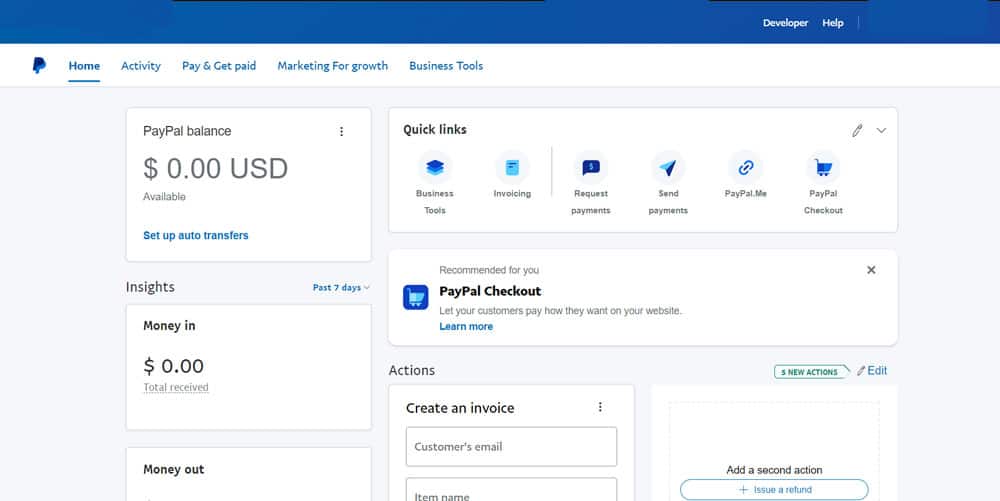
It is possible that your PayPal email confirmation is not working due to several reasons. Some of the most common causes are:
- Incorrect email address: PayPal will not send you a confirmation email if you enter an incorrect email address.
- Spam folder: PayPal’s confirmation email can sometimes end up in your spam folder. If you receive an important email from PayPal, make sure you check your spam folder regularly to ensure you don’t miss it.
- Email filters: Your PayPal confirmation email might be filtered out and sent to a different folder if you have set up email filters.
- Technical issues: PayPal may encounter technical difficulties from time to time, resulting in faulty email confirmations.
- Outdated browser: You might have trouble receiving email confirmation if you’re using an outdated browser. Update your browser as soon as possible.
Fix PayPal Email Confirmation Not Working or Sending Problem
Here are a few solutions you can try if your PayPal email confirmation is not working:
Check your Email Address
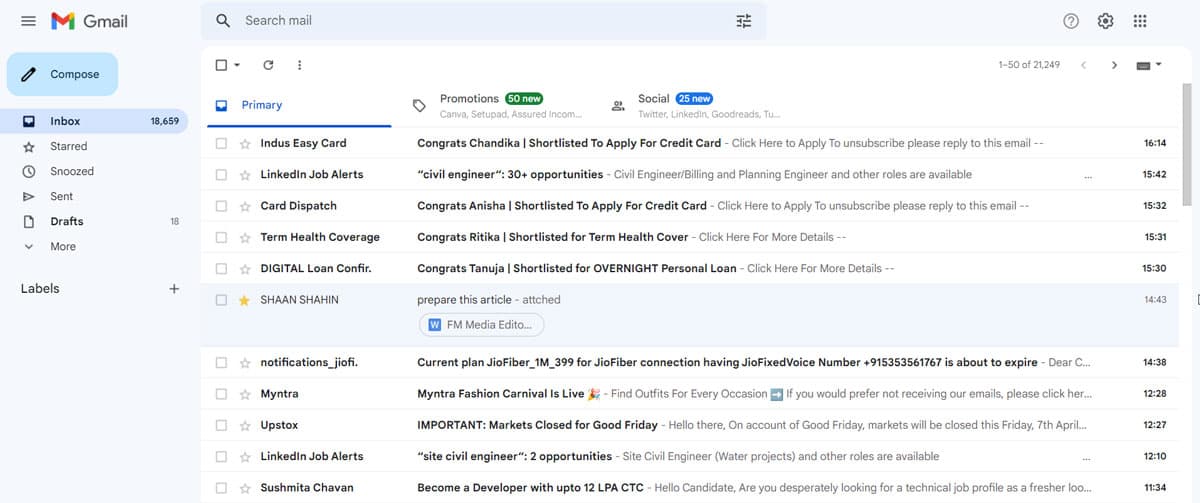
Double-check that you have entered the right email address when signing up for PayPal. Make sure you update your email address in your PayPal account settings if you’ve made a mistake.
Check PayPal’s Email Delivery Status Page
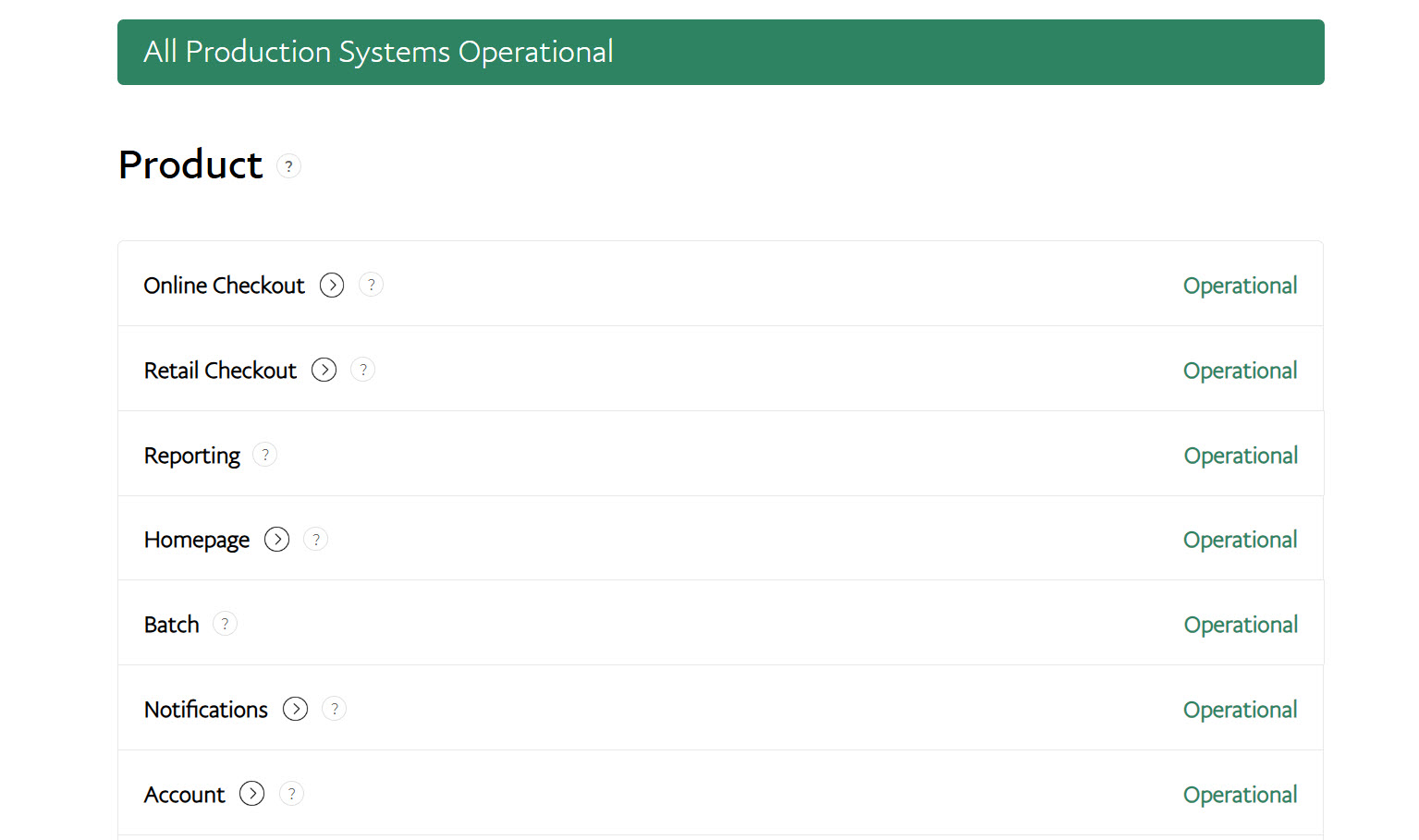
PayPal now maintains a real-time status page where you can check if there are any ongoing issues with email delivery. If confirmation emails are delayed globally or for specific email domains, it will be listed there. Visit paypal-status.com and check the “Email Delivery” section before trying other fixes.
Verify SPF, DKIM, and MX Records (for Custom Domains)
If you’re using a custom email address (e.g., [email protected]), incorrect email DNS settings could block PayPal emails. Make sure your domain has proper SPF, DKIM, and MX records configured. Contact your domain host or IT team to verify that your email setup allows incoming transactional emails from PayPal.
Check your Spam Folder
While checking your spam folder is still worthwhile, many email services, such as Gmail, Outlook, and Yahoo, now categorize transactional emails into separate tabs, including “Promotions,” “Updates,” or “Other.” These tabs often hide important emails even when they’re not marked as spam. Be sure to check all inbox sections and use your email’s search function to look for the confirmation message.
Check your Email Filters
Ensure that PayPal’s confirmation email does not get filtered out if you have set up email filters. Make sure PayPal’s emails are not filtered by adding them to your whitelist.
Use a Different Browser
In most cases, switching browsers won’t help with email confirmation issues anymore. PayPal works well across all modern browsers like Chrome, Firefox, Edge, and Safari. Instead of changing browsers, focus on checking your inbox tabs such as “Promotions” or “Updates,” where the email may be sorted automatically by your provider’s filters.
Clear your Browser Cache and Cookies
Clearing your browser’s cache and cookies can still help fix occasional glitches when accessing PayPal, but it generally won’t fix email delivery problems. If you’re facing issues with confirmation emails not arriving, this step won’t make much of a difference anymore. Instead, search your inbox for emails from [email protected] or try resending the confirmation from your account.
Disable Browser Extensions
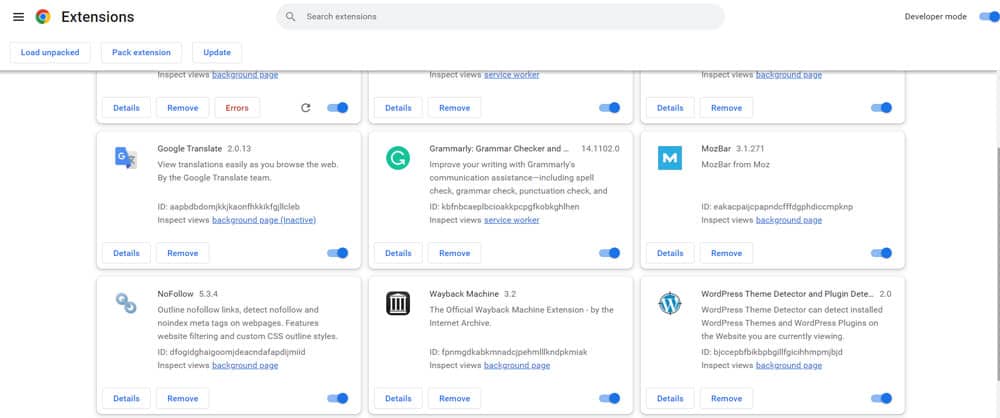
PayPal’s email confirmation process can sometimes be interfered with by browser extensions. See if disabling your browser extensions fixes the problem.
Try using a Different Device
Using another phone, tablet, or computer won’t help with receiving PayPal confirmation emails, as your email provider controls email delivery and not the device. Whether you’re checking on desktop or mobile, the same inbox rules and filters apply. Instead, it’s better to double-check your email configuration and folders.
Whitelist PayPal’s Email Address
Most modern email platforms no longer use traditional whitelisting methods. Instead of adding an address to a whitelist, you should add PayPal’s email ([email protected]) to your contacts and mark their messages as “important” or “primary.” This will help ensure future emails go directly to your main inbox.
Check your Email Storage
Your email inbox may be full if there are no new emails. Ensure that your email account has enough storage space for new emails, and delete any old or unnecessary emails.
Verify your Email Address with PayPal
Verifying your email address again after signing up for PayPal but not receiving a confirmation email, is possible. You can do this by logging into your PayPal account, clicking on the gear icon in the top-right corner, choosing “Account Settings,” and then clicking on “Edit.” Follow the prompts to verify your email address again.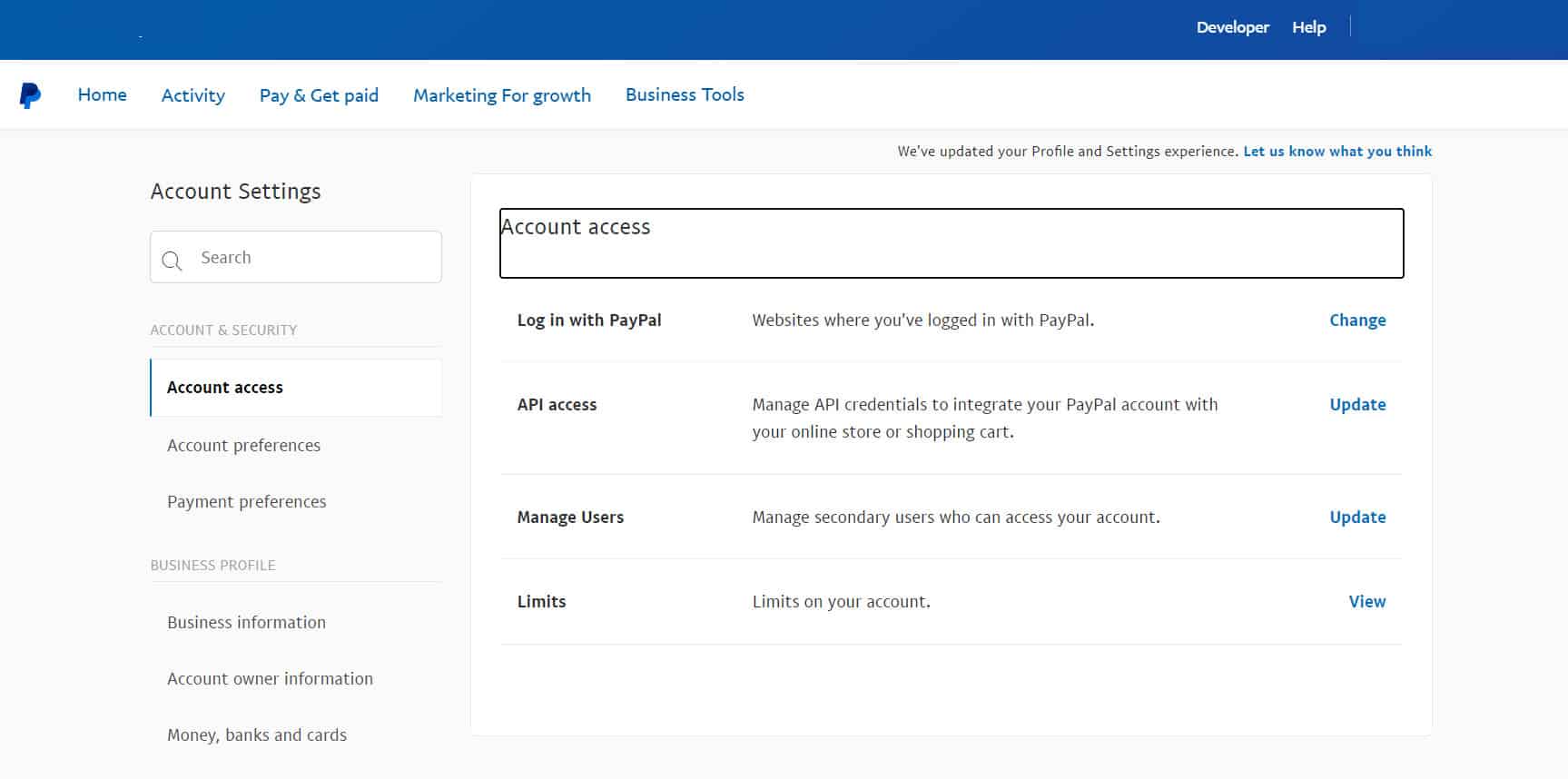
Try a Different Email Address
Using a different email address can help you receive the confirmation email if you’ve tried all of the above fixes. Ensure that the new email address is valid and accessible.
Wait and Try Again
It is possible that the confirmation email will be delayed or will not be sent due to temporary technical issues. Wait a few hours or days if you still can’t get the email after trying all the above fixes.
Contact PayPal Support
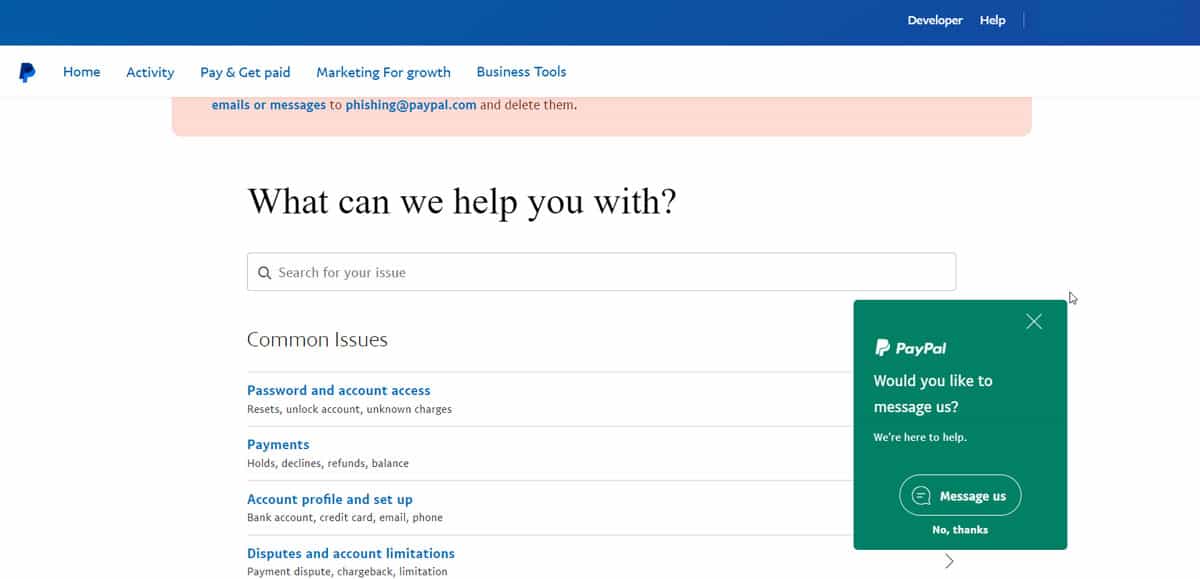
When all of the above solutions have been exhausted, and you are still unable to receive the confirmation email, you can contact PayPal customer service. You can get assistance from them in troubleshooting the issue.
From the Author’s Desk
You can try a few fixes to resolve the PayPal email confirmation not working issue caused by a variety of factors. Do not hesitate to contact PayPal support if you have still not received the confirmation email. So, that’s how to fix the PayPal email confirmation not working problem. We hope that this guide has helped you. Moreover, in case you need further help, comment below and let us know.
ALSO READ:
- How to Use PayPal On Amazon
- How to Review PayPal Recent Login Activity
- How To Transfer Money From PayPal To Cash App
- 6 Best PayPal Alternatives to Send & Accept Payment Worldwide
- How to Activate 10 Play (Network Ten) at 10play Activate
- How to Fix Samsung Galaxy S23 Email Setup Error
- How to Fix Comcast Email Not Working