- If your Samsung phone's touchscreen stopped working after the One UI 8.5 update, start by force restarting the phone and checking if accessories or moisture are causing the issue. You can try Safe mode to see if third-party apps are the problem, and use a USB mouse for temporary control if needed.
- Check the phone's settings for any accidental changes that might affect touch, such as TalkBack or interaction settings. Make sure all software and app updates are installed, and consider possible physical damage if the screen area repeatedly fails to respond.
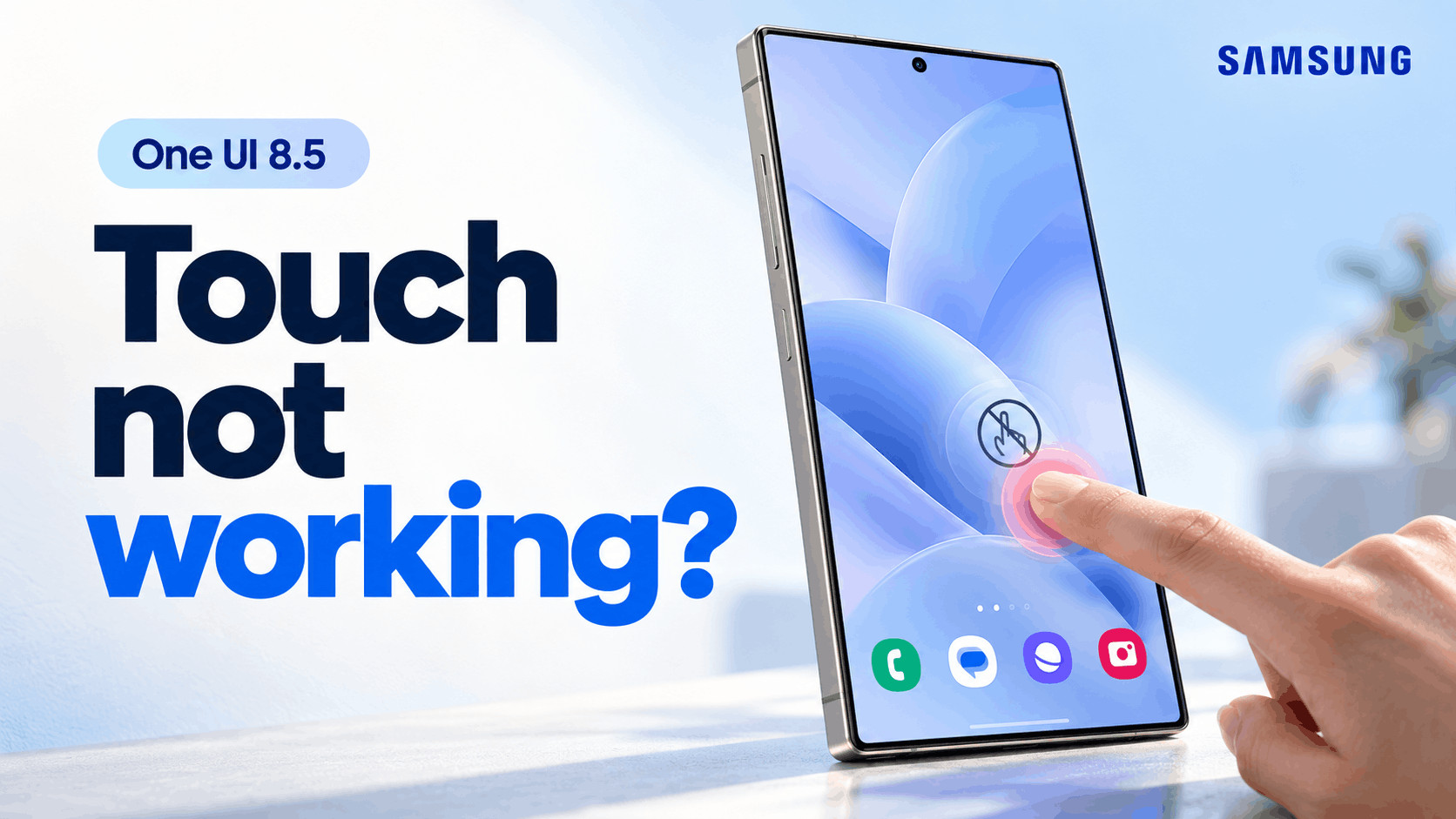
If your Samsung touchscreen stopped working after the One UI 8.5 update, even unlocking your phone can become difficult. You might see notifications arriving normally while taps do nothing, notice delayed responses, or find that only part of the screen works.
Start with a force restart, then check accessories and test Safe mode. If touch is completely unavailable but the display still works, a compatible USB mouse may help you access settings and back up important files. The steps below explain what to try, why each method helps, and when professional diagnosis makes more sense than another reset.
Why Is Your Samsung Touchscreen Not Working?
One UI is Samsung’s interface for Galaxy devices. After an update, touchscreen problems can involve temporary system errors, incompatible apps, changed interaction settings, or a physical screen fault.
The timing makes the update worth investigating, but it does not establish the cause. Check how the problem behaves before choosing a fix:
- Everything freezes: The phone may be experiencing a broader system or app hang.
- Only one app stops responding: Investigate that app first.
- Taps trigger spoken descriptions: Check whether TalkBack is enabled.
- The same area never responds: Record the affected area for further diagnosis.
Menu labels vary by Galaxy model, region, and software build. Use Settings search if a listed option appears under a different name.
1. Force Restart Your Samsung Phone
A force restart is the best starting point because it works without touching the screen. It restarts the running system and can clear a temporary freeze without erasing your personal files.
- Press and hold the Side button and Volume Down together.
- Keep holding for more than seven seconds, until the phone restarts.
- Release the buttons and allow the phone to finish starting.
- Test the lock screen before opening additional apps.
If an update installation progress screen is still actively advancing, let installation finish instead. After restarting, have your PIN, password, or pattern ready to unlock the device.
2. Use a USB Mouse If Touch Does Not Work at All
If the screen displays normally, a USB mouse can provide temporary control on supported devices. This bypasses finger input and may let you unlock the phone, check for updates, or prepare a backup.
- Connect a compatible USB-C OTG adapter to your Galaxy phone.
- Plug a wired USB mouse into the adapter.
- Look for a pointer and click the on-screen controls.
- Enter your existing unlock credentials, then back up important data.
A compatible USB keyboard can also help with PIN or password entry. However, security settings can restrict USB accessories while the phone is locked, so this workaround is not guaranteed to work.
If the mouse is blocked and touch never returns, contact Samsung before erasing anything. Simply connecting the phone to a computer does not guarantee access to locked files.
3. Check the Screen Protector, Moisture, and Charger
Accessories and moisture can interfere with touch detection. Checking them helps avoid mistaking a physical interaction problem for an update bug.
- Disconnect the charger and test the phone on battery power.
- Dry your hands and wipe the display with a soft, dry cloth.
- Remove a case that presses against the display edges.
- On a conventional flat-screen phone, test without a removable third-party protector if practical.
If touch is unreliable through a protector, open Settings > Display > Touch sensitivity and enable it if available. This setting may improve detection through a protector; it cannot repair damaged touch hardware.
For Galaxy Z Fold or Z Flip inner screens, seek model-specific guidance before removing the factory protective film.
4. Test the Touchscreen in Safe Mode
Safe mode temporarily disables downloaded apps. If touch works there, a third-party app becomes a stronger suspect, although intermittent problems require careful comparison.
If you can navigate, open the power menu, touch and hold Power off, then select Safe mode. For an unresponsive touchscreen, try the button method:
- Hold Side and Volume Down to restart.
- When the Samsung logo appears, release Side while continuing to hold Volume Down.
- Release Volume Down when the phone finishes booting and displays Safe mode.
Test the same taps and swipes that previously failed. If they work, remove recently installed or updated apps one at a time, especially launchers, gesture tools, and apps displaying overlays.
Restart normally after each removal and test again. If touch still fails in Safe mode, that alone does not prove the screen needs replacement.
Some interaction settings can make a working touchscreen feel unresponsive. This is especially relevant when taps respond only after holding them or the phone reads items aloud.
Check TalkBack
With TalkBack enabled, tap once to select an item, double-tap to activate it, and use two fingers to scroll. Navigate to Settings > Accessibility > TalkBack and disable it if it was enabled unintentionally.
Check Touch Timing
Open Settings > Accessibility > Interaction and dexterity. Review Tap duration, Ignore repeated touches, and Touch and hold delay, restoring unintentionally changed options.
If the problem concerns navigation swipes, try Settings > Display > Navigation bar > Buttons. Working buttons suggest a gesture-related issue rather than complete touchscreen failure.
6. Install Available Software and App Updates
A subsequent update may address software problems, but do not assume a touchscreen fix exists for every affected model. Check what is actually available for your device.
- Open Settings > Software update.
- Select Check for updates or Download and install, depending on your build.
- Install an available update following the on-screen instructions.
- Update affected apps through Google Play and Galaxy Store.
If only one app freezes, update it and try clearing its cache through Settings > Apps > the app > Storage > Clear cache. Avoid clearing app data without checking what you could lose.
7. Run Diagnostics and Report the Problem
Samsung Members includes a touchscreen test that helps document whether input registers across the display. Open Samsung Members, find Phone diagnostics under Support or Diagnostics, and select Touch screen.
Follow the test using your finger. Mouse clicks do not establish whether finger touch works, and a failed test alone does not identify the underlying cause.
If you can access Samsung Members, submit an Error report after the issue occurs and include system logs. Record your model number, software build, affected areas, restart results, and Safe mode behavior.
If the app is inaccessible, use Samsung support from another device. Mention any previous screen replacement because that information can help the technician investigate.
8. Reset Settings Before Considering a Factory Reset
If settings remain a possible cause, try Settings > General management > Reset > Reset all settings. Review the confirmation screen; this option retains apps and personal data while resetting supported settings.
A factory data reset is a separate, destructive option. Consider it only after backing up your files and confirming that you know your Google and Samsung account credentials.
- Open Settings > General management > Reset.
- Select Factory data reset and review the warnings.
- Confirm only when your backup is complete.
- Test touch during initial setup before restoring downloaded apps.
A reset does not roll the phone back to its previous One UI version. It also cannot repair physical damage, and an unresolved firmware problem may remain.
Additional Tips and When to Seek Repair
Change one thing at a time and record the result. If touch briefly returns, prioritize your backup before running more experiments.
Arrange an authorized inspection when the same area repeatedly fails, touch remains unavailable after basic checks, or the display shows physical damage. Avoid pressing harder or attempting unofficial firmware downgrades as a routine fix.
Common Problems After the Update
If the screen works until you open a particular app, force-close that app and test the home screen again. If touch fails only while charging, compare behavior with the charger disconnected before replacing accessories.
If the problem returns after every restart, document exactly when it happens. Repeatedly rebooting without collecting useful details can make subsequent support troubleshooting harder.
Frequently Asked Questions
Will a Force Restart Delete My Data?
No. A force restart reboots the phone without performing a factory reset. Unsaved work inside an app may still be lost.
Should I Wait for Another One UI Update?
Check for available updates, but do not rely on an unconfirmed future fix. Back up accessible data and report persistent failures.
Does a Working Display Mean the Touchscreen Is Fine?
No. Displaying an image and detecting finger input are different functions. A normal-looking screen can still have a touch-input problem.
Final Thoughts
To fix a Samsung touchscreen not working after the One UI 8.5 update, begin with a force restart and accessory checks. Use Safe mode to investigate app conflicts, review interaction settings, and install available updates.
If touch remains unavailable, protect your data and request diagnosis. A factory reset should follow a verified backup, not replace a careful investigation.