- Bluetooth connectivity in Audi vehicles enables hands-free calls, music streaming, and smartphone integration—but when it stops working, it disrupts the driving experience.
- The most common reasons for Audi Bluetooth issues in 2025 include outdated infotainment or phone software, wireless interference, faulty Bluetooth modules, device incompatibility, and improper pairing.
- Working solutions include: updating your Audi’s software, eliminating signal interference, restarting the MMI system, forgetting and re-pairing your phone, verifying Bluetooth version compatibility.
Bluetooth connectivity is one of the most useful features in modern Audi vehicles. It allows you to make hands-free calls, stream music, and even connect your smartphone to your car’s infotainment system for Android Auto or Apple CarPlay. But when your Audi Bluetooth is not working, it can be frustrating and inconvenient.
This updated guide will walk you through the most common causes and the latest working solutions to fix Audi Bluetooth issues in 2025 whether you’re driving an older model or the latest Audi A6, Q5, or e-tron.
Common Reasons for Audi Bluetooth Problems
Here are some of the most widespread reasons why your Audi Bluetooth may not be working before we dive into the solutions.
- Outdated Software: If your Audi’s infotainment system or phone software is outdated, Bluetooth connectivity may not work.
- Interference: Other wireless devices and objects could interfere with your car’s Bluetooth.
- Faulty Bluetooth Module: Your Audi may have a faulty Bluetooth module, which prevents you from connecting your phone.
- Phone Compatibility Issues: It may not be possible to connect your phone to your Audi’s Bluetooth system if your phone does not support Bluetooth.
- Bluetooth Pairing Issues: If you don’t connect your phone and Audi properly, you may experience connectivity problems.
Audi Bluetooth Not Working Solved 2025
Now that we’ve identified some of the reasons why Audi Bluetooth may not be working let’s look at some solutions.
Check Software Updates
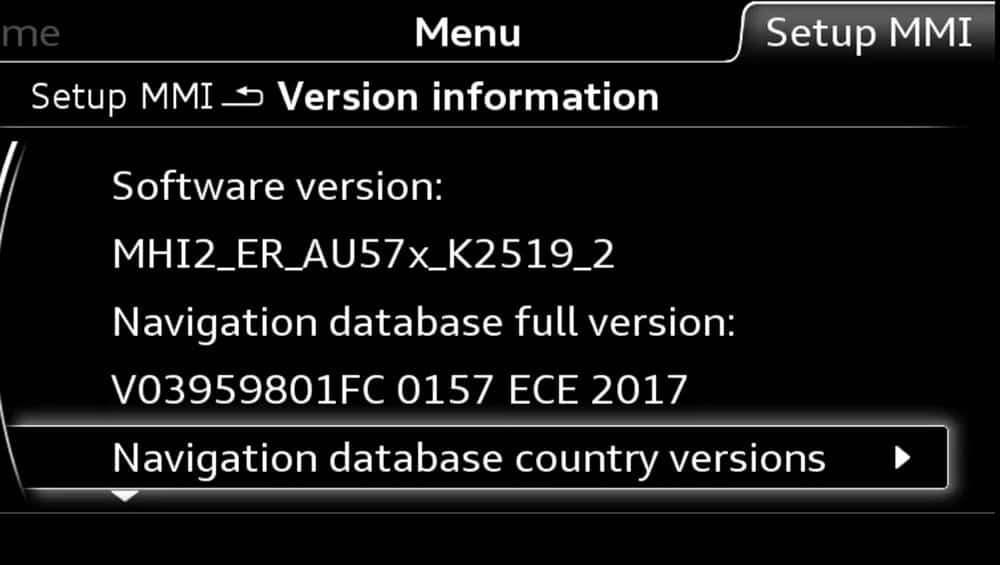
One of the leading causes of Bluetooth connectivity issues in Audi is outdated software. Both your vehicle’s infotainment system and your smartphone need to be on the latest version to ensure compatibility.
Steps to Update Audi Software:
- Go to your car’s Settings > System > Version Information
- If updates are available, install them via Wi-Fi or USB, depending on your model
- Some 2023+ Audi vehicles receive OTA (Over-the-Air) updates automatically through the myAudi app
Update Your Phone:
- For iPhones, go to Settings > General > Software Update
- For Android, go to Settings > System > System Update
- Ensure your device is running at least iOS 17 or iOS 18, or Android 13/14
Outdated systems often result in pairing failures, lag, or Bluetooth disconnections during calls or music streaming.
Check for Interference

It is possible for Bluetooth signals to be interrupted by other wireless devices or objects in your vehicle. If wireless devices or objects are interfered with your Bluetooth signal, check them out.
Bluetooth devices, Wi-Fi hotspots, and microwave ovens commonly cause problems. You can strengthen your Bluetooth signal by moving your phone closer to your Audi’s infotainment system. This will surely help you resolving the Audi Bluetooth Not Working issue.
Restart Your Audi Infotainment System
Sometimes a simple reboot of the Audi MMI system can resolve glitches affecting Bluetooth.
- Press and hold the power button (volume knob) for 10–15 seconds
- Wait for the screen to turn off and automatically reboot
Alternatively, on some models:
- Go to Settings > System > Restart Infotainment
This refresh clears temporary software bugs without wiping your saved settings.
Forget and Reconnect Your Phone
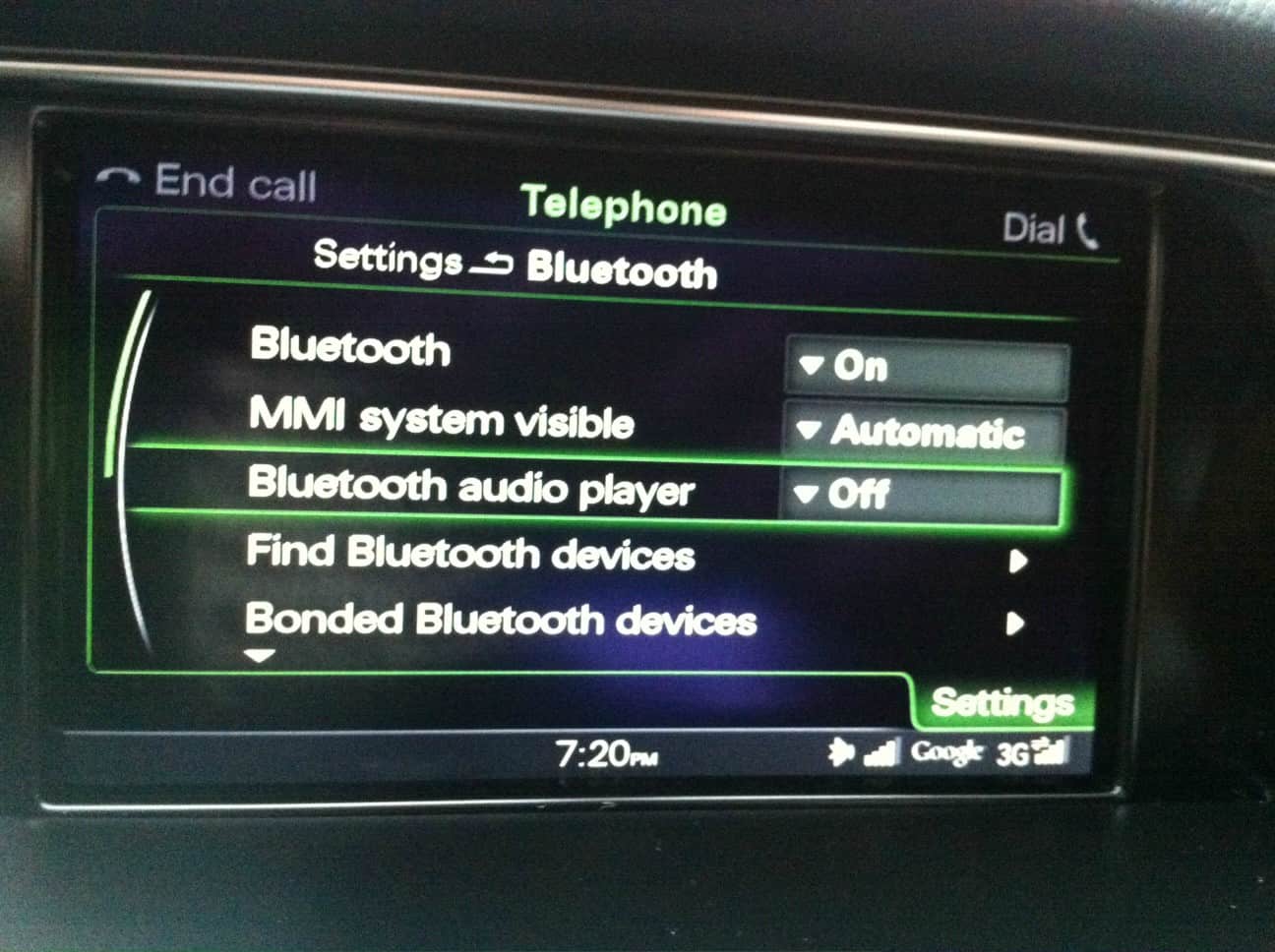
Old or corrupted Bluetooth pairing data is a frequent cause of connection problems. Removing and re-pairing the phone often solves it.
- On your phone, go to Bluetooth Settings > Audi_xxx > Forget Device
- On the car’s screen, go to Settings > Bluetooth > Connected Devices > Remove Phone
- Restart both your phone and the infotainment system
- Re-initiate pairing: Settings > Bluetooth > Add New Device
Always grant permissions for Contacts, Messages, and Media Access during pairing.
Check for Phone Compatibility Issues
Not all smartphones are fully compatible with Audi’s Bluetooth system. Most 2025 Audi models require Bluetooth 5.0 or higher.
Compatibility Checklist:
- Ensure your phone supports A2DP, PBAP, MAP, and AVRCP profiles
- Visit Audi’s official Bluetooth compatibility checker
- If your phone is too old or runs custom firmware (e.g., rooted Android), it may fail to pair
Using an incompatible phone is one of the most overlooked reasons for Audi Bluetooth connection problems.
Force Restart Device
Force restarting your device may be the best option for you if you have trouble restarting it the normal way. It is a good last resort to force your phone to restart if you experience problems with it.
Depending on your phone’s operating system, you will use a different method to force restart it. It is relatively easy to force restart an iPhone. You need to hold both the Volume and Power buttons down at the same time.
As a result, the force restart process will begin automatically. In this way, you can restart your iPhone without having to go through the usual method. In Android, you simply need to hold down the Power button for 30 seconds to force restart your device.
You will automatically see your Android device restart after you have taken these steps. You can apply either of these methods when dealing with issues that may prevent your Bluetooth connection from pairing properly with your Audi.
Use Safe Mode on MMI (Advanced Step)
If nothing else works, your Audi’s infotainment system may be stuck due to corrupt software settings. Newer Audi models support a Safe Mode boot for diagnostics.
- Turn off the engine
- Press and hold Nav + Radio + Power buttons together for 15+ seconds
- The MMI should boot into a diagnostic state
- Attempt pairing in this mode
If Bluetooth works in safe mode, your system may require a reset or software patch from the dealer.
Check for Bluetooth Pairing Issues
If you encounter problems pairing your phone with your Audi’s Bluetooth system, you should follow the correct pairing procedure. It may vary from model to model depending on the phone and Audi you have. You can find instructions on pairing your phone properly in your Audi owner’s manual or by contacting Audi customer service.
Visit an Audi Service Center
If none of the above steps resolve the issue, you may be facing a hardware fault in the Bluetooth module or antenna. An Audi-certified technician can run diagnostics and confirm the issue.
- Bluetooth module integrity
- Antenna and wiring
- MMI system logs for errors
They may recommend a firmware reflash or replacement module depending on the severity.
Reset Network Settings on Your Smartphone
If your Audi Bluetooth still won’t connect after re-pairing, it’s possible that your phone’s internal network settings are corrupted. Resetting the network settings can often resolve hidden Bluetooth conflicts, especially after system updates or failed pairings.
How to Reset Network Settings:
For iPhone (iOS 17 & iOS 18):
- Go to Settings > General > Transfer or Reset iPhone
- Tap Reset > Reset Network Settings
- Enter your passcode and confirm
For Android (Android 13 & 14):
- Open Settings > System > Reset Options
- Tap Reset Wi-Fi, mobile & Bluetooth
Confirm when prompted
⚠️ Note: This won’t delete your apps or personal data, but it will erase saved Wi-Fi networks, Bluetooth pairings, and VPN settings. Be sure to reconnect to Wi-Fi afterward.
This step refreshes all Bluetooth-related configurations on your phone and can eliminate stubborn pairing errors with your Audi.
Check Bluetooth Settings in the myAudi App (If Supported)
If you’re using a 2023 or newer Audi, the myAudi app now offers deeper integration with your vehicle’s settings — including remote diagnostics, OTA updates, and limited Bluetooth management features.
What You Can Try:
- Open the myAudi app
- Tap on your connected vehicle
- Go to Settings > System Updates
- Check if a software update is available for the MMI system
- Some models allow you to reset or refresh Bluetooth settings remotely
While not all vehicles support these features yet, it’s worth checking the app for updates or to trigger a remote restart of the infotainment system — especially if your MMI is glitching.
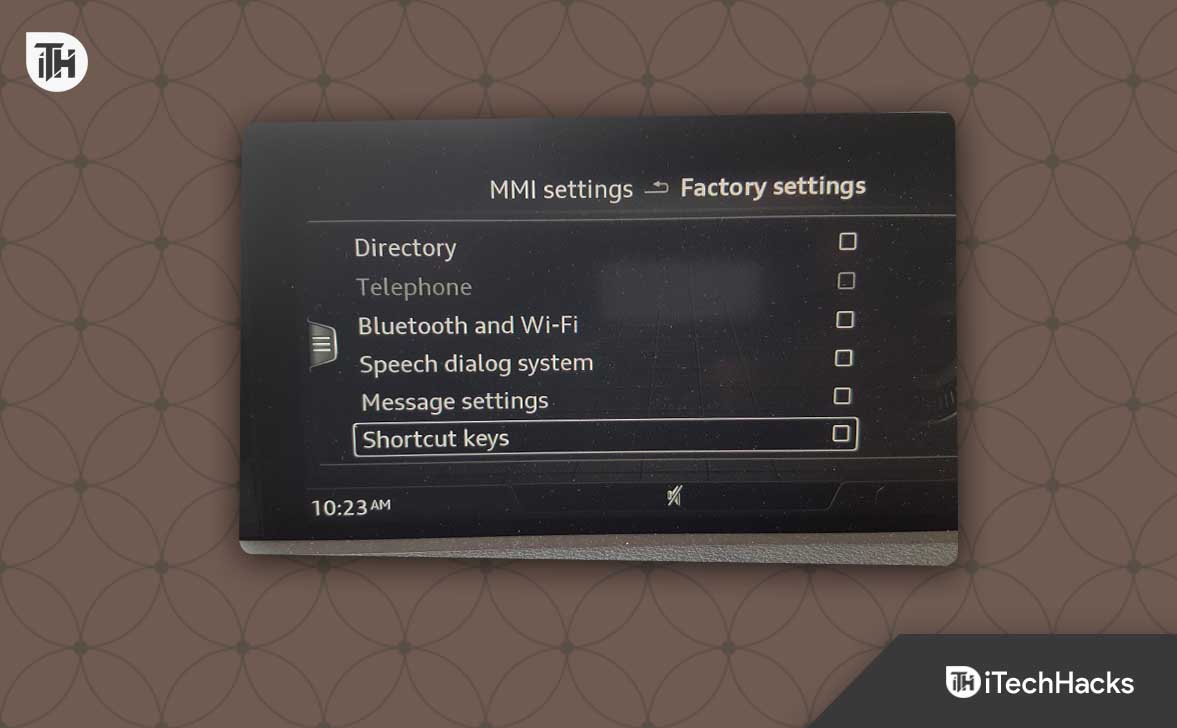
Factory Reset the Audi MMI Infotainment System
If you’ve tried everything and your Audi Bluetooth still won’t work, a full MMI factory reset may be your best option. This is especially helpful when software bugs persist even after updates, or if safe mode reveals no issues but pairing still fails.
How to Perform a Factory Reset:
- Go to Settings > System > Factory Reset
- Select Reset Infotainment System Only
- Confirm the reset (you may be asked for a PIN)
- Wait for the system to reboot and reconfigure
⚠️ Caution: This will remove all paired devices, audio presets, navigation history, and personal settings. Your vehicle settings and maintenance data are safe.
After the reset, re-pair your phone using the standard method. Many Audi owners report this as the final fix that resolved Bluetooth issues permanently.
Preventive Measures to Avoid Bluetooth Issues in Audi
Here are some practical tips to keep your Audi’s Bluetooth running smoothly:
- Keep both your phone and infotainment system up-to-date
- Avoid using hotspot, Wi-Fi, and Bluetooth accessories simultaneously
- Restart your infotainment system monthly
- Always pair your phone in parked mode, not while driving
- Delete unused devices from your Audi’s paired device list
These steps help reduce the chances of encountering Bluetooth pairing issues in Audi cars.
Sum Up
It can be frustrating when Audi Bluetooth is not working, but this article’s solutions will help you fix it. To diagnose and repair any Bluetooth module issues, visit an Audi dealer or service centre if none of these solutions work. You can enjoy seamless connectivity while driving by taking preventive measures to stop Audi Bluetooth from not working.
ALSO READ:
- How To Install Bluetooth Driver Windows 11
- Fix Sonos Roam Bluetooth Not Connecting Problem
- How to Fix Logitech K400 Plus Not Pairing to Bluetooth
- Fix Windows 11 Bluetooth Not Working Issue
- Bluetooth On/Off Option Is Disappeared Problem In Windows 11
- Change Default Webcam to External Webcam in Windows 11/10
- How to Fix Subaru Touch Screen Not Working