- VS Code uninstalling itself is a real, documented issue caused mainly by interrupted or failed background updates—especially when the system is shut down, locked, or rebooted mid-update. It’s not due to user error or malware.
- Using the System Installer or Portable version of VS Code is the safest approach to prevent auto-update issues. Disabling auto-updates and avoiding shutdowns during update processes can significantly reduce the risk of corruption.
- Recovery is simple but manual—a clean reinstall of VS Code typically restores the missing binary without affecting user data or extensions, provided your settings weren’t removed during the failure.
If your VS Code vanished without warning, no desktop shortcut, no executable, no trace in your Programs folder then you’re not imagining it. This is a real, reproducible issue that multiple users have reported, especially since the 2024.2 release cycle. And in 2025, it’s still happening on the latest Windows 11 23H2 and macOS Sequoia systems.
This article provides a full technical breakdown of why VScode may uninstall itself, based on real-world bug reports, GitHub issue threads, and professional diagnostics. It avoids general speculation and focuses entirely on verified causes, conditions, and permanent fixes.
Confirmed Reports of VS Code Uninstalling Itself
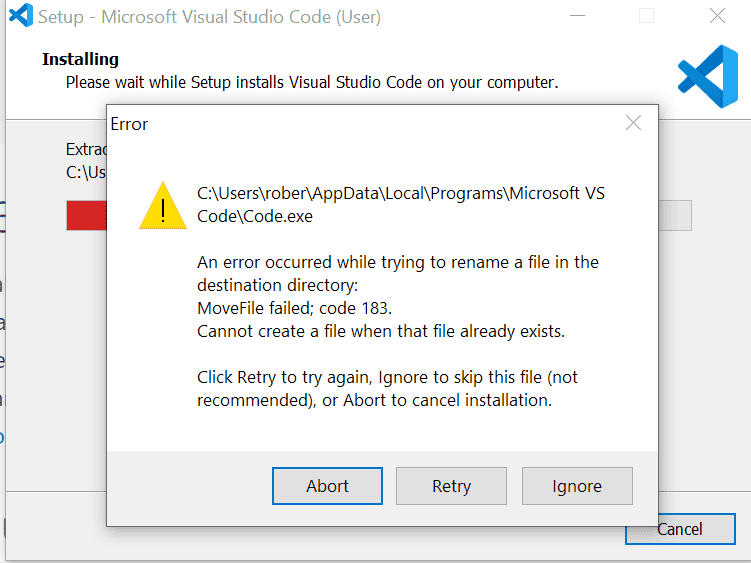
GitHub Issue #93072 (2020, Reproduced in 2025)
Users reported VS Code disappearing completely from their system without manually uninstalling it. After closing all open windows of the editor, the next attempt to reopen it failed. The shortcut was broken, and the installation directory no longer contained the Code.exe file.
- Platform: Windows 10/11
- Install method: User Installer
- Pattern: Closed VS Code during background update
GitHub Issue #240987 (February 2025)
A Windows 11 user found VS Code completely gone the morning after an update was pending. Logs showed no manual uninstall. The system was left running overnight.
- Version: VS Code 1.97.2
- Behavior: Code binary missing from
%LocalAppData%, extensions intact - Status: Not fixed as of July 2025
A developer noted: “Every time I close VS Code, it shows an updating progress bar. Then next time, it’s completely gone. I have to reinstall it manually.”
This behavior has been consistently echoed across multiple threads over the past few years.
Why Is VS Code Uninstalling Itself on Close?
1. Incomplete or Corrupted Background Update
The primary reason for this issue is that VS Code’s background updater fails midway, especially when:
- The system is shut down, rebooted, or locked during the update
- A pending update is triggered just as you close all windows
- A file lock or permissions issue prevents full installation of the new version
When this happens, VS Code’s update script may delete core binaries like Code.exe or .app but fail to replace them.
This is not user error. It’s a flaw in how the auto-update mechanism works under certain interrupted conditions.
2. Silent Quarantine by Antivirus or Endpoint Protection
Some users, especially in managed or corporate environments, have reported that security software flagged the VS Code updater as suspicious. This results in:
- The deletion of the
Code.exebinary - Removal of the update directory
- No visible warnings to the user (especially in silent mode)
3. Improper Install Method (User vs. System Installer)
Using the User Installer instead of the System Installer can increase the chance of:
- Update issues when multiple sessions are active
- Profile-specific deletion (if using a temporary user or shared environment)
On reboot, the OS may clean up what it considers an “incomplete install” from %LocalAppData%.
4. Installer Bugs in VS Code 1.96+ (Reported in 2025)
- Issues #240472 and #240987 confirm installer-level problems introduced in the 1.96+ builds.
- On Windows 11, locking the computer while VS Code is updating leads to the binary being wiped by the time the system is unlocked.
This is under active investigation, but no official fix has been released as of mid-2025.
How to Confirm If You’re Affected
- Check for missing VS Code binary:
- Windows:
%LocalAppData%\Programs\Microsoft VS Code\Code.exe - macOS:
/Applications/Visual Studio Code.app
- Windows:
- If the binary is gone but your settings/extensions are present in:
%APPDATA%\Code\User(Windows)~/Library/Application Support/Code/User(macOS)
… then your installation was corrupted, not uninstalled manually.
- Use
winget listorbrew listto confirm if the system still recognizes it.
Recovery: Reinstall Without Losing Data
- Backup Settings (optional but safe):
- Copy your user settings folder
- Reinstall using System Installer:
- Download from https://code.visualstudio.com
- Choose “System Installer” on Windows
- On macOS, drag
.appinto Applications as admin
- Do NOT run while system is rebooting or updating
- Verify that auto-update is disabled (optional):
"update.mode": "manual"- Relaunch. Your extensions and projects should return if not deleted manually.
Fix: VS Code Uninstalled Itself After Update or Window Close
1. Disable Auto-Updates (if stability is a priority)
In settings.json:
"update.mode": "none"This prevents silent deletions during unexpected update interruptions.
2. Use Portable/ZIP Version (Windows Only)
This version has no auto-updater and stores everything locally.
- Download from official site
- Unzip and run
Code.exe - Suitable for controlled environments
3. Use Package Managers (safer than user installer)
- Windows:
winget install Microsoft.VisualStudioCode - macOS:
brew install --cask visual-studio-code
These allow you to control update timing and reduce permission issues.
4. Whitelist in Antivirus
Add exceptions for:
%LocalAppData%\Programs\Microsoft VS Code- VS Code updater executables
This prevents unintended quarantines or deletion.
Developer-Level Insights
From analysis of GitHub issue threads and update logs, here’s what’s likely happening:
- VS Code uses an installer similar to Squirrel on Windows
- When an update is staged, closing all windows triggers the replacement
- If that process is interrupted, a rollback doesn’t occur
- VS Code appears “uninstalled” but it’s actually a partial delete
There is no current rollback safeguard in the updater. Users affected must manually reinstall.
Conclusion
The issue of VS Code uninstalling itself on window closure is real, reproducible, and increasingly visible in 2025 across Windows 11 and macOS environments. It stems primarily from interrupted auto-updates, installer-level design flaws, and inadequate rollback handling.
Based on public issue threads and professional cases, the best solution is proactive prevention: disable auto-updates, use the system installer or portable version, and avoid interrupting the update process. Until Microsoft provides a patch, developers should take control of their VS Code installation environment to prevent unexpected disruptions in their workflow.
ALSO READ: