- student.amplify/join is the official page where students enter a join code to connect with their teacher’s Amplify class — it’s the starting point for enrollment.
- Once the join code is accepted, students can log in using their school account or Amplify credentials and instantly access lessons, assignments, and progress dashboards.
- Keeping your browser updated, using the correct login method (Google or Microsoft), and saving your credentials ensures smooth, error-free Amplify access all year long.
If you’re a student or parent trying to figure out how to join Amplify classes using the student.amplify/join link, you’re not alone. Amplify is one of the most popular digital learning platforms used by schools across the country. But for many students, the first challenge is understanding exactly where to go, how to use the join code, and what to do after logging in.
In this guide, we’ll break down every step — from joining your class through student.amplify/join to logging in, accessing lessons, and solving common issues. Whether you’re using a school Chromebook, personal laptop, or tablet, this complete walkthrough will help you get started with confidence.
What Is student.amplify/join?
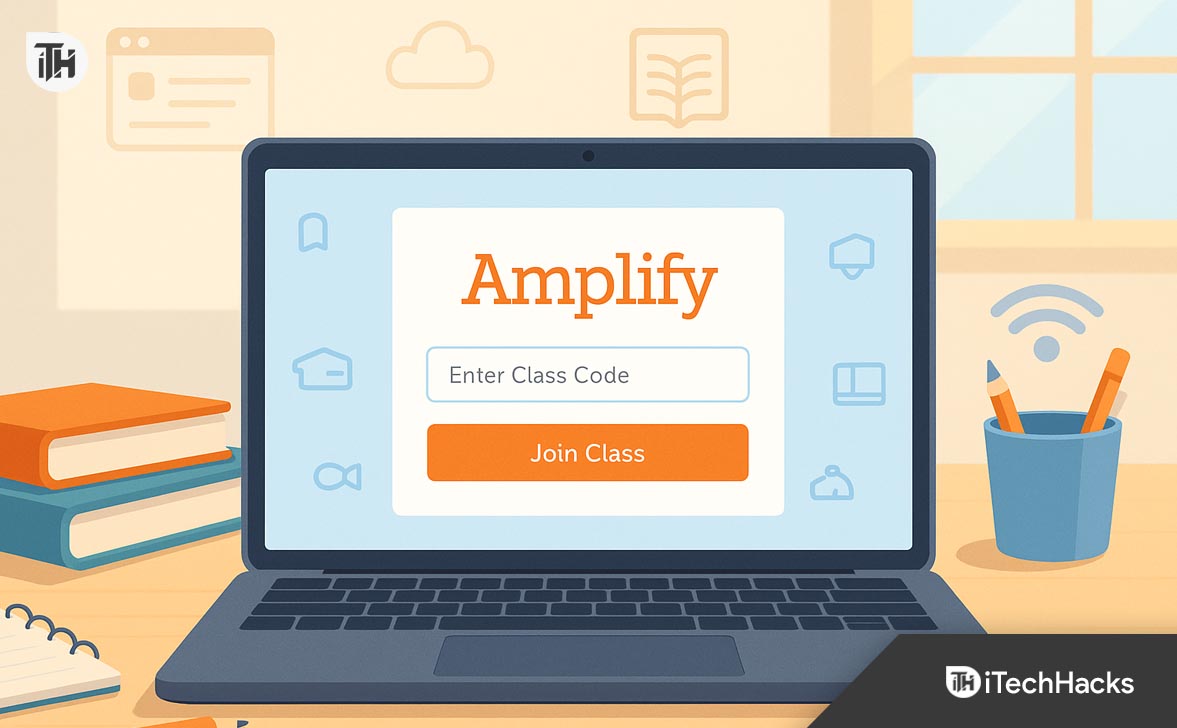
The link student.amplify/join is the official gateway where students enter their class join code to get connected to their teacher’s Amplify classroom. Think of it as your “digital classroom key.”
When your teacher creates a class in Amplify, they generate a unique join code for students. By entering this code on the student.amplify/join page, you’re automatically enrolled in that class — giving you access to lessons, reading assignments, quizzes, and more.
Here’s what happens when you go to the join page:
- You’ll be asked to type in your join code.
- You’ll either log in to an existing Amplify account or create one if you’re new.
- Once verified, your account links to your teacher’s class.
After this one-time setup, you can access everything just by logging in normally next time — no need to re-enter the join code unless you’re joining a new class.
Why Schools Use Amplify in 2025
By 2025, thousands of schools have moved their science, reading, and literacy programs online, and Amplify has become one of the go-to learning platforms. It helps teachers manage lessons digitally and lets students learn interactively from anywhere.
Here are a few reasons schools love it:
- Centralized learning: Everything — lessons, assessments, and feedback — happens in one place.
- Interactive experience: Many Amplify activities are hands-on, with games, visuals, and simulations.
- Easy progress tracking: Students can see how they’re performing and teachers can give instant feedback.
- Remote learning support: Whether in school or at home, students can continue lessons seamlessly.
Because of this, knowing how to use student.amplify/join correctly is essential — it’s your entry point to all of that.
Step-by-Step Guide: How to Join via student.amplify/join
Let’s go through the entire process of joining your Amplify classroom the right way.
Step 1: Get Your Class Join Code
Before anything else, your teacher will give you a join code. This might be printed on a handout, displayed on the classroom board, or shared digitally. Each class has a different code, so double-check that you have the correct one.
A join code usually looks like a short mix of letters and numbers — for example, AB123 or READ56.
Tip: Always type your join code exactly as your teacher gives it to you — even one extra space or small letter can cause an error.
Step 2: Go to student.amplify/join
Open your web browser and go to student.amplify/join. You’ll see a simple screen asking for your class join code.
Type your code carefully and click “Join Class.” If the code is valid, you’ll be taken to the next screen to log in or set up your account.
If you see an error, double-check the code. Sometimes teachers accidentally share an older one that’s expired — just ask for the latest version.
Step 3: Log In or Create a Student Account
Once your code is accepted, Amplify will ask you to log in. There are usually two ways to do this:
-
Using your school account:
Many schools connect Amplify with systems like Google Classroom, Microsoft, or Clever. If that’s the case, you’ll just click the button that says “Sign in with Google” or “Sign in with Microsoft.” -
Using a separate Amplify account:
If your school doesn’t use SSO (Single Sign-On), you’ll create or use an Amplify username and password. If it’s your first time, follow the prompts to create your student profile.
Tip: If you’re under 13, your teacher may help set up your account to make sure it follows your school’s privacy settings.
Step 4: Access Your Classroom Dashboard
After logging in, you’ll be redirected to your Amplify Student Dashboard — this is where you’ll spend most of your learning time.
Here, you can:
- See your current class and teacher name.
- View assignments and lessons.
- Start reading or complete activities.
- Track your progress and scores.
You might also see different subjects like Amplify Science, Amplify Reading, or Boost Reading depending on your grade level and program.
Step 5: Bookmark the Login Page
Once you’ve joined successfully, you don’t have to go through student.amplify/join every single time. That’s only for joining new classes.
For daily lessons, just visit your normal Amplify login page (usually student.amplify.com) and sign in using your credentials.
Make sure to bookmark it so you can access it quickly next time.
Common Issues When Using student.amplify/join (and How to Fix Them)
Even though Amplify is easy to use, students sometimes face small problems while joining or logging in. Let’s go through the most common ones and how to fix them.
1. The Join Code Isn’t Working
This usually happens when the code is typed incorrectly or has expired. Ask your teacher to verify it or give you a new one. Always check for spaces, lowercase vs uppercase letters, or small typos.
2. You Can’t Log In After Joining
If your school uses Google or Microsoft login, make sure you click the right button instead of typing your username manually. If you’re unsure which login method your school uses, ask your teacher or IT department.
3. You Forgot Your Password
Use the “Forgot Password” link on the login page. If your school manages your account, you may need to ask your teacher to reset it for you.
4. Lessons or Pages Won’t Load
Sometimes older devices or outdated browsers can cause loading issues. Always use a modern browser like Chrome or Edge. Clear your cache or try an incognito window if something isn’t working.
5. You Joined the Wrong Class
If you accidentally entered the wrong join code, don’t worry. Log out, go back to student.amplify/join, and enter the correct code. Your teacher can also remove you from the wrong class if needed.
How to Make the Most of Amplify as a Student
Joining through student.amplify/join is just the first step — now it’s time to get the best out of the platform.
Here are some simple habits that will help you succeed:
- Check your dashboard daily. Always see what’s new or due that week.
- Complete lessons in order. Amplify modules are designed to build on one another, so skipping ahead might confuse you.
- Take notes while learning. Especially in subjects like science, writing down key points helps you remember concepts.
- Use built-in tools. Amplify offers dictionaries, read-aloud functions, and hints — use them to your advantage.
- Track your progress. Many programs show your growth — see where you’re improving and where you can focus more.
Advanced Troubleshooting Tips for student.amplify/join and Login
If you’re still facing problems after the basic fixes, try these advanced solutions:
Use a Private or Incognito Tab
Sometimes, saved cookies or login sessions cause conflicts. Opening the student.amplify/join page in a private tab clears old data and helps you log in fresh.
Disable Extensions
Ad blockers or browser extensions can stop some parts of Amplify from loading. Temporarily disable them and refresh the page.
Check Internet Restrictions
If you’re using a school network, certain security filters might block Amplify. Try logging in from a different network or ask your IT support to whitelist Amplify domains.
Update Your Browser and Device
Outdated software is one of the most common reasons for login or loading issues. Always keep your browser and device updated.
Ask Your Teacher or IT Admin for Help
If all else fails, your teacher can check if your account is properly connected to the class. Sometimes, the issue is on the admin side — like a missing license or delayed sync.
Best Practices for Long-Term Use
Logging in successfully once is easy — but keeping your access smooth all year takes a bit of good digital practice.
Here are a few tips:
- Always log out properly. Especially when using shared school devices.
- Keep your login details safe. Don’t share your username or password with friends.
- Stick to one login method. If your school uses Google, always use “Sign in with Google.”
- Bookmark your dashboard. This saves time every day.
- Report issues early. Don’t wait until the day an assignment is due to mention login problems.
FAQs
1. What is student.amplify/join used for?
It’s the page where students enter a join code given by their teacher to enroll in an Amplify class. Once you join, you can access lessons, assignments, and progress reports.
2. Can I log in without a join code?
If you’ve already joined a class, yes! Just go directly to the Amplify login page and sign in with your username or Google/Microsoft account. The join code is only needed once per class.
3. What should I do if the join code isn’t working?
Double-check it for typos or expired codes. If it still doesn’t work, ask your teacher for a new code.
4. Can I use Amplify on my phone or tablet?
Yes, Amplify works on most modern devices, but a laptop or tablet gives a better experience for interactive lessons. Always use the latest version of your browser.
5. Do I need a new code every year?
Yes, most schools issue new join codes for each new academic year or class.
Conclusion
Logging in through student.amplify/join might seem confusing the first time, but once you know the steps, it’s simple and fast. All you need is your join code, your school login, and a supported browser — and you’ll be learning in no time.
Amplify makes online learning structured, engaging, and personalized for every student. So, the next time your teacher gives you a join code, just head to student.amplify/join, sign in, and you’re ready to go. With a little care and attention, your Amplify login process will be smooth all year long.
ALSO READ: