- iPhones can interrupt you with notifications from calls, messages, and apps, but you can control these alerts to avoid distractions while still receiving important notifications. Apple provides various options like silencing certain apps, allowing calls from selected contacts, scheduling quiet hours, or using Focus mode for specific situations like work or sleep.
- To quickly silence iPhone sounds, use Silent Mode by flipping a switch on older models or holding the Action Button if set to silent on newer models. For more comprehensive silence, enable Do Not Disturb from the Control Center, customize which alerts you still want to receive through Focus settings, or schedule silent times.
iPhone notifications are useful, but they can also become distracting very quickly. Calls, messages, app alerts, social media updates, delivery notifications, email banners, and calendar reminders can interrupt your work, sleep, study time, driving, or personal moments. The good thing is that Apple gives you several ways to control them without turning everything off completely.
If you want to learn how to silence notifications on iPhone, there are multiple options depending on what you need. You can silence everything for a short time, mute only certain apps, allow calls from selected contacts, schedule quiet hours, or create a custom Focus mode for work, sleep, driving, or personal use.
This guide explains the easiest and most practical ways to silence notifications on iPhone while still allowing important alerts to come through.
What Does Silencing Notifications on iPhone Mean?
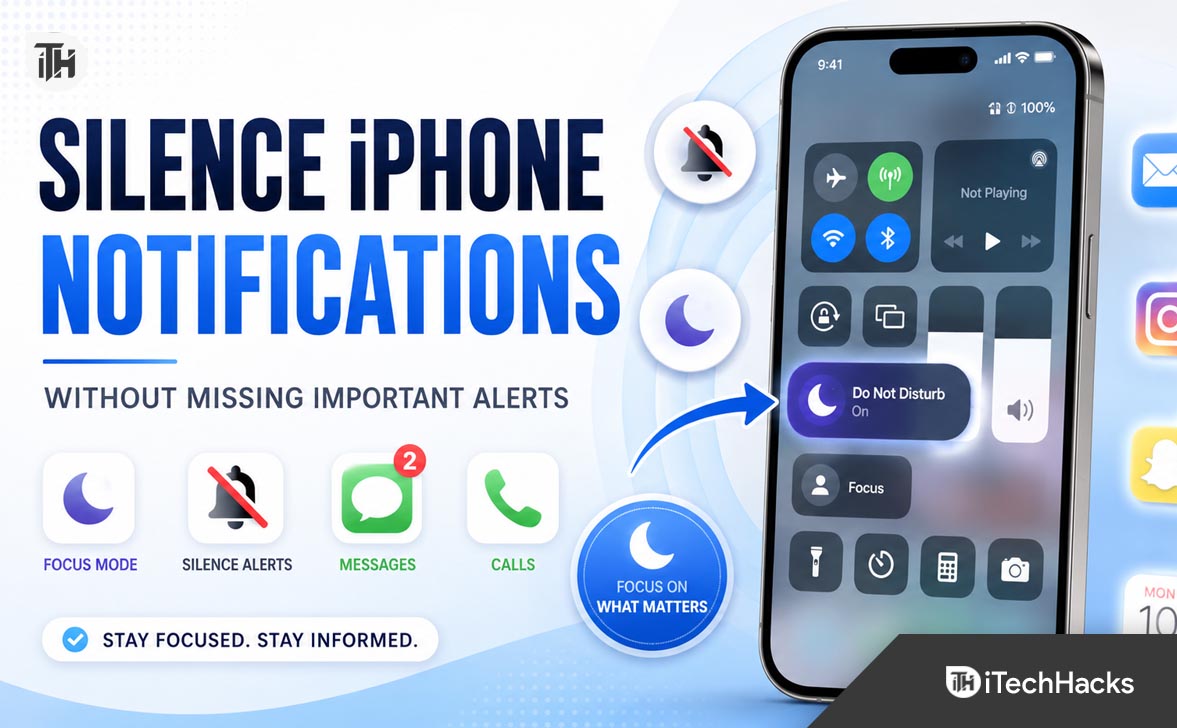
Silencing notifications on iPhone means stopping alerts from making sounds, vibrating, appearing on the Lock Screen, showing banners, or interrupting you while you are using the phone. It does not always mean the notification is deleted or blocked forever.
Depending on the setting you use, silenced notifications may still appear later in Notification Center. This is useful because you can check missed alerts when you are free instead of being disturbed every few minutes.
For example, using Focus lets you silence notifications from selected apps and people while allowing important contacts or apps to notify you. Apple’s current iPhone guide says Focus can be configured to either allow or silence notifications from chosen people and apps.
How to Silence Notifications on iPhone Quickly
Use Silent Mode
The fastest way to silence notification sounds on iPhone is to use Silent Mode. On older iPhones with a physical Ring/Silent switch, move the switch so the orange color is visible. On newer iPhones with the Action Button, press and hold the Action Button if it is set to Silent Mode.
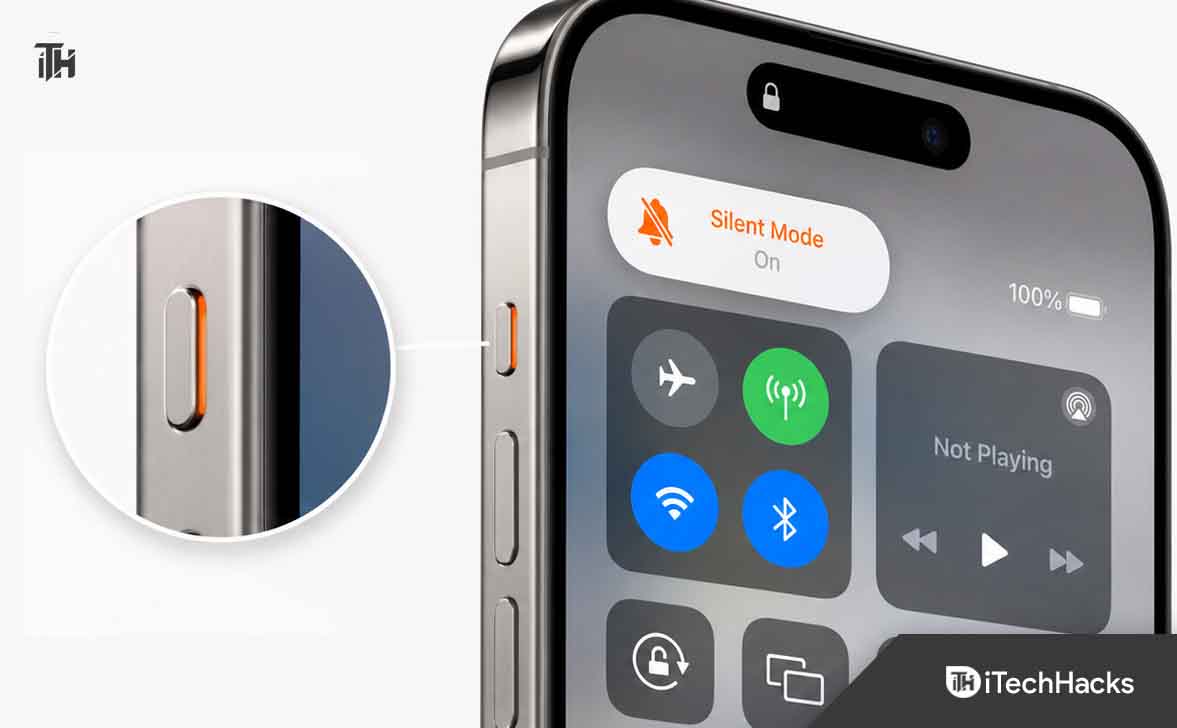
This stops notification sounds, but it does not completely block visual alerts. Notifications may still appear on your screen unless you change notification settings or use Focus.
Use Control Center to Turn On Do Not Disturb
Do Not Disturb is one of the easiest ways to silence notifications on iPhone for a meeting, nap, study session, or quiet time.
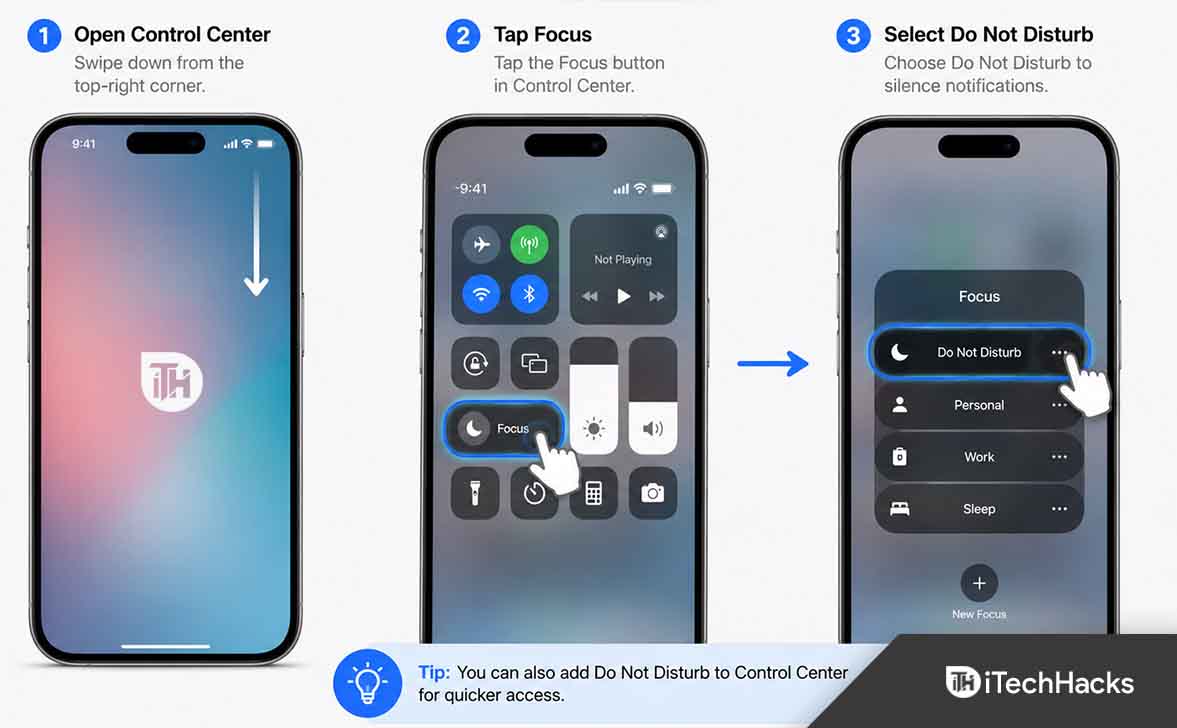
- Swipe down from the top-right corner of the screen.
- Tap Focus.
- Tap Do Not Disturb.
Once enabled, calls and notifications are silenced based on your Focus settings. You can also press and hold Do Not Disturb to choose options such as one hour, until evening, or until you leave your current location.
How to Customize Which Alerts Still Get Through
The best way to silence notifications without missing important alerts is to customize Focus. This is much better than simply turning off all notifications because it gives you control over who and what can still reach you.
Allow Notifications From Important People
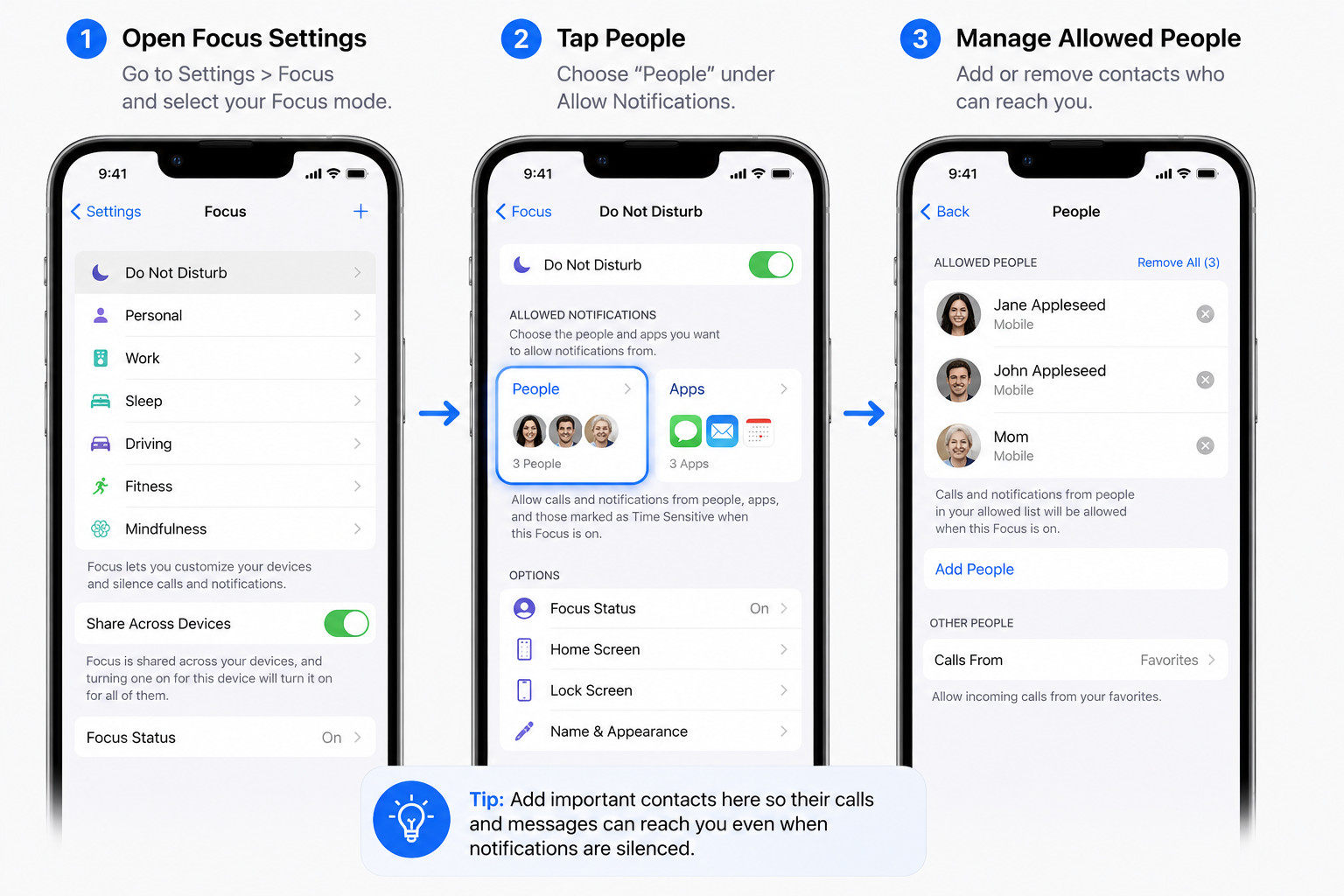
To allow specific people while silencing others:
- Open Settings.
- Tap Focus.
- Choose a Focus mode such as Do Not Disturb, Work, Sleep, or Personal.
- Tap People.
- Select Allow Notifications From.
- Add important contacts such as family members, your boss, clients, or emergency contacts.
This is useful when you want peace but still need calls or messages from selected people. For example, you can silence most notifications at night while allowing calls from your parents, spouse, or child’s school.
Allow Notifications From Important Apps
You can also allow selected apps to send alerts while everything else stays silent.
- Go to Settings.
- Tap Focus.
- Choose your Focus mode.
- Tap Apps.
- Select Allow Notifications From.
- Add apps that matter, such as Phone, Messages, Calendar, banking apps, delivery apps, or work tools.
Apple’s guide confirms that Focus allows users to choose specific apps that can send notifications during a Focus mode.
How to Silence Notifications From Specific Apps
If one app is annoying you, you do not need to silence your whole iPhone. You can turn off notifications only for that app.
- Open Settings.
- Tap Notifications.
- Select the app you want to mute.
- Turn off Allow Notifications.
You can also keep notifications enabled but disable sounds, badges, Lock Screen alerts, or banners. Apple’s notification settings guide explains that individual app notifications can be turned off from Settings > Notifications.
How to Silence Message Notifications Only
If Messages are disturbing you but you still want other notifications, you can mute message alerts separately.
- Open Messages.
- Swipe left on a conversation.
- Tap the bell icon to hide alerts.
You can also go to Settings > Notifications > Messages and change sounds, banners, previews, and Lock Screen behavior. Apple notes that message sounds can be set to None from the Messages notification settings.
How to Schedule Silent Notifications on iPhone
If you want your iPhone to silence notifications automatically every day, use a scheduled Focus.
- Open Settings.
- Tap Focus.
- Choose a Focus mode.
- Scroll to Set a Schedule.
- Choose a time, location, or app-based trigger.
For example, you can schedule Sleep Focus from 10:30 PM to 6:30 AM, Work Focus from 9 AM to 6 PM, or Personal Focus when you reach home.
How to Hide Notification Previews
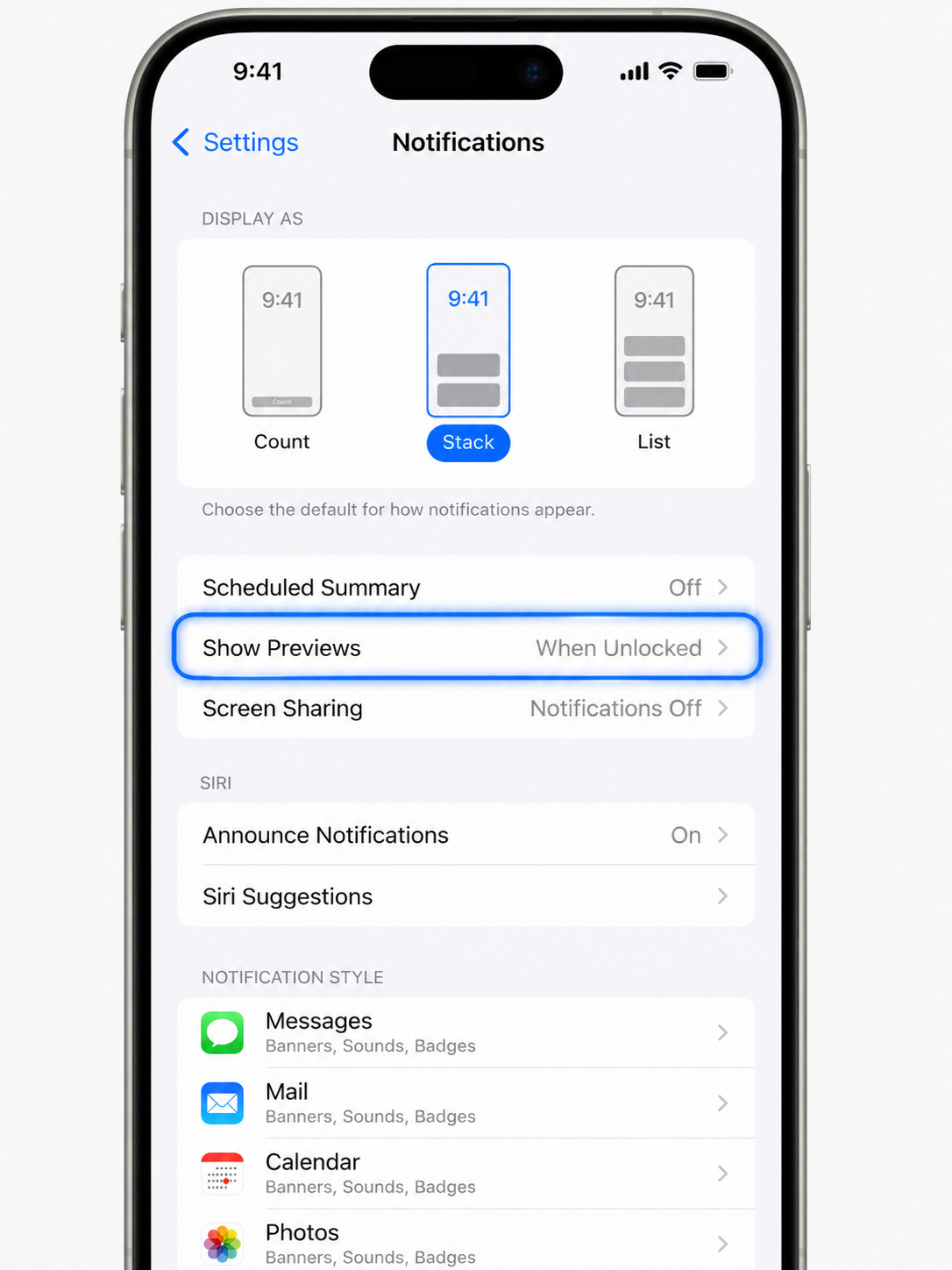
Sometimes the problem is not the notification itself, but the private message preview shown on the Lock Screen. You can hide previews while still receiving alerts.
- Open Settings.
- Tap Notifications.
- Tap Show Previews.
- Select When Unlocked or Never.
This is useful if you want privacy in public places, at work, or around family members.
Best Settings for Different Situations
For Sleep
Use Sleep Focus and allow only emergency contacts. Turn off social media, email, shopping apps, and news alerts. This helps reduce late-night distractions and prevents random notifications from waking you up.
For Work
Use Work Focus and allow calls from coworkers, clients, calendar reminders, email, and productivity apps. Silence entertainment apps, shopping apps, games, and social media.
For Study
Use a custom Study Focus. Allow only educational apps, calendar alerts, and family contacts. You can also hide distracting Home Screen pages during Focus.
For Driving
Use Driving Focus to reduce distractions while on the road. Allow urgent calls only from selected contacts and avoid replying to messages while driving.
Common Problems and Fixes
Notifications Are Still Appearing After Turning On Silent Mode
Silent Mode only stops sounds. If you want to stop banners, Lock Screen alerts, and interruptions, use Focus or change app notification settings.
Important Calls Are Being Silenced
Open your Focus settings and check the allowed people list. Also check whether repeated calls are allowed if you want emergency callers to get through.
One App Keeps Sending Alerts
Go to Settings > Notifications, select the app, and either turn off notifications completely or disable sounds and banners.
Focus Turns On Automatically
Open Settings > Focus, choose the active Focus mode, and check its schedule or automation. Remove any schedule you do not want.
Frequently Asked Questions
How do I silence all notifications on iPhone?
Turn on Do Not Disturb from Control Center. For stronger control, go to Settings > Focus and customize who and what can notify you.
Can I silence notifications but still receive calls?
Yes. Use Focus and allow calls from selected contacts. You can allow family, favorites, coworkers, or specific people.
Can I silence only one app on iPhone?
Yes. Go to Settings > Notifications, choose the app, and turn off Allow Notifications or disable sounds and banners.
Will silenced notifications disappear?
No, in most cases they are still available in Notification Center. They just do not interrupt you with sound, vibration, or banners depending on your settings.
What is the best way to silence notifications on iPhone at night?
Use Sleep Focus. Set a schedule, allow emergency contacts, and silence apps that are not important overnight.
Final Thoughts
Learning how to silence notifications on iPhone is not just about turning your phone quiet. The smarter approach is to decide which alerts deserve your attention and which ones can wait.
For quick silence, use Silent Mode or Do Not Disturb. For better control, use Focus and customize allowed people and apps. For annoying apps, adjust their notification settings individually. Once configured properly, your iPhone can stay quiet when you need peace while still letting important calls, messages, and alerts reach you.
ALSO READ:
- Can’t Make Outgoing Calls After iOS 26 Update? Fix iPhone Call Failed Errors
- Fix Phone Screen Unresponsive Touch on Android & iPhone [Step-by-Step]
- How to Convert a Picture to PDF on iPhone Without Any App
- How to Change Apple Maps Voice on iPhone, iPad, Mac, and Apple Watch
- iPhone Voicemails Missing After iOS 26 Update – How to Fix It