- iPhones don’t offer a full notification history log—Notification Center is still available in iOS 18, but once alerts are cleared, they can’t be recovered.
- Checking old notifications is important to avoid missing emails, payments, or messages that don’t repeat after being dismissed.
- You can view old notifications by swiping down Notification Center and use tools like Scheduled Summary, Screen Time, App Badges, or Apple Watch to catch or track missed alerts.
Whenever something important happens on your iPhone – messages, missed calls, WhatsApp chats, or even payment alerts, it usually arrives as a notification. Notifications help you stay updated without constantly opening apps. But what if you miss one?
That’s where things get tricky. Unlike Android, iPhones don’t have a full “notification log” that stores every alert forever. Once a notification disappears or you swipe it away, it can be hard to retrieve. Over the years, Apple has improved Notification Center, but even with iOS 18 in 2026, there’s still no way to fully recover deleted notifications.
Still, there are a few smart ways you can check old or missed notifications and make sure you don’t miss important alerts. In this guide, we’ll show you exactly how.
Why Do You Need to See Old Notifications on iPhone?
Missing a notification might mean overlooking a work email, a payment reminder, or even a message that never pops up again. Since notifications don’t repeat once cleared, you could end up opening multiple apps just to find out what you missed.
Having quick ways to view older notifications saves time and ensures you don’t miss something important.
What is Notification Center History?
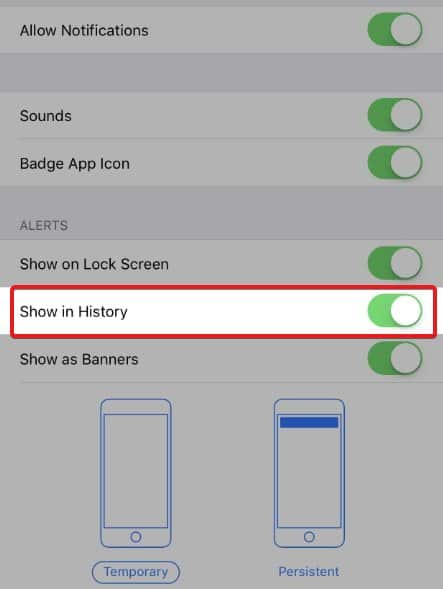
Notification Center is the hub where all your recent alerts live. It isn’t new—Apple introduced it years ago and continues to update it with every iOS release.
On iOS 18 (2026):
- Notifications appear on the Lock Screen.
- Swiping down from the top of the screen opens Notification Center.
- You can scroll through recent notifications grouped by app.
However, once you clear or dismiss them, they’re gone for good—Apple still hasn’t added a full “notification history” like Android.
How to See Old Notifications on iPhone (2026 Methods)
If you have recently received notifications, but your phone is locked, you may not be able to see all but a few notifications. However, when you unlock it, all the notifications should be visible even when you decide not to interact with them.
However, after a certain time, those notifications go away for some unknown reasons. Notifications can or can’t be viewed on your iPhone based on the settings you have chosen. Nevertheless, if you are in need to see old notifications on your iPhone, you need to follow a few steps:
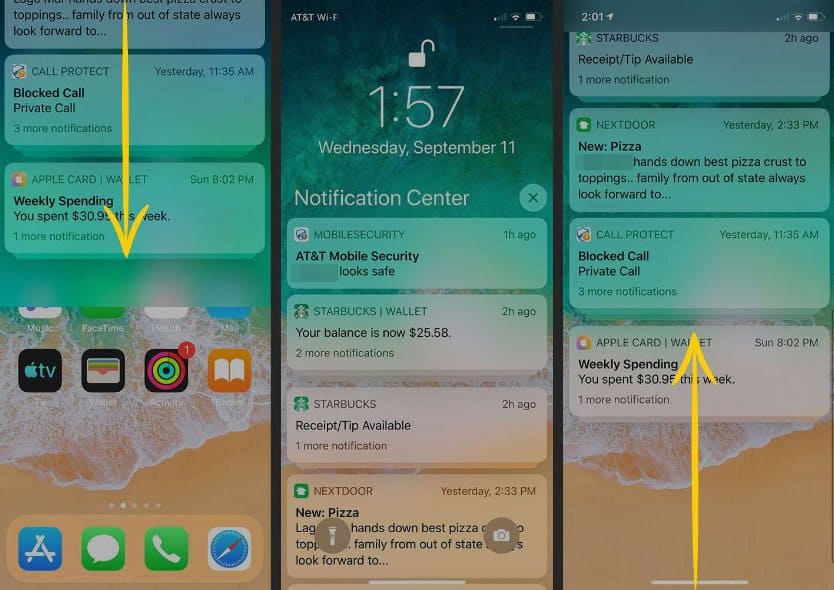
1. Swipe Down to Access Notification Center
The simplest way is still the classic gesture.
- Unlock your iPhone using Face ID, Touch ID, or passcode.
- Swipe down from the top of the screen.
- You’ll see your most recent notifications grouped by app.
- Scroll up to check older ones (as long as they haven’t been cleared).
This works as long as you didn’t dismiss them earlier.
2. Use Notification Summary
Apple introduced Scheduled Summary to collect less urgent notifications and deliver them at set times. This is useful if you miss a lot of alerts.
- Open Settings > Notifications > Scheduled Summary.
- Enable it and select the apps you want included.
- Choose delivery times (e.g., 9 AM, 6 PM).
Now, instead of missing scattered notifications, you’ll receive grouped summaries you can check later.
3. Check Screen Time Logs
While iOS doesn’t store every notification, Screen Time does log app activity. You can use it to figure out which apps recently sent alerts.
- Go to Settings > Screen Time > See All Activity.
- Scroll down to find Notifications.
- Here, you’ll see a count of notifications received per app, with timestamps.
This won’t show the full message, but it helps confirm what app tried to alert you.
4. Use Apple Watch (If You Have One)
If your iPhone is paired with an Apple Watch, notifications stay visible on the watch until you clear them. Even if you swipe them away on your iPhone, they often remain on your Apple Watch for longer.
This is a handy backup if you tend to miss phone alerts.
5. Enable App Badges
Badges are the small red circles with numbers on app icons. They won’t show the exact notification but remind you that something is pending.
- Go to Settings > Notifications.
- Select an app (e.g., Mail, WhatsApp).
- Toggle Badges ON.
Now, even if you missed the notification, the badge will remind you to check inside the app.
6. Third-Party Workarounds (Limited)
Unlike Android, iOS doesn’t allow apps to log all system notifications. However, some productivity apps and focus tools can mirror notifications or store partial logs if you set them up manually (often through Shortcuts or automation).
They aren’t 100% reliable, but they may help if you really need to keep track of everything.
Can You See Deleted Notifications on iPhone?
As of iOS 18 (2026), the answer is still no. Once you clear or swipe away a notification, it’s gone. Apple hasn’t introduced a recovery feature, likely for privacy reasons.
The best you can do is:
- Use Notification Summary.
- Check Screen Time logs.
- Rely on badges and app inboxes.
- Use an Apple Watch for extended visibility.
The Bottom Line
iPhones don’t have a full notification history like Android, and in iOS 18 (2026), that hasn’t changed. Once a notification is cleared, you can’t restore it.
But with smart use of Notification Center, Scheduled Summary, Screen Time, badges, and Apple Watch mirroring, you can avoid missing the most important ones.
So, while you can’t magically bring back deleted alerts, you can definitely stay on top of your notifications using the tricks above.
READ MORE:
- How to Turn Off Private Browsing Mode In Safari on iPhone
- How to Record Video While Playing Music on Your iPhone
- 10 Ways to Fix iPhone Camera “Blinking or Flickering”
- 8 Ways to Fix Apple iPhone 14 and 14 Pro Stuck on Apple Logo
- 7 Ways to Convert HEIC to JPG on Windows, iPhone, Android, Mac
- 5 Ways to Fix AirPods Not Working and Connecting to iPhone or iPad
- 10 Ways to Fix iPhone Screen Stuck on the Apple Logo