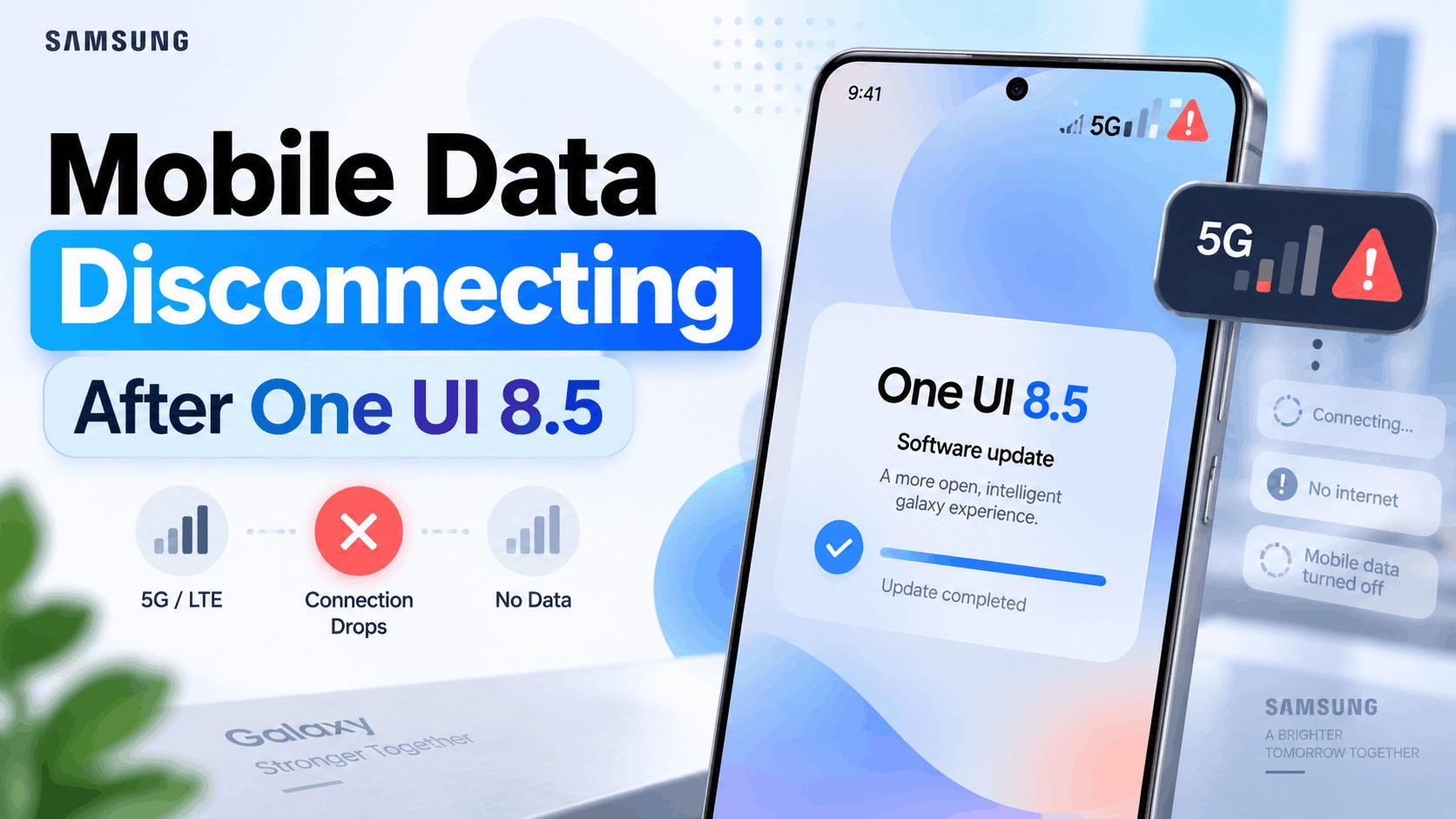
- After updating to One UI 8.5, some Samsung users face mobile data disconnection issues due to changes in network settings, like APN configurations or switching 5G and LTE networks. Most issues can be fixed without resetting the phone.
- To fix disconnection problems, try restarting your phone, toggling Airplane mode, switching to LTE from 5G, and resetting your APN and network settings. These actions often restore stable mobile data connections without erasing personal data.
- If problems persist, check for additional software updates, run diagnostics in Samsung Members, or contact your mobile carrier for SIM and network support. A factory reset should only be a last resort after trying all other solutions.
If your Samsung mobile data keeps disconnecting after the One UI 8.5 update, you are not necessarily dealing with a damaged SIM card or failing phone. Software updates can sometimes change mobile network configuration, APN settings, preferred network modes, or carrier-related settings that were previously working without problems.
Some Galaxy users have reported symptoms such as mobile data randomly dropping, weaker signal reception, temporary “No Service” messages, or the phone repeatedly switching between 5G and LTE after updating. The good news is that most mobile data problems can be fixed without factory resetting your Samsung phone.
Below are the most practical ways to fix Samsung mobile data disconnecting after the One UI 8.5 update, starting with the simplest solutions.
Why Does Mobile Data Keep Disconnecting After One UI 8.5?
Mobile data depends on several components working together, including your carrier network, SIM or eSIM, APN configuration, modem firmware, Android network settings, and local signal coverage. A major One UI update can occasionally disturb one of these configurations.
Common causes include:
- Incorrect or outdated APN settings after the update
- Problems switching between 5G and LTE networks
- Corrupted mobile network configuration
- Temporary modem or radio software glitches
- Carrier provisioning problems
- Dual-SIM configuration conflicts
- A damaged or poorly seated physical SIM card
- Third-party apps interfering with connectivity
- A software bug introduced by the One UI update
Before changing advanced settings, make sure the issue actually affects mobile data. Turn Wi-Fi off and check whether the 5G, 4G, LTE, or mobile network indicator disappears when the connection stops working.
1. Restart Your Samsung Galaxy Phone
Start with a normal restart. It may sound basic, but restarting forces the phone to reload its mobile network services and reconnect to your carrier.
Swipe down twice to open the Quick Panel, tap the Power icon, and select Restart. After the phone starts again, disable Wi-Fi and use mobile data for several minutes to see whether the connection remains stable.
If the problem started immediately after installing One UI 8.5, performing one additional restart after the update is particularly worthwhile.
2. Toggle Airplane Mode On and Off
If mobile data disconnects but your Galaxy phone still shows signal bars, try refreshing the cellular connection using Airplane mode.
- Swipe down to open Quick Settings.
- Turn Airplane mode on.
- Wait around 20 to 30 seconds.
- Turn Airplane mode off.
- Wait for the phone to reconnect to the carrier.
This forces the cellular modem to disconnect and register with the network again. It is especially useful when your phone appears stuck on LTE, 5G, Emergency Calls Only, or No Service.
3. Temporarily Switch From 5G to LTE
One of the most useful tests for Samsung mobile data disconnecting after One UI 8.5 is changing the network mode. Your phone may be struggling to switch smoothly between weak 5G coverage and LTE.
Go to:
Settings > Connections > Mobile networks > Network mode
If available, change from a mode containing 5G to an LTE-based automatic mode. The exact options vary depending on your Galaxy model, carrier, region, and SIM.
Use mobile data normally for a while after switching. If LTE remains stable while 5G repeatedly disconnects, the problem may involve 5G coverage, carrier configuration, or the phone’s network handover behavior rather than mobile data itself.
You can switch 5G back on later after installing another Samsung software update or carrier update.
4. Reset the APN Settings
The Access Point Name, commonly called the APN, contains the information your Samsung phone uses to connect to your carrier’s mobile data network. Incorrect APN information can cause internet connections to fail even when signal bars are visible.
To reset it:
- Open Settings.
- Tap Connections.
- Select Mobile networks.
- Tap Access Point Names.
- Tap the three-dot menu.
- Select Reset to default.
Restart the phone afterward and test mobile data again.
Avoid manually entering random APN values found online. APN settings vary by carrier and country. If resetting the APN does not restore connectivity, obtain the correct values directly from your network provider.
5. Reset Mobile Network Settings
If One UI 8.5 has left behind an incorrect network configuration, resetting the mobile network settings is one of the strongest fixes you can try without deleting personal files.
Open:
Settings > General management > Reset > Reset mobile network settings
Select the appropriate SIM if your phone asks which connection you want to reset, then confirm the reset.
On some Galaxy models or One UI versions, the option may appear simply as Reset network settings. Menu wording can vary slightly by carrier and device.
This method restores cellular network configuration to its defaults. Depending on your Samsung model, broader network resets may also affect saved Wi-Fi or Bluetooth settings, so review the warning shown before confirming.
6. Check the Correct SIM Is Selected for Mobile Data
This is particularly important for users with two SIMs or a physical SIM plus an eSIM. An update can sometimes expose a configuration problem that was previously unnoticed.
Go to:
Settings > Connections > SIM manager
Check that your preferred SIM is selected under Mobile data. Also temporarily disable the second SIM and test the main SIM by itself.
If mobile data becomes stable with only one SIM enabled, the issue may be related to dual-SIM switching or carrier interaction rather than the physical radio hardware.
7. Check Data Limits and Data Saver
A Samsung phone can stop or restrict mobile data when a configured usage limit has been reached. Check this before assuming One UI 8.5 has caused a network failure.
Go to:
Settings > Connections > Data usage
Review your billing cycle, data warning, and data limit settings. If Set data limit is enabled, temporarily disable it or increase the limit.
You can also temporarily turn off Data Saver while troubleshooting. Data Saver normally restricts background usage rather than completely disconnecting the network, but disabling it helps eliminate another variable.
8. Remove and Reinsert the SIM Card
If your Galaxy phone uses a physical SIM, power the device off and remove the SIM tray. Inspect the SIM for dirt, visible damage, or corrosion, then reinstall it carefully.
After restarting the phone, open:
Settings > About phone > Status information > SIM card status
Check whether the carrier and network information appears correctly.
If possible, test your SIM in another phone. You can also temporarily test another working SIM in your Samsung device. This helps determine whether the problem is associated with the phone or the carrier/SIM.
9. Check for Another One UI 8.5 Software Update
If the mobile data problem began immediately after installing One UI 8.5, check for another software update before performing more disruptive troubleshooting.
Go to:
Settings > Software update > Download and install
Samsung frequently distributes software in multiple builds, and later maintenance releases can contain modem, stability, security, and connectivity changes.
Do not assume that having One UI 8.5 means your phone already has the newest build available for your Galaxy model and carrier.
10. Test the Phone in Safe Mode
A third-party VPN, firewall, security application, automation tool, battery optimizer, or DNS application can interfere with mobile connectivity. Safe Mode temporarily disables downloaded apps so you can test the phone using only system software.
- Open the power menu.
- Touch and hold Power off.
- Tap Safe mode.
- Wait for the phone to restart.
- Turn Wi-Fi off and test mobile data.
If mobile data works normally in Safe Mode, a downloaded application is likely contributing to the issue. Start by checking apps installed or updated shortly before the disconnections began.
11. Run Samsung Members Mobile Network Diagnostics
Samsung Members includes built-in phone diagnostics on supported Galaxy devices. This can help identify whether the phone detects an issue with its mobile network connection.
Open Samsung Members > Support and locate Phone diagnostics. Run the Mobile network test if it is available on your device.
If you can reproduce the mobile data disconnecting problem, Samsung Members can also be useful for submitting an error report. Sending the report shortly after the issue occurs may provide more useful diagnostic information than reporting it much later.
12. Contact Your Mobile Carrier
If resetting the APN and mobile network settings does not help, your carrier should be the next step. Ask them to verify that your SIM is correctly provisioned for LTE and 5G and that there are no network problems affecting your area or account.
This becomes particularly important if mobile data disconnects only in specific locations, only on 5G, or only with one particular SIM.
Your carrier may also be able to refresh the network provisioning associated with your number.
Should You Factory Reset Your Samsung Phone?
A factory reset should not be your first solution for Samsung mobile data disconnecting after One UI 8.5. It erases your apps, accounts, settings, photos stored locally without backup, and other personal data.
Consider a factory reset only after network reset, APN reset, SIM testing, Safe Mode testing, carrier troubleshooting, and available software updates have failed.
If you eventually decide to reset the device, create a complete backup first.
Additional Tips to Keep Samsung Mobile Data Stable
- Keep One UI and security updates installed.
- Avoid unofficial APN settings.
- Use LTE temporarily if unstable 5G coverage causes repeated switching.
- Keep VPN and network-modifying apps disabled during troubleshooting.
- Check whether the problem happens everywhere or only in one location.
- Test another SIM before assuming the phone has a hardware problem.
Frequently Asked Questions
Why does my Samsung mobile data keep turning off after One UI 8.5?
The cause may be an incorrect APN, corrupted mobile network settings, unstable 5G connectivity, SIM provisioning, carrier coverage, or a software-related network issue. Resetting the APN and mobile network settings should usually be tried before more drastic solutions.
Will resetting network settings delete my photos?
No. Resetting mobile or network settings does not delete your photos, videos, apps, or documents. Depending on the reset option available on your Galaxy device, some saved Wi-Fi, Bluetooth, and cellular configuration may need to be set up again.
Why does LTE work but 5G keeps disconnecting?
This usually points toward a problem with 5G coverage, network handover, carrier configuration, or software compatibility rather than a complete failure of mobile data. You can temporarily use LTE until the issue is resolved.
Can a One UI update affect mobile network settings?
Major system updates can change network components and configuration. However, a mobile data problem that appears after an update does not automatically prove the update itself is responsible, so SIM, carrier, APN, and coverage issues should still be checked.
Should I replace my SIM card?
Replace the SIM only if testing indicates that it may be damaged or outdated. Try the SIM in another compatible phone first, or ask your carrier to inspect or replace it.
Final Thoughts
If Samsung mobile data keeps disconnecting after the One UI 8.5 update, start by restarting the phone, toggling Airplane mode, testing LTE instead of 5G, and resetting the APN. If the problem continues, reset the mobile network settings and test the SIM separately.
A factory reset should remain a last resort. If the connection still drops after these fixes, check for a newer Samsung software build, run Samsung Members diagnostics, and contact your carrier. This will help determine whether the problem comes from One UI, your SIM configuration, local network coverage, or the carrier itself.