- Most HP printers connect best using the HP Smart app, especially models without a screen. Ensure the printer is in WiFi setup mode before starting.
- HP printers typically support only 2.4GHz WiFi networks, not 5GHz. If you're facing connection issues, verify you're using the correct band.
- To reconnect your HP printer to a new WiFi network, always reset its wireless settings first, then use the HP Smart app or Wireless Setup Wizard for a fresh configuration.
Connecting your HP printer to WiFi should be a straightforward task but in reality, many users struggle with connection issues, outdated setup instructions, or compatibility problems with newer devices. This guide is built from hands-on experience supporting hundreds of HP printer installations across residential, office, and educational setups.
Whether you’ve just unboxed a new HP printer or need to switch it to a new WiFi network, follow these tested and verified steps to get it working reliably. All instructions are current as of 2026, and apply to most modern HP DeskJet, ENVY, OfficeJet, and LaserJet models.
Before You Start: What You’ll Need
- A stable WiFi network (2.4GHz is recommended; avoid guest or enterprise networks unless configured properly)
- Your WiFi password
- A device to assist in setup: smartphone, laptop, or desktop
- HP Smart App (if using smartphone or tablet)
- Printer powered ON and within WiFi signal range
Fix: HP Printer Not Connecting to WiFi? Try These Proven Methods
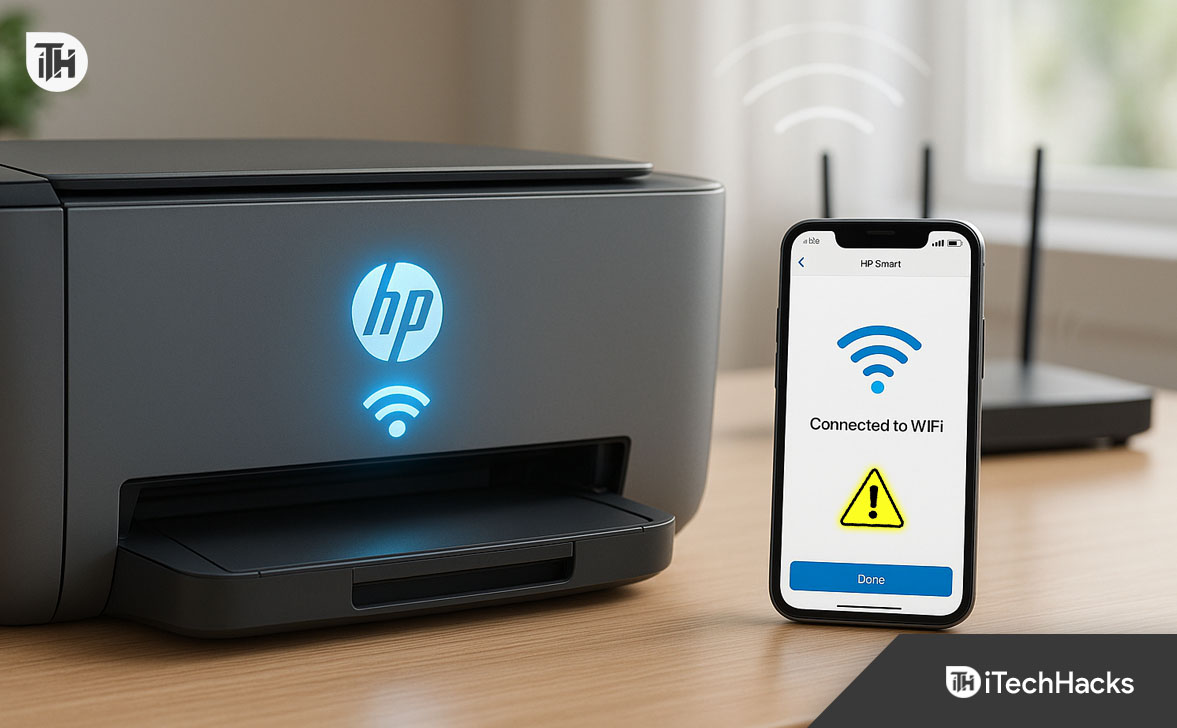
Use HP Smart App to Connect HP Printer to WiFi (Recommended for Most Models)
This is the most reliable and compatible method for both touchscreen and non-touchscreen HP printers.
Install the HP Smart App
- Download the app on your smartphone, tablet, or Windows 11 PC from the official app store or hp.com.
- Make sure the device you’re using is connected to the same WiFi network you want your printer to join.
Power On the HP Printer
- Plug in your printer and turn it on.
- If it’s a brand-new printer, it should enter WiFi setup mode automatically.
- If not, press and hold the Wireless and Cancel buttons on the printer for 5 seconds until the WiFi light begins blinking.
Open HP Smart App
- Launch the app and tap “Set Up a New Printer.”
- Allow the app to access Bluetooth and location if prompted (required for detection on mobile).
Select Your Printer
- The app will detect printers in WiFi setup mode.
- Choose your printer from the list.
Enter WiFi Details
- Choose your WiFi network and enter the correct password.
- The printer will attempt to connect.
Confirm Setup
- Once connected, the blinking blue light on the printer will turn solid.
- You can now print a test page to verify the setup.
This method is ideal for users searching how to connect HP printer to WiFi without using a computer or cable.
Connect HP Printer to WiFi Using Wireless Setup Wizard (For Touchscreen Models)
If your HP printer has a built-in touchscreen, you can use the on-screen Wireless Setup Wizard.
- Access Wireless Settings: On the printer’s touchscreen, tap the Wireless or Settings icon.
- Launch Wireless Setup Wizard: Navigate to Network Setup > Wireless Settings > Wireless Setup Wizard.
- Scan for Available Networks: The printer will display all WiFi networks in range.
- Choose Your Network: Select your 2.4GHz WiFi network. Avoid connecting to a 5GHz network unless your printer specifically supports it.
- Enter Password: Type your WiFi password using the touchscreen keyboard and confirm.
- Connection Confirmation: Once connected, the wireless icon on the screen will display solid signal bars.
This method answers the common question: how do I connect my HP printer to WiFi using the printer’s screen?
How to Connect HP Printer to WiFi Without Touchscreen or HP App (Using WPS)
Some HP printers without screens support WPS (WiFi Protected Setup). This method requires a compatible router with a WPS button.
- Enable WPS Mode on Printer: Press and hold the Wireless button on your HP printer until the WiFi light starts blinking.
- Activate WPS on Router: Within 2 minutes, press the WPS button on your wireless router.
- Wait for Connection: The printer’s WiFi light will stop blinking and turn solid once connected.
This method may not work on newer mesh WiFi systems. If WPS fails, use the HP Smart app instead for reliable connectivity.
This method is best suited for basic models where hp printer setup wifi cannot be done via app or screen.
Reconnect HP Printer to New WiFi Network (After Router Change or Move)
If you’ve recently changed your WiFi network or moved to a new location, your printer will need to be reconfigured.
- Go to Wireless Setup: Tap Settings > Network Settings > Wireless Setup Wizard.
- Select New Network: Choose your new WiFi network and enter the password.
- Save the Connection: Wait for the wireless icon to show a solid connection.
Step-by-Step Instructions for Non-Touchscreen Models:
- Reset Network Settings: Press and hold the Wireless and Cancel buttons together for 5 seconds until the blue light starts blinking.
- Open HP Smart App: Re-add your printer as a new device in the app.
- Connect to New WiFi: Follow the same process described in Method 1 to send the new WiFi credentials.
If you’re asking how to connect HP printer to new WiFi, this is the correct process for both old and new devices.
Connect HP Printer to WiFi Using Windows 11 Computer
You can also use a Windows PC to configure your HP printer’s wireless connection.
-
Download HP Smart from Microsoft Store: Install the application and launch it.
-
Connect Computer to Target WiFi: Make sure your PC is connected to the same WiFi you want the printer to use.
Start Printer Setup
- In HP Smart, click “Add Printer.”
- The app will search for printers in setup mode.
- Select Printer and Enter WiFi Details: Choose your printer, enter the WiFi password, and complete the setup.
- Confirm Connection: Check for confirmation inside the app or print a test page.
This method is often used in small business offices and shared workspace environments.
Set Up WiFi on HP Printer Using macOS Ventura or Sonoma
If you use a Mac, HP Easy Start is the recommended tool for setting up wireless printing.
- Download HP Easy Start: Visit HP’s official support page and download the utility.
- Run the Installer: Allow permissions for network access when prompted.
- Detect Printer in Setup Mode: Ensure your printer is blinking blue (WiFi setup mode enabled).
- Choose WiFi Network: Select your 2.4GHz WiFi and enter the password.
- Complete Setup: Once connected, the printer will appear in your Mac’s system preferences under “Printers & Scanners.”
If you’re wondering how to connect my HP printer to WiFi on macOS, this is the supported method.
How to Verify WiFi Connection Was Successful
After setup, you should always confirm that your HP printer is connected properly.
Option 1: Print Network Configuration Report
- On touchscreen models, go to Settings > Network Settings > Print Report.
- On non-touchscreen models, press and hold the Information button or Wireless + Information together until a report prints.
The report will show:
- Connection status
- IP address
- Signal strength
- SSID connected
Option 2: Check via HP Smart App
-
The app will display your printer’s connection status on the home screen.
Frequently Asked Questions (FAQs)
1. How do I connect my HP printer to WiFi without the HP Smart app?
If your HP printer has a touchscreen, you can use the Wireless Setup Wizard found in the Network Settings menu. For printers without a screen, use the WPS method by pressing the Wireless button on the printer and then the WPS button on your router. This avoids using the HP Smart app but is limited to certain models and router types.
2. Why won’t my HP printer connect to my new WiFi network?
This typically happens when the printer is still trying to connect to your old WiFi network. To fix this, reset the printer’s network settings by pressing and holding the Wireless and Cancel buttons for 5 seconds. Then use the HP Smart app or Wireless Setup Wizard to reconnect the printer to your new network.
3. Does my HP printer support 5GHz WiFi networks?
Most HP printers do not support 5GHz WiFi and will only connect to 2.4GHz networks. If your router combines both bands under a single SSID, you may need to create a separate 2.4GHz network or temporarily disable 5GHz during setup to ensure successful connection.
Conclusion
Successfully setting up your HP printer on WiFi in 2026 requires choosing the right method for your specific model and network setup. Whether you use the HP Smart app, touchscreen wizard, or WPS, always confirm your printer is in the correct mode before beginning. Stick to 2.4GHz networks, keep firmware updated, and avoid skipping the reset step when switching networks.
Following these proven steps ensures your HP printer connects reliably and stays online for all your wireless printing needs.
ALSO READ:
- How to Fix HP Printer Not Showing Up on Network
- Fix HP Printer Connection Issues After Upgrading to macOS Sonoma
- HP LaserJet Pro M404n Driver Download for Windows & macOS
- How to Fix HP Laptop Won’t Turn On Problem
- How to Fix Windows 11 Printer Spooler Error
- How to Delete Printer Driver In Windows 11
- How to Fix Error 740 While Adding Printer on Windows 10/11