

- If your Roomba spins in circles, it’s usually because of dirty sensors, a stuck bumper, debris in the wheels, software troubles, or a failing wheel part, with these issues commonly affecting both older and newer models.
- Cleaning is often the solution; you can fix your Roomba at home by wiping sensors, checking the wheels for hair or debris, ensuring the bumper moves freely, and performing a simple reboot or reset using the app.
- If cleaning doesn’t work, inspect the wheels for malfunction, check if the map is correct, and position the dock correctly; if issues persist after these steps, consider contacting support, especially if the Roomba is still under warranty.
If your Roomba is spinning in circles, backing up repeatedly, turning only one way, or cleaning the same small spot again and again, the problem usually comes down to dirty sensors, a stuck bumper, wheel debris, software confusion, or a failing wheel module. The good news is that most Roomba spinning in circles issues can be fixed at home with basic cleaning and a proper reset.
This problem is common on older Roomba models like the 600, 800, 900 series, and also newer i, j, and s Series models. A Roomba depends on its cliff sensors, bumper sensors, wheel sensors, front caster wheel, and navigation software to move correctly. If one of these parts gives the wrong signal, the robot may think there is an obstacle, a drop, or extra dirt in one direction, causing it to rotate instead of driving normally.
In this guide, you will learn how to fix Roomba spinning in circles using safe sensor cleaning, wheel checks, bumper cleaning, rebooting, reset methods, app troubleshooting, and mapping fixes. Start with the simple steps first before replacing any parts.
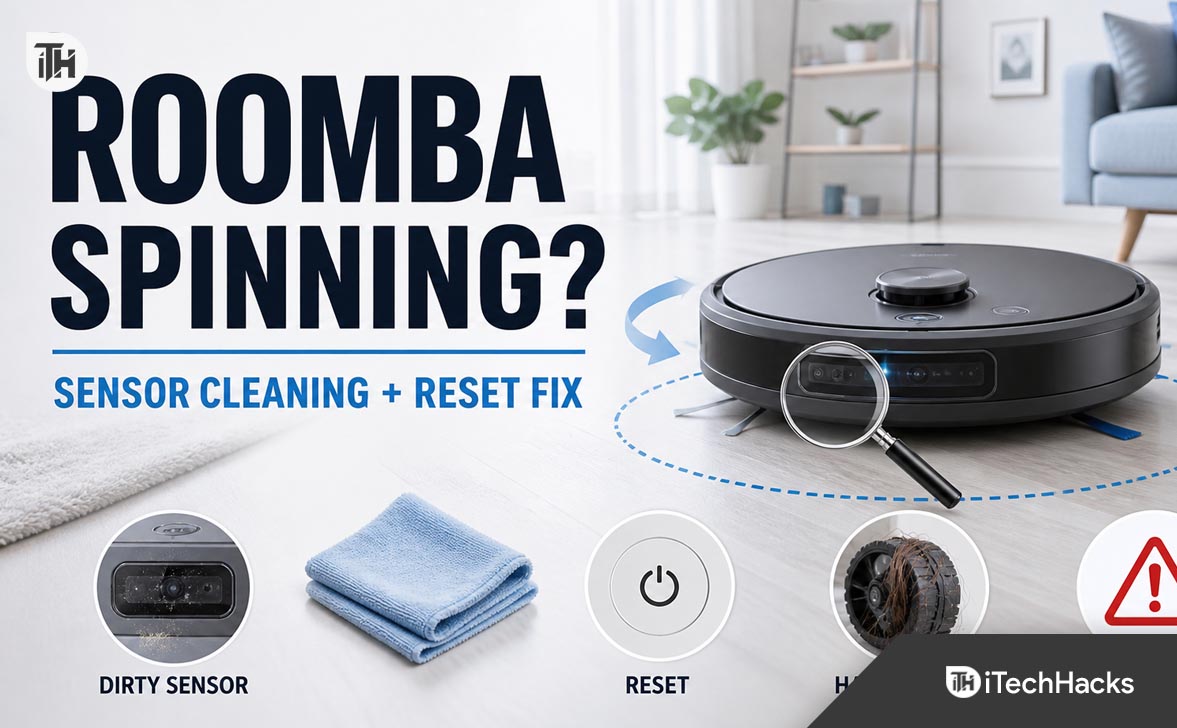
Why Is My Roomba Spinning In Circles?
A Roomba spinning in circles is usually reacting to incorrect navigation feedback. It may believe one side is blocked, one wheel is not moving correctly, or one sensor is detecting a cliff or obstacle. When this happens, the robot tries to correct itself by turning, but because the bad signal continues, it keeps rotating.
Here are the most common reasons:
- Dirty cliff sensors: Dust, hair, or dark marks on the sensor windows can confuse the robot.
- Stuck bumper: If one side of the bumper is jammed, Roomba may think it is constantly hitting an object.
- Hair stuck in the wheels: Wrapped hair can reduce wheel movement and cause one-sided turning.
- Blocked front caster wheel: If the small front wheel cannot rotate freely, navigation becomes unstable.
- Dirty floor tracking sensor: Some newer models use floor tracking to understand movement.
- Smart dirt detection: Roomba may circle a dirty area intentionally during spot-cleaning behavior.
- Software or map issue: Newer Wi-Fi Roomba models can behave strangely if the map or app state is corrupted.
- Faulty wheel module: If one drive wheel motor is weak or damaged, the robot may keep turning in circles.
First Check: Is Roomba Actually Malfunctioning?
Before cleaning or resetting anything, check whether your Roomba is truly stuck or simply doing a normal cleaning pattern. Some Roomba models intentionally move in circles when they detect a concentrated dirty area. This is normal if it happens for a short time and then the robot continues cleaning.
Place Roomba in an open area on a clean, flat floor. Remove chairs, rugs, cables, toys, shoes, and any obstacles nearby. Start a cleaning cycle and watch it for two minutes.
If Roomba spins briefly and then drives away, it may have been using dirt-detect behavior. If it keeps circling, backs up repeatedly, turns in only one direction, or stops with an error, continue with the fixes below.
Fix 1: Clean Roomba Cliff Sensors Properly
Dirty cliff sensors are one of the biggest reasons behind a Roomba spinning in circles. Cliff sensors help the robot avoid stairs and ledges. If dust or grime blocks them, Roomba may think there is a drop-off on one side and keep turning away from it.
How To Clean Roomba Cliff Sensors
- Turn Roomba off.
- Flip it upside down on a soft towel.
- Look for the small clear or dark sensor windows along the front underside of the robot.
- Wipe each sensor window with a clean, dry microfiber cloth.
- Do not spray water, cleaner, or alcohol directly into the sensor area.
- If dirt is stuck, lightly dampen the cloth, wipe gently, then dry the area fully.
This method works because the cliff sensors need a clear view of the floor. Even a thin layer of dust can make the sensor read the surface incorrectly, especially on dark floors, black rugs, or shiny tiles.
Fix 2: Tap And Clean The Front Bumper
A stuck bumper can easily make a Roomba spin in circles. The bumper tells the robot when it has touched furniture, walls, or objects. If the left or right side of the bumper stays pressed because of dirt or debris, Roomba may keep turning as if it is constantly hitting something.
How To Fix A Stuck Roomba Bumper
- Turn Roomba off and remove it from the dock.
- Press the bumper from left to right and check if it clicks smoothly.
- Tap the bumper gently 15 to 20 times on both sides to loosen trapped dust.
- Use compressed air carefully around the bumper gap if available.
- Wipe the bumper edges with a dry cloth.
- Start Roomba again in an open area.
The bumper should move freely and return to its original position each time you press it. If one side feels sticky, jammed, or less responsive, the robot may keep receiving a false obstacle signal.
Fix 3: Remove Hair And Debris From The Wheels
Roomba uses two main drive wheels to move forward, reverse, and turn. If one wheel is blocked by hair, thread, pet fur, or carpet fibers, the robot may rotate instead of moving straight. This is especially common in homes with long hair, pets, rugs, or loose threads.
How To Clean Roomba Drive Wheels
- Turn Roomba off and flip it upside down.
- Push each wheel up and down. It should spring back smoothly.
- Spin both wheels by hand and compare resistance.
- Remove visible hair or debris around the wheel axle.
- Use tweezers carefully if hair is tightly wrapped.
- Check if one wheel feels harder to turn than the other.
Both wheels should feel similar. If one wheel is stiff, weak, noisy, or does not spring back properly, Roomba may keep pulling to one side. After cleaning the wheels, test the robot on a hard, flat floor without rugs.
Fix 4: Clean The Front Caster Wheel
The small front caster wheel helps Roomba balance and turn smoothly. When hair collects around this wheel, Roomba may drag, wobble, or spin in circles. Many users clean the side brushes and main rollers but forget the front caster wheel.
How To Clean The Front Caster Wheel
- Turn Roomba off.
- Flip it upside down.
- Pull the front caster wheel assembly straight out.
- Remove the wheel from its housing if your model allows it.
- Clean hair, dust, and debris from the wheel, axle, and socket.
- Push the wheel back firmly until it sits properly.
This fix works because a jammed caster wheel can create drag at the front of the robot. If the front wheel cannot rotate freely, the drive wheels may fight against that resistance and cause unstable turning.
Fix 5: Clean The Floor Tracking Sensor
Some newer Roomba models use a floor tracking sensor to measure movement across the floor. If this sensor is dirty, Roomba may lose track of its movement and behave strangely, including spinning, repeating the same path, or failing to navigate rooms correctly.
How To Clean The Floor Tracking Sensor
- Turn off the robot.
- Flip Roomba over carefully.
- Look for a small optical sensor window underneath the robot.
- Wipe it gently with a dry microfiber cloth.
- Make sure there is no dust film, pet hair, or sticky residue.
Do not scrape the sensor window or use harsh chemicals. The goal is only to remove dust and smudges so the robot can read floor movement correctly.
Fix 6: Check The Side Brush And Main Rollers
A tangled side brush or jammed roller can also affect Roomba’s movement. While these parts may not directly control navigation, heavy resistance can make the robot drag, tilt, or react like something is blocking it.
Clean The Side Brush
- Remove the side brush screw with a small screwdriver if your model uses one.
- Lift the side brush off.
- Remove hair wrapped around the post.
- Clean under the brush area.
- Reinstall the side brush firmly.
Clean The Main Brushes Or Rollers
- Open the brush frame.
- Remove the rollers or brushes.
- Clean hair from the roller ends and caps.
- Remove debris from the brush chamber.
- Reinstall everything correctly.
If Roomba spins in circles after cleaning but also makes a grinding, squealing, or clicking sound, inspect the brush area again. A small object stuck near the roller housing can create enough resistance to disturb movement.
Fix 7: Reboot Your Roomba
If the sensors and wheels are clean but your Roomba is still spinning in circles, perform a reboot. A reboot clears temporary software glitches without deleting your maps, schedules, or saved Wi-Fi settings in most cases.
How To Reboot Most Roomba Models
- Remove Roomba from the dock.
- Press and hold the CLEAN or power button for around 10 seconds.
- Release the button when the robot restarts or the light turns off.
- Place it back on the dock for a minute.
- Start a new cleaning cycle.
On some models, the reboot process may vary slightly. For many newer models, holding the main button for 10 seconds is enough. If your model has a dedicated power button, turn it off first, hold the power button, then turn it back on.
Fix 8: Reset The Roomba App Connection
If you use a Wi-Fi Roomba, the problem may be connected to the app state, cleaning map, or interrupted job. This is more likely if Roomba spins in circles after a failed job, app crash, Wi-Fi issue, or firmware update.
Try These App-Based Fixes
- Open the iRobot Home app.
- Cancel any active or stuck cleaning job.
- Close the app completely and reopen it.
- Restart your phone.
- Reboot Roomba using the button method.
- Check if a firmware update is available.
- Start a clean job from the dock instead of manually placing the robot in a room.
This helps because newer Roomba models depend heavily on software state, map data, and job instructions. If the app thinks the robot is still cleaning or the map position is wrong, a clean restart can fix odd movement.
Fix 9: Delete And Recreate The Smart Map
If your Roomba spins in circles only in certain rooms or after reaching a specific area, the saved map may be causing navigation confusion. This can happen after moving furniture, changing rugs, shifting the dock, or after a bad mapping run.
When To Recreate The Map
- Roomba spins near the same room every time.
- The robot gets confused after furniture changes.
- It repeatedly cleans the same area but ignores other rooms.
- It cannot return to the dock properly.
- The map in the app looks incorrect.
Before deleting the map, try one clean-all job from the dock with lights on and floors cleared. If the same issue continues, delete the incorrect map and run a fresh mapping cycle. This can take time, but it often solves repeated navigation loops on smart mapping models.
Fix 10: Move The Dock To A Better Location
A poor dock location can also create navigation problems. If Roomba starts from a cramped, dark, reflective, or cluttered area, it may struggle to orient itself and begin turning in circles.
Best Dock Placement Tips
- Place the dock against a flat wall.
- Keep open space on both sides of the dock.
- Keep the front area clear.
- Avoid placing the dock under furniture.
- Avoid direct sunlight on the dock and robot sensors.
- Do not place the dock near stairs or thick rugs.
After moving the dock, start Roomba from the dock instead of carrying it to another room. Carrying the robot manually can confuse some smart mapping models because the robot may not know its starting position.
Fix 11: Check For Dark Floors, Black Rugs, And Reflective Surfaces
Some Roomba models can struggle on very dark rugs, black carpets, glossy tiles, mirrored furniture bases, or high-contrast flooring. The cliff sensors may mistake a dark surface for a drop-off. When that happens, the robot may reverse, turn, or spin repeatedly.
To test this, run Roomba on a light-colored hard floor in an open area. If it works normally there but spins on a black rug or shiny floor, the surface may be triggering the sensors.
What You Can Do
- Remove the dark rug temporarily and test again.
- Use keep-out zones if your model supports them.
- Improve room lighting during cleaning.
- Clean cliff sensors again before testing.
- Avoid using unsafe tape tricks over cliff sensors, especially near stairs.
Do not permanently block cliff sensors if your home has stairs or floor drops. Roomba relies on these sensors to avoid falling.
Fix 12: Perform A Factory Reset Only If Needed
A factory reset should not be your first step. It can remove saved settings, Wi-Fi details, schedules, and maps depending on the model. However, if Roomba keeps spinning in circles after sensor cleaning, wheel cleaning, rebooting, and app troubleshooting, a factory reset may help clear deeper software issues.
Before Factory Resetting Roomba
- Make sure the battery is charged.
- Clean the sensors and wheels first.
- Try a normal reboot first.
- Check the iRobot Home app for errors.
- Write down any important schedules or settings.
Factory Reset Through The App
- Open the iRobot Home app.
- Select your Roomba.
- Go to product settings.
- Look for the remove device or factory reset option.
- Follow the on-screen instructions.
- Set up Roomba again after the reset.
Some Roomba Combo models and newer units may also include a physical reset button or a model-specific button sequence. Use the app method when available because it is usually clearer and safer for Wi-Fi models.
Fix 13: Inspect The Wheel Modules For Failure
If Roomba still spins in circles after all cleaning and reset steps, one of the wheel modules may be faulty. This is more likely if the robot always turns in the same direction, one wheel does not move, or one wheel sounds weaker than the other.
Signs Of A Bad Wheel Module
- Roomba turns only left or only right.
- One wheel does not spin during cleaning.
- One wheel feels loose, stiff, or noisy.
- The robot moves in circles even on a clean flat floor.
- You hear grinding from one side.
- Roomba gives wheel-related error messages.
Many Roomba wheel modules are replaceable, but the exact part depends on the model. Check the model number on the underside of the robot before ordering any replacement. If the Roomba is still under warranty, contact iRobot support before opening or replacing internal parts.
Fix 14: Check Battery And Charging Contacts
A weak battery does not usually cause circular movement by itself, but low or unstable power can make motors behave inconsistently. Dirty charging contacts can also prevent proper charging, causing Roomba to start cleaning with less power than expected.
How To Clean Charging Contacts
- Remove Roomba from the dock.
- Turn it off.
- Wipe the metal contacts on the robot with a dry cloth.
- Wipe the charging contacts on the dock.
- Place Roomba back on the dock and allow it to charge fully.
If Roomba spins in circles only when the battery is low, test again after a full charge. If the battery drains quickly or the robot shuts down unexpectedly, the battery may need replacement.
Common Roomba Spinning In Circles Scenarios
Roomba Spins In Circles After Cleaning Sensors
If Roomba still spins after sensor cleaning, check the bumper and wheels next. Many users clean only the visible sensors but miss hair around the drive wheels or front caster wheel. Also make sure the sensors are dry before testing again.
Roomba Spins In Circles And Backs Up
This usually points to cliff sensor confusion, bumper sensor trouble, or a stuck wheel. Test the robot on a light, open floor. If it stops backing up there, the original surface may be confusing the cliff sensors.
Roomba Spins In Circles On Carpet
Check the carpet height and wheel movement. Thick rugs can slow one wheel more than the other. Also inspect the brush rollers because carpet fibers can wrap around the brush ends and create drag.
Roomba Spins In Circles Near The Dock
Move the dock to a more open area and clean the charging contacts. If the robot cannot properly leave or locate the dock, it may turn repeatedly while trying to orient itself.
Roomba Spins In Circles After Moving Furniture
For smart mapping models, run a full clean or mapping run after major furniture changes. If the map remains wrong, recreate the smart map.
Roomba Spins In Circles After Firmware Update
Reboot the robot first. Then cancel any stuck job in the app and start a new cleaning cycle from the dock. If the issue continues, remove and re-add the robot in the app only after trying basic cleaning and rebooting.
Best Maintenance Tips To Prevent Roomba Spinning In Circles Again
Regular maintenance is the best way to prevent Roomba movement problems. A robot vacuum works close to dust, hair, food crumbs, pet fur, and carpet fibers every day, so even small buildup can affect sensors and wheels.
- Clean cliff sensors once a week if you use Roomba daily.
- Remove hair from wheels and brushes regularly.
- Clean the front caster wheel every few weeks.
- Empty the bin before it becomes overfilled.
- Keep the dock area open and clean.
- Update the iRobot Home app when needed.
- Run mapping jobs with good lighting and clear floors.
- Replace worn brushes, filters, and wheels when needed.
If you have pets or long hair in the house, increase the cleaning frequency. Hair buildup around the wheel axle is one of the most common hidden reasons a Roomba starts pulling to one side or spinning.
When Should You Contact iRobot Support?
Contact support if Roomba keeps spinning in circles after you have cleaned the sensors, bumper, wheels, caster wheel, brushes, and charging contacts. You should also contact support if the robot shows repeated error codes, one wheel does not move, or the device is still under warranty.
Before contacting support, note your Roomba model number, serial number, app error message, and the troubleshooting steps you already tried. This makes it easier to identify whether you need a replacement wheel module, sensor repair, software reset, or warranty service.
Frequently Asked Questions
Why does my Roomba keep spinning in circles?
Your Roomba may keep spinning in circles because of dirty cliff sensors, a stuck bumper, wheel debris, a jammed front caster wheel, confused map data, or a faulty wheel module. Start by cleaning the sensors and wheels before doing a reset.
Can dirty sensors cause Roomba to spin in circles?
Yes. Dirty cliff sensors or floor tracking sensors can send incorrect signals to Roomba. The robot may think there is a drop, obstacle, or movement issue, so it turns repeatedly instead of driving straight.
How do I reset a Roomba that keeps spinning?
For many models, hold the CLEAN or power button for about 10 seconds to reboot the robot. If the problem continues after cleaning and rebooting, use the iRobot Home app to perform a factory reset, but only as a later step because it may remove maps and settings.
Why does Roomba spin in circles on a black rug?
Some Roomba models may mistake very dark rugs or black carpets for a drop-off because of how cliff sensors read the floor. Test the robot on a lighter floor. If it works normally there, the rug is likely triggering the sensors.
Can a bad wheel make Roomba spin in circles?
Yes. If one wheel motor is weak, jammed, or damaged, Roomba may turn toward one side continuously. Clean both drive wheels first. If one wheel still does not move correctly, the wheel module may need replacement.
Should I use water to clean Roomba sensors?
Use a dry microfiber cloth first. If needed, use a slightly damp cloth and dry the area completely afterward. Do not spray water or cleaner directly into Roomba because liquid can damage internal electronics.
Will factory reset fix Roomba spinning in circles?
A factory reset can help if the issue is caused by software, app, or mapping problems. It will not fix physical problems like hair stuck in the wheels, a jammed bumper, dirty sensors, or a failing wheel motor.
Why does Roomba clean the same area in circles?
Sometimes Roomba circles one area because it detects extra dirt and focuses cleaning there. If it circles briefly and then continues cleaning, that can be normal. If it never moves away, check sensors, wheels, bumper, and map data.
Final Thoughts
A Roomba spinning in circles does not always mean the robot is broken. In most cases, the cause is simple: dirty sensors, a stuck bumper, tangled wheels, a blocked front caster wheel, or confused navigation data. Clean the cliff sensors, bumper, floor tracking sensor, drive wheels, front caster wheel, and brushes first. Then reboot the robot and test it in an open area.
If the problem continues, check the app, recreate the smart map, move the dock, and consider a factory reset. If Roomba still turns in circles after every cleaning and reset step, inspect the wheel modules because one side may be failing. Working through the steps in this order gives you the best chance of fixing Roomba spinning in circles without replacing parts unnecessarily.
ALSO READ:
- How to Install TLauncher on Mac 2026 Without Errors
- How to Install and Use Stremio on iPhone Without Jailbreak
- https //www.testwise/platform/code : How to Access the New Testwise Site
- R36S Not Connecting to TV? Fix & Setup Guide (HDMI Method)
- How to Install Flix Vision on Firestick Easily (Android TV Method Included)




