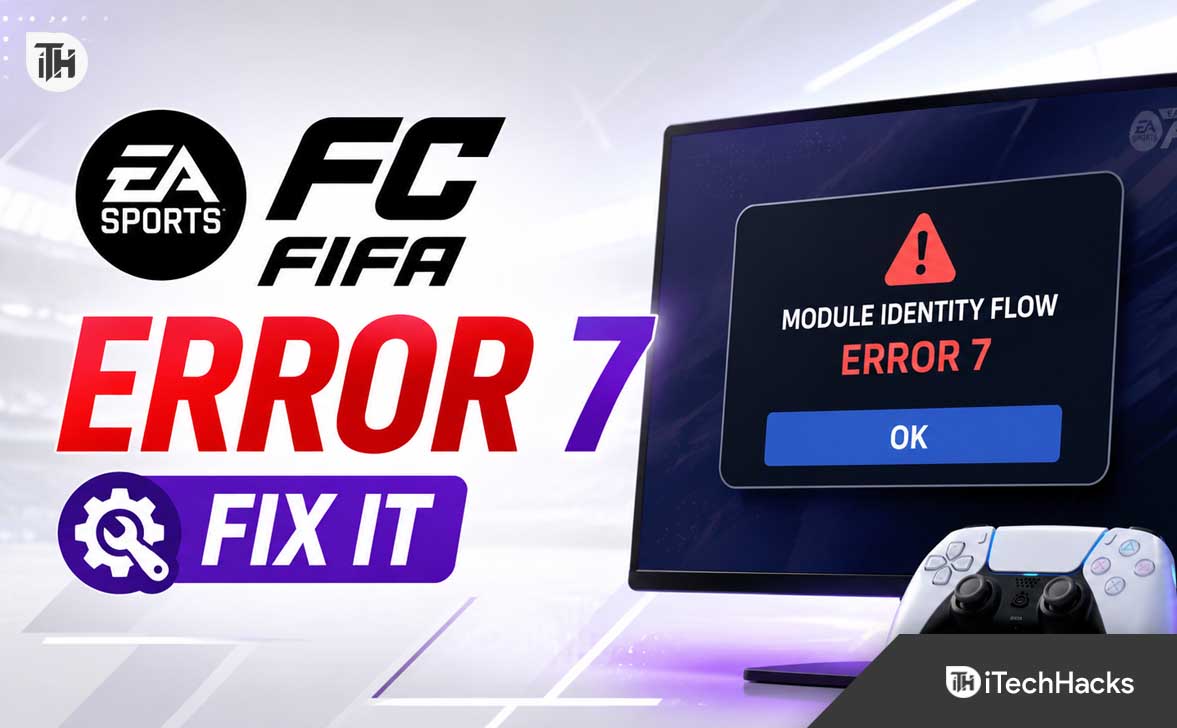
- Error 7 in FIFA or EA SPORTS FC happens when the game cannot complete the login process and confirm your identity due to server issues, expired sessions, or account linking problems; this error affects various platforms like PlayStation, Xbox, and PC.
- Common causes for Error 7 include EA server maintenance, expired sessions, browser cookies, incorrect account links, two-factor authentication issues, and network restrictions from VPNs or DNS settings.
- To fix Error 7, check EA server status, sign out fully and restart your device, clear browser cookies, try logging in through a different browser or in incognito mode, reset your EA password, verify account connections, and ensure your network settings are correct.
Seeing the “Module Identity Flow Error 7” message while trying to log in to FIFA or EA SPORTS FC can be frustrating, especially when you only want to access Ultimate Team, the Web App, Companion App, or online matches. The error usually appears during the account authentication stage, which means EA cannot properly confirm your sign-in session, linked platform account, verification details, or server connection.
This issue can affect players on PlayStation, Xbox, PC, Steam, the EA app, mobile devices, and the EA SPORTS FC Web App. In many cases, it is temporary and can be fixed without reinstalling the game or touching your Ultimate Team club.
What Is EA Sports FIFA Module Identity Flow Error 7?
EA Sports FIFA Module Identity Flow Error 7 is a login and account verification problem. It generally happens when the game, EA app, Web App, or Companion App cannot complete the sign-in process between your platform account and your EA Account.
In simple terms, EA needs to confirm that you are the correct player before letting you access online features. Your PlayStation Network, Xbox account, Steam account, EA Account, browser session, and two-factor authentication settings may all be involved in that process.
If one part of that sign-in chain fails, the game may show Error 7 and stop you from logging in.
This does not automatically mean that your account is banned, deleted, hacked, or permanently damaged. In most cases, it points to a temporary session issue, account-linking conflict, expired browser data, server trouble, or incomplete verification request.
Why Does FIFA Module Identity Flow Error 7 Happen?
There is no single cause behind Error 7. It can appear for different reasons depending on whether you are using a console, PC, mobile device, Web App, or Companion App.
1. EA Server Maintenance or Login Outage
EA login services can become unstable during scheduled maintenance, major Ultimate Team promotions, game updates, server outages, or high-traffic events. When EA authentication services are under pressure, players may be unable to complete the login process even if their internet connection is working normally.
This is common around new EA SPORTS FC content releases, major Ultimate Team events, Team of the Season periods, FUT Champions weekends, and updates that require players to sign in again.
2. Expired EA Account Session
Your EA Account login session can expire after a long period of inactivity, after changing your password, after an EA app update, or after signing in from another device. When an old session token remains saved in your browser or app, EA may reject it during the next login attempt.
This is one of the most common causes of Error 7 in the Web App and Companion App.
3. Corrupted Browser Cookies or App Cache
Cookies and cached files help websites and apps remember your account. However, old or corrupted EA login data can create a conflict when the system tries to verify your current session.
If the Web App keeps redirecting, gets stuck on a loading screen, or shows Error 7 immediately after entering your details, clearing browser data is often worth trying.
4. Incorrectly Linked PlayStation, Xbox, Steam, or EA Account
Many FIFA and EA SPORTS FC players have used more than one EA Account over the years. You may have created an old EA Account with a previous email address, used a different console account, or linked Steam to the wrong EA Account.
If the platform account you are using is connected to a different EA Account than expected, the identity check may fail.
5. Two-Factor Authentication Problems
EA may request a verification code when you log in from a new device, browser, location, or network. If the code expires, arrives late, is entered incorrectly, or is sent to an old email address or phone number, the login process may not complete.
This can result in a session or identity error instead of a clear verification message.
6. VPN, Proxy, DNS, or Network Restrictions
A VPN, proxy, restrictive firewall, unstable public Wi-Fi connection, or DNS issue can interrupt the connection between your device and EA’s login servers. This is especially possible when logging in through a browser, mobile network, hotel Wi-Fi, college network, or workplace connection.
Using a VPN may also trigger additional account-security checks if EA detects a sudden location change.
7. Multiple Simultaneous EA Logins
Logging into the EA SPORTS FC Web App, Companion App, console, EA app, and another browser at the same time can sometimes create session conflicts. This is more likely if you recently changed your password, switched consoles, or signed into a friend’s device.
Closing unused EA sessions and starting fresh can solve the issue.
How to Fix EA Sports FIFA Module Identity Flow Error 7
Try the following solutions in order. Start with the safer and quicker methods before changing account links or reinstalling the game.
1. Check EA Server Status First
Before changing anything on your account, check whether EA servers are currently working. If there is a login outage, game service interruption, or maintenance period, local troubleshooting may not solve the problem.
Open the official EA server status page and look for issues affecting:
- EA Account services
- EA app
- EA SPORTS FC
- Ultimate Team
- PlayStation Network or Xbox network services
If the servers are down, wait until the status returns to normal. Avoid repeatedly attempting to sign in every few seconds, because excessive login attempts can sometimes trigger additional account security checks.
2. Fully Sign Out and Restart Your Device
A complete sign-out can remove an expired or broken session. Do not simply close the game window. Make sure the game, EA app, Steam, browser, or Companion App is fully closed.
On console, close EA SPORTS FC from the dashboard and restart the console. On PC, close the EA app and Steam from the system tray as well. On mobile, force close the Companion App before reopening it.
Then restart your device and try signing in again.
This works because it clears temporary memory and forces the platform to create a fresh connection with EA’s account servers.
3. Sign In to Your EA Account in a Browser
Open a private or incognito browser window and sign in directly to your EA Account. Use the email address and password associated with your FIFA or EA SPORTS FC profile.
If you can sign in successfully in the browser, your account itself is likely active. You can then return to the game, Web App, or Companion App and try again.
If you cannot sign in, select the password recovery option and reset your password. A password reset often refreshes account security sessions and removes older sign-in tokens.
4. Clear Browser Cookies and Cache for EA Sites
This step is particularly helpful if you get Module Identity Flow Error 7 while using the EA SPORTS FC Web App.
In Google Chrome, Microsoft Edge, Firefox, or another browser, clear cookies and cached files related to EA. You can either clear all browsing data or remove data for EA-related websites only.
After clearing the data:
- Close the browser completely.
- Open a new browser window.
- Go back to the EA SPORTS FC Web App.
- Log in again using your correct EA Account.
For the best result, temporarily disable browser extensions such as ad blockers, script blockers, privacy extensions, VPN extensions, or cookie-blocking tools. Some extensions can interfere with login pop-ups and verification pages.
5. Try Incognito Mode or Another Browser
If clearing cookies does not work, try opening the EA SPORTS FC Web App in an incognito or private browsing window. This prevents old cookies, extensions, autofill data, and saved sessions from interfering with the login process.
You can also test a different browser. For example, if you are getting Error 7 in Chrome, try Microsoft Edge, Firefox, Safari, or a mobile browser.
If the login works in another browser, the problem is likely caused by browser cache, extension conflicts, blocked cookies, or saved EA session data in your usual browser.
6. Clear the EA App Cache on PC
PC players using the EA app should clear the app cache. EA provides an App Recovery option that can remove damaged temporary files without deleting your installed games.
To clear the EA app cache on Windows:
- Open the EA app.
- Select the menu icon in the top-left corner.
- Open Help.
- Select App Recovery.
- Choose Clear Cache.
On some Windows computers, you can also find EA App Recovery from the Start menu. After clearing the cache, restart your PC, open the EA app, sign in again, and launch FIFA or EA SPORTS FC.
This helps when the EA app has stored outdated account information or damaged login files.
7. Check Your EA Account Connections
Go to your EA Account settings and check the Connected Accounts or Connections section. Confirm that your PlayStation Network, Xbox, Steam, Epic Games, Nintendo, Apple, Google, or other linked account is the one you currently use.
Look carefully for signs that your current platform account is connected to an unfamiliar EA Account. This can happen if you created an EA Account years ago with an old email address or accidentally logged in with a different account during setup.
Do not unlink your console or Steam account immediately. Unlinking can affect access to game progress, purchases, rewards, Ultimate Team content, and Web App or Companion App access.
First, try to recover the original EA Account connected to your platform. EA may allow you to log in using your PlayStation, Xbox, Steam, Apple, Google, or Facebook account if it is already linked.
8. Reset Your EA Account Password
If Error 7 appears repeatedly after you have already cleared cache and checked server status, reset your EA Account password. This is useful when an old password session, security verification issue, or suspicious login detection is involved.
Use a strong new password that you have not used on another website. After resetting it, wait a few minutes, sign out of all EA services, then sign in again from one device first.
Start with the EA Account website, then try the EA app, game, Web App, or Companion App.
9. Verify Two-Factor Authentication Settings
EA’s two-factor authentication system can protect your account, but it can also block login attempts when the verification method is outdated. Check whether your EA Account still has access to the email address, phone number, or authenticator app used for verification.
For better reliability, an authenticator app is often more convenient than SMS verification. SMS codes can be delayed by mobile carriers, particularly when you are travelling or have poor network coverage.
Make sure to save EA backup codes in a secure place. Backup codes are important if you lose your phone, change your mobile number, or cannot receive a verification message.
10. Turn Off VPN or Proxy Services
Disable any VPN, proxy, private DNS app, or browser VPN extension before signing in. Then restart the game or browser and try again from your normal internet connection.
A VPN can make it appear as though you are logging in from a different country or region. That may trigger an account-security check or interrupt the normal identity verification flow.
If you need a VPN for another reason, sign in to your EA Account first with the VPN disabled. Once the account is working, you can test whether the VPN is safe to use with your game connection.
11. Restart Your Router and Try Another Network
If the error is related to network routing or DNS, restarting your router may help. Turn the router off, unplug it for around one minute, reconnect it, and wait for the internet connection to stabilize.
You can also test another connection, such as:
- A mobile hotspot
- A different Wi-Fi network
- Ethernet instead of Wi-Fi
- Mobile data instead of public Wi-Fi
If Error 7 disappears on another network, your home network, ISP routing, DNS configuration, firewall, or router settings may be contributing to the login failure.
12. Change Your DNS Settings
DNS issues can prevent your device from reaching EA services correctly. Switching to a reliable public DNS provider may help, especially if EA websites, login pages, or game services load slowly.
Common public DNS options include:
- Google DNS: 8.8.8.8 and 8.8.4.4
- Cloudflare DNS: 1.1.1.1 and 1.0.0.1
After changing DNS settings, restart your router or device. Then try signing in again.
DNS changes are not a guaranteed fix for Error 7, but they can help when the problem is caused by unreliable ISP DNS resolution.
13. Update FIFA, EA SPORTS FC, EA App, and System Software
Make sure the game, EA app, console firmware, Windows installation, mobile app, browser, and Steam client are updated. Older versions may not work properly after EA changes its login process or account security system.
On PlayStation and Xbox, check for game updates manually from the game tile. On PC, update the EA app and Steam, then restart both programs. On Android and iPhone, update the EA SPORTS FC Companion App from Google Play or the App Store.
Outdated apps can fail to communicate with newer EA authentication services.
14. Reinstall the EA SPORTS FC Companion App
If Error 7 only happens in the Companion App, reinstalling the app may be easier than troubleshooting every local setting manually.
Before reinstalling, make sure you know your EA Account email address, password, and two-factor authentication method. Then uninstall the app, restart your phone, install the latest version, and sign in again.
Your Ultimate Team progress is stored on EA servers, not only inside the Companion App, so reinstalling the app should not delete your club.
15. Contact EA Support if You Are Linked to the Wrong Account
Contact EA Support if you discover that your PlayStation, Xbox, or Steam account is connected to an old EA Account that you cannot access. This is especially important if you have in-game purchases, Ultimate Team progress, EA Play membership, or years of game history tied to the account.
When contacting support, prepare the following details:
- Your current EA ID
- Your old EA email address, if known
- Your PlayStation Online ID, Xbox Gamertag, or Steam account name
- Your country or region
- The exact Error 7 message
- The device and platform where the error occurs
- The approximate date when the issue started
Do not share your password, verification codes, full payment information, or account recovery codes with anyone claiming to offer unofficial EA support.
Should You Unlink Your EA Account to Fix Error 7?
Unlinking your PlayStation, Xbox, or Steam account should be treated as a last resort. It may sound like a quick fix, but it can create larger problems if you disconnect the wrong account.
Game progress, Ultimate Team content, purchases, DLC, rewards, subscriptions, and account entitlements can remain tied to the original EA Account. If you link your platform to another EA Account, you may lose access to content that was associated with the first account.
Before unlinking anything, try password recovery, browser sign-in, EA Account connection checks, two-factor authentication verification, and EA Support account recovery.
Only consider unlinking when you are completely certain that the platform account is connected to the wrong EA Account and you understand the possible consequences.
Common Problems That Look Similar to Module Identity Flow Error 7
EA SPORTS FC Web App Not Loading
If the Web App does not load or keeps redirecting to the login screen, the cause may be browser cookies, blocked third-party cookies, VPN use, ad blockers, or EA server traffic. Try incognito mode and another browser before assuming your account is broken.
EA Companion App Keeps Logging Out
Repeated Companion App logouts can happen after password changes, security updates, app updates, or when you are signed in on several devices. Sign out everywhere, clear the app cache if your device allows it, then sign in again on one device.
FIFA Works Offline but Not Online
If Kick Off and offline modes work but Ultimate Team or online seasons do not, the issue may be EA server availability, account authentication, PlayStation Plus, Xbox Game Pass Core, Nintendo Switch Online, router settings, or a platform network outage.
EA App Says Your Credentials Are Incorrect
Use the official EA password reset process rather than repeatedly guessing passwords. Too many incorrect attempts may trigger temporary security restrictions.
How to Prevent FIFA Module Identity Flow Error 7 in the Future
You cannot prevent every EA server-side issue, but you can reduce the chance of account login problems.
- Use one main EA Account for your FIFA or EA SPORTS FC profile.
- Keep your recovery email address and phone number updated.
- Enable two-factor authentication and save backup codes safely.
- Avoid linking random secondary EA Accounts to your main console profile.
- Do not share your EA login details with friends or account-selling services.
- Update the EA app, game, console firmware, browser, and Companion App regularly.
- Use a stable internet connection whenever possible.
- Avoid using VPN services during account login unless absolutely necessary.
- Check EA server status before troubleshooting for a long time.
Frequently Asked Questions
Is FIFA Module Identity Flow Error 7 a ban?
No. Error 7 is normally related to login verification, account sessions, linked accounts, cache, server availability, or network issues. It is not automatically a ban or suspension.
Will I lose my Ultimate Team club by clearing cache?
No. Clearing browser cache, EA app cache, or Companion App cache does not remove your Ultimate Team club. Your main game progress and Ultimate Team information are stored with your EA Account on EA servers.
Can I fix Error 7 by changing my EA password?
Yes, a password reset can help if the problem is caused by an expired session, account-security issue, incorrect credentials, or login conflict. It is a safe method to try after checking EA server status.
Why does Error 7 happen only in the Web App?
If the error only appears in the Web App, the likely cause is browser cookies, cached login data, blocked scripts, privacy extensions, VPN use, or a temporary EA Web App issue. Try incognito mode, another browser, and cleared cookies.
Should I unlink my PlayStation or Xbox account?
Not immediately. Unlinking can affect progress, rewards, purchases, and access to EA SPORTS FC services. Recover the original EA Account or contact EA Support before unlinking anything.
Does reinstalling FIFA fix Module Identity Flow Error 7?
Usually, no. Error 7 is mainly an account authentication issue rather than a damaged game installation issue. Try server checks, sign-out steps, cache clearing, password reset, and account verification before reinstalling the full game.
Final Thoughts
EA Sports FIFA Module Identity Flow Error 7 is usually a temporary account authentication problem rather than a serious issue with your FIFA or EA SPORTS FC account. The best approach is to start simple: check EA server status, restart your device, sign in to your EA Account through a browser, clear cache, and verify your linked accounts.
Do not rush into unlinking your PlayStation, Xbox, or Steam account, because this can create more serious problems with progress, rewards, and purchases. In most cases, a fresh login session, password reset, browser cleanup, or EA app cache clear is enough to get you back into the game.
ALSO READ:
- How to Watch the 2026 FIFA World Cup for Free: Legal Streaming Options
- Grindr Google Authorization Failed? How to Fix the “Please Try Again Later” Error
- KZL.io/Code Not Working? How to Fix Activation Code Errors
- How to Fix “Selected Model is at Capacity” Error Quickly
- How to Download And Install Connect App In Windows 11