- If your FreeStyle Libre 3 Plus sensor loses signal after an app update, it does not mean the sensor is broken. You can often fix the issue by adjusting Bluetooth settings, app permissions, or restarting your phone to restore the connection.
- The signal loss message appears when there's interrupted communication between the sensor and the app, which can happen if the phone is too far from the sensor, Bluetooth is disabled, or app permissions change after an update.
- To prevent future signal loss, keep the phone within Bluetooth range, avoid battery restrictions on the app, and ensure that app and operating system versions are compatible. If problems persist, contact Abbott support for further assistance.
Is your FreeStyle Libre 3 Plus sensor showing a “Signal Loss” message after updating the app? You might notice that glucose readings have stopped appearing, the connection keeps dropping, or the app no longer receives alerts even though your sensor is attached correctly.
This can be particularly frustrating when your sensor was working normally before the update. Fortunately, a signal loss message doesn’t necessarily mean the sensor has failed or needs replacing. In many cases, the connection can be restored by adjusting Bluetooth settings, checking app permissions, or restarting your phone.
In this guide, we’ll explain why FreeStyle Libre 3 Plus signal loss happens, how to reconnect your sensor on iPhone and Android, and what to do if the problem continues after trying the usual fixes.
Important: While your sensor is disconnected, you may not receive glucose readings or low and high glucose alarms. Use a blood glucose meter to check your glucose whenever readings are unavailable, symptoms don’t match the displayed values, or you need to make a treatment decision. Follow your healthcare professional’s diabetes management instructions.
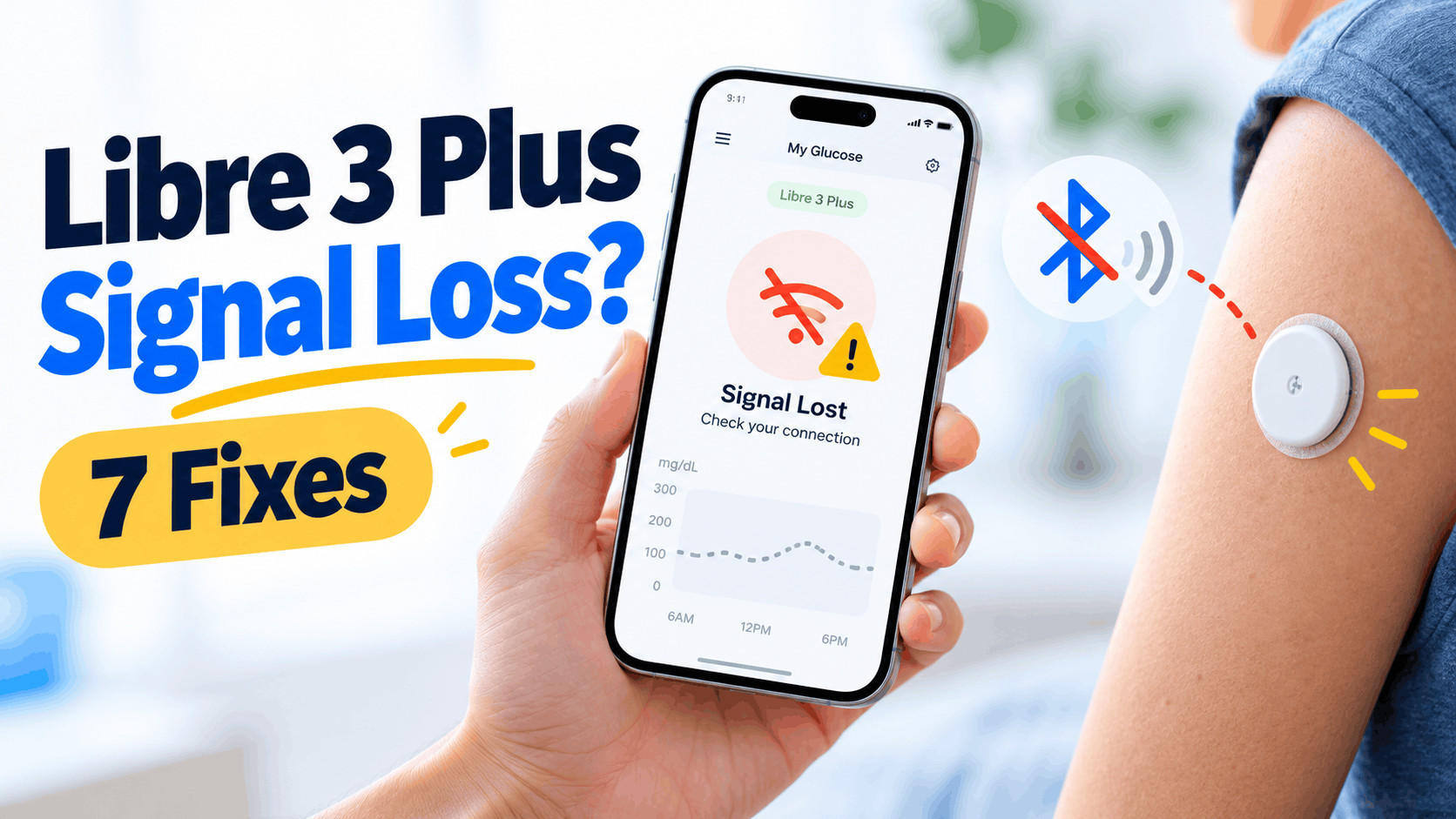
What Does Signal Loss Mean on FreeStyle Libre 3 Plus?
The FreeStyle Libre 3 Plus is a continuous glucose monitoring (CGM) sensor that measures glucose levels throughout the day and automatically sends readings to a compatible smartphone using Bluetooth technology.
Under normal conditions, you can view your glucose readings without manually scanning the sensor each time. However, when communication between the sensor and app is interrupted, the application displays a Signal Loss message.
According to Abbott, the app may display Signal Loss after approximately five minutes without communication. If communication remains interrupted for 20 minutes, the Signal Loss Alarm can be triggered when that alarm is enabled.
The FreeStyle Libre 3 Plus supports Bluetooth communication at distances of up to 33 feet (10 meters) when there are no obstructions. Real-world range may be shorter when walls, furniture, or other obstacles interfere with the connection.
Why Does Signal Loss Happen After an App Update?
An app update does not automatically mean there is a software defect. However, an update can coincide with changes in phone permissions, background activity, Bluetooth behavior, or operating system compatibility.
Some common reasons include:
- Bluetooth was temporarily disconnected or disabled.
- The app no longer has the required Bluetooth or Nearby Devices permission.
- Android battery optimization is restricting background activity.
- The app was force-closed after updating.
- The smartphone is too far away from the sensor.
- The updated app or phone operating system has a compatibility issue.
- The sensor has developed a communication problem or reached the end of its wear period.
If the problem started immediately after updating, begin with the following seven fixes before considering sensor replacement.
How to Fix FreeStyle Libre 3 Plus Signal Loss After an Update
1. Bring Your Phone Closer to the Sensor
The first and simplest solution is to check the distance between your smartphone and FreeStyle Libre 3 Plus sensor. Even if your phone is technically within the supported Bluetooth range, physical obstacles may weaken communication.
To restore the connection:
- Bring your smartphone within a few feet of your sensor.
- Keep your phone on the same side of your body as the sensor when possible.
- Move away from thick walls or other potential obstructions.
- Open the Libre app or FreeStyle Libre 3 app.
- Wait approximately two to four minutes for communication to resume.
Abbott recommends allowing a few minutes for reconnection after returning within range. The connection is usually restored automatically when the sensor and app can communicate again.
Tip: Avoid repeatedly moving your phone away from the sensor while testing. Keeping both devices close together makes it easier to determine whether Bluetooth range is causing the issue.
2. Turn Bluetooth Off and Back On
If the sensor is within range but the app still displays Signal Loss, try resetting your phone’s Bluetooth connection.
This is one of Abbott’s recommended troubleshooting methods and can resolve temporary communication problems without requiring you to remove or replace your sensor.
On iPhone:
- Open the Settings app.
- Tap Bluetooth.
- Turn Bluetooth off.
- Wait about 10 seconds.
- Turn Bluetooth back on.
- Open your Libre app and check for readings.
On Android:
- Open Settings.
- Select Connected Devices, Connections, or Bluetooth, depending on your phone.
- Switch Bluetooth off.
- Wait a few seconds and turn it back on.
- Return to the Libre app.
Give the app several minutes to reestablish communication. There is normally no need to manually pair the FreeStyle Libre 3 Plus sensor through the phone’s standard Bluetooth device list.
Important: Do not select random Bluetooth devices or attempt to forget an unidentified device while troubleshooting. The sensor connection is managed through the compatible Libre application.
3. Check Bluetooth and Notification Permissions
App permissions are particularly important after software or operating system updates. If Bluetooth access is disabled, the application may be unable to communicate with your sensor even when Bluetooth itself is turned on.
The required permissions differ slightly between iPhone and Android.
For iPhone users:
- Open Settings.
- Find your Libre app in the app settings.
- Make sure Bluetooth access is enabled.
- Open Notifications for the app.
- Enable Allow Notifications.
- Keep Critical Alerts enabled where supported.
For Android users:
- Open Settings and select Apps.
- Find Libre or FreeStyle Libre 3.
- Tap Permissions.
- Allow Nearby Devices access if the option appears.
- Enable notifications for the application.
- Return to the app and review any permission warnings.
Abbott specifically identifies Nearby Devices permission as necessary for maintaining Bluetooth connectivity on supported Android versions. Notifications and alarm permissions are also important because your phone may otherwise fail to alert you about glucose changes.
After adjusting the permissions, open the app and verify whether the current glucose reading returns.
4. Disable Battery Restrictions for the Libre App
Modern Android smartphones use aggressive battery-saving systems that can limit applications running in the background. This can interfere with continuous glucose monitoring if the operating system restricts the Libre app.
To check the battery settings on Android:
- Open Settings.
- Go to Apps and select the Libre app.
- Tap Battery or App Battery Usage.
- Select Unrestricted, Allow Background Usage, or the equivalent option available on your phone.
- Disable any setting that automatically puts the app to sleep.
- Open the app and check the sensor connection.
On Samsung Galaxy phones, also check Settings, Battery, and Background Usage Limits. Make sure the Libre app is not listed under Sleeping Apps or Deep Sleeping Apps.
If your phone offers a Never Auto Sleeping Apps list, you can add the Libre app there.
For iPhone users, avoid force-closing the app from the app switcher. Also review any Low Power Mode or app restrictions that could affect background operation, and follow the app’s setup instructions.
These adjustments matter because continuous glucose monitoring requires the app to remain available for incoming sensor readings, even when you are using other applications or your phone is locked.
5. Restart Your Smartphone
If Bluetooth and permission settings look correct, restart your phone. This can resolve temporary operating system problems that prevent the app from maintaining its connection.
On iPhone:
- Press and hold the side button and a volume button on supported Face ID models.
- Drag the power-off slider.
- Wait until the phone shuts down.
- Turn the phone back on.
- Unlock it and open the Libre app.
On Android:
- Open the power menu using your phone’s supported button combination.
- Select Restart.
- Wait for the device to reboot.
- Unlock your phone and open the Libre app.
- Check whether sensor readings resume.
Restarting refreshes the phone’s Bluetooth services and application processes. Abbott also recommends rebooting your smartphone when toggling Bluetooth fails to restore the connection.
Once the phone restarts, keep it near the sensor and allow several minutes for reconnection.
6. Check App Updates and Phone Compatibility
If Signal Loss began after an update and none of the previous fixes worked, the next step is to verify that your application and operating system are officially supported.
Abbott maintains a compatibility guide listing smartphones and operating systems tested with its Libre applications. Compatibility should not be assumed simply because the app installs successfully.
Follow these steps:
- Open the Apple App Store or Google Play Store.
- Find the official Libre app you are currently using.
- Check whether another app update is available.
- Review the app’s recent update information.
- Visit Abbott’s official mobile device and operating system compatibility guide.
- Confirm that your phone model and installed operating system are supported.
In the United States, Abbott also offers the newer Libre app, which supports FreeStyle Libre 3 Plus sensors. The older FreeStyle Libre 3 app remains a separate application.
Important: If you are using the older FreeStyle Libre 3 app, do not switch apps in the middle of an active sensor session simply to troubleshoot Signal Loss. Abbott recommends transitioning to the newer Libre app when starting your next sensor.
Also avoid installing an older APK from an unofficial website. Using an unverified version of a medical application could introduce security, compatibility, or reliability problems.
If your phone’s operating system has recently changed, verify compatibility before making further updates.
7. Check Sensor Status and Contact Abbott Support
If your phone is compatible, permissions are correct, and Bluetooth still cannot establish a connection, the problem may involve the sensor itself.
The FreeStyle Libre 3 Plus sensor is designed for up to 15 days of wear. Communication problems can also occur if the sensor develops a fault before reaching its scheduled expiration.
Check the following:
- Make sure the sensor is still securely attached to your arm.
- Check whether its wear period has ended.
- Look for messages such as Sensor Error, Sensor Ended, or Replace Sensor.
- Open the information icon in the app for additional troubleshooting instructions.
- Note the sensor’s serial number and any error messages before contacting support.
Do not remove a securely attached sensor solely because of a brief Bluetooth disconnection.
If the Signal Loss message continues after completing the recommended troubleshooting steps, contact Abbott’s customer support team. In the United States, FreeStyle Libre Customer Care can be reached at 1-855-632-8658.
Support is generally available seven days a week, from 8 AM to 8 PM Eastern Time, excluding holidays. Abbott also offers an online sensor support request process for eligible sensor problems.
What to Do If FreeStyle Libre 3 Plus Still Won’t Reconnect
When all seven fixes fail, avoid repeatedly resetting the app, deleting application data, or starting a replacement sensor without understanding the consequences.
Uninstalling the app can affect locally stored information and may require restoring access through your existing LibreView account. Although supported recovery procedures may allow an active sensor to continue, reinstalling should not be your first troubleshooting step.
If the app becomes completely unusable, contact Abbott for guidance about reinstalling or transferring your sensor session.
Meanwhile, continue checking glucose with your backup blood glucose meter according to your care plan. If you use the sensor with an automated insulin delivery system, follow the specific pump manufacturer’s instructions for CGM disconnection and insulin delivery.
Safety reminder: If you have symptoms of severe hypoglycemia, confusion, a seizure, or loss of consciousness, follow your emergency treatment plan and obtain urgent medical assistance. Do not wait for Bluetooth reconnection.
Tips to Prevent FreeStyle Libre 3 Plus Signal Loss
Once your sensor reconnects, a few simple precautions can help reduce future interruptions.
- Keep Bluetooth enabled: Avoid turning Bluetooth off when you are actively using your sensor.
- Keep the app running: Do not routinely swipe the Libre app away from your recent applications.
- Check compatibility before updating: Confirm support for new iOS and Android versions before installing major operating system updates.
- Avoid battery restrictions: Allow the app to operate in the background, particularly on Android devices.
- Keep your phone nearby: Stay within the recommended Bluetooth range and avoid unnecessary obstacles.
- Check alarm settings: Make sure important glucose alarms are enabled and can produce audible alerts according to your needs.
These precautions cannot prevent every sensor malfunction, but they can reduce avoidable connection interruptions.
Frequently Asked Questions
Will FreeStyle Libre 3 Plus reconnect automatically after Signal Loss?
Yes, the sensor can reconnect automatically when Bluetooth communication is restored. Abbott recommends waiting approximately two to four minutes after returning within range. If readings do not resume, try toggling Bluetooth or restarting your smartphone.
Does Signal Loss mean my Libre 3 Plus sensor is broken?
No. Signal Loss only indicates that communication between the sensor and reading device has been interrupted. It can happen because of distance, Bluetooth settings, background restrictions, or a temporary software issue. Persistent disconnection may require further sensor troubleshooting.
Why does Libre 3 Plus keep losing its signal at night?
Nighttime disconnections can occur when your phone is too far from the sensor, Bluetooth communication is obstructed, or your phone restricts background applications. Keep the phone close enough to maintain communication and check that required app permissions remain enabled.
Can I scan my Libre 3 Plus sensor to fix Signal Loss?
The FreeStyle Libre 3 Plus normally sends glucose readings automatically over Bluetooth after activation. Unlike some older Libre systems, manually scanning an already active sensor is not the standard method for restoring routine glucose readings. Follow the instructions displayed in your particular app.
Should I reinstall the FreeStyle Libre app after an update?
Reinstallation should be a last resort rather than your first fix. Try Bluetooth, permissions, background settings, and a phone restart first. If you need to reinstall, consult Abbott’s guidance for your app and region because local history and active sensor recovery may be affected.
How long does the FreeStyle Libre 3 Plus sensor last?
The FreeStyle Libre 3 Plus sensor supports up to 15 days of wear. Once the sensor reaches the end of its operating period, it must be replaced. A temporary Signal Loss message before expiration does not necessarily mean a new sensor is required.
Final Thoughts
If your FreeStyle Libre 3 Plus shows Signal Loss after an app update, start by bringing your smartphone closer to the sensor and resetting Bluetooth. Then check application permissions, background activity settings, and device compatibility before attempting more disruptive troubleshooting.
Most importantly, remember that a disconnected CGM cannot provide dependable real-time glucose alerts. Keep a backup blood glucose meter available, and contact Abbott if your sensor remains disconnected after completing the recommended steps.
With the correct phone settings and a stable Bluetooth connection, your FreeStyle Libre 3 Plus should be able to resume automatic glucose monitoring without unnecessarily replacing a working sensor.