- Netflix changed "My List" to "My Netflix," causing frustration because it now shows titles in a horizontal row instead of a grid, making it hard to browse for users with many saved shows.
- "My Netflix" combines features like "Continue Watching" and saved titles, but the horizontal scrolling layout is difficult for users who prefer the previous grid view, leading some to consider canceling.
- You can still find and manage your saved shows by navigating differently through web, mobile, or smart TV apps, and while some third-party extensions can restore the old layout on desktops, they are unofficial and might pose security risks.
Netflix has changed how users access their saved movies and TV shows, and the reaction has been far from positive. Many subscribers who previously enjoyed browsing their entire watchlist are now finding that the familiar “My List” page has been replaced by a section called “My Netflix.”
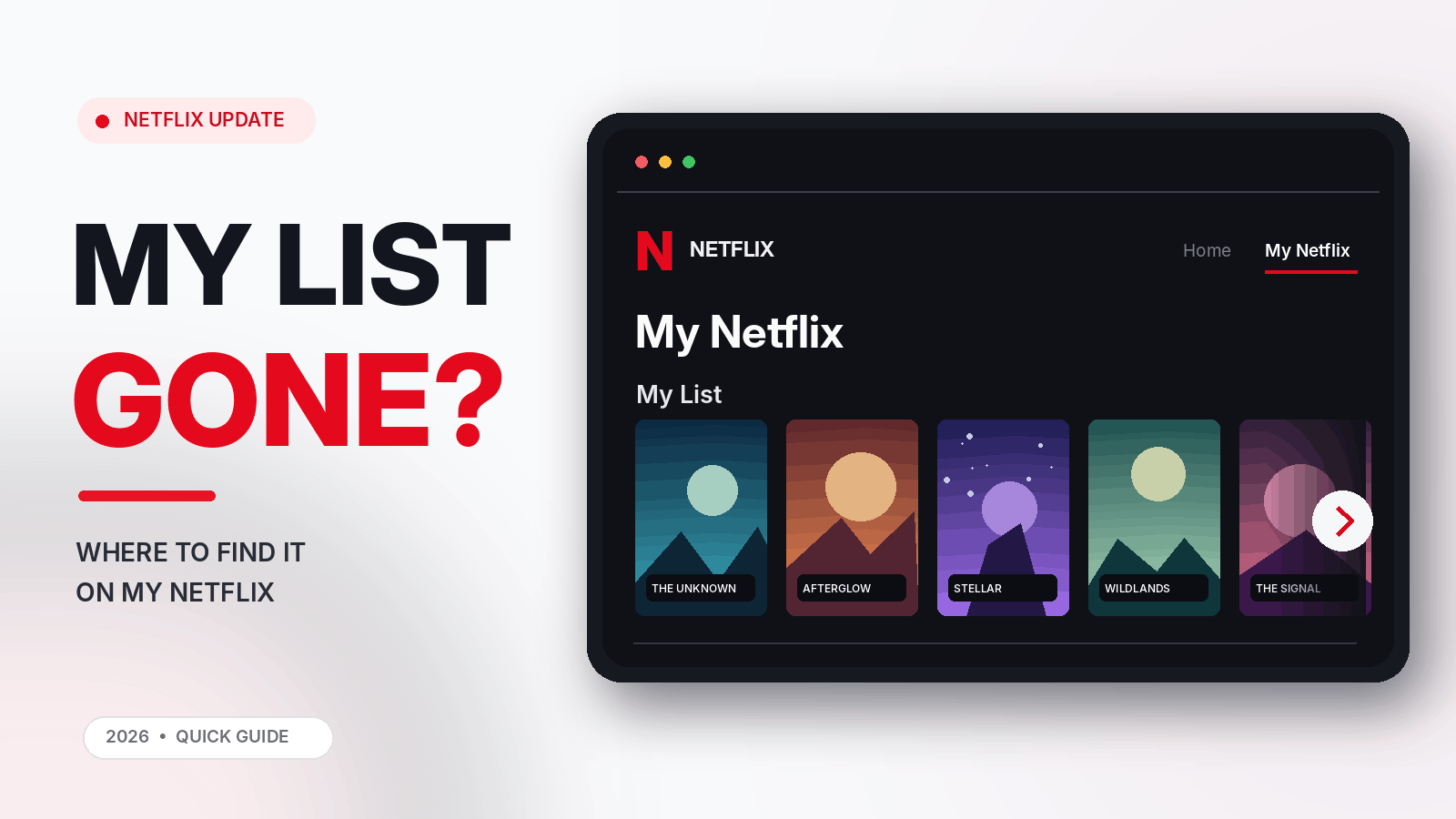
The biggest complaint isn’t simply the name change. Instead of displaying saved titles in an easy-to-browse grid, the redesigned interface on many devices presents My List as a horizontal row. That means users with dozens or hundreds of saved movies must scroll sideways to find something they want to watch.
The frustration became particularly noticeable in September and October 2026, when Netflix’s redesigned website reached more desktop users. Some subscribers have even questioned whether the inconvenience is worth keeping their subscriptions.
Fortunately, Netflix hasn’t deleted your watchlist. Your saved movies and shows are still there, although accessing and managing them now requires a different approach.
This guide explains what changed, where to find My List on Netflix in 2026, how to organize your saved titles, and what you can do if you prefer the older layout.
What Happened to Netflix’s My List?
Netflix originally introduced My List as a convenient way to save movies and television shows for later. Users could add titles while browsing and return whenever they wanted something to watch.
For years, the desktop website offered a dedicated My List page that displayed multiple titles in a grid. This made it relatively easy to browse a large collection without navigating through individual rows.
Netflix began introducing a redesigned television interface in May 2025. The update moved important navigation options to the top of the screen and introduced My Netflix as a personalized destination for saved content and viewing activity.
A similar change became more noticeable on the Netflix website around September 2026. For affected users, the previous My List navigation option was replaced by My Netflix, with saved titles displayed inside a horizontally scrolling row.
What Is My Netflix?
My Netflix is a personalized section that combines several features previously accessible through different parts of Netflix. Depending on your device, it can include:
- My List, containing movies and shows saved for later.
- Continue Watching, showing titles you haven’t finished.
- Previously watched or liked content.
- Reminders for upcoming releases.
- Other personalized viewing activity and recommendations.
Netflix designed this section to make personal content easier to discover. However, combining these features also means My List may no longer have the dedicated space that frequent users preferred.
Important: My Netflix has not replaced the underlying My List feature. It has changed where and how that feature appears.
Why Are Netflix Users Upset About the New My List Layout?
The redesigned interface has generated considerable criticism on Reddit and other online communities. A September 16, 2026 discussion in the Netflix subreddit attracted complaints from users who suddenly couldn’t access their previous full-page watchlist.
Another widely discussed Reddit post in October criticized the decision to reduce My List to a sideways-scrolling ribbon.
Several problems explain why subscribers dislike the change.
1. Horizontal Scrolling Makes Long Lists Difficult to Browse
Previously, users could see several rows of saved movies simultaneously. Now, on affected desktop and television interfaces, only a handful of titles may appear in the My List row.
Someone with 100 saved movies could spend considerable time clicking navigation arrows just to reach a title near the end of their collection.
2. The Full-Page Grid View Is Missing
Many subscribers preferred the older grid because it offered a better overview of their watchlist. Comparing several titles or choosing something based on cover artwork was easier when more movies were visible simultaneously.
The new layout sacrifices that overview in favor of Netflix’s broader personalized homepage design.
3. Unwanted Content Takes Up Space
Some users complain that My Netflix displays recommendations, previously watched titles, or trailers alongside their saved collection. These additional sections can feel distracting when someone simply wants to find a movie they intentionally saved.
4. Sorting Options Remain Limited
Netflix has never offered especially advanced watchlist management on every device. The new desktop layout makes that limitation more noticeable because users cannot easily switch between comprehensive grid and sorting views.
Fortunately, the mobile app still provides useful sorting and filtering features.
How to Find My List on Netflix in 2026
The steps depend on whether you’re watching Netflix through a web browser, smartphone, smart TV, or streaming device.
Method 1: Find My List on the Netflix Website
If you use Netflix on Windows, Mac, or another computer, follow these steps:
- Step 1: Open Netflix.com in your preferred browser and sign in.
- Step 2: Select the Netflix profile containing your saved titles.
- Step 3: Find My Netflix in the navigation menu. If your account still shows My List, select that instead.
- Step 4: Open My Netflix and locate the row labeled My List.
- Step 5: Use the left and right arrows to browse your saved movies and television shows.
Your saved content should appear inside that row. If you have a particularly large list, browsing might take longer than it did with the previous grid layout.
You can also try opening Netflix.com/browse/my-list directly. However, this older address is not a reliable way to restore the previous interface because Netflix may redirect it or display the current layout.
Method 2: Find My List on Android and iPhone
The Netflix mobile app offers a more convenient way to manage saved titles, particularly if you need sorting and filtering options.
- Step 1: Open the Netflix app on your Android phone or iPhone.
- Step 2: Select My Netflix from the bottom-right navigation area.
- Step 3: Tap My List.
- Step 4: Choose TV Shows & Movies to access your saved entertainment.
- Step 5: Browse the list or use the available sorting and filtering controls.
Depending on the app version, additional navigation elements may appear, but Netflix’s official instructions still identify My Netflix as the destination for accessing My List on mobile.
Method 3: Find My List on Smart TVs and Streaming Devices
The process is slightly different on televisions because Netflix uses remote-controlled navigation.
- Step 1: Launch Netflix on your smart TV, Apple TV, Fire TV, Roku, or another supported streaming device.
- Step 2: Press the Back button on your remote to return to the main navigation menu.
- Step 3: If your Netflix interface has a top navigation bar, select My Netflix.
- Step 4: Scroll until you find the My List row.
- Step 5: Navigate horizontally to browse your saved titles.
Some devices still display the older left-side navigation menu. If that’s the case, look for My List directly rather than My Netflix.
How to Add or Remove Movies From Netflix My List
Despite the interface changes, the basic process for saving and removing titles remains largely the same.
Adding a Movie or TV Show
- Open Netflix and search for the movie or series you want to save.
- Select the title to open its information page.
- Find the Add to My List button, usually represented by a plus icon.
- Select it to save the title to your profile’s watchlist.
Once added, the title becomes part of your My List collection and should be accessible through supported devices using the same Netflix profile.
Removing a Movie or TV Show
Removing titles you no longer want to watch is one of the easiest ways to make a large collection more manageable.
- Open My Netflix and locate My List.
- Select a movie or TV show you want to remove.
- Open its information page if necessary.
- Select Remove from My List or the checked My List icon.
- Repeat for other unwanted titles.
On the Netflix mobile app, you can also open My Netflix, select My List, tap Edit, and use the delete controls beside individual titles.
Changes should sync across devices because My List is associated with your Netflix profile.
How to Sort and Organize Netflix My List
If you’re frustrated by the new desktop interface, the Netflix mobile app offers some helpful alternatives.
Use the Mobile Sorting Options
Netflix officially supports several sorting choices for movies and TV shows saved in My List on Android and iOS.
Depending on your app version, you can organize titles using:
- Suggested or Top Matches: Displays titles based on Netflix’s relevance ranking.
- Date Added to List: Helps locate recently saved movies and shows.
- A to Z: Arranges titles alphabetically.
- Release Date: Organizes content according to when it was released.
You can also filter saved content by Movies, TV Shows, Haven’t Started, and Started.
These options make the mobile app especially useful when you have accumulated a large watchlist. However, the same sorting controls may not be available on desktop browsers or TV apps.
Keep Your Watchlist Smaller
Netflix allows up to 2,000 movies and TV shows in My List per profile, but filling your collection with hundreds of titles can make navigation frustrating.
A practical approach is to periodically remove movies you’ve already watched, lost interest in, or no longer intend to finish.
Keeping a shorter collection makes the horizontal layout easier to use, even if it doesn’t solve the underlying design problem.
Can You Get the Old Netflix My List Layout Back?
As of October 2026, Netflix does not provide a standard setting to switch affected accounts back to the original desktop My List grid.
Changing your profile settings, restarting Netflix, or reinstalling the application won’t normally restore an interface that Netflix has intentionally redesigned.
However, desktop users have an optional workaround through third-party browser extensions.
Using a Browser Extension to Restore Grid View
One example is Watch Later Tidy for Netflix, also known as TidyWL. Its developer introduced functionality in October 2026 that aims to recreate the older My List grid on the Netflix website.
According to the developer, the extension adds a My List navigation option and displays saved titles together instead of requiring users to browse a single horizontal row.
If you decide to try a third-party extension:
- Install it only from a trusted browser extension marketplace.
- Review its requested permissions before installation.
- Check recent user reviews and update history.
- Avoid extensions requesting your Netflix password directly.
- Remove the extension if Netflix behaves unexpectedly.
Remember that this is an unofficial workaround, not a Netflix-supported feature. Browser extensions can access information on websites where they have permission to run, so privacy and security deserve consideration.
Extensions designed for desktop Chrome also won’t restore the old interface on smart TVs or inside the Netflix mobile app.
Netflix My List Missing or Not Showing? Try These Fixes
If you cannot find your saved titles anywhere, the problem might be different from Netflix’s redesigned navigation.
1. Check Your Netflix Profile
Each Netflix profile maintains its own My List. If you accidentally switch to another household member’s profile, your saved titles won’t appear there.
Return to the profile selection screen and choose the profile you normally use.
2. Search for a Previously Saved Title
If a particular movie isn’t visible in the horizontal row, search for its name directly through Netflix.
Open the title and inspect its My List status. If it remains saved, the problem may simply be difficulty locating it within the redesigned interface.
3. Check Whether the Title Is Still Available
Netflix regularly adds and removes licensed content. When a movie or television show leaves the service, it may also disappear from your saved collection.
Regional availability matters too. A title accessible in one country may not appear when you’re traveling somewhere with a different Netflix catalog.
4. Update the Netflix App
If the My Netflix section is blank, fails to load, or behaves incorrectly, install any available app updates.
Updates can resolve compatibility issues and application bugs. However, they won’t necessarily restore the previous My List design.
5. Restart Netflix and Check Your Connection
Close and reopen Netflix, then verify that other titles load normally. Temporary loading problems or an unstable connection can prevent some interface sections from appearing.
If the problem continues across devices, contact Netflix Support and explain whether your list is genuinely empty or simply difficult to access.
Additional Tips for Managing a Large Netflix Watchlist
A few practical habits can reduce the inconvenience of the redesigned interface.
- Use search for specific titles: Searching by name is often faster than scrolling through a long row.
- Organize from your phone: Mobile sorting and filtering provide more control than the current desktop layout.
- Check availability regularly: Prioritize movies that Netflix indicates are leaving soon.
- Remove finished titles: Keep your watchlist focused on content you genuinely intend to watch.
- Submit feedback: Contact Netflix through its Help Center if you want the dedicated grid view restored.
If you send feedback, describe the exact problem rather than simply saying the new design is bad. For example, explain that a horizontal row makes a collection of 150 saved titles significantly harder to browse than the previous grid.
Frequently Asked Questions
Did Netflix remove My List in 2026?
No. Netflix has retained My List, but it now appears within My Netflix on many updated interfaces. Your previously saved movies and shows should remain associated with your profile unless they have been removed or are unavailable.
Why is Netflix My List showing only one row?
The redesigned Netflix interface presents saved titles in a horizontal row on affected desktop and television devices. This is an intentional layout change rather than necessarily an app malfunction.
Can I change My Netflix back to My List?
Netflix currently doesn’t offer an official option to restore the previous desktop grid on updated accounts. Some third-party browser extensions attempt to recreate it, but they are not supported by Netflix.
Can I sort My List alphabetically?
Yes, the Netflix app on Android and iOS supports alphabetical sorting for saved movies and TV shows. However, the same option may not be available through the redesigned desktop website or television interface.
Will updating Netflix bring back the old My List?
Usually not. App updates may fix technical problems, but Netflix’s new My Netflix navigation is an intentional design decision. Installing an update should not be treated as a way to reverse it.
How many titles can I save to Netflix My List?
Netflix allows up to 2,000 television shows and movies in My List on a single profile. However, maintaining a much smaller watchlist may make browsing considerably easier.
Is My Netflix the same as Continue Watching?
No. Continue Watching is one section of My Netflix that displays content you’ve started watching. My List contains titles you’ve intentionally saved, including movies and series you haven’t started yet.
Final Thoughts
Netflix’s decision to combine My List with My Netflix has made saved content more difficult to browse for some subscribers, especially those who maintain large watchlists. The loss of a dedicated desktop grid and the introduction of horizontal scrolling explain much of the criticism surrounding the redesign.
The good news is that your watchlist hasn’t been eliminated. You can still access saved movies and shows through My Netflix, add or remove titles, and use the mobile app’s sorting and filtering options to organize your collection.
For now, using the Netflix mobile app for watchlist management is one of the simplest official alternatives. Desktop browser extensions may provide additional flexibility, although they come with their own limitations and security considerations.
Whether Netflix eventually restores the old My List view remains uncertain. Until then, understanding the new navigation and keeping your saved collection organized can make choosing your next movie considerably less frustrating.