- Windows 10 no longer gets regular support, but with Extended Security Updates (ESU), critical security fixes are still available until October 12, 2027. This is important for those who want to keep their computers safe while continuing to use Windows 10.
- Problems with ESU enrollment or updates not downloading can happen due to outdated versions, missing updates, or incorrect account settings. Ensuring Windows 10 version 22H2 is installed, checking for updates, and having an administrator Microsoft account are crucial for resolving these issues.
- To fix enrollment or update issues, follow steps like checking your Windows version, installing all pending updates, using the latest ESU licensing package, and making sure your computer is not managed by a commercial entity
Windows 10 officially reached the end of regular support on October 14, 2025, but Microsoft’s Extended Security Updates program allows eligible PCs to continue receiving critical and important security fixes. If you plan to keep using Windows 10, enrolling in ESU is now one of the most important steps you can take to keep the system reasonably protected.
The problem is that some users cannot see the Enroll now option under Windows Update, while others successfully enrolled but Windows 10 ESU security updates are not downloading or installing. These issues are usually caused by an outdated Windows build, missing ESU licensing components, account eligibility problems, corrupted Windows Update files, or a device that is being treated as commercially managed.
This guide explains how to fix Windows 10 ESU enrollment not showing and how to troubleshoot ESU security updates that refuse to download or install.
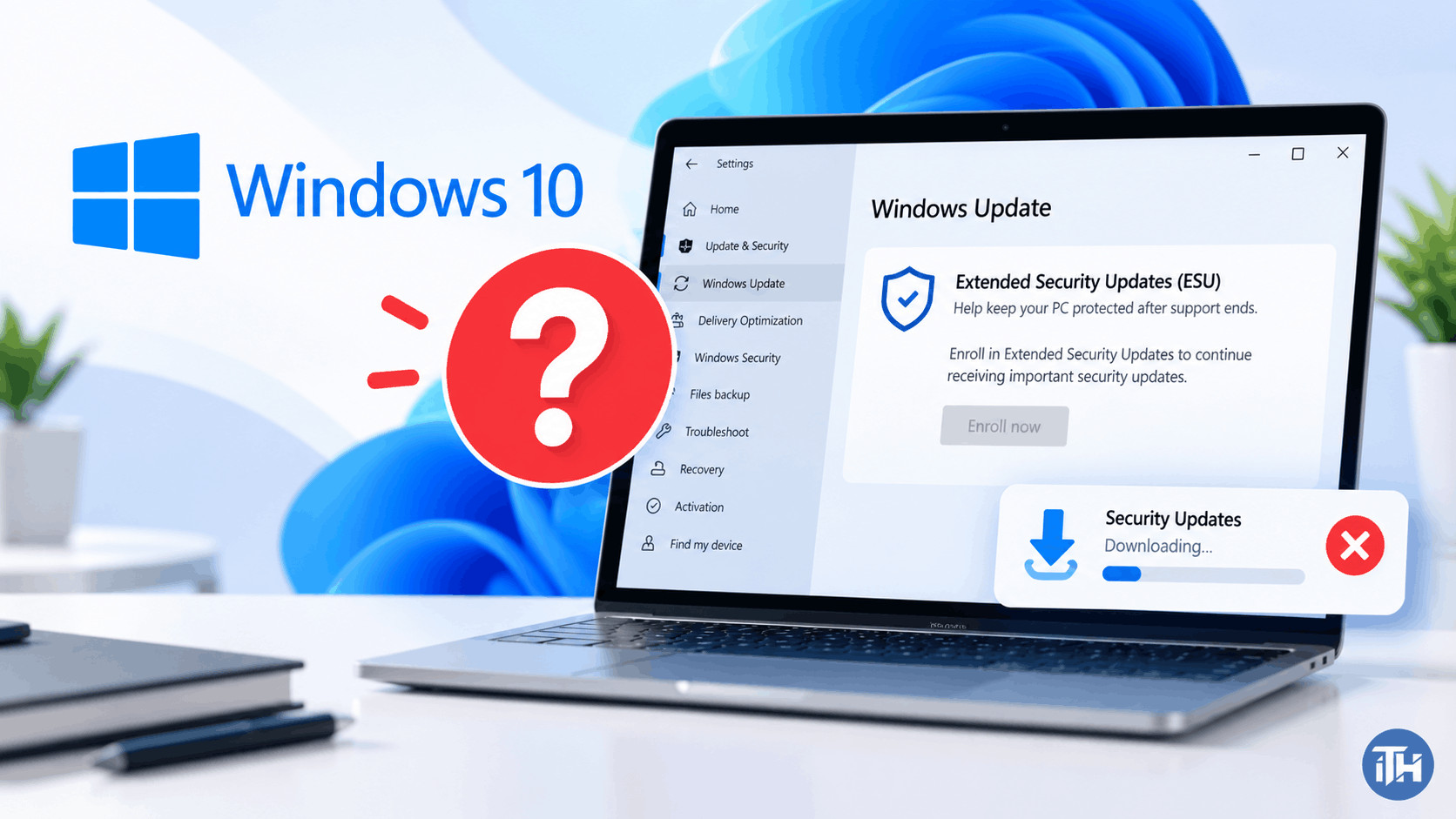
What Is Windows 10 ESU?
Windows 10 Extended Security Updates, commonly called ESU, is Microsoft’s program for PCs that continue running Windows 10 after normal support ended. ESU mainly provides critical and important security updates. It does not turn Windows 10 back into a fully supported operating system with regular feature updates and general technical support.
For consumer PCs, Microsoft currently allows ESU enrollment through October 12, 2027. If a compatible PC is already enrolled, Microsoft says coverage automatically continues through that date.
For most home users, the computer must meet these basic Windows 10 ESU requirements:
- Windows 10 version 22H2 must be installed.
- The PC should run Home, Professional, Pro Education, or Workstations edition.
- The latest available Windows updates must be installed.
- A Microsoft account with administrator privileges must be used for enrollment.
- The Microsoft account cannot be configured as a child account.
- The PC must not be operating as an Active Directory, Microsoft Entra joined, MDM-managed, or kiosk device for consumer ESU enrollment.
Microsoft currently offers consumer enrollment by syncing PC settings at no additional cost, redeeming 1,000 Microsoft Rewards points, or making the available one-time ESU purchase. One ESU entitlement can also be associated with several eligible PCs using the same Microsoft account.
1. Confirm That You Are Running Windows 10 Version 22H2
The first thing to check when Windows 10 ESU enrollment is not showing is your Windows version. Older Windows 10 releases do not qualify for the normal consumer ESU enrollment process.
Press Windows + R, type winver, and press Enter. The About Windows window should show Version 22H2. Windows 10 22H2 normally uses OS build 19045.
If you see an older feature version, install all available Windows updates before attempting ESU enrollment again. Restart the computer after the upgrade, even if Windows does not immediately require another restart.
2. Install All Pending Windows Updates
ESU enrollment depends heavily on Windows Update components. A PC that appears to be running Windows 10 22H2 can still be missing servicing, licensing, or cumulative updates required for ESU.
Go to Settings > Update & Security > Windows Update and select Check for updates. Install everything important that is available and restart the PC.
After restarting, return to Windows Update and check again. It is worth repeating the process until Windows reports that the system is fully updated because some prerequisite packages only appear after an earlier update has been installed.
3. Install the Latest Windows 10 ESU Licensing Preparation Package
This is particularly important in 2026. Microsoft has released dedicated ESU Licensing Preparation Packages that update the licensing and enrollment components used by Windows 10.
As of September 2026, Microsoft lists KB5126256 as the current Windows 10 ESU Licensing Preparation Package. It supersedes earlier licensing preparation packages, including KB5072653.
The package requires Windows 10 22H2 with a security update released on or after October 14, 2025 already installed. After the preparation package installs, the computer may restart automatically.
Check Settings > Update & Security > Windows Update > View update history and look for the Extended Security Updates Licensing Preparation Package.
If Windows Update refuses to offer the package, it can also be obtained through Microsoft Update Catalog. Make sure you download the package matching your system architecture, such as x64 for most Windows 10 PCs.
Installing the licensing package itself does not enroll the computer. It prepares Windows for enrollment. You must still complete the ESU enrollment wizard afterward.
4. Sign In With an Administrator Microsoft Account
A common reason the Windows 10 ESU Enroll now option is missing is the account being used. Consumer ESU enrollment requires a Microsoft account associated with an administrator user.
Go to Settings > Accounts > Your info. If Windows says you are using a local account, select the option to sign in with a Microsoft account instead.
Next, verify that the account has administrator privileges. Open Settings > Accounts > Family & other users and confirm the account type.
After changing accounts, restart Windows and return to Windows Update. Account changes sometimes do not immediately refresh the ESU eligibility information until Windows starts a new session.
5. Open the ESU Enrollment Page Again
Once the prerequisites are installed, open:
Settings > Update & Security > Windows Update
An eligible PC should display an ESU enrollment link or Enroll now option. Select it and follow the enrollment wizard.
If you already sync Windows settings with your Microsoft account, the no-additional-cost enrollment option may be available. Otherwise, the enrollment screen can offer the currently available alternatives, such as Microsoft Rewards or the one-time purchase option.
Once enrollment completes, return to Windows Update and select Check for updates.
6. Check Whether the PC Is Managed by Work or School
The consumer ESU enrollment option will not normally appear if Microsoft considers the computer a commercially managed device. This can happen even on a personally owned Windows 10 Pro computer if it was previously connected to an organization.
Open Settings > Accounts > Access work or school. Look for old company, school, Active Directory, Microsoft Entra, or device-management connections.
Do not disconnect an organization account from an actively managed work computer. Your administrator should deploy commercial ESU instead.
For a personal computer that was previously managed but no longer belongs to the organization, removing obsolete management connections may allow consumer ESU eligibility to be detected correctly after a restart.
7. Fix Windows 10 ESU Security Updates Not Downloading
If enrollment completed successfully but security updates are stuck at 0%, waiting for download, or repeatedly failing, the problem may be Windows Update rather than ESU licensing.
Start with a normal restart instead of Shut down. Windows Fast Startup can preserve part of the previous system session, while Restart performs a more complete reload of Windows services.
Then open Windows Update and select Check for updates again.
Also verify that you have enough free storage space. Keeping at least 10 to 20 GB of free space on the Windows drive is a sensible target for cumulative updates, temporary update files, rollback data, and servicing operations.
8. Reset Windows Update Components
A corrupted SoftwareDistribution cache can prevent ESU updates from downloading correctly. Resetting the update cache forces Windows to rebuild its local Windows Update database and download fresh update files.
Open Command Prompt as administrator and run these commands one at a time:
net stop wuauserv
net stop bits
ren C:\Windows\SoftwareDistribution SoftwareDistribution.old
net start bits
net start wuauserv
Restart your computer and check Windows Update again. Windows will automatically create a new SoftwareDistribution folder.
9. Repair Windows System Files With DISM and SFC
If Windows Update services are running but updates continue failing, damaged component-store or Windows system files may be responsible.
Open Command Prompt as administrator and run:
DISM /Online /Cleanup-Image /RestoreHealth
Allow DISM to finish. Depending on the computer, it may appear stuck at certain percentages for several minutes. Do not close the window prematurely.
After DISM completes, run:
sfc /scannow
SFC checks protected Windows files and replaces corrupted copies when possible. Restart Windows after both scans have completed and then check for ESU updates again.
10. Check the Latest Windows 10 ESU Security Update
Knowing the current update can help determine whether Windows Update is actually behind. For example, Microsoft released the September 8, 2026 Windows 10 ESU cumulative security update as KB5122878 for Windows 10 22H2, bringing that branch to OS build 19045.7725.
If you are reading this guide later, a newer cumulative update may already exist. Search your installed update history and compare it with the newest Windows 10 22H2 ESU cumulative update available from Microsoft.
Remember that Windows cumulative updates generally include earlier fixes, so you usually do not need to manually install every missing monthly update individually.
11. Temporarily Disable VPN, Proxy, or Metered Connection Settings
VPN applications, restrictive DNS services, proxies, security software, and metered network settings can occasionally interfere with Windows Update connections.
Temporarily disconnect your VPN and check Settings > Network & Internet to make sure your connection is not unintentionally configured as metered. Then try Windows Update again.
If updates work after disabling third-party antivirus or network filtering software, update or reconfigure that software rather than leaving protection permanently disabled.
Common Windows 10 ESU Problems and Fixes
ESU Says Enrolled but No Updates Are Available
First check whether your PC already has the latest cumulative update. Windows Update may correctly report no updates when nothing newer is available. Also verify that the latest ESU licensing preparation package and servicing components are installed.
Enroll Now Button Does Nothing
Restart the computer, install all Windows updates, and verify that you are using an administrator Microsoft account. Microsoft previously fixed enrollment wizard failures through Windows updates, so troubleshooting an old Windows installation without first updating it can waste considerable time.
ESU Enrollment Disappeared
Check whether the PC recently joined a domain, Microsoft Entra environment, MDM platform, or another commercial management configuration. Consumer ESU enrollment can be suspended while the device participates in a commercial ESU scenario.
Windows Update Shows Download or Install Errors
Reset Windows Update components, run DISM and SFC, check available storage, restart the PC, and temporarily remove VPN or proxy interference. If a specific KB continues failing, manually installing the correct package from Microsoft Update Catalog can help determine whether the problem is Windows Update detection or the update itself.
Additional Tips for Windows 10 ESU Users
- Check Windows Update regularly instead of assuming updates will always download immediately.
- Keep Microsoft Defender and browser updates enabled.
- Do not disable Windows Update services to stop notifications.
- Maintain regular backups of important files.
- Install BIOS, firmware, and security updates supplied by your PC manufacturer when appropriate.
- Consider upgrading to Windows 11 if the computer officially supports it.
ESU reduces the security risk of continuing with Windows 10, but it is intended as a transition mechanism rather than a permanent replacement for upgrading to a supported Windows version.
Frequently Asked Questions
Why is Windows 10 ESU enrollment not showing?
The most common reasons are not running Windows 10 22H2, missing Windows or ESU licensing updates, using a local or non-administrator account, using a child Microsoft account, or having a PC connected to commercial device management.
Do I need Windows 10 22H2 for ESU?
Yes. Standard consumer Windows 10 ESU enrollment requires Windows 10 version 22H2 on an eligible edition.
What is KB5126256?
KB5126256 is the September 2026 Windows 10 ESU Licensing Preparation Package. It updates components required for ESU licensing and enrollment and supersedes earlier preparation packages. Installing it does not automatically enroll your computer.
Why am I enrolled in ESU but not receiving security updates?
Windows Update may be corrupted, a servicing prerequisite may be missing, or the latest update may already be installed. Check update history, restart Windows, reset Windows Update components, and run DISM and SFC.
Can I still upgrade to Windows 11 after joining ESU?
Yes. ESU enrollment does not prevent an eligible Windows 10 PC from upgrading to Windows 11 later.
Does Windows 10 ESU include new features?
No. ESU focuses primarily on critical and important security updates. It should not be treated as an extension of normal Windows 10 feature development or full product support.
Final Thoughts
If Windows 10 ESU enrollment is not showing, start by confirming Windows 10 22H2, installing every available update, verifying your administrator Microsoft account, and making sure the computer is not being treated as a commercially managed device. In 2026, also pay particular attention to the current ESU Licensing Preparation Package because outdated enrollment components can prevent ESU from working correctly.
If enrollment has already succeeded but Windows 10 ESU security updates are not downloading, concentrate on Windows Update itself. Restart the PC, check storage and network settings, reset Windows Update components, repair Windows with DISM and SFC, and verify whether the newest cumulative security update is already installed.
ESU gives Windows 10 users additional time to transition, but keeping the PC properly enrolled and patched is essential. A system that merely says Windows 10 ESU is available is not enough. Confirm enrollment under Windows Update and continue checking that monthly security updates are actually installing successfully.