- If you face the error "Could Not Reach GitHub to Verify Account" while using GitHub Copilot in JetBrains IDEs, it might be due to corrupted authentication data, not just an internet issue.
- The most effective fixes include updating the GitHub Copilot plugin, resetting its local authentication database files (auth.db), signing out and reauthorizing your GitHub account, and ensuring correct proxy settings in your IDE.
- If these steps don't work, try accessing GitHub over a different network or without certain security measures like VPNs or firewalls, as they might block necessary authentication parts even if GitHub loads fine in a browser.
If GitHub Copilot refuses to sign in and shows the message “Signing in to GitHub failed: Could not reach GitHub to verify the selected account”, the error may look like a simple internet problem. However, especially in IntelliJ IDEA, PyCharm, WebStorm, CLion, Rider, and other JetBrains IDEs, the cause can be a corrupted GitHub Copilot authentication database rather than a broken connection.
This became a known GitHub Copilot issue for JetBrains IDEs in 2026. This guide explains the quickest fixes, starting with the methods most likely to solve the problem.
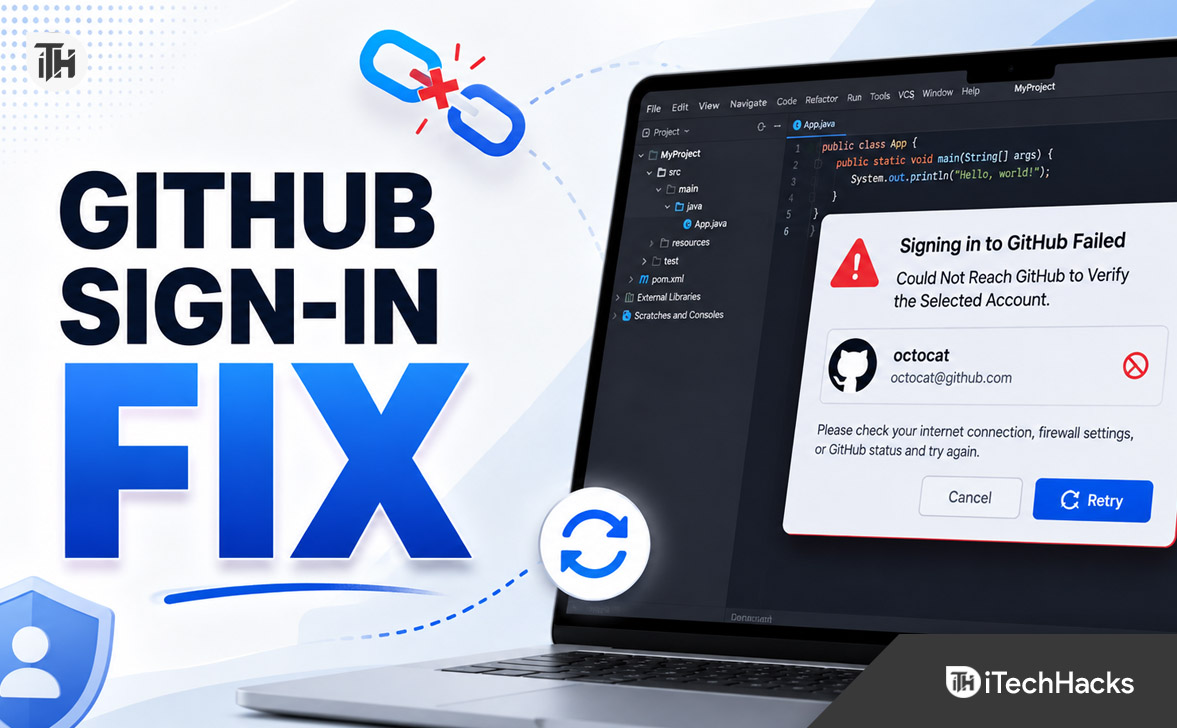
What Does “Could Not Reach GitHub to Verify the Selected Account” Mean?
The message appears when the GitHub Copilot plugin cannot complete the account verification step after you select or authorize a GitHub account.
You may also see related messages such as:
- “OAuth code flow error”
- “Failed to initiate device code authentication”
- “EditorFetcher request failed”
- Error code -32603
- Copilot stuck on “Initializing Copilot”
- ERR_INVALID_CHAR involving the Authorization header
Although the wording tells you to check your network, that is not always the real problem. In a documented 2026 JetBrains Copilot issue, corrupted authentication data in GitHub Copilot’s local auth.db file caused the plugin to fail while processing the login token.
If GitHub works normally in your browser, try the Copilot-specific fixes below before changing router or DNS settings.
1. Update the GitHub Copilot Plugin First
The first thing you should do is update GitHub Copilot. GitHub released a fix for the JetBrains authentication problem after reports involving affected Copilot plugin versions.
In your JetBrains IDE:
- Open Settings or Preferences.
- Go to Plugins.
- Select Installed.
- Find GitHub Copilot.
- Install any available update.
- Restart the IDE.
For the June 2026 issue, GitHub identified plugin version 1.11.2-251 as containing the hotfix. If you use a newer release, install the latest stable version rather than downgrading.
Updating works because the problem was partly related to authentication data compatibility between different versions of the Copilot language server.
After restarting, sign in again and check whether Copilot loads normally.
2. Reset the GitHub Copilot auth.db Files
If updating does not fix the error, resetting the local Copilot authentication database is the most important method to try.
GitHub Copilot stores authentication information in a local database. If that database becomes corrupted or contains data written by an incompatible Copilot component, the IDE may fail to verify your account even when GitHub itself is reachable.
Before continuing, close every application using GitHub Copilot. This includes IntelliJ IDEA, PyCharm, WebStorm, Rider, CLion, Android Studio with Copilot installed, and other editors using the Copilot language server.
On Windows
Press Win + R, enter:
%LOCALAPPDATA%\github-copilot
and press Enter.
Look for these files:
- auth.db
- auth.db-wal
- auth.db-shm
Create a folder named backup and move the files into it. You can also delete the files, but moving them first gives you an easy way to restore them if needed.
Restart your IDE and sign in to GitHub Copilot again. Copilot should create a fresh authentication database.
On macOS and Linux
Open:
~/.config/github-copilot
If you use a custom XDG_CONFIG_HOME, the GitHub Copilot directory may be located there instead.
Move auth.db, auth.db-wal, and auth.db-shm to a backup folder, then reopen the IDE and authenticate again.
If the operating system says that the files are in use, one of your editors is probably still running in the background. Close all IDE processes before retrying.
A stale or incomplete authentication session can also cause GitHub account verification to fail.
Open your IDE’s GitHub or Copilot account menu and sign out of the currently selected GitHub account. Restart the IDE, then choose the option to sign in to GitHub Copilot again.
When your browser opens:
- Make sure you are logged in to the correct GitHub account.
- Complete the authorization prompt.
- Allow the browser to return control to your IDE when requested.
- If several GitHub accounts are signed in, verify that you select the account that has access to Copilot.
Multiple GitHub accounts can confuse the login flow, especially when Copilot access belongs to a different account.
4. Test GitHub Connectivity
If resetting Copilot authentication does not help, then check whether the connection really is being blocked.
Open GitHub in your browser. If the website does not load correctly, test another network such as a mobile hotspot.
Corporate networks, VPNs, security software, proxies, DNS filters, and firewalls can interfere with GitHub traffic. Temporarily disabling a VPN or switching networks is a quick way to identify whether your network is responsible.
If Copilot works on a hotspot but fails on an office network, ask the administrator to allow the required GitHub traffic.
5. Check Proxy Settings in Your JetBrains IDE
JetBrains applications can use their own HTTP proxy configuration, which means your browser may reach GitHub while the IDE cannot.
Go to:
Settings > Appearance & Behavior > System Settings > HTTP Proxy
If you do not intentionally use a proxy, select the appropriate automatic or no-proxy option for your environment.
You can also use the built-in connection test if your JetBrains version provides one.
Bad proxy credentials or SSL inspection can prevent Copilot from completing OAuth authentication.
Restart the IDE after making changes.
6. Temporarily Disable VPN, DNS Filtering, or HTTPS Inspection
Privacy and security tools can occasionally block parts of GitHub’s authentication flow even when github.com itself opens successfully.
Temporarily test without:
- VPN software
- Ad-blocking DNS services
- Pi-hole or similar network filtering
- Corporate HTTPS inspection
- Strict endpoint security filtering
- Third-party web protection modules
Then try signing in again.
If authentication works after disabling one of these services, re-enable it and add the necessary GitHub domains or application exceptions instead of leaving the protection disabled.
7. Remove and Reinstall GitHub Copilot
Reinstalling the plugin can repair missing or damaged plugin files, but it is important to understand one limitation.
For the known 2026 auth.db problem, reinstalling alone may leave the corrupted database untouched. Reset auth.db first.
To reinstall:
- Open Settings > Plugins.
- Find GitHub Copilot.
- Uninstall it.
- Restart the IDE.
- Install the latest stable GitHub Copilot plugin.
- Restart again.
- Sign in to GitHub.
If the same error returns immediately, check the authentication database and IDE logs rather than repeatedly reinstalling.
How to Confirm You Have the Known auth.db Problem
JetBrains IDE logs can reveal whether the error is related to the 2026 Copilot authentication bug.
Open the IDE log and search for entries containing:
ERR_INVALID_CHAR
or:
Invalid character in header content [“Authorization”]
You may also find references to EditorFetcher, signInWithCodeFlow, or error code -32603.
If those messages appear, resetting the GitHub Copilot authentication database and updating the plugin are much more relevant than troubleshooting your router.
Additional Tips to Prevent GitHub Copilot Login Problems
Keep your JetBrains IDE and GitHub Copilot plugin fully updated. Running very different Copilot components across multiple editors can increase the chance of authentication data compatibility problems.
Also close development tools normally when possible to reduce the chance of local database files being left inconsistent.
Frequently Asked Questions
Is this always a GitHub network problem?
No. The message specifically mentions reaching GitHub, but a known 2026 JetBrains Copilot issue produced the same error because of corrupted local authentication data.
Will reinstalling GitHub Copilot fix it?
Sometimes, but not necessarily. If the problem is stored in auth.db, reinstalling the plugin may leave the affected database untouched. Resetting the Copilot authentication files is usually more effective.
Is it safe to delete auth.db?
GitHub’s published workaround for the affected JetBrains issue involved moving or deleting the Copilot authentication database files while all editors were closed. Moving them to a backup folder lets you restore them if needed.
Why does GitHub work in my browser but not in IntelliJ or PyCharm?
The browser and IDE do not necessarily use the same authentication state, proxy configuration, or local Copilot data. A damaged Copilot database or IDE-specific proxy can therefore fail even while github.com works normally.
Should I create a new GitHub account?
Usually not. This error generally does not mean your GitHub account itself is damaged. Update Copilot, reset its authentication database, sign in again, and test the network before considering account-related changes.
Final Thoughts
If you are getting “Signing in to GitHub failed: Could not reach GitHub to verify the selected account,” start by updating GitHub Copilot and resetting its local auth.db files. For JetBrains IDE users affected by the 2026 authentication bug, this is often more useful than repeatedly changing networks or reinstalling the plugin.
If the problem remains, sign out and authorize GitHub again, verify your JetBrains proxy configuration, temporarily test without a VPN or filtering service, and compare the result on another network. When GitHub works everywhere except the IDE, checking Copilot’s local authentication data and logs should be your priority.
ALSO READ: