- The Subway app can face issues like crashing, login problems, empty menus, or payment failures often due to outdated versions, server issues, internet problems, or incorrect location settings. Fixing these involves checking server status, closing and reopening the app, or updating it.
- To resolve common app issues, ensure a stable internet connection, disable any interfering VPNs or ad blockers, and update to the latest app version. Clearing the app cache or even reinstalling the app can also help in fixing persistent problems.
The Subway app makes it easy to customize sandwiches, find nearby restaurants, earn rewards, apply promotional offers, and place pickup or delivery orders. However, the experience can become frustrating when the Subway app keeps crashing, refuses to log in, displays an empty menu, declines a valid payment method, or gets stuck while submitting an order.
Most Subway app problems are caused by a temporary server issue, an outdated app version, corrupted local data, an unstable internet connection, location restrictions, or a problem with the selected restaurant. The right fix depends on exactly where the app stops working.
This guide explains how to fix the Subway app not working on Android and iPhone, including crashes, login errors, missing rewards, payment failures, invalid promo codes, and orders that will not go through.
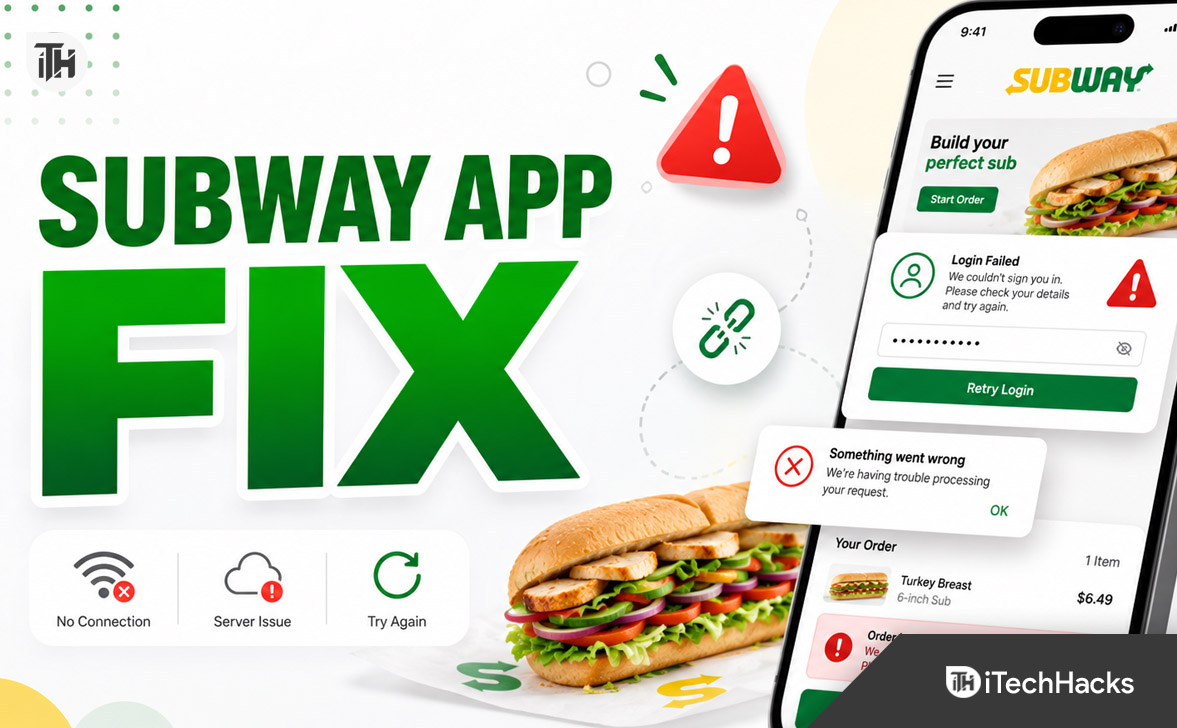
Why Is the Subway App Not Working?
The Subway app connects to several different services whenever you use it. It may need to verify your account, detect your location, load the menu of a participating restaurant, check promotional offers, confirm rewards, process payment, and send the order to the selected store.
A failure during any of these steps can produce a vague message such as “Something went wrong,” “Unable to process order,” or “Please try again.” Common causes include:
- A temporary Subway server or ordering-system outage
- An outdated Subway app version
- Corrupted app cache or stored session data
- Weak Wi-Fi or mobile-data connectivity
- VPN, DNS filtering, ad blocking, or Private Relay interference
- Incorrect account credentials or an expired login session
- Location permission being disabled
- The selected restaurant being closed or unavailable for online orders
- A menu item, coupon, reward, or payment method being rejected
- An outdated Android or iOS version
Online ordering, delivery, rewards, and certain promotions can also depend on the country and the participation of the individual Subway restaurant. A store may appear in the locator but still temporarily disable mobile orders, delivery, curbside pickup, or specific offers.
Check Whether Subway Is Experiencing an Outage
Before changing settings on your phone, determine whether the issue is affecting only your device. Open the Subway ordering website in a browser and attempt to select the same restaurant.
If both the app and website fail to load menus, sign you in, or process orders, the problem is likely on Subway’s side or with the selected restaurant. In that situation, repeatedly reinstalling the app will probably not help.
You can also switch to a different nearby Subway restaurant. If another location loads normally, the original restaurant may have paused online ordering, changed its opening hours, run out of selected ingredients, or temporarily disconnected its ordering system.
1. Force Close and Reopen the Subway App
A temporary app process can become frozen even when the rest of your phone works normally. Closing and reopening the app creates a fresh session and forces it to reconnect to Subway’s services.
On Android
- Open Settings.
- Tap Apps or Applications.
- Select Subway.
- Tap Force stop.
- Open the Subway app again.
On iPhone
- Swipe up from the bottom of the screen and pause in the middle.
- On an iPhone with a Home button, double-press the Home button.
- Find the Subway app preview.
- Swipe the preview upward to close it.
- Open Subway again from the Home Screen.
Apple recommends closing and reopening an app when it stops responding, closes unexpectedly, or will not open.
2. Test Your Internet Connection
The Subway app can open normally while still failing to load restaurants, menus, rewards, or checkout information. This often happens when your internet connection is active but unstable.
Turn Wi-Fi off and try the app using mobile data. If you are already using mobile data, connect to a reliable Wi-Fi network instead. You can also enable Airplane Mode for about 15 seconds, disable it, and then reopen the app.
Make sure the Subway app is permitted to use mobile data. On iPhone, open Settings > Cellular and confirm that Subway is enabled. On Android, open the app’s settings and check Mobile data or Data usage.
3. Disable Your VPN, Ad Blocker, or Private DNS
A VPN can make your device appear to be in a different city, state, or country. This may interfere with store availability, location-based menus, account security checks, promotional offers, and payment verification.
Temporarily disable any VPN, ad-blocking app, custom DNS service, firewall, or network-filtering feature. On iPhone, also test the app after temporarily disabling iCloud Private Relay under your iCloud settings.
Reopen Subway without the network-filtering service and try again. You can reactivate the service after completing your order.
4. Update the Subway App
Subway periodically updates its app to change ordering features, rewards, menu customization, performance, and account functionality. An older version may stop communicating correctly with newer backend services.
Update Subway on Android
- Open the Google Play Store.
- Search for Subway.
- Make sure the developer and app listing are official.
- Tap Update if available.
Update Subway on iPhone
- Open the App Store.
- Tap your profile picture.
- Scroll through available updates.
- Tap Update beside Subway.
The official Subway app is distributed through Google Play and Apple’s App Store. Its current features include mobile ordering, menu customization, rewards, offers, and rapid reordering, although availability can differ by market.
5. Restart Your Phone
Restarting clears temporary memory, closes stalled background services, and rebuilds active network connections. It is especially useful when the Subway app crashes immediately after opening or remains stuck on its loading screen.
Turn your phone off, wait approximately 20 seconds, and turn it back on. After the device reconnects to the internet, open Subway before opening several other apps.
6. Clear the Subway App Cache on Android
Android stores temporary Subway files to make menus and images load faster. If these cached files become outdated or corrupted, the app may display blank pages, repeatedly crash, or fail during checkout.
- Open Settings.
- Tap Apps.
- Select Subway.
- Tap Storage or Storage & cache.
- Tap Clear cache.
- Reopen the app.
Start with Clear cache, not Clear storage. Clearing storage resets the app completely and will normally sign you out. Google recommends clearing an app’s cache or data as part of troubleshooting an installed Android app that is not working correctly.
7. Reset the Subway App Data
If clearing the cache does not work, the saved login session or configuration files may be damaged. Resetting the app data removes those local files and gives the app a clean start.
On Android
Go to Settings > Apps > Subway > Storage, then tap Clear storage or Clear data. Open the app and sign in again.
On iPhone
iOS does not provide a universal clear-cache button for every app. Delete the Subway app, restart the iPhone, and reinstall it from the App Store.
Before resetting or deleting the app, confirm that you know your Subway account email address and password.
8. Fix Subway App Login Problems
If the Subway app says your credentials are incorrect, avoid repeatedly guessing the password. Too many failed attempts may trigger a temporary security restriction.
- Check that you are using the email address connected to your Subway account.
- Remove accidental spaces before or after the email address.
- Use the password-reset option to create a new password.
- Check your spam or junk folder for the reset email.
- Disable autofill and enter the password manually.
- Try signing in through Subway’s website.
If website login works but app login does not, clear the app data or reinstall the app. If neither works, the account may require assistance from Subway Guest Care.
9. Allow Location Access
The Subway app uses your location to identify nearby restaurants and determine which menus, prices, services, and promotions are available. When location access is blocked, the app may show no nearby restaurants or select a location that is too far away.
Android
Open Settings > Apps > Subway > Permissions > Location, then choose Allow only while using the app.
iPhone
Open Settings > Privacy & Security > Location Services > Subway, then select While Using the App. Turn on Precise Location if nearby stores are displayed incorrectly.
You can also enter the restaurant address or ZIP code manually instead of relying on automatic location detection.
10. Fix Subway Order Errors
When an order cannot be submitted, the app may not clearly identify which item caused the failure. Remove possible conflicts one at a time instead of rebuilding the entire order immediately.
- Confirm that the selected restaurant is open.
- Choose another nearby participating restaurant.
- Remove unavailable ingredients or heavily customized items.
- Delete the item from your cart and add it again.
- Remove the promo code and test checkout without it.
- Remove rewards or Subway Cash temporarily.
- Switch from delivery to pickup, if practical.
- Check that your pickup time is still available.
A restaurant’s availability can change while you are building your cart. An item that loaded earlier may become unavailable before payment, causing a generic order error.
11. Fix Subway App Payment Failed or Card Declined
A payment failure does not always mean your card has insufficient funds. The billing address, ZIP code, expiration date, card security code, bank verification system, or selected store can cause the transaction to fail.
- Re-enter your card details carefully.
- Make sure the billing ZIP code matches your bank records.
- Remove the saved card and add it again.
- Try a different supported payment method.
- Disable your VPN before paying.
- Ask your bank whether it blocked the transaction.
Do not continuously press the payment button. First check your banking app for pending charges and look for a confirmation email from Subway. Subway’s ordering terms advise customers to contact the relevant restaurant or payment-card issuer regarding order or payment disputes.
12. Fix Promo Code and Reward Errors
Subway coupons and reward offers can have restrictions related to location, restaurant participation, account status, minimum purchase, eligible products, redemption limits, and expiration dates.
Read the offer details carefully and check whether the selected restaurant accepts it. Remove excluded items, confirm that you are signed into the correct rewards account, and avoid combining offers unless the terms specifically allow it.
Rewards may also appear differently across countries. Subway states that rewards and app features can depend on restaurant participation and may not be available in every location.
13. Update Android or iOS
An old operating system can become incompatible with a newer app release. Open your phone’s software-update settings and install any stable update available for your device.
Before updating, connect to Wi-Fi, charge the phone, and confirm that sufficient storage is available. Restart the device after the update and test Subway again.
14. Reinstall the Subway App
Reinstalling is one of the most effective fixes for repeated crashes, blank screens, corrupted account sessions, and updates that did not install correctly.
- Delete or uninstall the Subway app.
- Restart your phone.
- Open Google Play or the App Store.
- Install the official Subway app.
- Sign in and select your restaurant again.
Avoid downloading Subway APK files from unofficial websites. Third-party packages may be outdated, modified, or incompatible with Subway’s current ordering services.
Additional Tips to Prevent Subway App Problems
- Keep the app and phone software updated.
- Maintain enough free storage for app updates and temporary files.
- Avoid switching networks during checkout.
- Confirm the correct restaurant before submitting an order.
- Take a screenshot of serious payment or order errors.
- Keep the order confirmation until the food is collected or delivered.
- Do not place a second order until you confirm whether the first one succeeded.
Frequently Asked Questions
Why does the Subway app keep crashing?
The app may crash because of corrupted cache files, low storage, an outdated app version, an operating-system compatibility problem, or a temporary software bug. Force close the app, update it, restart the phone, and reinstall it if necessary.
Why can’t I log into my Subway account?
Your saved session may have expired, the password may be incorrect, or the account service may be temporarily unavailable. Reset the password, enter the credentials manually, and test the account through Subway’s website.
Why is my Subway order not going through?
The restaurant may have stopped accepting online orders, an item may no longer be available, the pickup time may have expired, or a coupon or payment method may be causing the error. Try another restaurant and remove discounts or customizations temporarily.
Why was I charged without receiving an order confirmation?
The charge may be a temporary payment authorization rather than a completed transaction. Check your email, Subway account history, and bank activity before ordering again. Contact the selected restaurant, Subway Guest Care, or your card issuer if the charge remains and no order exists.
Can I order Subway without using the app?
In supported regions, you can use Subway’s official website to place an order. You may also order directly at the restaurant or use an available third-party delivery provider, although prices, fees, promotions, and rewards may differ.
Final Thoughts
When the Subway app is not working, begin with the simplest checks: reopen the app, switch internet connections, disable your VPN, and confirm that the selected restaurant accepts online orders. Next, update the app, clear its cache, check location permissions, and restart your phone.
For login problems, reset the account password and test the Subway website. For order or payment errors, remove promotional codes, rewards, unavailable items, or saved payment information one at a time. Reinstalling the app should be reserved for persistent crashes or corrupted app data.
ALSO READ: