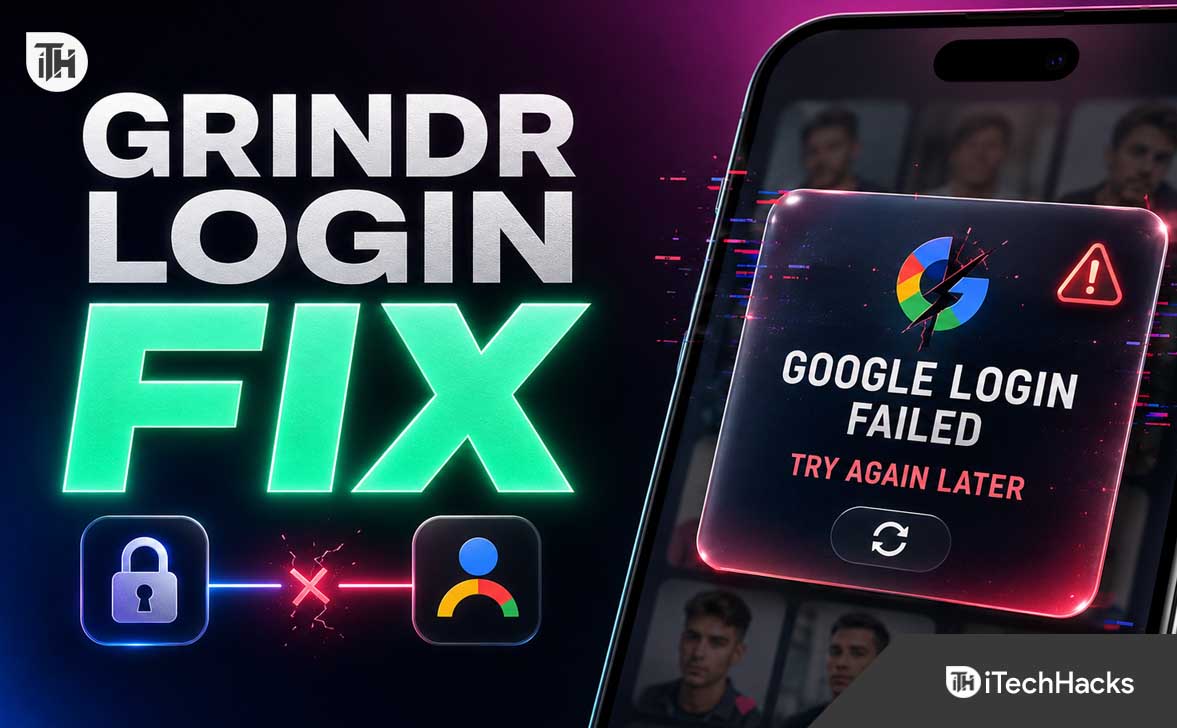
- If you see "Google Authorization Failed. Please Try Again Later" on Grindr, you might be using the wrong Google account, facing internet or app issues, or have outdated software. Make sure you use the same Google account linked to your Grindr profile.
- Common causes of this error include app glitches, VPN or security settings, missing updates for Grindr or Google Play Services, weak internet, or blocked cookies. Check your connections and update your apps to fix the problem.
- To resolve the error, try restarting your phone, checking your internet, updating your apps, and ensuring all cookies are allowed. If none of these steps help, contacting Grindr Support with your device and account details may be necessary.
Seeing the “Google Authorization Failed. Please Try Again Later” message on Grindr can be frustrating, especially when you are trying to log in to an existing profile. The error usually appears after selecting Continue with Google, and it may send you back to the login screen instead of opening your account.
In most cases, this problem is not caused by a deleted Grindr account. It is usually related to an app glitch, outdated Google Play services, a VPN or private DNS connection, blocked browser cookies, an incorrect Google account selection, or a temporary issue with Grindr’s login system.
What Does “Google Authorization Failed” on Grindr Mean?
Grindr allows some users to create and access their accounts using a Google account instead of a separate email address and password. When you tap the Google sign-in option, Grindr requests permission from Google to verify your identity.
The authorization error appears when that verification process cannot finish correctly. Google may be unable to return the login approval to Grindr, or Grindr may fail to match your selected Google account with the correct profile.
The error can happen on both new and existing accounts. It does not always mean you are banned, locked out permanently, or that your account has been removed.
Common Reasons Grindr Google Authorization Fails
Before trying random fixes, it helps to understand what may be causing the issue. The most common reasons include:
- An outdated Grindr app version
- Outdated Google Play Services on Android
- A weak, unstable, or restricted internet connection
- A VPN, proxy, private DNS, or ad blocker interfering with login
- Incorrect date, time, or time zone settings on your phone
- Google account security checks on a new device or location
- Broken app cache or corrupted login data
- Browser cookies being blocked during the Google sign-in process
- Temporary Grindr server or authentication issues
- Choosing a different Google account than the one linked to your Grindr profile
How to Fix Grindr Google Authorization Failed Error
1. Confirm You Are Selecting the Correct Google Account
This is the first thing you should check. If your old Grindr account was created using a specific Gmail address, you must select that same Google account during login.
Many Android phones have multiple Google accounts added, including personal Gmail accounts, work accounts, old school accounts, or family accounts. Selecting a different Gmail account may cause Grindr to treat the login as a new registration attempt instead of opening your existing profile.
- Open Grindr and tap the Google sign-in option.
- Carefully check every Gmail address displayed.
- Select the Gmail address you originally used for Grindr.
- Do not choose a new Google account unless you want to create a new profile.
If you are unsure which Gmail address is connected to your old profile, search your email inboxes for old Grindr emails, account notifications, password messages, subscription receipts, or verification emails.
2. Force Close Grindr and Restart Your Phone
A simple restart fixes more login errors than most people expect. Grindr may be stuck with an expired login token, incomplete browser session, or broken app process in the background.
Force closing the app removes the current session from memory. Restarting your phone also refreshes your internet connection, background services, and Google account sync process.
On Android:
- Open Settings.
- Tap Apps.
- Find and open Grindr.
- Tap Force Stop.
- Restart your Android phone.
- Open Grindr again and try Google sign-in.
On iPhone, swipe up from the bottom of the screen, find Grindr in the app switcher, swipe it away, restart your iPhone, and try again.
3. Check Your Internet Connection
Google authorization needs a stable connection because your phone must communicate with both Google and Grindr. A weak Wi-Fi connection, limited mobile data, public hotspot, or unstable router can interrupt the process.
Test both Wi-Fi and mobile data. For example, if you are using Wi-Fi and see the error, turn Wi-Fi off and try again using your cellular data connection.
- Turn airplane mode on for around 10 seconds.
- Turn airplane mode off.
- Reconnect to Wi-Fi or mobile data.
- Open a browser and confirm that websites load normally.
- Try logging into Grindr again.
Public Wi-Fi networks at hotels, airports, colleges, offices, or cafes can also block login services. Open a browser first and make sure you have completed any Wi-Fi sign-in page or acceptance screen.
4. Turn Off VPN, Proxy, Private DNS, and Ad Blockers
Grindr may block or restrict some VPN connections, especially when the IP address changes frequently. Google can also request additional security verification when it notices a login from an unusual location or anonymous network.
Turn off your VPN completely before trying to sign in. Do the same for private DNS services, ad-blocking DNS apps, firewall apps, proxy tools, and mobile security apps that filter internet traffic.
On Android, you can check private DNS by following these steps:
- Open Settings.
- Go to Network and Internet or Connections.
- Tap Private DNS.
- Select Automatic or Off.
- Restart Grindr and try again.
Once you are successfully logged in, you can decide whether to re-enable your privacy tools. However, if the error returns after enabling a VPN, that connection is likely the reason Google authorization is failing.
5. Update the Grindr App
Using an old version of Grindr can cause sign-in problems, especially after Google changes security requirements or authentication behavior. App updates often include bug fixes for login, account recovery, messaging, notifications, and Google sign-in.
On Android:
- Open the Google Play Store.
- Search for Grindr.
- Tap Update if the option is available.
- Once updated, restart your phone and try signing in again.
On iPhone:
- Open the App Store.
- Search for Grindr.
- Tap Update if available.
- Reopen the app and test Google login.
Do not rely only on automatic updates. Some phones delay app updates due to battery settings, storage limits, or Wi-Fi-only update preferences.
6. Update Google Play Services on Android
Google sign-in on Android depends heavily on Google Play Services. If Google Play Services is outdated, disabled, corrupted, or restricted in the background, Grindr may fail to complete the Google authorization process.
To update Google Play Services:
- Open the Google Play Store.
- Search for Google Play Services.
- Install any available update.
- Also update the Google Play Store and Google app if updates are available.
- Restart your phone after updating.
You should also check whether Google Play Services has been disabled. Open Settings, go to Apps, find Google Play Services, and make sure it is enabled.
7. Clear Grindr Cache on Android
Cached files help apps load quickly, but damaged cache files can create strange problems, including login failures. Clearing the Grindr cache does not usually delete your account or profile.
To clear cache:
- Open Settings on your Android phone.
- Tap Apps.
- Select Grindr.
- Tap Storage.
- Select Clear Cache.
- Open Grindr and try Google sign-in again.
If clearing cache does not work, you can try Clear Data or Clear Storage. Keep in mind that this will sign you out of Grindr and remove app-specific settings stored on your phone.
Only clear app data if you are confident that you can access your original Google account and know which Google account is linked to your Grindr profile.
8. Clear Cache for Google Play Store and Google Play Services
If Grindr is updated but Google authorization is still failing, the issue may be with your device’s Google account services rather than Grindr itself.
Start by clearing the Google Play Store cache:
- Open Settings.
- Go to Apps.
- Select Google Play Store.
- Tap Storage.
- Tap Clear Cache.
Then repeat the process for Google Play Services. Restart your phone after clearing the cache and attempt to sign in again.
Avoid clearing Google Play Services storage unless necessary. It can reset some account-related settings and may require you to sign in to Google services again.
9. Set Date and Time to Automatic
An incorrect phone clock can break secure login requests. Google authorization uses secure time-sensitive tokens, and a phone with the wrong date, time, or time zone can fail verification.
This issue can happen after traveling, changing SIM cards, using a manually set time zone, or restoring a phone from backup.
On Android:
- Open Settings.
- Go to System or General Management.
- Tap Date and Time.
- Turn on Set Time Automatically.
- Turn on Set Time Zone Automatically.
On iPhone, go to Settings, open General, tap Date and Time, and enable Set Automatically.
10. Check Google Account Security Alerts
Google may block or delay a sign-in attempt if it considers the device, network, or location unusual. This can happen when you use a new phone, recently changed your password, logged in from another country, or connected through a VPN.
Open your Gmail app or visit your Google Account security page in a browser. Look for alerts such as:
- New sign-in detected
- Suspicious login attempt
- Verify it is you
- Google blocked a sign-in attempt
- Review your account security
Approve any legitimate security prompt that belongs to you. After confirming your identity with Google, wait a few minutes and try signing in to Grindr again.
If you recently changed your Google password, it is also a good idea to wait briefly before retrying the Grindr login. Some account security changes take time to update across connected apps.
11. Temporarily Remove and Re-Add Your Google Account on Android
If Google login is failing in multiple apps, your Google account sync on the phone may be damaged. Removing and adding the Google account again can refresh the device authentication connection.
Before doing this, make sure you know your Google password and have access to any two-factor authentication method.
- Open Settings.
- Go to Passwords and Accounts, Accounts, or Users and Accounts.
- Select your Google account.
- Tap Remove Account.
- Restart your phone.
- Add the same Google account back.
- Open Grindr and try Google sign-in again.
Removing a Google account from your phone does not delete the account. It only removes it from that device until you sign in again.
12. Check Browser Cookie Settings on iPhone or Grindr Web
Google authorization may open in an in-app browser, Safari, Chrome, or a web login window. If cookies are blocked, Google may not be able to save the sign-in session needed to send you back to Grindr.
On iPhone, check Safari privacy settings:
- Open Settings.
- Scroll down and tap Apps or Safari, depending on your iOS version.
- Look for privacy and security settings.
- Make sure cookie-blocking settings are not preventing sign-in.
- Temporarily disable strict content blockers if you use one.
For Grindr Web, try using a supported browser such as Chrome, Firefox, Microsoft Edge, or Safari. Disable ad blockers, tracking blockers, and privacy extensions for the login page temporarily.
13. Try Logging In Through Grindr Web
Grindr Web can help you identify whether the issue is limited to the mobile app. If you can log in successfully through the web version using the same Google account, your Grindr profile is likely fine and the problem is probably with the app or phone settings.
Open a supported browser on your computer or mobile device, visit Grindr Web, and choose the same third-party login method you normally use.
If the web login works but the app login does not, focus on these fixes:
- Update Grindr.
- Clear app cache.
- Restart the phone.
- Disable VPN or private DNS.
- Reinstall Grindr.
- Update Google Play Services.
14. Reinstall Grindr
Reinstalling Grindr is one of the most effective solutions when a corrupted update, broken login session, or damaged local file is causing the authorization error.
Before uninstalling, make sure you can access the correct Google account. If your account was created with Google login, you normally need to use that exact Google account to restore access.
To reinstall Grindr:
- Uninstall Grindr from your phone.
- Restart your phone.
- Download Grindr again from the Google Play Store or Apple App Store.
- Open the app.
- Choose Continue with Google.
- Select the original Gmail account linked to your profile.
Do not install Grindr from unofficial APK websites. Unofficial app files can be outdated, modified, insecure, or unable to work correctly with Google authentication.
15. Wait and Try Again Later
The message itself says “Please Try Again Later” because the problem can sometimes be temporary. Grindr may be experiencing login issues, Google may be processing a security check, or your device may have triggered a short-term authorization limit.
Do not keep retrying dozens of times in a few minutes. Repeated login attempts can make Google treat the activity as unusual and may lead to additional verification prompts.
Instead, wait around 30 minutes, restart your phone, use a normal connection without VPN, and try again with the correct Gmail address.
Can This Error Mean Your Grindr Account Is Banned?
Not always. The Google authorization failed error alone does not confirm that your Grindr account has been banned. It is usually a login or connection issue.
However, if you have tried multiple verified troubleshooting steps and cannot sign in through either the Grindr app or Grindr Web, there may be an account-specific issue. In that situation, contact Grindr Support instead of repeatedly creating new accounts.
Creating several new profiles, switching between multiple Gmail accounts, or repeatedly trying different devices can make account troubleshooting more confusing. It is better to recover access to the original account first.
What to Do If You Do Not Remember Which Gmail Account You Used
If you cannot remember which Gmail account is connected to Grindr, start by checking all of your Gmail inboxes. Search for terms such as:
- Grindr
- Welcome to Grindr
- Password reset
- Subscription receipt
- Account notification
- Verification
You can also open the Google account list on your phone and review the Gmail addresses currently signed in. Try only the accounts that you genuinely used in the past.
If you used a different login method, such as email and password, Apple ID, or Facebook login, do not keep using the Google option. Use the same login method you originally selected when creating the profile.
How to Contact Grindr Support
If none of the fixes work, contact Grindr Support through the official Help Center. Explain that you are receiving the Google Authorization Failed Please Try Again Later message when attempting to access your account.
Include useful details so the support team can investigate faster:
- Your device type and model
- Your Android or iOS version
- Your Grindr app version
- The approximate date and time the issue started
- A screenshot of the error message
- Whether the issue happens on Wi-Fi, mobile data, or both
- Whether you can sign in through Grindr Web
- The Gmail address linked to the account, if you are comfortable providing it through official support channels
Never share your Google password, one-time verification codes, recovery codes, or private account credentials with anyone claiming to be Grindr support through social media or direct messages.
Frequently Asked Questions
Grindr can show this error when Google sign-in cannot complete. Common causes include selecting the wrong Gmail account, app cache problems, a VPN connection, blocked cookies, outdated Google Play Services, poor internet, or a temporary Grindr authentication issue.
Will clearing Grindr cache delete my account?
No. Clearing cache usually removes temporary files only. Your Grindr account remains stored online. Clearing app data or reinstalling the app may sign you out, so make sure you know which Google account is linked to your profile before doing it.
Can I use a VPN while signing in to Grindr?
You may be able to use a VPN after signing in, but it can cause Google authorization and Grindr login issues. For the best chance of success, turn the VPN off during login and use a normal Wi-Fi or mobile data connection.
Why does Google sign-in work in Gmail but not in Grindr?
Your Google account may be working normally, but the connection between Grindr, Google Play Services, browser cookies, and the Grindr app may be failing. Updating Grindr, clearing cache, updating Google Play Services, and reinstalling the app can help.
Can I log in with a different Gmail account?
You can select a different Gmail account, but it may create a new Grindr profile instead of opening your old account. Always use the Gmail address that was originally connected to your existing Grindr account.
Does reinstalling Grindr restore my profile?
Yes, as long as you sign in again using the same login method and Google account connected to your profile. Reinstalling the app does not automatically delete your Grindr account.
Final Thoughts
The Grindr Google Authorization Failed Please Try Again Later error is usually fixable. Start with the basics: confirm the correct Gmail account, restart your phone, turn off VPN or private DNS, update Grindr, and test another internet connection.
If the problem continues, clear the Grindr cache, update Google Play Services, enable automatic date and time, check Google security alerts, and try signing in through Grindr Web. Reinstalling the app is a strong final fix when the issue appears to be limited to your phone.
When nothing works, contact official Grindr Support with a screenshot and your device details. Avoid unofficial login tools, modified APK files, and people asking for account credentials, because they can put your privacy and account security at risk.
ALSO READ: