- The "Selected Model is at Capacity" error message appears when an AI model is temporarily overloaded or restricted, not due to issues with your account or internet. This usually happens when a model reaches its limit, or there's heavy usage, often due to high demand or subscription limitations.
- You can quickly fix this error by switching to another available model, opening a new chat for fresh requests, or waiting briefly for the model to become available again. Checking the service status page can also help determine if it's a platform-wide issue.
The “Selected Model is at Capacity” error can be frustrating, especially when you are in the middle of writing, coding, researching, or working on an important task. You select a model, send a prompt, and instead of getting a response, the platform tells you that the selected model is currently unavailable.
In most cases, this does not mean there is anything wrong with your account, computer, or internet connection. The message usually appears when a specific AI model is temporarily overloaded, has reached a usage allowance, or is unavailable in your region, plan, workspace, or current session.
OpenAI notes that some models can become temporarily unavailable after a user reaches that model’s allowance, with reset information shown when available. System-wide availability can also vary by subscription tier, specific model, and feature usage.
This guide explains what the Selected Model is at Capacity error means, why it appears, and six practical fixes you can use to get back to work quickly.
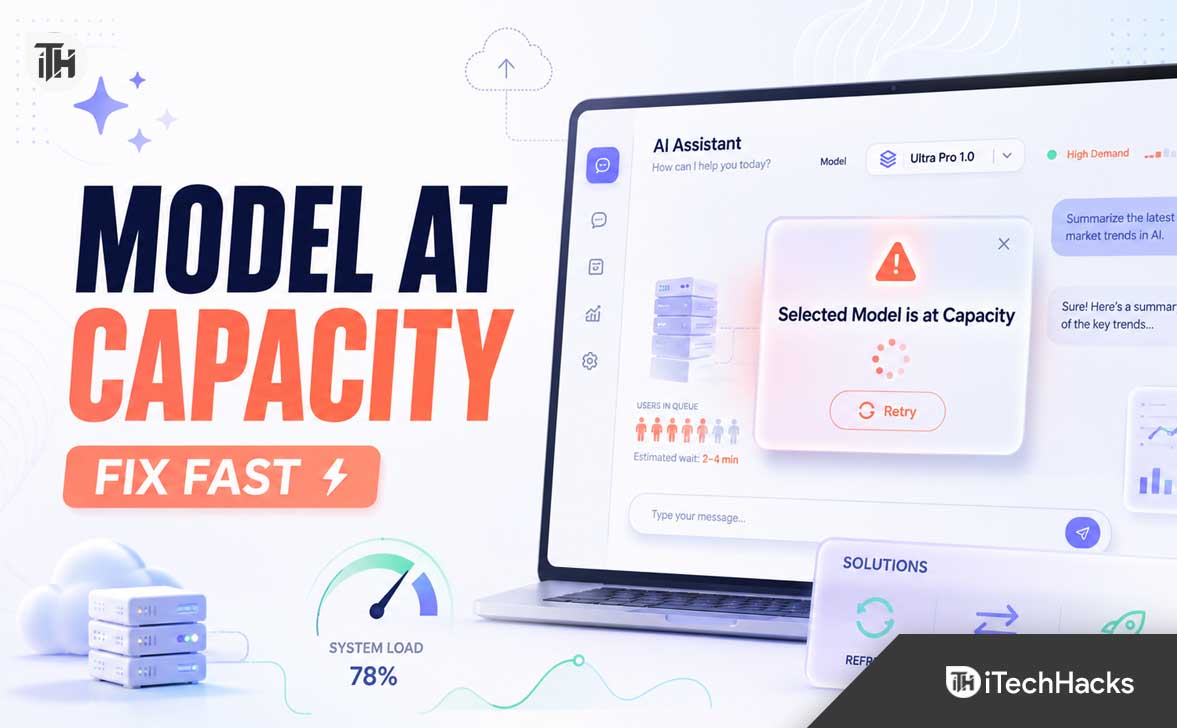
What Does “Selected Model is at Capacity” Mean?
The “Selected Model is at Capacity” message means the AI model you selected cannot accept your request at that moment. It is usually a capacity, traffic, availability, or usage-limit issue rather than a problem with your prompt.
Modern AI services run multiple model versions and model modes. Some are optimized for speed, some for deeper reasoning, some for coding, and others for file analysis, image generation, or advanced research. Higher-demand models can become temporarily crowded when many users try to access them at the same time.
For example, you may see this error when:
- A popular model is receiving unusually high traffic.
- You have reached a temporary message or usage allowance for that model.
- Your selected model is limited to certain subscription plans.
- Your workspace administrator has restricted access to that model.
- The service is experiencing an outage, slowdown, or maintenance issue.
- A long-running conversation or tool-heavy request is stuck in the background.
- The web app, desktop app, or mobile app has outdated session data.
The good news is that the problem is normally temporary. You can often fix it in a few seconds by switching models, refreshing your session, or retrying after a short pause.
Why the Selected Model is at Capacity Error Happens
1. The Model Is Experiencing Heavy Demand
The most common reason is simple: too many people are trying to use the same model at once. This often happens after a new model launches, after a major product update, during work hours in large markets, or when users are running complex coding and reasoning tasks.
AI models require significant computing power. When the available servers are busy, the platform may temporarily pause new requests to prevent slow responses, failed outputs, or complete instability for everyone.
Capacity-related incidents are not unusual for large AI platforms. OpenAI’s status history has documented cases where high demand exceeded temporary serving capacity and caused elevated errors or conversation failures for users.
2. You Reached a Model-Specific Usage Limit
Some plans include different usage limits for different models. A fast everyday model may remain available while a premium reasoning or coding model becomes temporarily unavailable.
This can be confusing because you may still be able to use the service normally, just not the exact model you selected. The platform may automatically suggest another model, show a reset time, or display a capacity-related error instead.
Usage limits can change based on plan type, system demand, workspace settings, and the model itself. Higher-tier plans may offer broader access, but they do not always guarantee unlimited use of every premium model at all times.
3. There Is a Temporary Platform Issue
Sometimes the error is not related to your personal usage at all. A model may be affected by an outage, a deployment problem, server maintenance, network routing issues, or a temporary reduction in available infrastructure.
If multiple users are seeing similar errors, refreshing repeatedly may not solve the issue. In that situation, checking the official service status page can save time and help you avoid changing settings that are not actually causing the problem.
4. Your Chat Session Is Stuck
Long conversations can occasionally become unstable, especially when they include large files, deep research tasks, code execution, repeated revisions, long pasted content, or multiple tool calls. A session may keep trying to use a model that is no longer available for that conversation.
Starting a new chat often gives the platform a clean session and allows it to route your request more effectively.
5. Browser, App, or Account Session Problems
Old cookies, corrupted browser cache, outdated app versions, VPN conflicts, browser extensions, or expired sign-in sessions can sometimes make a temporary availability problem look worse than it is.
This is less common than a genuine capacity issue, but it is worth checking if the error continues after the model becomes available again for other users.
Selected Model is at Capacity: 6 Instant Fixes
Fix 1: Switch to Another Available Model
The fastest fix is to choose another model from the model picker. Select a model that is currently available, then resend your prompt.
For most everyday tasks, another model can still help you write content, summarize text, answer questions, create outlines, debug basic code, or brainstorm ideas. You may not get identical output, but you can continue working instead of waiting for one specific model to return.
Use this approach when:
- You need an answer immediately.
- The current task does not require a specific premium model.
- You are writing, brainstorming, editing, or researching general topics.
- You can continue the task with a faster or lighter model.
Before switching, copy a long prompt or important draft into a temporary note. This prevents you from losing your work if the conversation reloads or the browser crashes.
Why this works: The capacity issue is usually tied to one specific model. Other available models may use separate resources and can still process your request.
Fix 2: Start a New Chat and Retry the Request
If the error appears in one conversation only, open a new chat and try the same request again. This is particularly useful when the current thread is long, includes multiple attachments, or has been open for many hours.
Copy your latest prompt, create a new conversation, select the preferred model again, and paste the request. Keep the first prompt concise. Instead of sending a huge block of instructions, send the core task first and add extra details after the model responds.
For example, instead of pasting a 10,000-word document with many instructions, begin with:
“I need help summarizing a long document. I will send it in parts. Please wait until I say ‘complete’ before writing the summary.”
Then send the content in smaller sections.
Why this works: A fresh chat removes any stuck conversation state, failed tool call, overloaded context window, or session-specific routing problem.
Fix 3: Wait Briefly, Then Retry Once
Capacity errors are often temporary. Wait a few minutes, then retry the same request. Avoid clicking the send button repeatedly, as this can create duplicate requests or make it harder to tell whether the issue has cleared.
When you retry, refresh the page first. Then select the model again and submit one clean request.
Repeatedly refreshing every few seconds is usually not useful. If the model is genuinely overloaded, the best approach is to give the platform time to rebalance demand or restore affected capacity.
Why this works: Model availability can recover quickly when traffic decreases, capacity is reallocated, or a temporary service issue is resolved.
Fix 4: Check the Official Service Status Page
When the Selected Model is at Capacity error keeps appearing, check the official status page before spending time troubleshooting your browser or device.
Look for active incidents involving ChatGPT, API services, model errors, elevated latency, login issues, file uploads, conversation failures, or degraded performance. If there is a confirmed incident, the issue is likely on the service side.
Do not assume every outage affects all users equally. Availability can vary depending on the plan you use, the model you selected, your region, and whether you are using tools such as file uploads, image generation, coding, or deep research.
Why this works: It helps you quickly separate a platform-wide problem from an account, browser, or local network issue.
Fix 5: Sign Out, Clear Session Data, and Sign Back In
If the official status page shows no current issues and other models work normally, refresh your account session.
Start by signing out of the service. Close the browser tab completely, reopen the site, and sign in again. If the error remains, clear site cookies and cached data for the AI platform.
On most browsers, you can clear this by opening the browser settings, going to Privacy or Site Data, searching for the website, and removing cookies and stored data for that site only.
After signing back in, test the model in a fresh chat before returning to your old conversation.
Why this works: Expired authentication data, old session tokens, cached model settings, or stale browser storage can interfere with how your account connects to available models.
Fix 6: Update the App, Disable VPNs, and Test Another Browser
If you are using a mobile app or desktop app, make sure it is updated to the latest version available in your app store. Older versions may not handle new model routing, account permissions, or temporary model changes correctly.
On a browser, try opening the service in a private or incognito window. This loads the site without most stored cookies and extensions. If the model works there, a browser extension, old cache file, or privacy tool may be interfering.
You should also temporarily disable:
- VPN connections.
- Proxy tools.
- Ad blockers that modify website scripts.
- Browser security extensions.
- Custom DNS filtering tools.
- Corporate network filters, if you are using a work device.
Then test your request using another browser or a mobile network connection.
Why this works: Some network tools and browser extensions can block scripts, authentication requests, real-time connections, or model-routing services needed by the platform.
Additional Tips to Avoid Capacity Errors
You cannot completely prevent capacity issues because some of them happen on the provider’s servers. However, a few habits can reduce interruptions and make it easier to keep working when your preferred model is unavailable.
Keep a Backup Model Ready
Choose one primary model for your important work and one backup model for emergencies. For example, you may prefer a higher-reasoning model for complex coding tasks but use a faster general-purpose model for writing, brainstorming, summaries, and quick edits.
This prevents your workflow from stopping just because one model is temporarily unavailable.
Break Large Requests Into Smaller Tasks
Very large requests can be harder to process, especially when they include multiple instructions, files, screenshots, code snippets, and detailed formatting requirements.
Instead of asking for everything at once, divide the work into stages. Ask for an outline first, then a first draft, then improvements, then formatting. This approach is easier to review and less likely to create a stuck or overloaded session.
Save Important Prompts Outside the Chat
Keep important prompts, briefs, client instructions, content outlines, and code snippets in a document outside the AI chat. This protects your work if you need to start a new conversation, switch models, or wait for an outage to end.
For writers and marketers, saving reusable prompt templates can also speed up your workflow across different models.
Do Not Keep Too Many Tool-Heavy Chats Open
If you are working with uploads, code execution, image generation, connected apps, or long research sessions, close conversations you no longer need. Opening multiple heavy sessions at the same time can make your browser slower and increase confusion when one task fails.
Focus on one major task at a time, especially when using a premium reasoning or coding model.
Common Problems and Fixes
The Error Appears Only for One Model
This normally means the specific model is crowded, restricted, or temporarily unavailable. Switch to another available model, wait for access to return, and check whether the platform shows a reset message or upgrade option.
The Error Appears in Every Chat
Check the service status page first. If there is no incident, sign out and back in, test another browser, and try a different internet connection.
The Error Appears After Uploading a File
Try opening a new chat without the file first. If the selected model works normally, the issue may be related to the attachment, file size, unsupported format, or tool availability rather than the model itself.
You can also split a large document into smaller files or paste the important sections as text.
The Error Appears on Mobile but Not Desktop
Update the mobile app, force close it, reopen it, and sign in again. If the problem continues, try the web version from your phone browser to determine whether it is an app-specific issue.
The Error Appears on a Work Account
Your company, school, or workspace administrator may control which models are available. Ask the workspace admin whether there are model permissions, usage limits, budget controls, or security settings affecting access.
Frequently Asked Questions
Is the “Selected Model is at Capacity” error caused by my internet connection?
Usually, no. A poor connection can cause loading problems, failed requests, or sign-in issues, but the capacity message normally indicates that the selected model is temporarily unavailable or restricted.
Will upgrading my plan fix the Selected Model is at Capacity error?
An upgrade may provide access to additional models or higher usage limits, but it cannot guarantee that every model will always be available during periods of high demand. Check the plan details carefully before upgrading only to solve a temporary capacity error.
How long does the Selected Model is at Capacity error last?
It can last a few minutes, longer during high traffic, or until a model-specific usage allowance resets. The exact time depends on the cause, the selected model, your account plan, and the platform’s current demand.
Can I keep using the same conversation after switching models?
Usually, yes. However, if the chat appears stuck or repeatedly fails, start a new conversation and paste your latest prompt. This often works better than continuing to retry inside a broken session.
Why can my friend use the model when I cannot?
Different users may have different plans, regions, workspace permissions, usage allowances, account types, and feature access. Availability can also change quickly as the service balances demand.
Does this error mean my account is banned?
No. The Selected Model is at Capacity error usually does not mean your account has been suspended or banned. It is generally a temporary availability, routing, or usage-related message.
Final Thoughts
The “Selected Model is at Capacity” error is usually temporary and easy to work around. Start by switching to another available model, opening a fresh chat, and checking the official service status page.
If the error continues, refresh your login session, clear site data, update the app, disable VPN or browser extensions, and test another browser or connection. Most users can get back to work without waiting long.
The best long-term approach is to keep a backup model ready, save important prompts outside the chat, and divide large tasks into smaller steps. That way, even when one model is at capacity, your work does not have to stop.
ALSO READ: