- You can change your default web browser on a Mac in the System Settings under "Desktop & Dock," which determines which app opens when you click web links, such as Safari, Chrome, Firefox, Edge, or others.
- To set a new default browser, ensure it is installed, then select it from the "Default web browser" dropdown; the change applies without needing a Mac restart.
- Changing the default browser doesn't uninstall anything or move your bookmarks and passwords; you still need to manually import them if desired, ensuring your browsing experience matches your needs for work or personal use.
Changing your default browser on a Mac is a small setting that can make a big difference to your everyday workflow. Your default browser is the app macOS uses whenever you click a website link in Mail, Messages, Notes, Slack, Microsoft Teams, Word documents, PDFs, and many other apps.
Safari is the default browser on a new Mac, but you are free to use Google Chrome, Mozilla Firefox, Microsoft Edge, Brave, Opera, or another compatible browser instead. Whether you prefer Chrome for Google account syncing, Firefox for privacy controls, Edge for Microsoft 365, or Brave for built-in blocking tools, macOS lets you choose the browser that fits your needs.
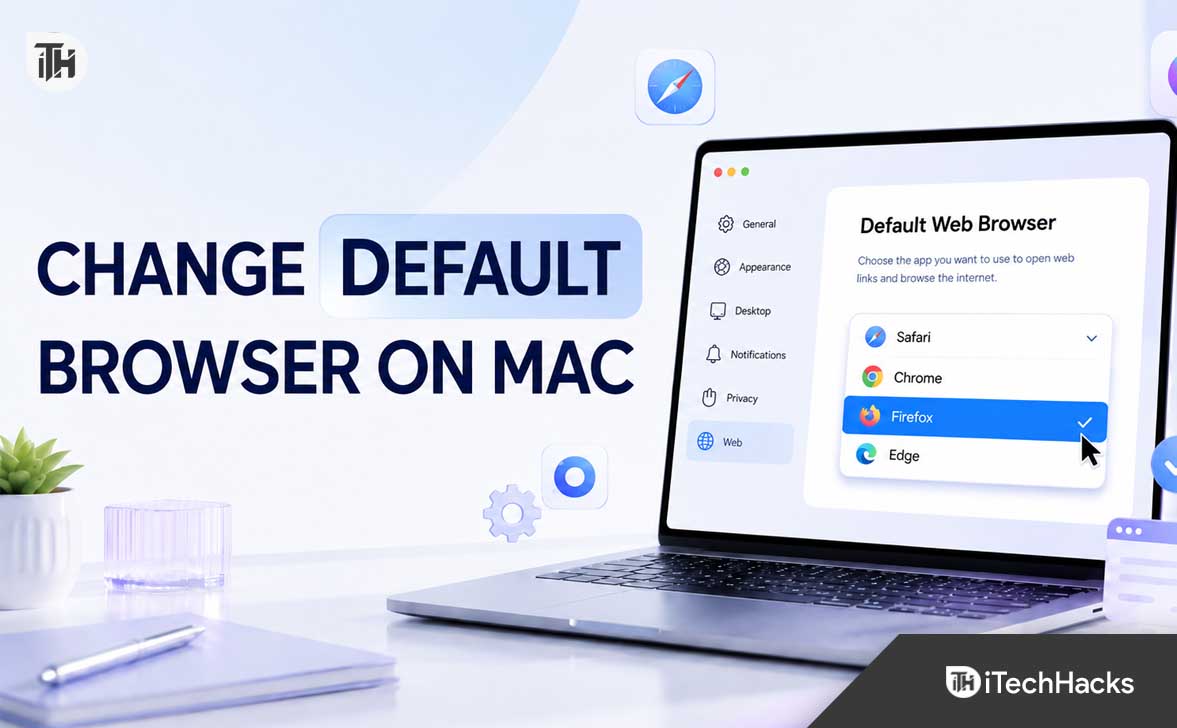
In current versions of macOS, Apple places the default browser control in System Settings > Desktop & Dock. Once you select another installed browser, web links should open in that browser automatically.
This guide explains exactly how to change your default browser on Mac, set Safari back as the default, fix common problems, and understand the difference between a default browser, homepage, and search engine.
What Does Default Browser Mean on Mac?
Your default browser is the web browser that macOS uses automatically for standard website links. For example, when you click a link in an email, a message, a calendar invitation, or a document, your Mac sends that link to the browser selected as your default.
Changing your default browser does not uninstall Safari or remove any other browser from your Mac. It only changes which app opens web links by default. You can still launch Safari, Chrome, Firefox, Edge, or Brave manually whenever you want.
This setting is especially useful when you use one browser for work and another for personal browsing. You may want Chrome to open business tools, Firefox for privacy-focused browsing, or Edge for Microsoft services. The choice is entirely up to you.
How to Change Your Default Browser on Mac
The easiest and most reliable way to change your default browser is through macOS System Settings. Before starting, make sure the browser you want to use is installed properly and can open normally.
Change Default Browser on macOS Ventura, Sonoma, Sequoia, and Newer Versions
- Step 1: Click the Apple menu in the top-left corner of your screen.
- Step 2: Select System Settings.
- Step 3: Click Desktop & Dock in the left sidebar.
- Step 4: Scroll down until you find Default web browser.
- Step 5: Click the dropdown menu beside Default web browser.
- Step 6: Select the browser you want to use, such as Chrome, Firefox, Edge, Brave, Opera, or Safari.
Your selection is usually saved immediately. You do not need to restart your Mac in most cases. The next time you click a standard web link from another app, it should open in your selected browser.
Apple confirms that modern versions of macOS use the Desktop & Dock section of System Settings for this option.
Change Default Browser on macOS Monterey or Older Macs
If your Mac is running macOS Monterey 12, Big Sur 11, Catalina 10.15, or an older version, the menu location is slightly different. Apple used the older System Preferences interface before macOS Ventura.
- Step 1: Click the Apple menu.
- Step 2: Choose System Preferences.
- Step 3: Click General.
- Step 4: Find the Default web browser dropdown menu.
- Step 5: Choose your preferred browser from the list.
On macOS Monterey and earlier, the default browser setting is located in System Preferences > General, rather than Desktop & Dock.
How to Set Safari as the Default Browser on Mac
Safari is installed on every Mac and is normally the default browser when you first set up macOS. If you previously switched to Chrome, Firefox, Edge, or another browser, you can return to Safari in just a few clicks.
- Open the Apple menu.
- Select System Settings.
- Choose Desktop & Dock.
- Scroll to Default web browser.
- Select Safari.
You can also open Safari first, but the system-level setting is the most dependable method because it clearly shows which browser macOS is currently using for web links.
After switching, test the change by opening Notes or Mail and clicking a normal website link. It should launch in Safari rather than your previous browser.
How to Make Google Chrome Your Default Browser on Mac
You can set Google Chrome as your default browser from macOS System Settings, but Chrome also includes its own shortcut for doing this. This is useful if Chrome keeps reminding you that it is not your default browser.
- Open Google Chrome.
- Click the three-dot menu in the top-right corner.
- Select Settings.
- Find the Default browser section.
- Click Make default.
Chrome may then open the relevant macOS settings page, where you can confirm Chrome as your default browser. Google’s current Mac instructions use Chrome Settings and the Make default button.
Chrome can be a practical choice if you use Gmail, Google Drive, Google Docs, YouTube, Google Calendar, or Android devices. Signing into Chrome can also make it easier to access synced bookmarks, passwords, history, extensions, and open tabs across devices.
How to Make Firefox Your Default Browser on Mac
Mozilla Firefox is another popular choice for Mac users who want stronger privacy controls, browser customization, and a separate browsing environment from Google or Microsoft services.
- Open Firefox.
- Click Firefox in the top menu bar.
- Select Settings.
- Look for the Default browser section.
- Click Make Default.
If the Make Default button is missing, Firefox is likely already set as your default browser. Mozilla notes that Firefox displays this option only when it is not currently the default.
You can also use the regular macOS method by going to System Settings, choosing Desktop & Dock, and selecting Firefox from the Default web browser list.
How to Make Microsoft Edge Your Default Browser on Mac
Microsoft Edge can be a good browser for Mac users who work with Microsoft 365, Outlook, OneDrive, Teams, Windows PCs, or enterprise accounts. It is built on Chromium, so many Chrome extensions also work with Edge.
- Click the Apple menu.
- Select System Settings.
- Open Desktop & Dock.
- Scroll to Default web browser.
- Select Microsoft Edge.
Microsoft’s current Mac instructions also direct users to System Settings, Desktop & Dock, and then Microsoft Edge as the selected default browser.
Edge can be especially useful when you need smooth sign-in access to Microsoft work accounts, Office web apps, Teams links, corporate portals, and synced browsing data from a Windows PC.
How to Make Brave or Opera Your Default Browser on Mac
Brave and Opera can also be selected from the same macOS Default web browser menu. Both browsers typically include a Make Default shortcut inside their own settings pages as well.
For Brave, open the browser, go to Settings, find the Get Started section, and select Make Default. Brave’s support documentation confirms that this button is available from its settings area.
For Opera, open Opera, choose Settings or Preferences, locate the Default browser section, and click Make default. Opera also advises confirming the selection through macOS settings when needed.
Both browsers can be useful alternatives, but you should still choose the browser based on your actual needs. Do not switch simply because a browser asks you to make it default after an update or installation.
How to Check Which Browser Is Your Current Default on Mac
The fastest way to check your current default browser is to open System Settings and look at the Default web browser dropdown menu.
- Click the Apple menu.
- Open System Settings.
- Select Desktop & Dock.
- Scroll down to Default web browser.
- Check the browser currently shown in the dropdown menu.
You can also test it in real use. Open a link from Notes, Mail, Messages, Calendar, or a PDF document. The browser that launches is normally your default browser.
Keep in mind that some apps may use their own built-in web view or intentionally open links in a different browser. Apple notes that certain apps can open web pages in a browser other than your selected default.
Default Browser vs Default Search Engine vs Homepage
These three settings are often confused, but they control different things. Changing one does not automatically change the others.
Default Browser
Your default browser is the app that opens when you click a web link outside your browser. Examples include Safari, Chrome, Firefox, Edge, Brave, and Opera.
Default Search Engine
Your default search engine is the service used when you type a question into the address bar. Examples include Google, Bing, DuckDuckGo, Yahoo, Ecosia, and Startpage.
You can use Chrome as your default browser while using DuckDuckGo as your search engine. You can also use Safari as your default browser while using Google or Bing in its address bar.
Homepage
Your homepage is the webpage that may open when you launch a browser or click the Home button. It could be Google, your company dashboard, a news website, a blank page, or any other page you prefer.
For example, Safari lets you set a homepage from Safari > Settings > General. You can choose the page that opens when you start Safari or create a new window.
What Happens After You Change Your Default Browser?
After changing your default browser, most normal website links should open in your chosen browser. That includes links in emails, chat apps, document files, calendar events, note-taking apps, and many desktop applications.
Your bookmarks, saved passwords, open tabs, browsing history, extensions, and browser settings do not automatically move just because you changed the default. Those items remain in the original browser until you import or sync them.
For the smoothest transition, open your new browser and look for its import option. Most major browsers can import bookmarks, history, saved passwords, autofill data, and sometimes extensions from another browser installed on the same Mac.
How to Move Bookmarks and Passwords to a New Browser
Changing your default browser is easier when you bring your existing browsing data with you. Otherwise, you may feel like you are starting from scratch every time you open the new browser.
Most browsers show an import option during first-time setup. If you skipped it, you can usually find it later in the browser’s Settings menu under options such as Import browser data, Import bookmarks, Import favorites, or Import passwords.
- Chrome: Look for Import bookmarks and settings in Chrome Settings.
- Firefox: Use the Import Browser Data or Import from Another Browser option.
- Microsoft Edge: Open Settings, choose Profiles, then look for Import browser data.
- Safari: Use File, then Import From, when supported by the browser and file type.
- Brave and Opera: Look for an import tool during setup or in Settings.
Before importing passwords, make sure you trust the new browser and secure your Mac account with a strong login password. It is also sensible to review your saved passwords and remove old accounts you no longer use.
Default Browser Not Changing on Mac? Try These Fixes
Usually, changing your default browser takes only a few seconds. If your Mac keeps opening Safari or another browser after you change the setting, work through the fixes below.
Make Sure the Browser Is Fully Installed
The browser must be installed as a proper Mac application, usually inside the Applications folder. If you are running it directly from a downloaded installer window or temporary location, macOS may not recognize it correctly as a default browser option.
Close the browser, open Finder, go to Applications, and confirm that the browser appears there. If it does not, reinstall the browser and drag it into Applications when prompted.
Quit and Reopen the Browser
After changing the default browser, quit the browser completely and open it again. Do not just close a window, because macOS apps can remain active in the background.
Click the browser name in the top menu bar and choose Quit. Then reopen the browser from Launchpad, Spotlight Search, Applications, or the Dock.
Restart the App That Is Opening Links Incorrectly
Some apps stay open for days or weeks and may continue using an older browser preference until you restart them. Quit Mail, Messages, Slack, Microsoft Teams, or the app where you noticed the issue, then reopen it.
After reopening the app, click a fresh web link. In many cases, this is enough to make the updated default browser setting take effect.
Restart Your Mac
A restart is not normally required, but it can help if the setting appears stuck. Restarting closes background services, reloads system preferences, and clears temporary app states.
Save your work first, then click the Apple menu and choose Restart. After your Mac starts again, test a link from Notes or Mail.
Check for a Work or School Management Profile
If you use a company-owned Mac, school Mac, or managed work account, your organization may control browser-related settings. A device management profile can limit what you can change or automatically restore a company-preferred browser.
Look in System Settings for device management or profiles. If you see a work or school management profile, contact your IT administrator before removing anything. Do not delete company profiles unless you are certain they are no longer required.
Update macOS and Your Browser
An outdated browser may behave poorly after major macOS updates. Keep macOS and your preferred browser updated, especially if the browser does not appear in the Default web browser menu or keeps crashing.
For macOS updates, go to System Settings and open General, then Software Update. For browser updates, use the browser’s About page or built-in update option.
Best Practices Before Changing Your Default Browser
There is no single best browser for every Mac user. The best choice depends on the devices you use, the services you rely on, your privacy preferences, and the type of work you do online.
- Use Safari if you prefer deep integration with Apple services and a familiar Mac experience.
- Use Chrome if you rely heavily on Google tools or sync browsing activity across Android and desktop devices.
- Use Firefox if browser privacy controls and customization matter most to you.
- Use Edge if your work revolves around Microsoft 365, Windows PCs, Outlook, or Microsoft business tools.
- Use Brave if you want a browser with strong built-in privacy and content-blocking options.
- Use Opera if you like extra built-in tools and a highly customizable interface.
It is also fine to keep two browsers installed. For example, you can make Chrome your default browser for work links while keeping Safari for Apple services or testing websites. You do not need to commit to only one browser forever.
Frequently Asked Questions
Can I change my default browser back to Safari?
Yes. Go to System Settings, open Desktop & Dock, find Default web browser, and select Safari. On older versions of macOS, use System Preferences and General instead.
Why do some links still open in Safari after I change my default browser?
Some apps use their own built-in browser window or have their own browser preference. Restart the app, check its settings, and test a web link from another app such as Notes or Mail to confirm whether your Mac-level default browser setting is working.
Can I set different browsers for work and personal links?
macOS normally uses one default browser for standard web links. However, you can manually open work links in one browser and personal links in another, or use browser profiles, separate windows, and separate user accounts to keep browsing activity organized.
Does changing the default browser delete bookmarks or passwords?
No. Changing the default browser does not delete anything from Safari, Chrome, Firefox, Edge, or another browser. Your data stays in the original browser unless you choose to import, sync, or remove it.
Why is my preferred browser missing from the Default web browser list?
The browser may not be installed properly, may be running from a temporary download location, or may need an update. Move it to the Applications folder, reopen it, and check the Default web browser menu again.
Can I change the default browser on a work Mac?
Possibly, but some company-managed Macs limit system changes through management profiles. If the option is locked, missing, or keeps changing back, check with your IT administrator.
Final Thoughts
Learning how to change your default browser on Mac gives you more control over how your Mac handles links every day. The main setting is simple: open System Settings, go to Desktop & Dock, and choose the browser you want from the Default web browser dropdown.
Whether you choose Safari, Chrome, Firefox, Edge, Brave, or Opera, the important thing is that your default browser supports the way you work. After switching, test a link from Mail, Messages, Notes, or a document to make sure your Mac is opening websites exactly where you want them.
ALSO READ: