- Claude file upload problems can occur due to unsupported file types, large file sizes, browser issues, slow internet, or server errors. It is important to check file compatibility, size limits, and internet connection to resolve these issues.
- Common file upload errors in Claude include unsupported formats and large or corrupted files. Users should ensure the file type is supported, compress large files, or split them into smaller parts for successful uploads.
- Simple solutions such as refreshing the Claude page, converting files to compatible formats, or using a different browser or network can often fix upload issues. Disabling browser extensions or clearing cache may also help improve connectivity and file processing.
Claude file upload not working can be frustrating, especially when you are trying to upload a PDF, document, spreadsheet, screenshot, or project file for quick analysis. In most cases, the issue is not caused by one single problem. It can happen because of an unsupported file type, browser cache, file size limits, temporary Claude server errors, account restrictions, slow internet, VPN interference, or a problem with the file itself.
The good news is that this issue is usually easy to fix once you check the basics in the right order. This guide explains why Claude file upload may fail and how to fix it step by step using methods that are relevant for 2026. Whether you see upload failed, file not attaching, file stuck at processing, image upload not working, PDF not reading properly, or Claude refusing to accept a document, the solutions below should help you identify the exact cause.
What Does “Claude File Upload Not Working” Mean?
When people say Claude File Upload Not Working, they may be facing different upload-related problems. Some users cannot select files at all, while others can attach a file but Claude does not process it correctly.
Common signs include:
- The upload button does nothing
- The file starts uploading but fails midway
- Claude shows a network or upload error
- The file appears attached but Claude cannot read it
- The PDF is uploaded but charts, images, or scanned pages are not understood
- The file is too large or exceeds upload limits
- Spreadsheet upload does not work
- Upload works in one browser but not another
- Claude works normally for text chat but fails when adding files
Before assuming there is a major issue, it is important to check whether the file format, size, account feature, and browser environment are compatible with Claude’s current upload system.
Supported Claude File Types in 2026
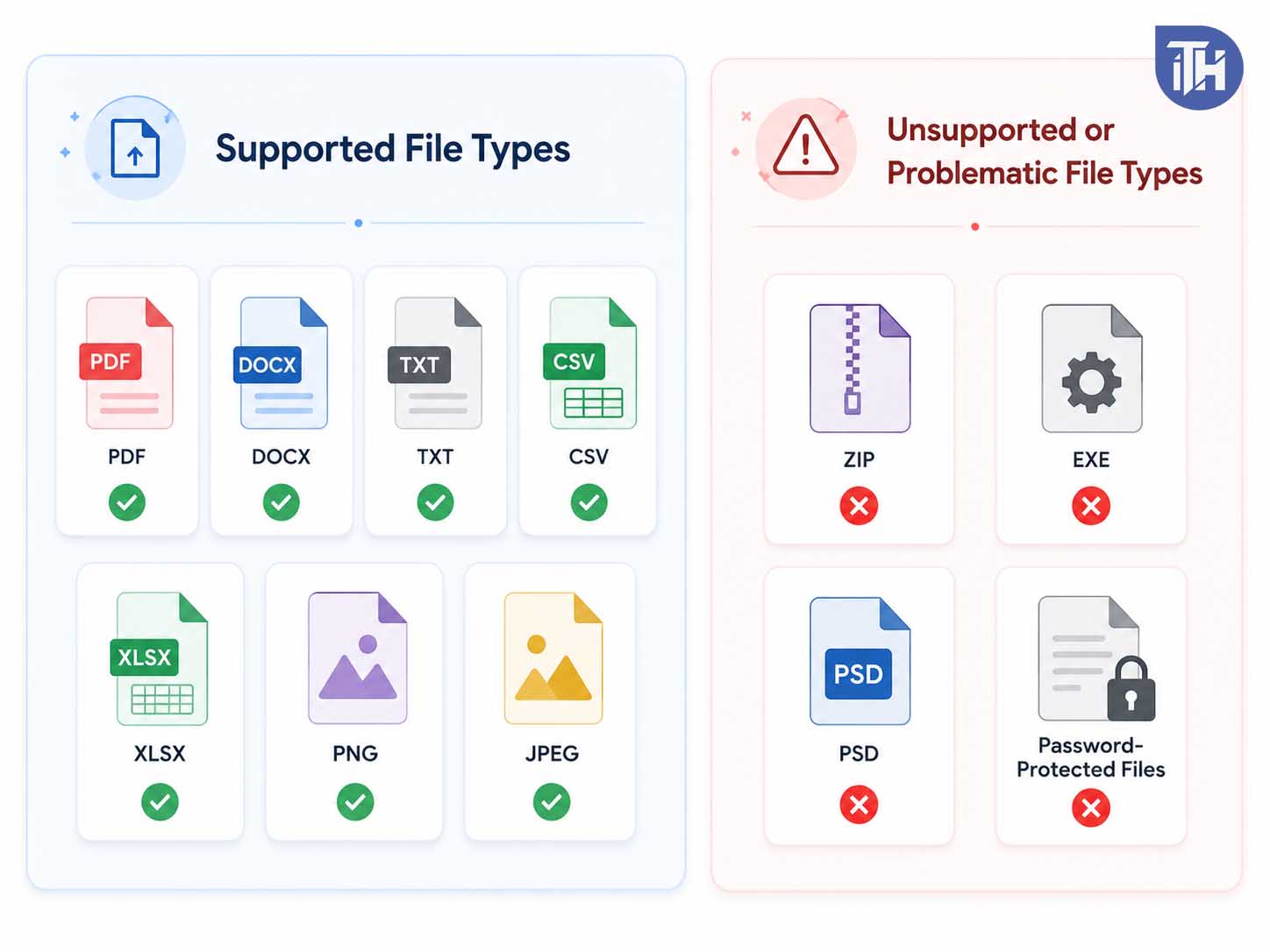
Claude currently supports many common file formats, but not every file type will work the same way. If Claude file upload is not working, the first thing to check is whether your file type is supported.
Commonly supported document formats include:
- DOCX
- CSV
- TXT
- HTML
- ODT
- RTF
- EPUB
- JSON
- XLSX
Commonly supported image formats include:
- JPEG
- PNG
- GIF
- WebP
If you are uploading a file type such as ZIP, EXE, PSD, AI, INDD, DWG, APK, or a very uncommon format, Claude may reject it or fail to process it. In that case, convert the file into a supported format before uploading.
Claude File Upload Limits You Should Check First
File limits are one of the most common reasons behind Claude upload problems. In 2026, Claude supports large chat uploads, but there are still limits depending on where and how you upload files.
For normal chat uploads, Claude supports up to 20 files per chat and large individual files. For Project files, the per-file limit is smaller, and total usable content still needs to fit within Claude’s context window. This means a file may upload successfully but still be too large or too complex for Claude to fully analyze in one response.
PDF behavior also matters. Claude can process text and visual elements in many PDFs, but very long PDFs, scanned documents, image-heavy files, or files with hundreds of pages may hit processing limits. If your PDF contains many high-resolution images, charts, screenshots, or scanned pages, the file may become difficult to process even when the file size looks acceptable.

Why Is Claude File Upload Not Working?
There are several possible reasons why Claude upload may fail. Some are user-side issues, while others are related to Claude’s own service status.
1. The File Type Is Not Supported
If the file format is not supported, Claude may not upload it properly. Even if the file appears in the chat box, Claude may not be able to read its content. This commonly happens with compressed folders, design files, app files, database backups, and password-protected documents.
2. The File Is Too Large or Too Complex
A file can fail because of its size, but it can also fail because of its internal content. For example, a 20 MB PDF full of scanned images may be harder to process than a 100 MB plain text-based document. Similarly, a spreadsheet with many sheets, formulas, hidden tabs, and formatting may fail or take longer to process.
3. Your Browser Cache Is Causing Problems
Claude runs inside your browser, so corrupted cache, expired cookies, or conflicting browser storage can break upload features. This is common after Claude updates its web app or when a browser has stored old site data.
4. Browser Extensions Are Blocking Uploads
Ad blockers, privacy extensions, script blockers, antivirus browser extensions, download managers, and content filtering tools can interfere with file upload requests. Some extensions block background network calls that Claude needs to attach and process files.
5. VPN, Proxy, or Firewall Is Interrupting the Upload
File upload requires a stable connection. VPNs, proxy tools, office firewalls, school networks, and strict DNS filters can interrupt upload requests. This may cause Claude to show a network error even when normal browsing works.
6. Claude Is Having a Temporary Server Issue
Claude has had temporary service disruptions and elevated error periods in the past. During such periods, chat may work slowly, uploads may fail, or files may remain stuck while processing. If the issue starts suddenly and affects all devices, it may be a Claude-side problem.
7. Your Account or Plan Has Hit a Usage Limit
If your account has reached a usage limit, Claude may restrict some actions temporarily. This can affect message sending, file processing, and model access. In such cases, upload may not work until your usage limit resets.
8. The File Is Corrupted or Password Protected
Claude may fail to process damaged, encrypted, locked, or password-protected files. Even if the file opens on your device, it may still contain restrictions that prevent proper text extraction.
How to Fix Claude File Upload Not Working
Start with the simplest fixes first. Do not delete your file or change your account settings before checking the basics.
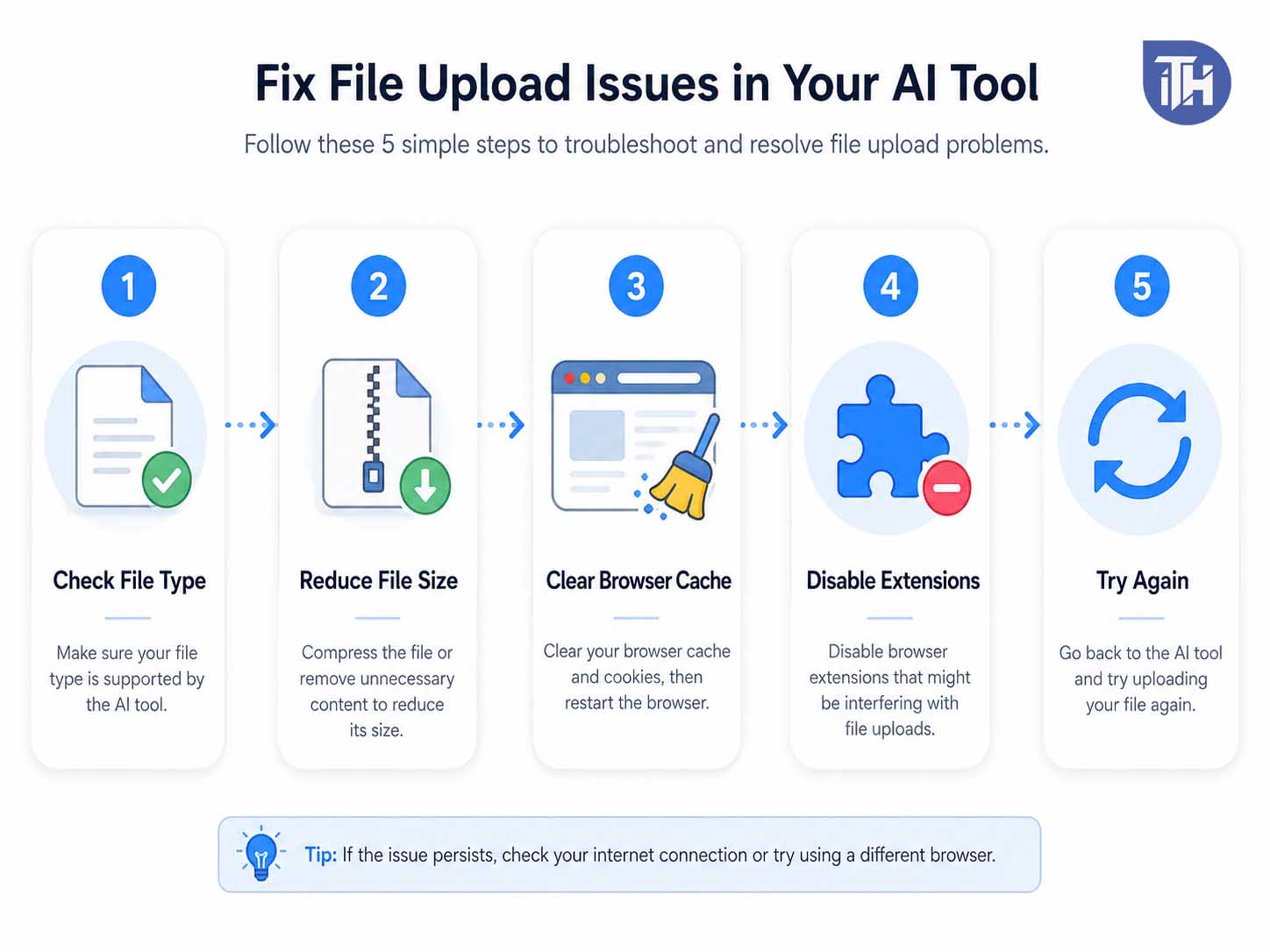
1. Refresh Claude and Try Uploading Again
The first fix is simple but often works. Refresh the Claude page and try uploading the file again. If the browser tab has been open for many hours, the session may become stale, which can break file upload.
To do this properly:
- Save any important prompt text first
- Refresh the Claude tab
- Start a new chat if needed
- Click the plus button again
- Select the file from your device
This works because refreshing the page reloads Claude’s web app, renews active session data, and clears temporary front-end errors without logging you out.
2. Check Whether Claude Is Down
If Claude file upload suddenly stops working for every file, every browser, and every device, check Claude’s service status. A platform-side issue can cause upload failure even when your internet is working fine.
You can check the official Claude status page and also look at community reports if you suspect a live outage. If there is an active incident affecting Claude.ai, file operations, login, or elevated errors, the best fix is to wait until the service recovers.
A good way to confirm this is to test a very small TXT file. If even a tiny file fails, the issue is likely not your original file.
3. Confirm the File Format Is Supported
If your file is not uploading, convert it into a supported format. For example, if you are trying to upload a Pages file from Mac, export it as PDF or DOCX first. If you are uploading a spreadsheet from another tool, save it as XLSX or CSV.
Best conversion options:
- Convert documents to PDF or DOCX
- Convert spreadsheets to XLSX or CSV
- Convert images to PNG or JPEG
- Convert web content to HTML or PDF
- Convert raw data to TXT, CSV, or JSON
This works because Claude can extract content more reliably from standard formats. Unsupported formats may contain structures Claude cannot read directly.
4. Rename the File Before Uploading
A file name with unusual symbols can sometimes create upload issues. This includes special characters, very long names, emojis, brackets, foreign symbols, or multiple dots in the file name.
Rename your file using a simple format like:
claude-upload-test.pdf
or
project-notes.docx
Avoid file names like:
final%%%report(edited)!!!v9..pdf
This fix is especially useful when uploading from mobile devices, cloud folders, shared drives, or downloaded email attachments.
5. Reduce the File Size
If the file is large, compress it or split it into smaller sections. This is one of the most reliable ways to fix Claude upload problems with PDFs, reports, books, legal documents, research files, and large datasets.
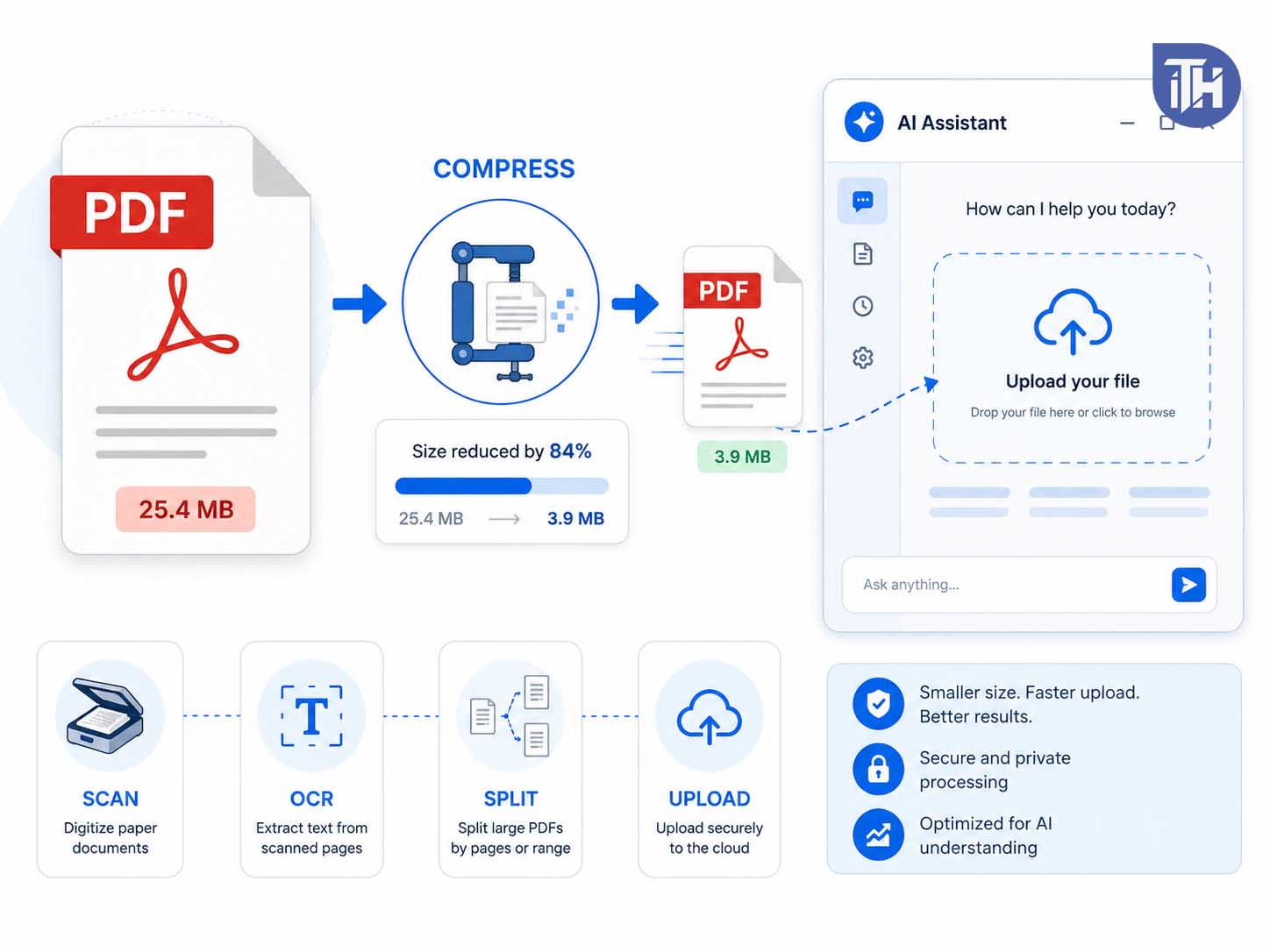
For PDFs, try these steps:
- Compress the PDF using a trusted PDF compressor
- Remove unnecessary images
- Split the PDF by chapter or section
- Export only the pages you need
- Use OCR only when the PDF is scanned
For spreadsheets, try these steps:
- Remove empty rows and columns
- Delete hidden sheets you do not need
- Save a simplified copy
- Export only the required sheet as CSV
- Remove heavy formatting and unnecessary formulas
This works because Claude must upload, parse, extract, and fit the file content into a usable context. Smaller and cleaner files are easier to process.
6. Try a New Claude Chat
If the current chat already has many messages or multiple uploaded files, file upload may become slow or unreliable. Start a new chat and upload the file there.
This is useful when:
- The current chat already has many files
- You are continuing an old conversation
- Claude says the context is too long
- The uploaded file appears but Claude cannot analyze it
- Previous file uploads in the same chat failed
A fresh chat gives Claude a cleaner context and reduces the chance of processing conflicts.
7. Clear Browser Cache and Cookies for Claude
If Claude file upload is not working in your browser, clearing site data can fix it. You do not need to clear your entire browser history. Clear only Claude-related site data if possible.
In Chrome or Edge:
- Open Claude in your browser
- Click the lock or site icon near the address bar
- Open site settings
- Clear site data
- Reload Claude
- Sign in again
- Try uploading the file
This works because stale cookies or old cached scripts can conflict with the current Claude web app. Clearing site data forces your browser to load a fresh version.
8. Disable Browser Extensions Temporarily
Browser extensions are a common hidden cause of upload issues. Disable extensions temporarily and test Claude again.
Pay special attention to:
- Ad blockers
- Privacy blockers
- Script blockers
- Antivirus extensions
- Download manager extensions
- Cookie blockers
- VPN browser extensions
The easiest test is to open Claude in an incognito or private window with extensions disabled. If upload works there, one of your extensions is likely blocking Claude’s upload request.
9. Try Another Browser
If upload does not work in Chrome, try Edge, Firefox, Safari, or Brave. Sometimes a browser update, extension conflict, or corrupted profile can break uploads on only one browser.
For best results, test in a clean browser profile without extensions. If Claude upload works in another browser, the issue is not with your file or Claude account. It is most likely your original browser setup.
10. Turn Off VPN or Proxy
VPNs and proxies can cause file upload failures because uploads are more sensitive to connection interruptions than normal browsing. Temporarily disable your VPN and try again.
Also test another network if possible:
- Switch from Wi-Fi to mobile hotspot
- Try a different Wi-Fi network
- Restart your router
- Avoid office or school networks with strict firewalls
If Claude upload works on mobile hotspot but not on your main Wi-Fi, your network, DNS, firewall, or ISP routing may be interfering with the upload.
11. Check Your Internet Stability
Fast internet is helpful, but stable internet is more important for uploading files. A connection can show good download speed but still fail uploads due to packet loss, weak Wi-Fi signal, or unstable routing.
Try these quick checks:
- Move closer to the Wi-Fi router
- Restart your router
- Use a wired connection if available
- Pause large downloads or cloud backups
- Disable background uploads from Google Drive, OneDrive, or Dropbox
This works because Claude needs a clean upload session. If your connection drops briefly during upload, the file may fail even if websites still open normally.
12. Remove Password Protection From the File
If your PDF, DOCX, or spreadsheet is password protected, Claude may not be able to extract the content. Open the file in its original app, remove the password, and save a new unlocked copy.
For PDFs, open the document and export a new unlocked version. For Word or Excel files, check the document protection settings and save a clean copy without restrictions.
Only upload files you are allowed to share. Avoid uploading documents containing private passwords, banking details, sensitive identity documents, or confidential client data unless you have proper permission and understand the privacy implications.

13. Fix Scanned PDFs With OCR
If your PDF is scanned, Claude may not read it like a normal text document. A scanned PDF is often just a collection of images. In that case, the upload may work, but Claude may miss text or misunderstand the content.
Use OCR before uploading the file. OCR means optical character recognition. It turns scanned text into selectable text.
You can do this using:
- Adobe Acrobat OCR
- Google Drive OCR
- Microsoft OneNote OCR
- Built-in scanner app OCR tools
- Reliable PDF OCR tools
After OCR, save the file as a searchable PDF and upload it again. This helps Claude extract the text more accurately.
14. Upload Images in a Better Format
If image upload is not working, convert the image to PNG or JPEG. Some screenshots from mobile devices, design tools, or cloud apps may contain metadata or unusual compression that causes upload errors.
Try this:
- Open the image on your device
- Take a fresh screenshot
- Save it as PNG or JPEG
- Keep the resolution reasonable
- Upload the new image
Claude supports large image dimensions, but extremely huge images can still take longer to upload and process. If the image is very large, resize it before uploading.
15. Enable Required Features for Spreadsheet Uploads
If XLSX upload is not working, check whether the required Claude feature for code execution and file creation is enabled in your account. Claude may require this for spreadsheet file handling.
If you do not need formulas, charts, or workbook structure, export the spreadsheet as CSV. CSV files are simpler and often upload more reliably.
Use XLSX when you need multiple sheets or workbook structure. Use CSV when you only need Claude to read rows and columns from one sheet.
16. Use Drag and Drop Instead of the Upload Button
If the plus button is not responding, try dragging the file directly into the Claude chat window. If drag and drop does not work, try the plus button instead.
This helps identify whether the problem is with the file picker, browser permission, or Claude’s upload function. Sometimes the browser file picker fails while drag and drop still works.
17. Check Browser Permissions
Claude does not need full access to your device, but your browser must allow file selection. If browser permissions or security settings are too strict, the upload button may not work correctly.
Check whether your browser is blocking popups, file access, clipboard access, or site scripts. Also make sure you are not using a hardened privacy mode that blocks normal web app functions.
18. Sign Out and Sign Back In
If your Claude session is expired or partially broken, uploads may fail even though the chat interface still loads. Sign out, close the browser tab, open Claude again, sign in, and retry the upload.
This works because authentication issues can affect file upload endpoints. A fresh login renews your session and may restore upload access.
19. Try the Claude Desktop or Mobile App
If Claude upload is not working in the web browser, test the official Claude desktop or mobile app if available for your device. If the file uploads through the app, the issue is likely browser-specific.
Similarly, if the mobile app upload fails, try the desktop browser. This helps narrow down whether the problem is with your device, browser, app version, or Claude account.
20. Update Your Browser or App
An outdated browser may fail with modern upload systems. Update your browser to the latest version, then restart it and try again.
Also update the Claude mobile app if you are uploading from iPhone, iPad, or Android. App updates often fix file picker issues, image upload bugs, login problems, and compatibility errors.
How to Fix Claude PDF Upload Not Working
PDF upload problems are very common because PDFs can be created in many different ways. Some PDFs contain clean text. Others contain scanned images, locked layers, embedded fonts, huge images, or complex layouts.
If Claude PDF upload is not working, try these fixes:
- Check that the PDF is not password protected
- Open the PDF locally to confirm it is not corrupted
- Compress the PDF
- Split a large PDF into smaller parts
- Run OCR if it is scanned
- Export the PDF again from Word, Google Docs, or Acrobat
- Remove unnecessary images or attachments inside the PDF
- Upload only the pages you need
If Claude uploads the PDF but gives weak answers, ask it to focus on specific pages or sections. For example, mention the page number shown in your PDF viewer and ask Claude to summarize only that section.
How to Fix Claude Image Upload Not Working
If Claude image upload is not working, the issue is usually related to file format, image size, browser permission, or app compatibility.
Try these steps:
- Convert the image to PNG or JPEG
- Resize very large images
- Take a fresh screenshot and upload that version
- Try uploading from desktop instead of mobile
- Update the Claude app
- Disable VPN and browser extensions
- Clear Claude site data
If you are uploading a screenshot from iPhone or iPad, save it again through the Photos app or send it to yourself as a JPEG. This can remove problematic metadata and make the image easier to upload.
How to Fix Claude Spreadsheet Upload Not Working
Spreadsheet files can fail when they are too complex. Large XLSX files with multiple tabs, formulas, charts, pivot tables, hidden sheets, macros, and heavy formatting may not process properly.
Use these fixes:
- Save a copy of the spreadsheet
- Delete sheets you do not need
- Remove hidden rows, hidden columns, and hidden tabs
- Paste values instead of formulas where possible
- Export the required sheet as CSV
- Remove charts and images if they are not needed
- Enable required Claude features for XLSX handling
If your goal is simple data analysis, CSV is usually the best format. If your goal is workbook review, XLSX is better, but it may need cleanup first.
What to Do If Claude Upload Is Stuck on Processing
Sometimes the file uploads but remains stuck on processing. This usually means Claude accepted the file but is taking too long to extract or read it.
Try the following:
- Wait a minute for large files
- Refresh the page if it remains stuck
- Start a new chat
- Upload a smaller version of the file
- Split the file into sections
- Remove images, charts, or scanned pages
- Try a different browser
If the same file gets stuck repeatedly, the file structure is likely the issue. Exporting a fresh copy often fixes it.
Best Workarounds When Claude File Upload Still Fails
If none of the fixes work, you can still share the file content with Claude using alternative methods.
Copy and Paste the Text
For short documents, copy the important text and paste it directly into Claude. This avoids the upload system completely.
Split the Content Into Smaller Parts
For long documents, paste one section at a time. Label each part clearly, such as Part 1, Part 2, and Part 3. Then ask Claude to wait until all parts are provided before analyzing.
Convert the File to Plain Text
If DOCX or PDF upload fails, export the document as TXT. Plain text files are lighter and easier to process.
Use CSV Instead of XLSX
For spreadsheet data, CSV is often more reliable than XLSX. It removes formatting and keeps only the raw rows and columns.
Use Screenshots for Visual Issues
If a PDF chart or design layout is not being read properly, take a clear screenshot of that page and upload the image separately.
Common Claude File Upload Error Messages and Fixes
Upload Failed
This usually points to a network problem, file format issue, or temporary Claude-side error. Try refreshing, reducing file size, disabling VPN, and testing another browser.
File Too Large
Compress or split the file. For PDFs, export only the required pages. For spreadsheets, remove unnecessary sheets and formatting.
Unsupported File Type
Convert the file to PDF, DOCX, TXT, CSV, JSON, PNG, or JPEG depending on the content.
Claude Cannot Read the File
The file may be scanned, locked, corrupted, or too complex. Use OCR, remove password protection, or export a fresh copy.
Network Error
Disable VPN, switch networks, restart the router, or try mobile hotspot. Also check whether Claude is experiencing service issues.
Best Practices to Avoid Claude File Upload Problems
To avoid future upload issues, prepare your files before uploading them. A clean file is easier for Claude to process and gives better results.
- Use standard file formats like PDF, DOCX, TXT, CSV, XLSX, PNG, and JPEG
- Keep file names simple
- Remove password protection
- Compress very large PDFs
- Split long documents into smaller sections
- Use OCR for scanned documents
- Use CSV for simple spreadsheet analysis
- Upload only the pages or sheets you actually need
- Keep your browser updated
- Disable extensions if upload fails
For better results, also tell Claude what you want from the file. Instead of just uploading a document and asking “check this,” give a clear instruction like “summarize the key points,” “find errors,” “extract action items,” or “compare section 2 and section 5.”
When Should You Contact Claude Support?
You should contact support if file upload fails across multiple devices, browsers, networks, and file types, especially if your account seems affected but other users are not reporting issues.
Before contacting support, collect these details:
- Your device and browser name
- The file type you are uploading
- Approximate file size
- The exact error message
- Whether it happens with all files or one file only
- Whether VPN or extensions are enabled
- Whether the issue happens in a new chat
This makes it easier for support to understand whether the problem is account-specific, file-specific, browser-specific, or platform-wide.
Frequently Asked Questions
Why is Claude file upload not working?
Claude file upload may not work because of unsupported file type, large file size, browser cache, extensions, VPN interference, account limits, temporary Claude server issues, or a corrupted file. Start by testing a small TXT or PDF file in a new chat.
Why can’t I upload a PDF to Claude?
Your PDF may be too large, scanned, password protected, corrupted, or too complex. Compress it, remove protection, run OCR if needed, or split it into smaller sections before uploading.
Does Claude support image uploads?
Yes, Claude supports common image formats such as JPEG, PNG, GIF, and WebP. If image upload fails, convert the image to PNG or JPEG, reduce its size, and try again from another browser or device.
Why is my Claude upload stuck on processing?
This usually happens when Claude is trying to extract content from a large or complex file. Try a smaller version, split the document, remove heavy images, or export a fresh copy.
Can Claude upload Excel files?
Claude can work with XLSX files, but spreadsheet handling may require the correct account feature to be enabled. If XLSX upload fails, export the sheet as CSV and upload that instead.
How many files can I upload to Claude?
Claude supports multiple files in a chat, but limits can vary depending on chat uploads, project files, account conditions, and processing context. If uploads fail, reduce the number of files and upload only the most important ones.
Why does Claude say it cannot read my uploaded file?
The file may contain scanned images, locked content, unsupported formatting, or corrupted data. Try converting it to a cleaner format such as TXT, PDF, DOCX, or CSV.
Is Claude file upload down?
It can happen during temporary service disruptions. Check Claude’s official status page if upload suddenly fails for every file and every device.
Does clearing cache fix Claude upload issues?
Yes, clearing Claude site data can fix upload issues caused by stale browser cache, expired cookies, or old web app scripts. It is one of the most effective browser-side fixes.
What is the easiest workaround if upload still fails?
The easiest workaround is to copy and paste the file text directly into Claude. For spreadsheets, export the file as CSV. For scanned PDFs, use OCR and upload a searchable PDF.
Final Thoughts
Claude File Upload Not Working is usually caused by file limits, unsupported formats, browser issues, network interruptions, or temporary Claude service errors. The fastest way to troubleshoot it is to test a small supported file in a new chat, then move step by step through browser, network, file format, and account checks.
For most users, the fix is simple: refresh Claude, use a supported format, reduce the file size, clear site data, disable extensions, or try another browser. If the file itself is the issue, export a fresh copy, remove password protection, split large files, or use OCR for scanned documents.
If nothing works across all browsers, devices, and networks, the issue may be on Claude’s side or specific to your account. In that case, check the service status and contact support with the file type, size, browser, device, and exact error message.