

- The 8BitDo Ultimate 2 Bluetooth Controller is compatible with Nintendo Switch and Switch 2 consoles; to ensure it works properly, check for the right model on the box and update the firmware for Switch 2 compatibility.
- To connect the controller to the Switch, turn it on in "Switch mode," hold the pairing button for 3 seconds, and use the console's "Change Grip/Order" menu to complete the connection; the LED will light up to confirm pairing.
- Common issues include using the wrong controller model or mode, outdated firmware, and challenges with reconnecting, which can often be solved by checking these settings and ensuring the correct mode is used.
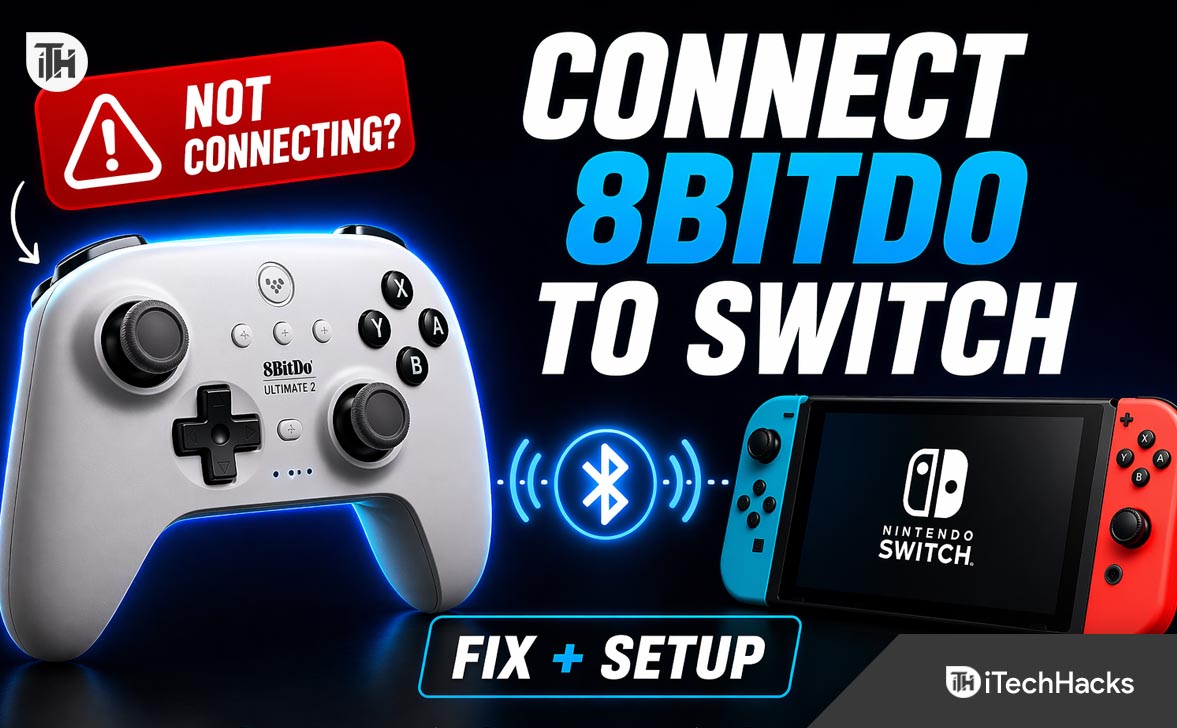
If you just bought an 8BitDo controller and want to use it on your Nintendo console, the setup is usually quick, but it can get confusing because 8BitDo has several models with very similar names. If you searched for how to connect 8bitdo to switch, the main thing to know is this: the 8BitDo Ultimate 2 Bluetooth Controller is the model made for Nintendo Switch support, and it also supports Switch 2 after a firmware update.
In this guide, I will walk you through the exact pairing steps for Nintendo Switch and Switch 2, explain the settings you should enable, show you what to do if the controller does not connect, and clear up the difference between the Bluetooth and non-Bluetooth Ultimate 2 models. That matters because the setup method is not the same across all versions.
What Is the 8BitDo Ultimate 2?
The name “8BitDo Ultimate 2” can refer to more than one controller, which is where most people get stuck. The 8BitDo Ultimate 2 Bluetooth Controller is the version officially listed as compatible with Switch and Windows, and 8BitDo also says it is now compatible with Switch 2 after updating the firmware. By contrast, the Ultimate 2 Wireless Controller is officially marketed for Windows and Android, not Switch, so you should not assume both controllers connect the same way.
So before you try anything else, check the exact name on the box, the product page, or the back of the controller. If your controller is the 8BitDo Ultimate 2 Bluetooth, this tutorial is the right one for you. If you have another model, some of the steps may still help, but Nintendo compatibility and features can differ.
Does 8BitDo Ultimate 2 Work with Nintendo Switch and Switch 2?
Yes, the 8BitDo Ultimate 2 Bluetooth Controller works with the original Nintendo Switch. 8BitDo’s official product page lists it as compatible with Switch, and the company’s support pages also provide Switch-specific firmware and setup information.
For Switch 2, 8BitDo says the controller is now compatible as well, but you may need the latest firmware. The official update log specifically mentions added support for shake-to-wake on the Switch 2 console and other Switch-mode improvements. Nintendo also confirms that many Nintendo Switch accessories and controllers can still be paired wirelessly with Switch 2, though certain special console-specific features may still vary by game or accessory.
Before You Start
Before pairing your controller, do these quick checks first:
- Make sure the controller is actually the Ultimate 2 Bluetooth model.
- Charge the controller for a while if it is brand new.
- Update the controller firmware from 8BitDo support if you want the best Switch 2 compatibility.
- Keep the controller close to the console during first pairing.
- If you are using a docked Switch, make sure the console is fully on and not frozen on a sleep-state glitch.
This matters because many pairing failures are not true hardware issues. In real use, the most common causes are the wrong controller mode, outdated firmware, or trying to connect the wrong Ultimate-series model to the Switch.
How to Connect 8BitDo Ultimate 2 to Nintendo Switch
Method 1: Pair via Bluetooth on Nintendo Switch
If you have the 8BitDo Ultimate 2 Bluetooth Controller, this is the main method most people will use.
Step 1: Turn on the controller in Switch mode.
8BitDo’s Switch instructions for its Bluetooth Ultimate line require the controller to be in S mode. Switch mode is important because it tells the controller to behave like a Nintendo-compatible pad instead of a Windows-style X-input device. If the controller is in the wrong mode, your Switch may never detect it properly.
Step 2: Put the controller into pairing mode.
Hold the pair button on the controller for about 3 seconds. According to 8BitDo’s official instructions for connecting its Ultimate Bluetooth controller to Nintendo Switch, this enters pairing mode so the console can discover it.
Step 3: Open the controller pairing screen on your Switch.
On the Nintendo Switch, go to:
Home > Controllers > Change Grip/Order
This screen is where the Switch listens for new controllers. Once you open it, your 8BitDo controller should appear after a few seconds if pairing mode is active. 8BitDo’s own support page tells users to go to Controllers > Change Grip/Order for pairing.
Step 4: Wait for the connection to complete.
When the pairing succeeds, the controller’s Home LED should become solid. That is the confirmation 8BitDo uses in its official instructions. After that, the controller should work like a normal Switch-compatible gamepad.
Step 5: Test the buttons.
Move through the Switch menu, open a game, and test the sticks, triggers, and buttons. This is a simple but important check because sometimes pairing completes, but the wrong mode or old firmware can still cause odd input behavior.
Method 2: Reconnect After the First Pairing
Once you have paired the controller once, reconnecting is usually much easier. In most cases, turning on the controller while the Switch is awake should reconnect it automatically, especially if no other device is trying to grab the controller connection first. On supported firmware, 8BitDo also mentions Switch and Switch 2 wake-related behavior for Bluetooth models.
If your controller was previously connected to a PC or another device, it may not reconnect to the Switch right away. In that case, go back to Change Grip/Order and repeat the pairing process. That often forces the Switch to become the active connection again.
How to Connect 8BitDo Ultimate 2 to Switch 2
The overall process on Switch 2 is very similar, but there is one extra thing to remember: update the controller firmware first. 8BitDo states on its official product and support pages that the Ultimate 2 Bluetooth is compatible with Switch 2 after updating firmware, and its firmware notes mention Switch 2-specific improvements such as shake-to-wake support and Switch-mode optimization.
Steps for Switch 2
1. Update the controller firmware.
Visit the official 8BitDo support page and install the latest firmware for the Ultimate 2 Bluetooth controller. This is the safest starting point because early pairing or wake issues on newer consoles are often fixed by firmware updates.
2. Power on the controller in the correct mode.
Make sure the controller is using the Nintendo-compatible Switch mode before attempting to pair. Wrong mode is one of the easiest ways to waste time during setup.
3. Hold the pairing button for 3 seconds.
This puts the controller into pairing mode so the Switch 2 can find it, just like on the original Switch.
4. On Switch 2, open the controller pairing screen.
Go to the controller section and open the equivalent pairing area, typically the same kind of Change Grip/Order screen used on Switch. Nintendo confirms that many Switch accessories and controllers can be paired wirelessly with Switch 2, so the console is designed to accept compatible legacy-style controller connections.
5. Wait for the LED to go solid.
Once the controller finishes pairing, test navigation in the menu and inside a game.
One useful thing to know is that Nintendo says some older Switch controllers can be used wirelessly on Switch 2, but certain console-specific functions may still be limited. For example, Nintendo notes that Switch controllers may not be able to wake Switch 2 with the Home Button in the same way as native Switch 2 controllers. That does not necessarily stop gameplay, but it explains why some users think their controller is “not fully working” when it is really just a feature difference.
How to Update Firmware Before Pairing
If you are setting up the controller for Switch 2, or if you are getting connection errors on a regular Switch, updating the firmware is worth doing first.
Why the update matters
8BitDo has already released firmware notes mentioning Switch 2 support and improvements to Switch-mode behavior. That means newer firmware is not just optional polishing. It can directly affect whether your controller wakes, pairs, or behaves correctly on the console.
General update process
1. Go to the official 8BitDo support site.
2. Find the page for the Ultimate 2 Bluetooth Controller.
3. Download the update tool or use the listed updater method.
4. Connect the controller to your computer as instructed by 8BitDo.
5. Install the latest firmware.
Once the update is complete, restart the controller and then try pairing again on your Switch or Switch 2.
Important Settings and Features You Should Know
Motion controls
8BitDo lists motion control support for Switch on compatible controller models, and the firmware update notes also mention improvements to motion control experience in Switch mode. If you play games that rely on aiming or gyro, updated firmware is especially helpful.
Wake from sleep
Wake behavior can vary by model and console generation. 8BitDo’s support notes mention shake-to-wake support on Switch 2 for updated firmware, while Nintendo also notes that certain older Switch controllers do not wake Switch 2 with the Home Button in the normal way. So if your controller plays games fine but does not wake the console exactly like an official controller, that may be expected behavior rather than a defect.
Profiles and customization
8BitDo’s Ultimate Software lets you customize button mapping, stick sensitivity, trigger sensitivity, vibration, and profiles. This does not just help for PC play. It can also improve your Switch experience if you want different layouts for racing, shooters, platformers, or handheld-style sessions.
Common Problems and Fixes
1. The Switch cannot find the controller
This is the most common problem when people search how to connect 8bitdo to switch. Usually, the cause is one of these:
- The controller is not the Bluetooth model
- The controller is in the wrong mode
- You did not hold the pair button long enough
- The controller firmware is outdated
- The controller is already trying to reconnect to another device
Fix: confirm you have the Ultimate 2 Bluetooth, switch to the correct mode, hold the pair button for 3 seconds, open Change Grip/Order again, and retry after updating firmware.
2. The controller works on PC but not on Switch
This usually happens when the controller is in a Windows-friendly input mode instead of Nintendo Switch mode. Some 8BitDo controllers support multiple connection modes, and the Switch only responds properly when the controller is presenting itself in the right way.
Fix: change the mode to the Nintendo-compatible Switch mode, then pair again from the console’s controller screen.
3. The controller pairs but some features feel wrong
If the basic connection works but motion controls, wake features, or certain advanced behaviors seem inconsistent, firmware is the first thing to check. 8BitDo’s update logs specifically mention improvements to motion control and Switch 2 wake support.
Fix: update the controller to the latest firmware and then test again.
4. It will not reconnect automatically
If the controller connected once but will not reconnect later, another device may be stealing the connection, or the Switch may need a fresh pairing handshake.
Fix: turn Bluetooth off on nearby paired devices if needed, wake the Switch fully, then reopen Change Grip/Order and reconnect. If that still fails, remove the pairing and pair it again from scratch.
5. You have the wrong Ultimate 2 model
This is more common than people think. The Ultimate 2 Wireless Controller is officially listed for Windows and Android, while the Ultimate 2 Bluetooth Controller is the Nintendo-friendly version. If you bought the non-Bluetooth model expecting direct Switch pairing, that mismatch is likely the real issue.
Best Practices for a Smooth Connection
- Update firmware before first use on Switch 2
- Pair close to the console during setup
- Use the official pairing screen instead of waiting on the home menu
- Do not assume all Ultimate-series controllers support Switch the same way
- Test wake, motion, and in-game controls separately after pairing
These small steps save time because most connection complaints come from skipping setup details rather than from defective hardware.
Frequently Asked Questions
Can I use the 8BitDo Ultimate 2 on both Switch and PC?
Yes, the Ultimate 2 Bluetooth Controller is officially listed by 8BitDo as compatible with Switch and Windows. Just remember that the connection mode can change depending on the device you are using.
Does the 8BitDo Ultimate 2 work with Switch 2?
Yes, 8BitDo says the Ultimate 2 Bluetooth Controller is now compatible with Switch 2 after a firmware update.
Why is my 8BitDo controller not showing up on Switch?
The most likely reasons are wrong mode, outdated firmware, or having a different Ultimate-series model than the Bluetooth version. The official Switch pairing process requires the correct mode and a 3-second hold on the pair button.
Do I need to use the dock to connect it?
For the Ultimate 2 Bluetooth Controller, standard Switch pairing is done wirelessly through the console’s controller menu. Some other 8BitDo models or receiver-based modes may use docked setups differently, but the main Bluetooth pairing process does not depend on a dongle for Switch.
Does it support wake-up on Switch 2?
8BitDo’s firmware notes mention shake-to-wake support for Switch 2. Nintendo also notes that older Switch controllers may not wake Switch 2 through the Home Button in the same way as native Switch 2 controllers, so wake behavior can depend on firmware and feature support.
Final Thoughts
If you want the easiest answer to how to connect 8bitdo to switch, here it is: make sure you have the 8BitDo Ultimate 2 Bluetooth Controller, update its firmware, switch it to Nintendo-compatible mode, hold the pairing button for 3 seconds, and connect it from Controllers > Change Grip/Order on your Switch or Switch 2. That is the cleanest and most reliable setup path.
The biggest mistake people make is assuming every “Ultimate 2” controller works the same way. It does not. Once you get the correct model and update it properly, though, the setup is usually simple and stable. For Switch 2 owners, keeping firmware current is especially important because 8BitDo is actively improving compatibility and wake behavior through updates.
ALSO READ:
- LG TV Bluetooth Service Needs to Be Initialized? Here’s How to Fix It
- How to Fix Escape From Tarkov Backend Error Message
- How To Share Audible Books With Family Without Issues (Working Methods)
- How to Fix AltStore Error 22410 When Installing Apps
- How to Fix RPC Server Errors in Claude Cowork on Windows Easily




