- The iPhone 17 Pro Max may not vibrate due to a mix of new software features, not hardware issues, even if settings seem correct. This involves complex settings like the Action Button and deeply hidden Accessibility options.
- To fix vibration issues, users should check the Action Button settings, ensure haptic settings are correct, disable "Do Not Disturb" modes, and make sure a vibration pattern is selected. If problems persist, resetting settings might help.
- If software adjustments don't solve the problem, the issue may be a hardware defect, which could be fixed under warranty. Users should contact Apple Support if adjustments and resets do not restore vibration functionality.
The iPhone 17 Pro Max features the industry-leading Taptic Engine, designed to deliver precise, granular feedback that feels less like a generic buzz and more like a physical tap. However, this advanced engineering is rendered useless if the device refuses to vibrate for incoming calls or notifications. Missing an important message from a boss or a loved one because your phone, which was sitting right in your pocket, remained completely silent is a frustrating experience, especially when all your volume switches and toggles appear to be in the correct position.
In 2026, the issue of an iPhone vibration being “on but not working” rarely stems from actual hardware failure. Instead, it is often caused by the complex interplay of new iOS 19 features, such as the programmable Action Button, granular Focus modes, and deeply buried Accessibility overrides. This guide will walk you through every troubleshooting step, from checking the hidden “Master Kill Switch” in your settings to resetting specific software configurations, ensuring you can diagnose the root cause and get your iPhone 17 Pro Max buzzing again.
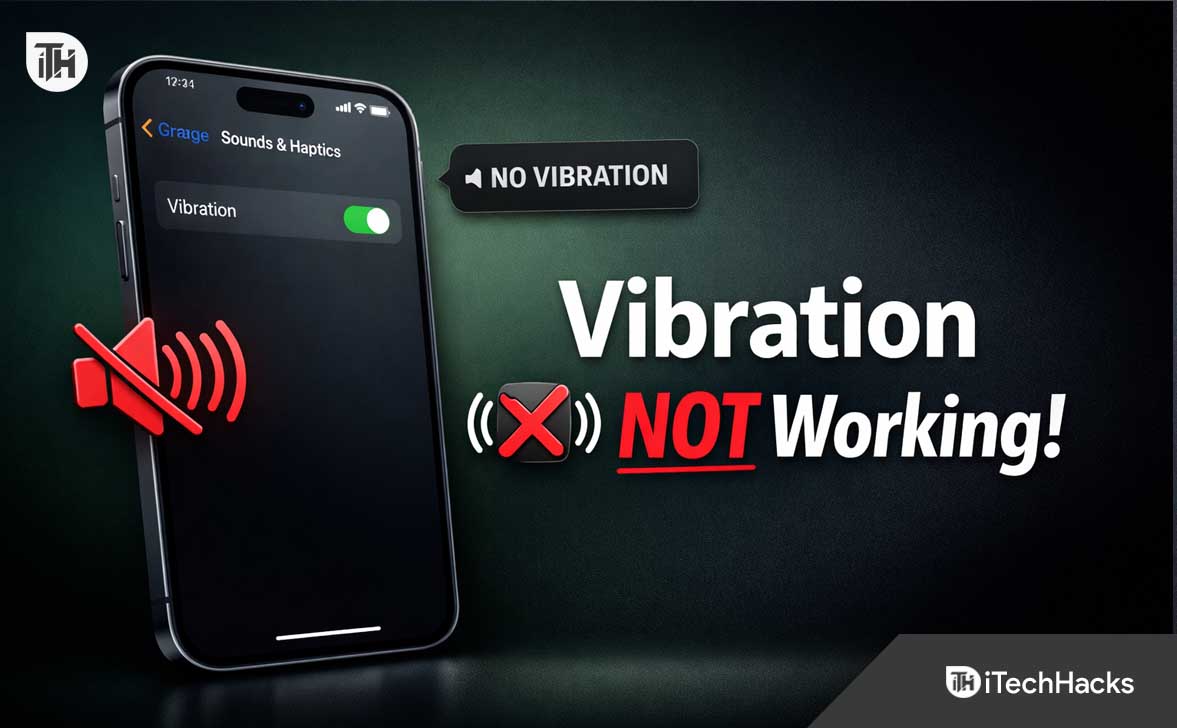
Fix iPhone 17 Pro Max Vibration Not Working Even When Turned On
This article will list various troubleshooting steps to help fix iPhone 17 Pro Max vibration issues, covering everything from the Action Button configuration to hidden Accessibility overrides.
1. Check the Action Button and Silent Mode Configuration
On the iPhone 17 Pro Max, the mechanical Mute Switch is a relic of the past, fully replaced by the solid-state Action Button. While this button is incredibly versatile, allowing you to launch cameras or shortcuts, its relationship with Silent Mode can be confusing. If you have remapped the Action Button to something like “Flashlight” or “Translate,” you might have lost the easy physical toggle to unmute your phone, leaving it stuck in a silent, non-vibrating state.
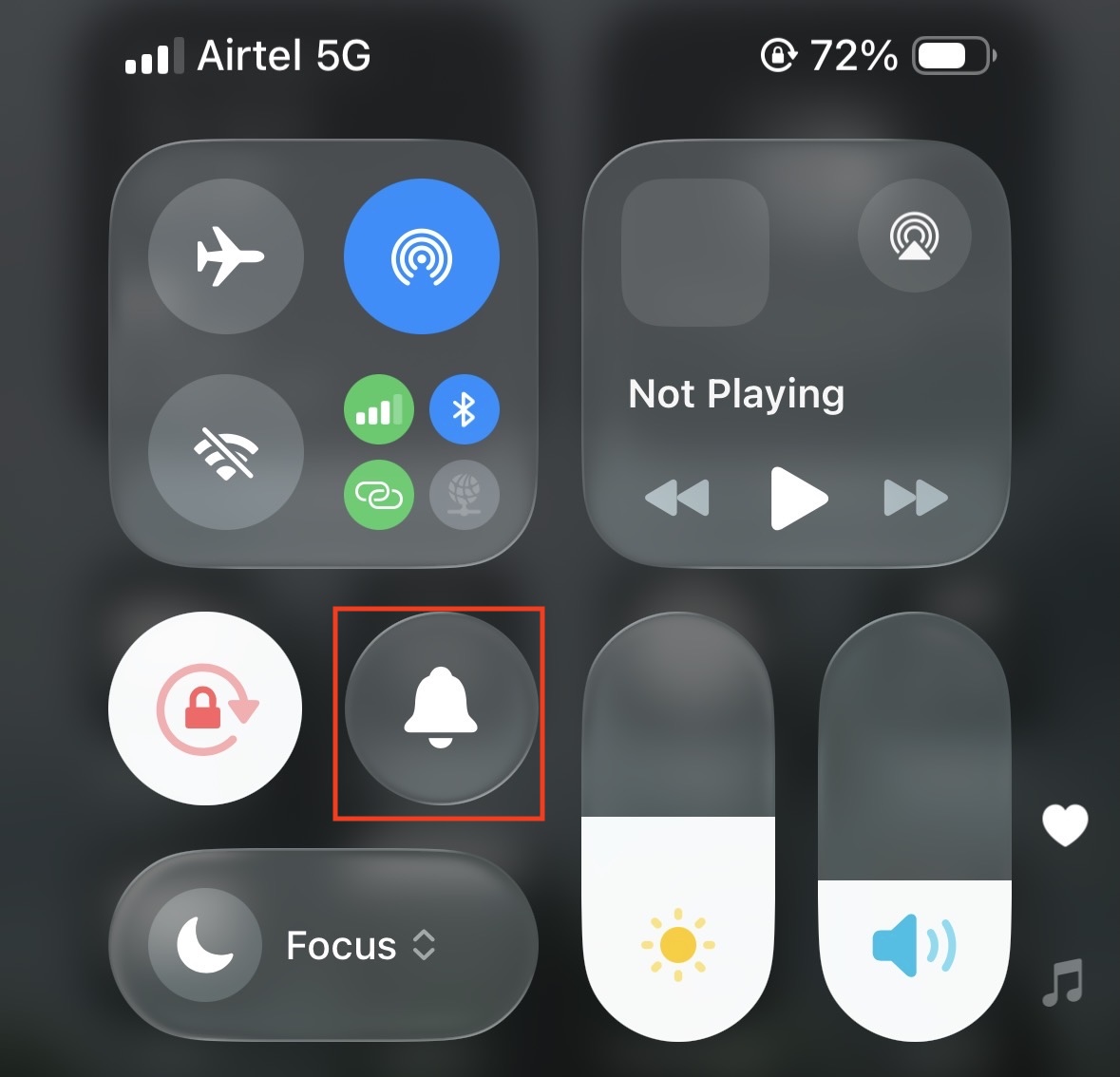
- Check the Status Bar: Look at the Dynamic Island or the top status bar. If you see a crossed-out bell icon, your phone is in Silent Mode.
- Verify Action Button Settings: Go to Settings > Action Button. Check what the “Press and Hold” action is assigned to. If it is set to Silent Mode, press and hold the physical button on the side of your phone to toggle the ringer back on.
- Control Center Toggle: If your Action Button is mapped to something else, swipe down from the top right to open Control Center. Look for the Bell Icon. If it is red with a slash, tap it to unmute.

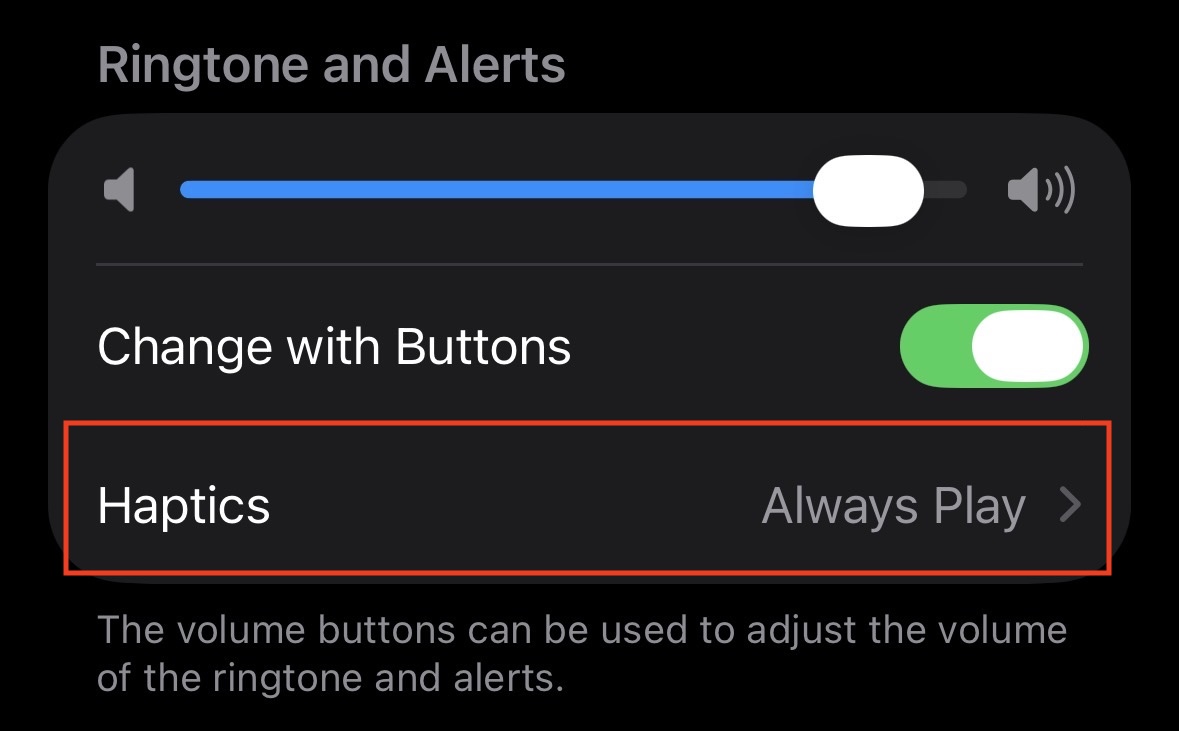
- Silent Mode Haptics: Even if you prefer Silent Mode, you likely still want vibration. Go to Settings > Sounds & Haptics. Under the Haptics section, ensure that Always Play is toggle. If this is off, your phone will be strictly silent—no ring, no buzz.
2. Verify Global “Haptics” Settings
Apple has reorganized the audio hierarchy in iOS 19, and it is easy to accidentally disable haptics globally. If your iPhone vibration is on but not working, the system might be prioritizing a “Do Not Disturb” protocol over your manual settings.
- Open Settings and tap on Sounds & Haptics.
- Tap on the Haptics menu (usually located under the Ringtone and Alerts volume slider).
- You will see four distinct options. Ensure the correct one is selected:
- Always Play: The phone vibrates in both Ring and Silent modes. (Recommended).
- Play in Silent Mode: Vibrates only when the ringer is off.
- Don’t Play in Silent Mode: Vibrates only when the ringer is on.
- Never Play: The vibration motor is disabled globally.
- If Never Play is selected, no app, call, or notification will ever trigger the Taptic Engine. Switch this to Always Play to test if the motor kicks back in.
3. Check Accessibility Vibration Setting (The Hidden Kill Switch)
This is the most common culprit for users who have tried every other sound setting without success. There is a “Master Kill Switch” for vibration buried deep in the Accessibility settings, designed for users with motor control sensitivities. If this toggle is turned off, no amount of tweaking in the “Sounds & Haptics” menu will work. This setting overrides everything else on the operating system level.
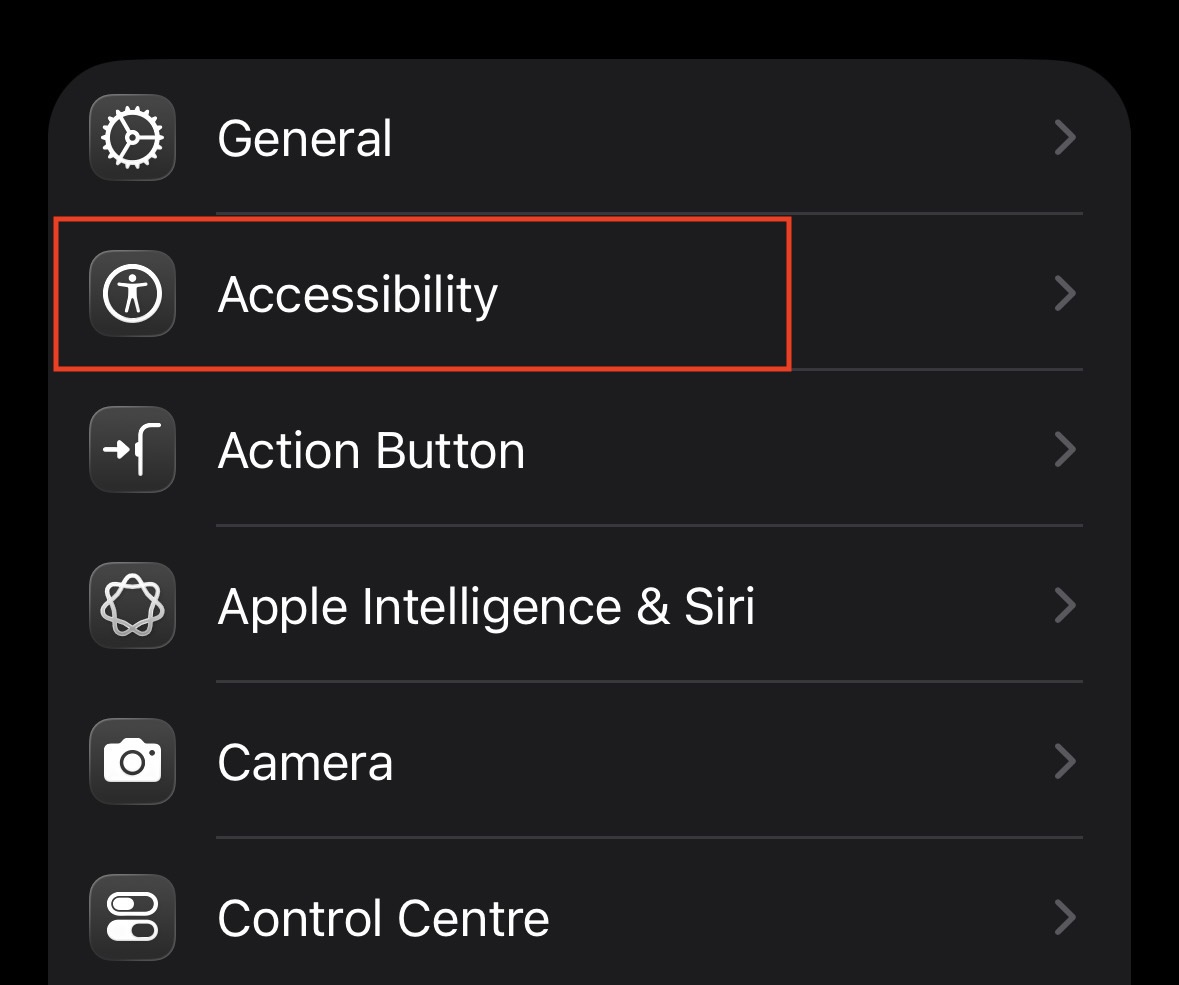
- Open Settings.
- Scroll down and tap on Accessibility.

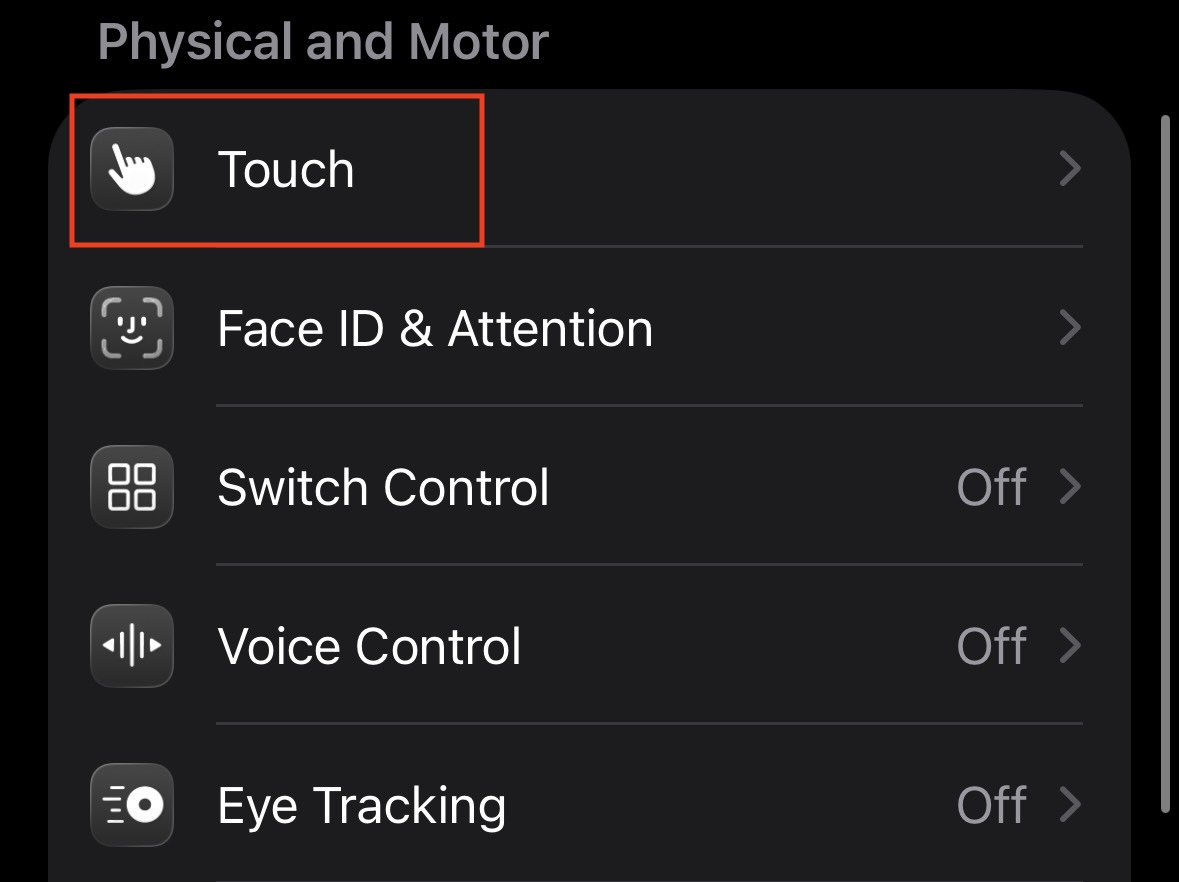
- Tap on Touch.

- Scroll down to find the Vibration toggle.

- Toggle this switch ON.
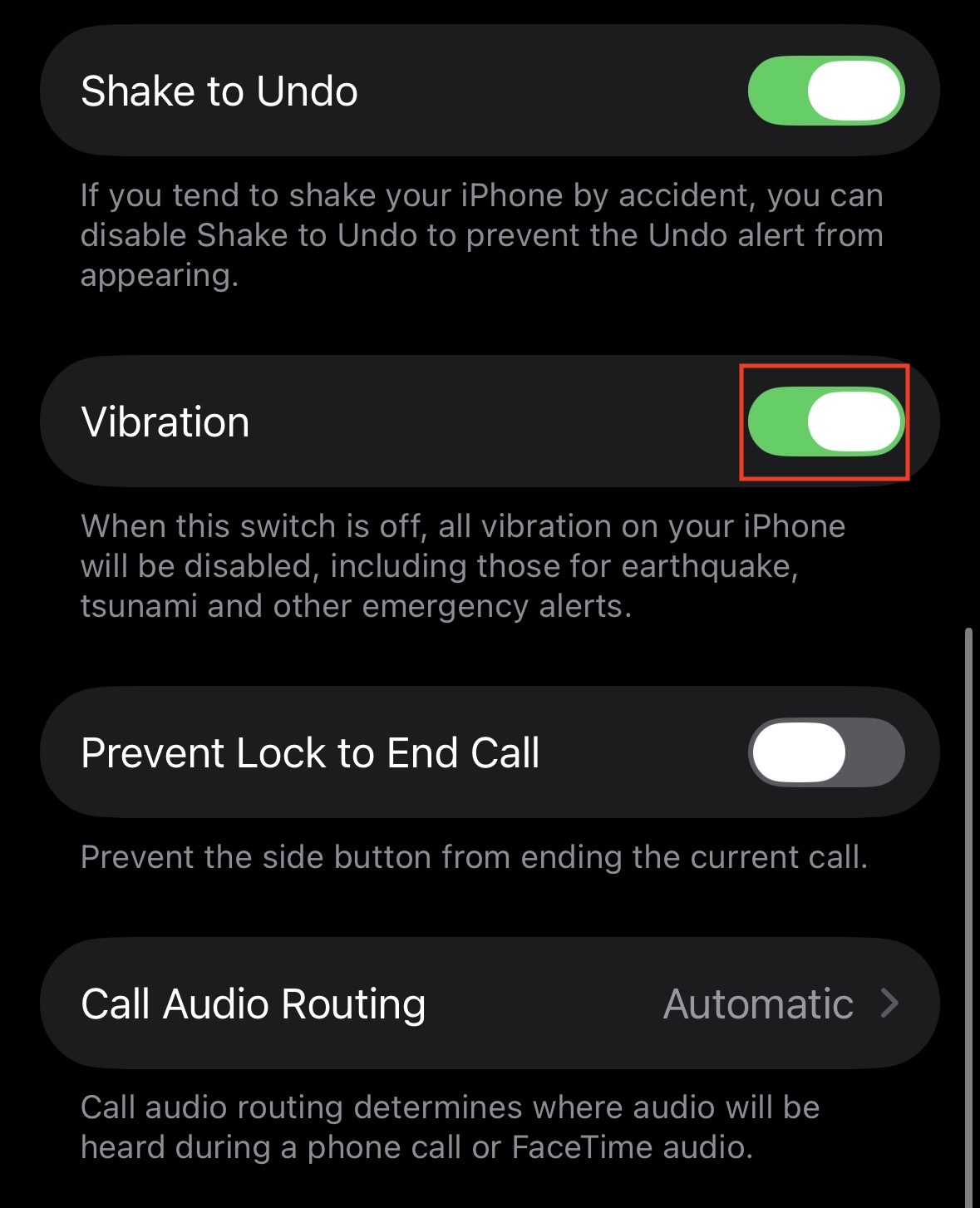
Why does this happen? Sometimes, during a major iOS update (like the move from iOS 18 to 19) or when restoring from an older iCloud backup, this setting can inadvertently get flipped to “Off.” If it is disabled, your iPhone 17 Pro Max effectively assumes you never want to feel a vibration for any reason, including emergency alerts and earthquake warnings.
4. Ensure a Vibration Pattern is Selected
Sometimes, the issue isn’t that the motor is broken, but that the phone is “playing” a silent vibration pattern. iOS allows you to assign custom vibration patterns to specific contacts or ringtones. If the pattern is set to “None,” the phone is technically vibrating, but with zero intensity.
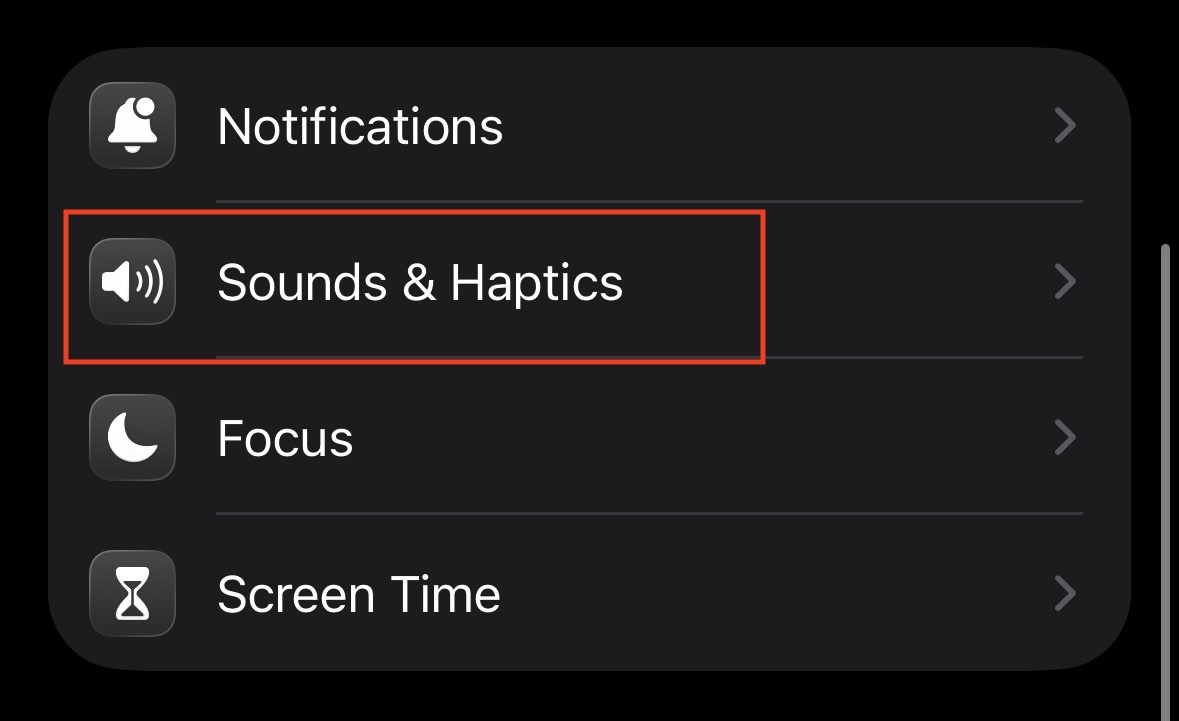
- Go to Settings > Sounds & Haptics.

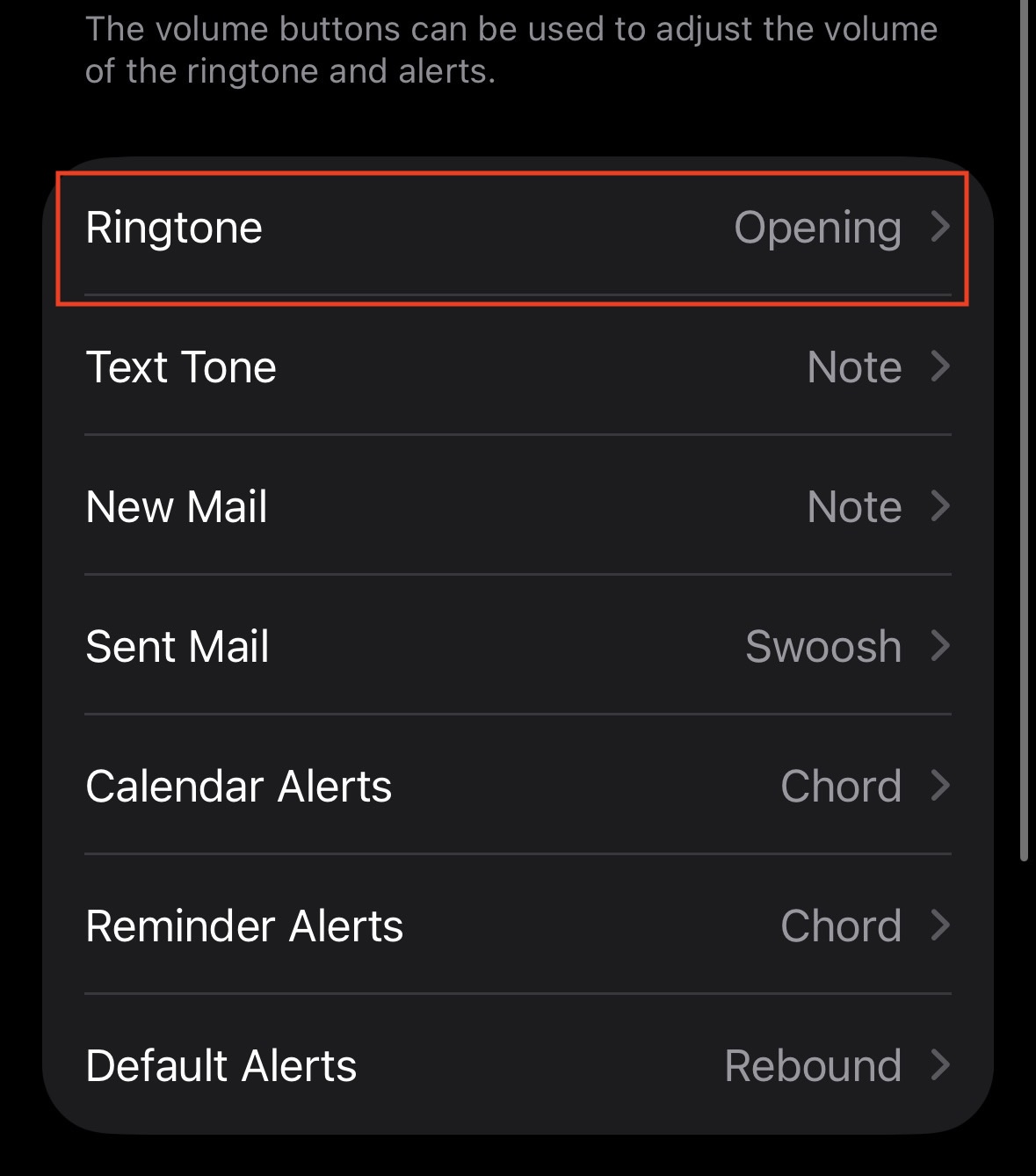
- Tap on Ringtone.

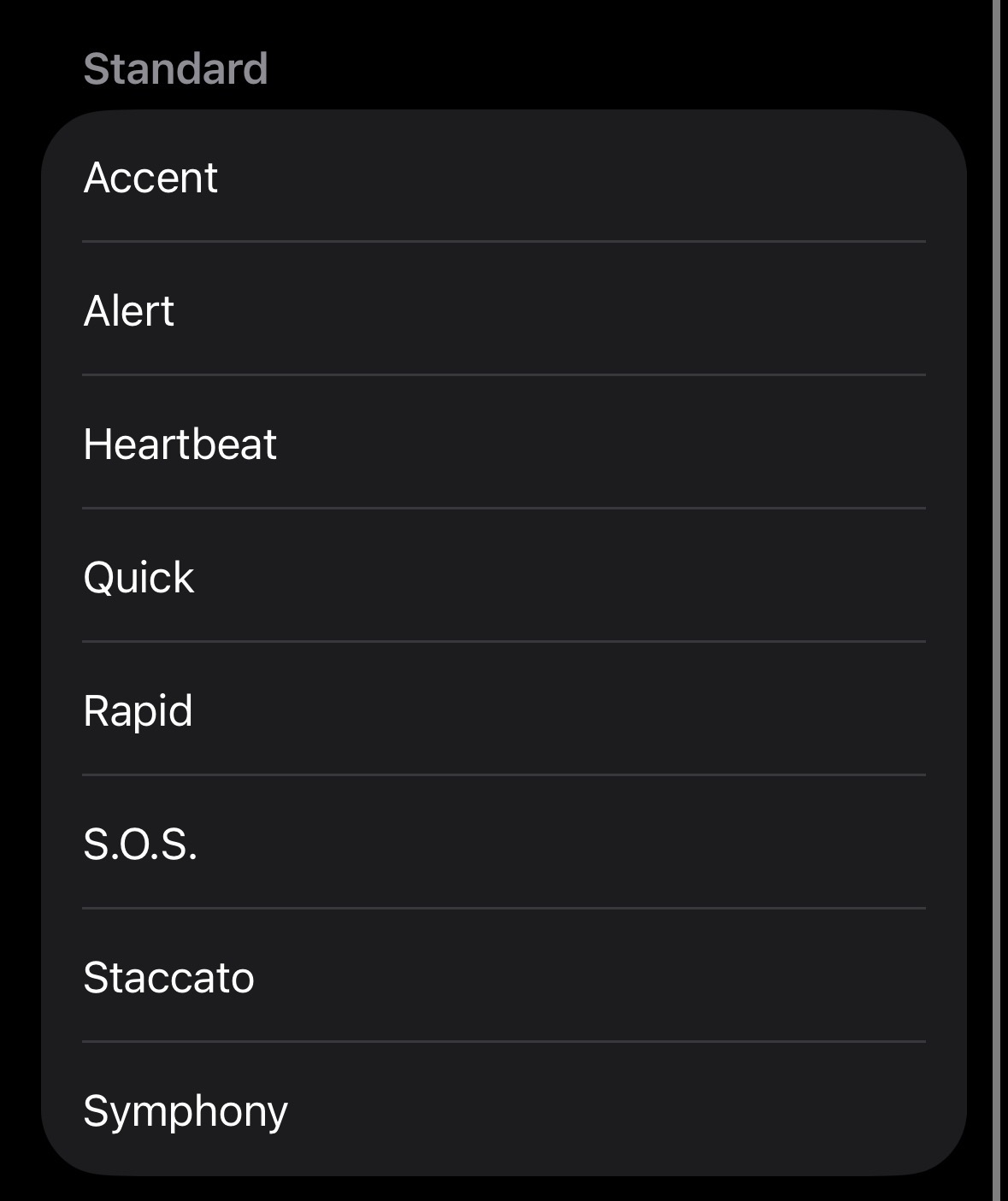
- Tap on Haptics at the very top of the screen.

- Ensure that a Standard pattern (like “Synchronized,” “Accent,” “Rapid,” or “Heartbeat”) is checked.

- Important: If “None” is checked at the bottom of this list, your phone will ring but will not vibrate.
- Check Specific Contacts: If the issue only happens when a specific person calls (like your spouse or boss), open their contact card in the Phone app, tap Edit, and check their custom Ringtone and Text Tone settings. They might have a “None” vibration assigned specifically to them.
5. Disable “Do Not Disturb” and Focus Modes
Focus modes in iOS 19 are powerful tools that filter out distractions, but they can also aggressively suppress haptic feedback if not configured correctly. If you see a moon icon, a bed icon, or a “Work” icon in your status bar, a Focus mode is active.
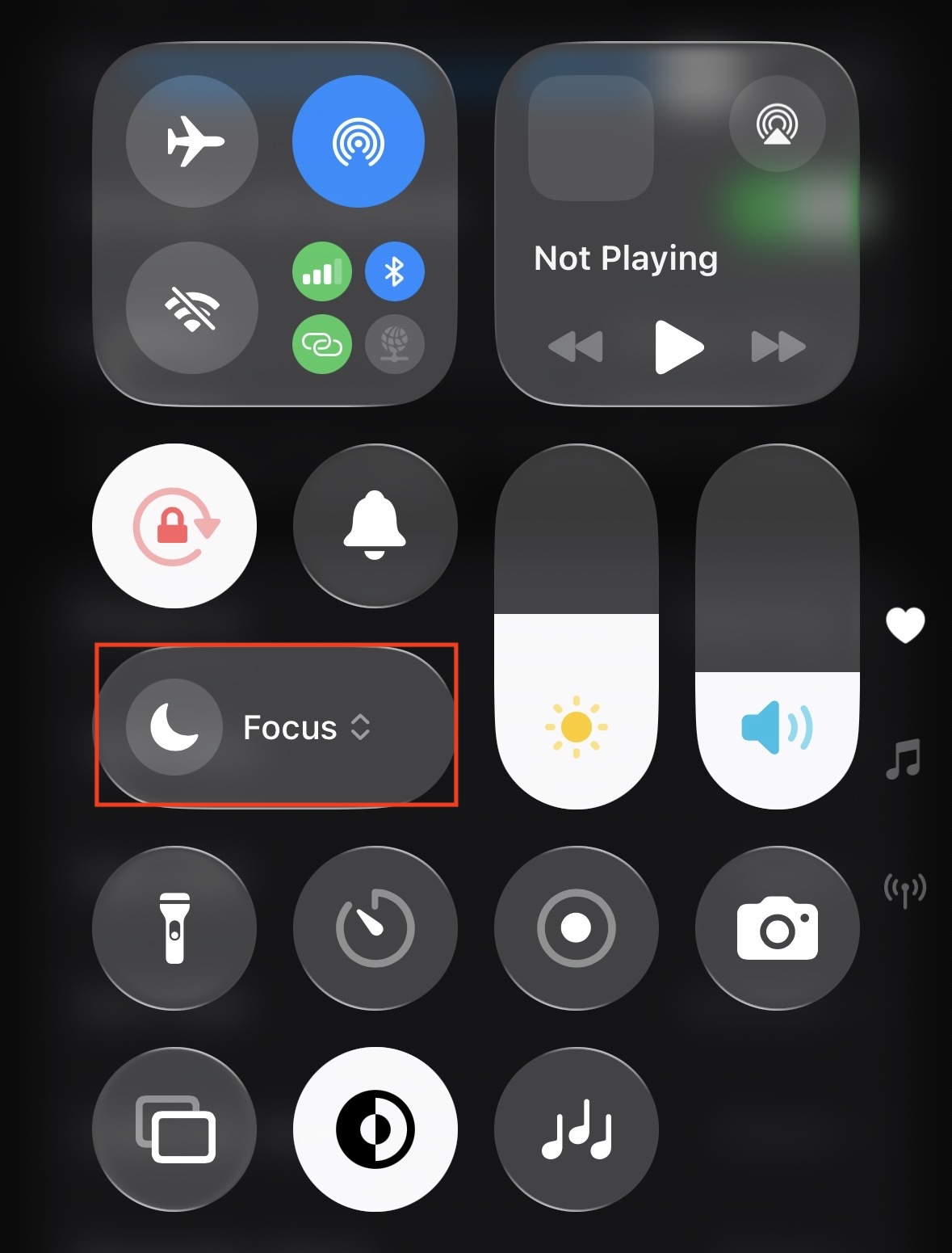
- Swipe down from the top-right corner to open Control Center.
- Tap the Focus button (where it says “Do Not Disturb” or “Personal”) to turn it off completely.

- Test your vibration now by asking someone to call you.
Configure Focus: If you want to keep Focus mode on but still want vibrations, go to Settings > Focus. Select the active profile (e.g., “Work”). Tap on Options or People/Apps and ensure that notifications are allowed from the contacts you are missing. Note that standard DND behavior suppresses both sound and vibration unless the phone is unlocked.
6. Reset All Settings (Software Flush)
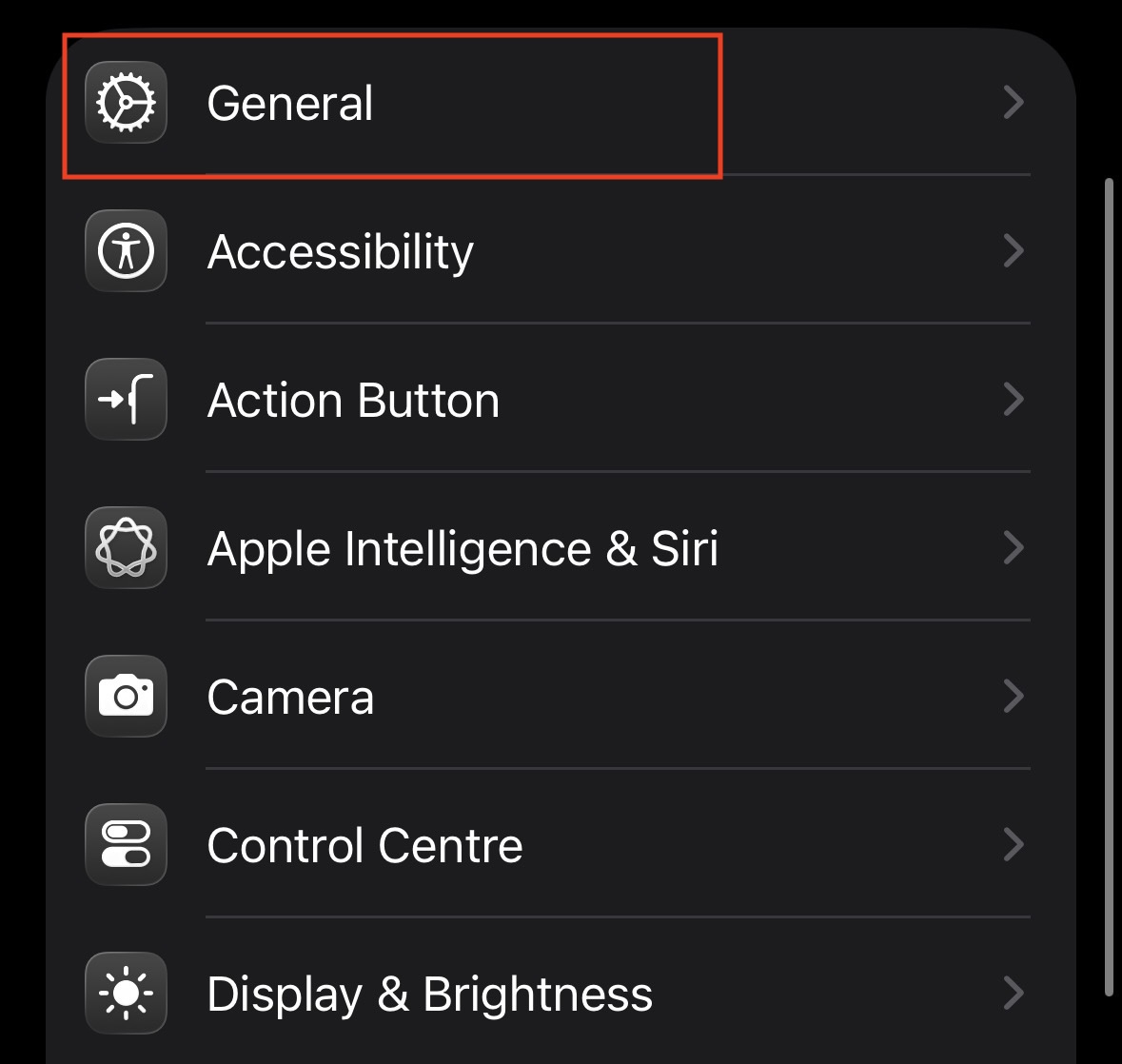
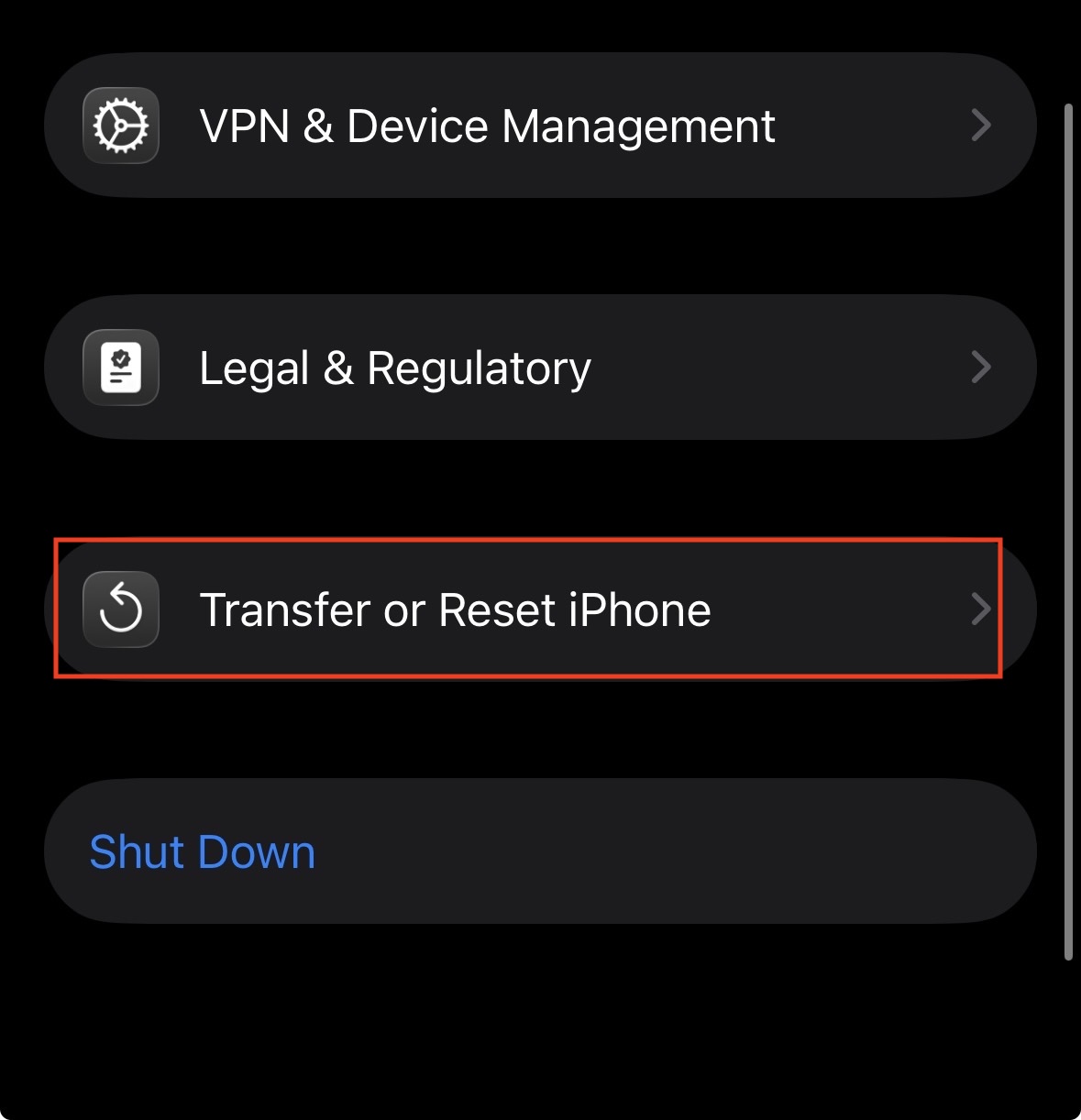
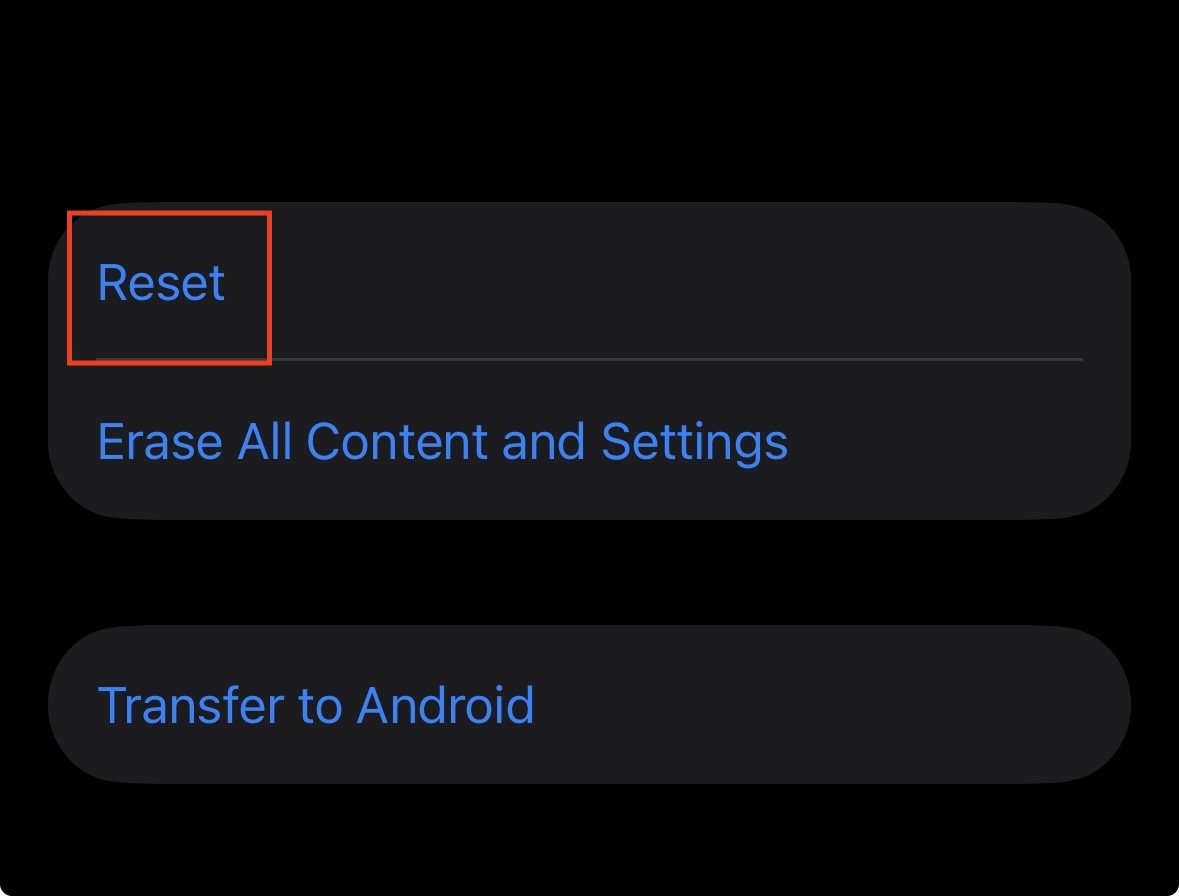
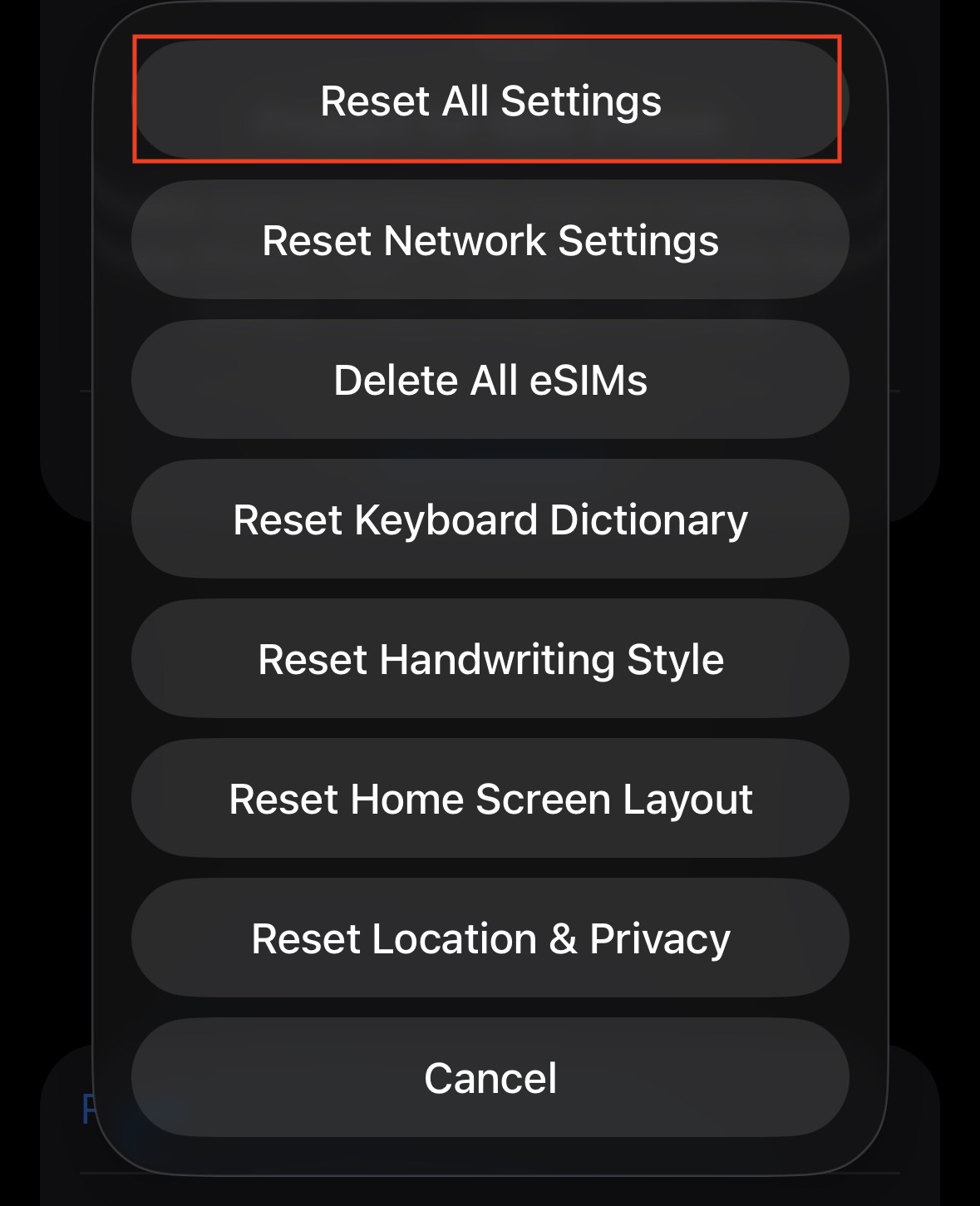
If your iPhone haptics are not working despite all the settings looking correct, you likely have a corrupt configuration file. “Reset All Settings” is a safe way to flush out these glitches without deleting your personal data (photos, apps, chats).
- Go to Settings > General.

- Scroll to the bottom and tap Transfer or Reset iPhone.

- Tap Reset.

- Select Reset All Settings.

- Enter your passcode.
Warning: This will reboot your phone and reset your Wi-Fi passwords, Bluetooth connections, Apple Pay cards, and Home screen layout. However, it is highly effective at fixing deep-seated software bugs preventing the Taptic Engine from firing.
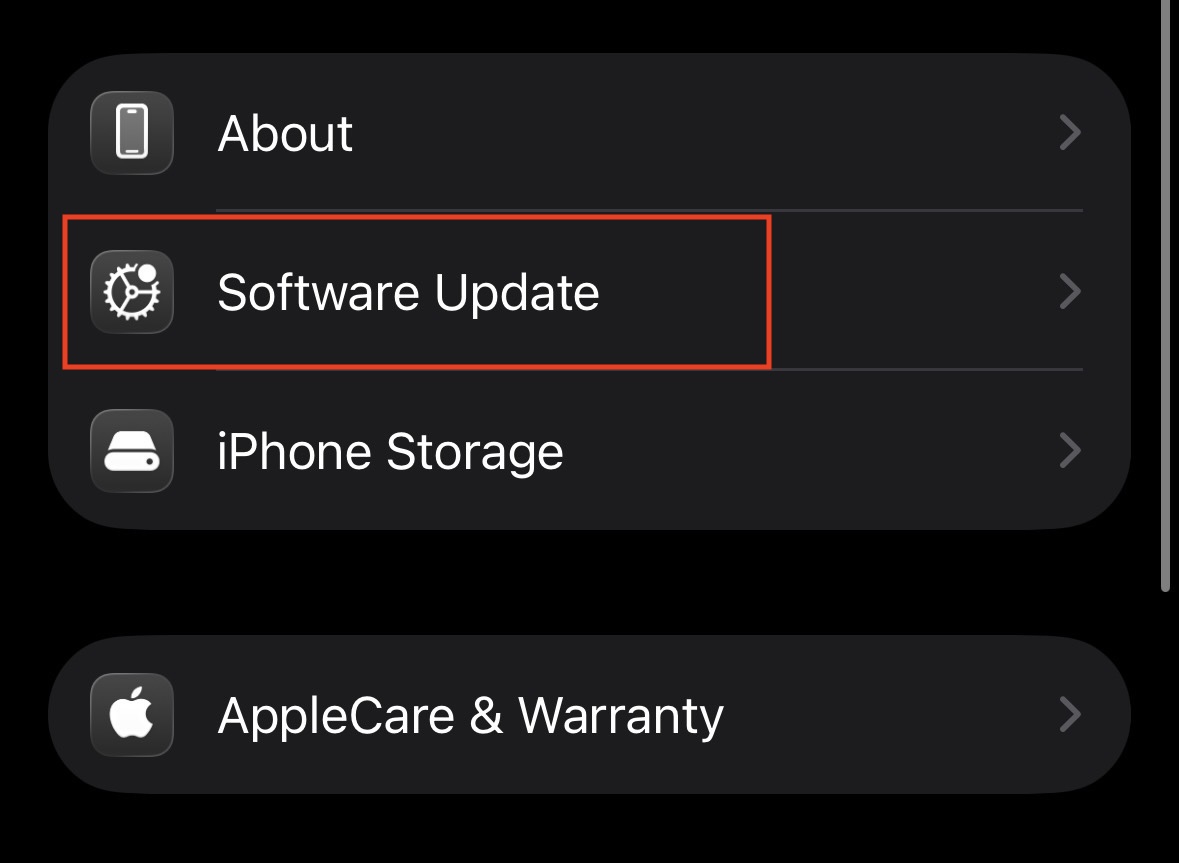
7. Update iOS 19 Firmware
The iPhone 17 Pro Max is new hardware, and new hardware often has teething issues with early software builds. Apple frequently releases updates to fix bugs related to the Taptic Engine and notification delivery.
- Go to Settings > General.
- Tap Software Update.

- If an update is available (e.g., iOS 19.1 or 19.2), install it immediately.
- After the update, restart your phone and check if the vibration has returned.
8. Test the Taptic Engine Hardware
If you have tried every software fix and the phone is still stone-cold silent, you need to verify if the physical motor is dead.
- Toggle the Mute Switch (Action Button): In the settings for the Action Button, assign it to “Silent Mode.” Press and hold the button. You should feel a distinct “tap” or buzz confirming the mode change.
- System Haptics: Go to Settings > Sounds & Haptics > scroll to the bottom and toggle System Haptics off and on. You should feel a tiny click when you toggle it.
- Timer Test: Open the Clock app, set a timer for 5 seconds, and wait. When it goes off, does it vibrate?
- If none of these produce a physical sensation, your Taptic Engine is likely disconnected or failed.
Final Words
The Taptic Engine in the iPhone 17 Pro Max is integral to the user experience. When iPhone vibration is on but not working, the device feels lifeless and disconnects you from important alerts. In 99% of cases, the culprit is the hidden Accessibility > Touch > Vibration toggle or a confusing Focus Mode configuration. By methodically working through these steps, you can usually force the software to recognize the hardware again.
However, if you have performed a “Reset All Settings” and still feel zero feedback from the device—even when toggling System Haptics, you are likely facing a hardware defect. In this case, since the iPhone 17 Pro Max is a 2026 device, it will still be under Apple’s limited warranty or AppleCare+. Contact Apple Support immediately for a repair or replacement.
ALSO READ:
- Alarms Access is OFF Won’t Disappear? Here’s How to Fix It
- iPhone 17 Bluetooth Not Working After Update? Try These Fixes
- iPhone 16 Car Bluetooth Audio Not Working? Fixes That Actually Work
- iPhone 17 Pro Signal Issues: How to Fix Network & Connectivity Problems
- Auto Rotate Not Working on iOS 26? 10 Proven Ways to Fix It Fast